

Have you checked in for a flight, ordered food from a touchscreen, or used a digital directory in a shopping mall? Each is an example of a kiosk: a dedicated point where people can access information, complete transactions, or use a specific service.
Modern kiosks range from staffed booths to self-service digital terminals built around tablets, PCs, touchscreens, and specialized hardware. For businesses, deploying the interface is only part of the job. Digital kiosk devices also need to stay focused on their intended workflow and remain manageable over time.
This guide explains what kiosks are, how kiosk machines work, the major types and use cases, and how organizations manage digital kiosk devices.
Key Takeaways
Kiosk mode transforms smartphones, tablets, computers, and browsers into secure, purpose-built devices by limiting users to approved applications, websites, and business functions.
- Choose the Right Kiosk Type: Single-app mode supports one dedicated task, multi-app mode provides controlled access to selected applications, and browser kiosk mode limits users to approved websites.
- Prevent Device Misuse: Kiosk mode blocks access to system settings, files, unauthorized applications, and unrelated features, helping devices remain focused on their intended purpose.
- Improve Customer and Employee Experiences: Self-service terminals, point-of-sale systems, digital signage, check-in stations, learning devices, and frontline tools can deliver faster and more consistent interactions.
- Strengthen Security and Reduce Costs: Restricting device functionality helps reduce unauthorized usage, data exposure, malware risks, unnecessary data consumption, maintenance requirements, and support requests.
- Use MDM for Scalable Deployment: A centralized MDM solution enables IT teams to remotely configure, monitor, update, troubleshoot, and secure kiosk devices across multiple operating systems and locations.
What is a kiosk?
A kiosk is a small physical structure, often a booth, stall, computer station, or standalone terminal, placed in a high-traffic public area to provide information, goods, or services to passersby.
While traditional kiosks are small shops manned by a person, modern kiosks are interactive digital machines that allow users to perform tasks independently. These tasks include registering visitors or contractors in a corporate office, checking out at a grocery store, printing tickets, and finding directions in a shopping mall.
What does kiosk mean?
The word “kiosk” originates from the Persian word kūshk, which means a palace, villa, or open-air garden pavilion. Today, it refers to a small, often temporary or freestanding, booth or terminal set up in a public space.
Traditional vs modern kiosk
- Traditional kiosk: A small, open-fronted physical booth staffed by one or two people. You typically see these on city sidewalks or in malls selling newspapers, magazines, street food, or concert tickets.
- Modern kiosk: A self-service digital terminal featuring a computer screen (usually a touchscreen). Requiring no attendant, the machine relies on software and hardware to guide the user through a transaction or provide information.
What are kiosks used for?
Kiosks bridge the gap between a business and its customers by making services instantly accessible. They are used for dispensing information, processing payments, facilitating self-checkout, printing tickets, providing Wi-Fi, and displaying digital advertisements.
For IT teams, a digital kiosk is also a managed endpoint. Beyond designing the customer-facing workflow, administrators need to control which applications or websites are available, apply device restrictions, distribute updates, and troubleshoot devices without routinely accessing them onsite.
What is a kiosk machine?
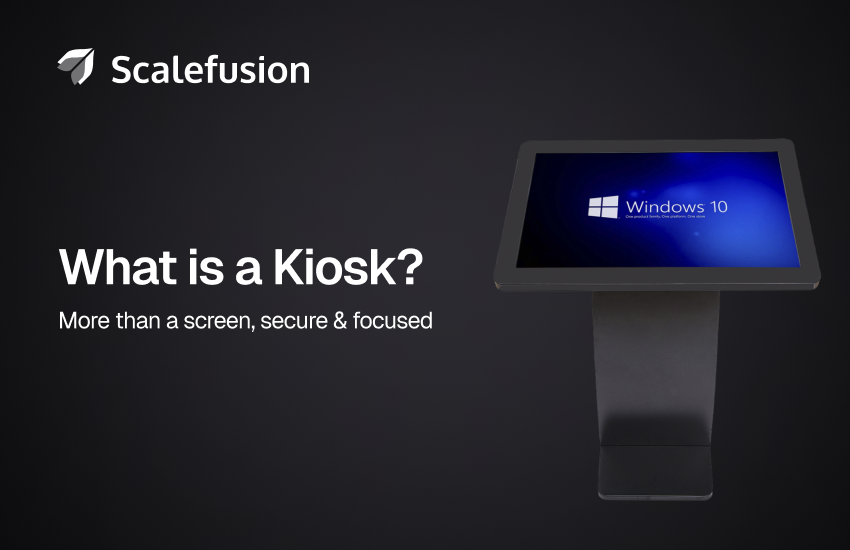
A kiosk machine is a self-service, interactive digital terminal designed to provide information, process transactions, or deliver services without human assistance. Powered by a combination of physical hardware (like touchscreens and card readers) and locked-down software, these automated machines allow users to independently complete tasks like checking into a flight, ordering food, or paying a bill.
Kiosk vs kiosk machine
Kiosk is a broad term for a small physical structure, station, or digital interface (manned or unmanned) providing information or service. A kiosk machine is the specific automated, interactive, and self-service hardware terminal, such as a touchscreen computer, used to carry out that function. All kiosk machines are kiosks, but not all kiosks are kiosk machines.
| Feature | Traditional Kiosk | Kiosk Machine | Vending Machine |
|---|---|---|---|
| Human staffing | Requires an attendant | Self-service (Unmanned) | Self-service (Unmanned) |
| Primary function | Selling physical goods/services manually | Digital transactions, info, or service automation | Dispensing physical goods instantly |
| Interaction | Conversational | Digital touchscreen/UI | Buttons/Keypad |
| Technology level | Low (physical structure) | High (software, network, computing) | Medium (mechanical dispensing, payment tech) |
| Example | Street newspaper stand | Airport check-in terminal | Snack or soda dispenser |
How kiosk machines differ from ordinary computers/tablets
Though a kiosk machine may look like a large tablet or contain standard PC hardware, it is heavily restricted. Kiosk machines run on kiosk software, which locks the device to a single application or a specific set of applications. A user cannot browse the open web, change settings, or close the application like they could on a personal computer.
Kiosk machine components
A standard interactive kiosk machine consists of two main components: hardware and software.
Hardware components
- Enclosure: The protective outer shell made of steel or aluminum.
- Display: The interactive touchscreen monitor for user input.
- Computer: The internal processing unit (CPU/RAM) running the system.
- Peripherals: Built-in devices like printers, scanners, and card readers.
- Connectivity: Network hardware including Wi-Fi antennas, routers, and ethernet ports.
Software components
- Operating system: Base platform, typically Windows, Android, iOS, or Linux.
- Kiosk application: Front-end software or web app with UI, menus, and workflow.
- Lockdown software: Security software restricting user access to the OS (kiosk mode).
- Management software: Centralized console remotely managing and securing kiosks.
- Device drivers: Code bridging the OS to hardware peripherals for seamless operation.
How does a kiosk work?
A typical interactive kiosk follows an input, processing, and output workflow. Depending on the application, it may connect to backend systems to retrieve information or process transactions. For shared or public kiosks, the application should also be configured to end each session appropriately and clear sensitive user data before the next interaction.
- User interaction: The process begins when a user approaches the machine and engages via a touchscreen, barcode scanner, or card reader to initiate a task.
- Kiosk application: The locked-down software guides the user through an intuitive, step-by-step interface. It displays menus, forms, or maps based on the user’s input.
- Backend connection: The kiosk securely transmits inputs to a central server or database where applicable.
- Transaction/service: The machine completes the physical or digital request, processing a payment, printing a badge or receipt, or triggering a backend action.
- Session reset: For security and privacy, the application should clear sensitive user data and reset to a default idle screen.
What are the main types of kiosks?
Kiosks are specialized tools designed to streamline specific customer journeys and business workflows.
- Self-service kiosk: General terminals that let users handle actions like retail check-out or wholesale warehouse order pickups without staff help.
- Information kiosk: Static or touch-screen units providing public access to information, databases, or public services.
- Interactive kiosks: Touchscreen units that allow users to actively browse product catalogs, customize configurations, or play with engaging displays.
- Payment kiosk: Terminals equipped with card readers, cash validators, or UPI options to clear bills or municipal dues without human cashiers.
- Retail kiosks: In-store units used to check inventory, purchase items not currently on the shelf, or join loyalty programs.
- Healthcare kiosks: Hospital and clinic stations used for patient check-in, updating personal insurance forms, or managing queue tokens.
- Wayfinding kiosks: Digital map terminals deployed at sprawling campuses to navigate complex spaces.
- Visitor management kiosks: Office and corporate lobby stations used to sign in guests, print security badges, and notify employees of arrivals.
- POS kiosks: Dedicated transaction stations tied directly to a register system for fast self-checkout and payment.
- Digital signage kiosks: Primarily display-focused, non-interactive units running looping promotional ads, dynamic menu boards, schedules, or brand announcements.
Where are kiosks used?
Kiosks are used in high-traffic environments to automate routine tasks, reduce wait times, and optimize operational efficiency.
Entertainment: Movie theaters, amusement parks, and sports stadiums for ticket dispensation.
Retail: Checkout lanes, customer service desks, and department aisles.
Restaurants: Front entrances and drive-thru lanes for QSR food ordering and digital menus.
Healthcare: Clinic and hospital lobbies for patient self-check-in and medical history updates.
Airports: Departure terminals for flight check-in, dynamic baggage tagging, and self-bag drop.
Hospitality: Hotel front desks for contact-free room check-in, key card dispensing, and virtual concierges.
Education: University student centers and administrative offices.
Banking: Traditional bank lobbies and 24/7 vestibules (e.g., ATMs and interactive teller machines).
Government: State and local agency offices and transit hubs for licence renewals and public record access.
Offices: Lobby reception and corporate lobby security desks.
What are the benefits of kiosks?
Implementing kiosk technology offers measurable operational efficiency and shifts routine transactions to automated digital systems.
Remote troubleshooting: Allows IT teams to centrally push software updates, monitor kiosk health, and reboot terminals, reducing the need for onsite intervention.
Faster service: Accelerates completion times for routine transactions, ordering, and administrative forms.
Reduced wait times: Distributes customer traffic across multiple active terminals to manage queues during peak hours.
Lower workload: Automates and offloads repetitive data entry and check-in tasks.
24/7 availability: Provides round-the-clock access to essential services, payments, and product ordering.
Consistent experience: Offers a standardized UI that delivers identical service quality and branding.
Better data collection: Captures customer input, behavior, search patterns, and transaction histories directly at the point of interaction.
Improved efficiency: Optimizes facility throughput and resource management by digitizing physical paperwork.
What devices can be used as kiosks?
Many standard devices can be repurposed into kiosks using mobile device management (MDM) software. The specific device chosen directly impacts upfront costs, maintenance overhead, and security configuration options.
Touchscreen PCs: All-in-one commercial monitors or standard desktops combining processing hardware and large interactive displays.
Android tablets and TVs: Cost-effective, highly customizable displays widely used for their flexible hardware options.
Apple iPads: Premium tablets favored for sleek aesthetics, reliable performance, and robust native security.
Windows mini PCs: Powerful, compact computers preferred for running complex enterprise software and deep peripheral integration.
POS terminals: Dedicated point-of-sale units featuring integrated receipt printers and card readers.
Rugged devices: Industrial-grade, heavy-duty hardware built to withstand harsh weather, extreme temperatures, and high-impact environments.
How to turn a device into a kiosk
To turn a standard device into a dedicated kiosk, you must lock down the device so users can only access a specific application or website.
1. Built-in OS features
Operating systems provide different native lockdown options. Features such as Guided Access or Android App Pinning can suit temporary or locally configured use. Platforms such as Windows also provide dedicated kiosk capabilities. Organizations managing fleets typically need centralized policy deployment and support in addition to the underlying OS controls.
2. MDM solutions
MDM software enables IT administrators to remotely lock extensive device fleets into dedicated single-app or multi-app kiosk modes. Through a centralized dashboard, teams can securely push over-the-air application updates, deploy specific network policies, and apply essential device restrictions to keep public-facing hardware focused on its intended business function.
3. Custom kiosk browsers
Web-based kiosk deployments can use a kiosk browser lockdown to limit navigation to approved websites or web applications. This works well when the kiosk experience is entirely browser-based, although additional device management controls may be needed when IT also needs to restrict or administer the underlying endpoint.
4. Custom OS images
Custom OS images can give organizations tight control over a dedicated kiosk build, but they also introduce additional maintenance responsibilities. IT teams need a defined process for validating and distributing OS and security updates rather than assuming the device will follow the manufacturer’s standard update lifecycle.
Why choose MDM for kiosk device management?
For a small deployment, a built-in operating-system feature or locally configured kiosk application may be sufficient. As kiosk fleets grow, however, IT teams also need a way to apply configurations consistently, distribute applications and updates, and troubleshoot devices without visiting every location.
MDM solution can provide that centralized management layer. Available kiosk restrictions and management capabilities vary by operating system, device type, enrollment method, and management platform.
- Overcomes built-in OS limits: Native tools like Guided Access or App Pinning do not support scalability because they require manual, physical configuration on every single device.
- Reduces manual device administration: Local-use lockdown features can suit individual devices, while larger deployments typically require centralized enrollment, policy assignment, application distribution, updates, and support.
- Adds device-level controls beyond the browser: MDM can complement the kiosk browser by applying supported device-level restrictions, distributing applications and configurations, managing connectivity settings, and administering the endpoint remotely.
- Enables centralized deployment: IT admins can enroll, configure, and lock down devices from a unified web console, reducing deployment timelines and upfront operational friction.
- Strengthens kiosk configuration controls: MDM gives IT teams a centralized way to apply supported device restrictions, security settings, and kiosk policies across managed endpoints.
- Applies supported device restrictions: Depending on the operating system, device type, and management mode, MDM policies can restrict selected device controls, applications, connectivity settings, and other user-accessible functions.
- Improves fleet visibility: Centralized management can give IT teams visibility into supported device-health and operational information, helping them identify kiosks that may require attention.
- Supports remote troubleshooting: Remote cast and control helps IT teams troubleshoot supported managed devices by viewing device screens remotely and taking supported remote actions without requiring physical access to the kiosk.
Next step: Simplify kiosk management with Scalefusion
For organizations managing multiple kiosk endpoints, Scalefusion UEM provides centralized kiosk management capabilities for supported devices. IT teams can configure dedicated device experiences through managed profiles, distribute applications, and remotely support kiosk endpoints, with available controls varying by operating system and enrollment method.
Scalefusion helps IT teams configure and manage supported Android, iOS/iPadOS, and Windows devices for dedicated kiosk workflows from a single dashboard. Teams can use supported single-app or multi-app configurations, distribute business applications, and troubleshoot managed devices remotely, with capabilities varying by platform.


FAQs
1. What is the main purpose of a kiosk?
The primary purpose of a kiosk is to provide convenient, self-service access to information, goods, or services. By automating routine tasks like taking orders, processing payments, or registering visitors, businesses can reduce wait times, lower operational costs, and improve the overall customer experience.
2. What are the common examples of a kiosk?
Everyday kiosk examples include self-checkout screens at grocery stores, digital ticket dispensers at movie theaters, interactive wayfinding maps in shopping malls, patient check-in tablets at clinics, and automated boarding pass terminals at airports.
3. What is the difference between a kiosk and an ATM?
An ATM is actually a specific type of highly secure financial kiosk designed primarily for dispensing cash and managing banking transactions. Kiosk is simply a broader umbrella term that includes ATMs alongside food ordering screens, information terminals, and retail displays.
4. What does kiosk mode mean?
Kiosk mode is a software feature or device management setting that restricts a device to one application or a defined set of approved applications and functions. Depending on the platform and configuration, additional controls can restrict access to system settings, navigation, websites, or hardware functions.
5. How much does a digital kiosk cost?
Digital kiosk costs vary widely based on the device, enclosure, touchscreen, payment hardware, printers or scanners, installation, connectivity, software licensing, and support requirements. Tablet-based kiosks are generally simpler deployments than custom freestanding or outdoor terminals.
6. Are public kiosk machines secure?
Public kiosks can be secured through a combination of device lockdown, application controls, session-management practices, secure payment architecture, physical protections, and ongoing maintenance. Kiosk or device-management software can restrict access to the underlying device, but application and payment-data handling must be secured separately.
7. What is the difference between single-app and multi-app kiosk?
Single-app kiosk mode restricts a device to one designated application or experience. Multi-app kiosk mode provides access to a defined set of approved applications while restricting other applications or device functions. Exact behavior and available restrictions depend on the operating system and management configuration.

