

You can set up Apple TV in kiosk mode by using Apple Business Manager with an MDM solution to enroll the device, restrict settings, control apps, and keep Apple TV focused on approved content or display use. This is useful for digital signage, conference rooms, classrooms, hospitality, retail, and shared-screen environments where organizations need Apple TV devices to run reliably without unauthorized changes or user interference.
Key Takeaways
Apple TV kiosk mode helps organizations turn standard Apple TVs into managed, purpose-specific displays for digital signage, conference rooms, retail promotions, and other dedicated business applications.
- Prepare Devices for Management: Complete the APNs and Automated Device Enrollment setup, supervise the Apple TVs, and enroll them in a UEM platform before applying kiosk policies.
- Create a tvOS Device Profile: A device profile is required to configure applications, restrictions, network settings, security controls, and other policies across managed Apple TVs.
- Choose the Appropriate Kiosk Mode: Single-app mode locks the Apple TV to one dedicated application, while multi-app mode allows users to access only an approved selection of apps.
- Customize the Viewing Experience: IT teams can organize the home screen, create app folders, manage accessibility options, control device sleep, and configure Wi-Fi, AirPlay, remote access, and software updates.
- Apply Policies at Scale: Administrators can assign a tvOS profile to individual devices or device groups, with future profile changes automatically reaching every associated Apple TV.
Apple TV kiosk mode is a practical way to turn Apple TV devices into managed, purpose-specific displays for business use. By using kiosk mode, organizations can turn their Apple TVs into display boards, digital signage, and interactive terminals across various use cases.
Naturally, the next question is, how to set up Apple TV kiosk mode?
How to Set Up Apple TV in Kiosk Mode Using Scalefusion
- Prepare Apple TV for management: Set up the APNs certificate, Apple Business Manager, and Automated Device Enrollment.
- Create a tvOS device profile: Build a profile to apply apps, restrictions, network settings, and kiosk policies.
- Select kiosk mode: Choose Single App Mode for one app or multi-app mode for an approved app set.
- Configure apps: Add allowed apps, blocked apps, App Store apps, or enterprise tvOS apps.
- Customize layout and settings: Configure home screen layout, AirPlay, TV Remote, Wi-Fi, sleep, and update controls.
- Apply the profile: Assign the tvOS profile to Apple TV devices or device groups.
- Test before rollout: Verify the app launches, restrictions apply, sleep behavior works, and remote changes sync correctly.
In this blog, we’ll lay out a step-by-step guide on how to configure your Apple TVs in kiosk mode with ease through Scalefusion.
Why does Apple TV need kiosk mode?
Apple TV kiosk mode locks the device into a single or a specific set of apps to make it secure and functional for public or corporate environments. This tailors the user experience to a particular task assigned to that device. It also helps restrict unauthorized access or changes to the device, such as accessing settings, exiting to the home screen, and ensuring the Apple TV displays dedicated content like digital signage or a specific app.
Kiosk mode turns regular Apple TVs into dedicated task units that can be further customized to fit the organization’s needs.
Step-by-step guide to setting up kiosk mode for Apple TV
To enable kiosk mode for your Apple TV, you need to create a tvOS profile first. Once that is done, you can configure the profile to run it in single-app or multi-app kiosk mode. Let’s see how you can configure both in the same order.
Creating tvOS Device Profile
A minimum of one tvOS Device Profile is mandatory to manage your Apple TV devices and set up kiosk mode. Without a Device Profile, you cannot apply any policies to the device. You can create as many Device Profiles as you want, depending upon your organization’s structure.
Make sure you have completed the APNs certificate setup and Automated Device Enrollment through Apple Business Manager. (DEP is the legacy name for this enrollment workflow.)
| Kiosk Mode | What It Does | Best For | Example |
|---|---|---|---|
| Single App Mode | Locks Apple TV to one selected app | Dedicated display or signage workflows | Conference room display, menu board, digital signage app |
| Multi-app kiosk mode | Allows only selected apps and hides or blocks others | Shared-screen environments needing a limited app choice | Classroom media apps, hospitality apps, approved meeting-room apps |
Configuring kiosk mode
Select the Device Profile that has been set up and go to Edit Profile. From here, you can start applying policies to and create a kiosk mode policy for your Apple TV.
Multi-app kiosk mode
Here, you can select the apps you want to run on your Apple TV, effectively shutting off all other services and apps.
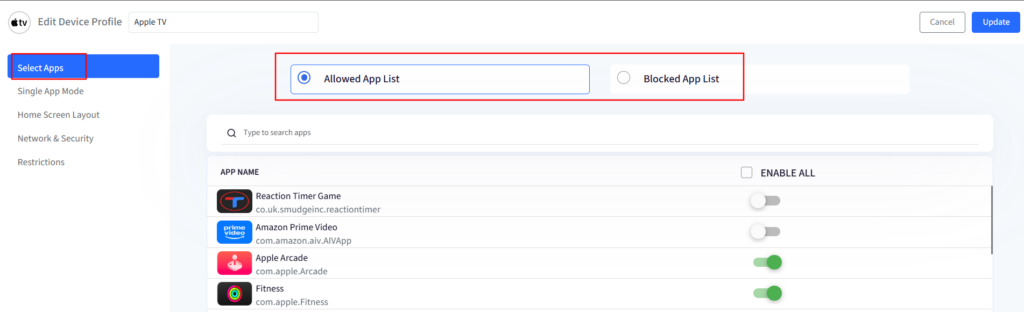
Step 1: Under the Select Apps section, you can choose:
- Allowed App List: Strictly allows the selected apps to be visible on the device.
- Blocked App List: Strictly disallows the selected apps. All other apps will be visible to the user.
Step 2: The list of apps that you can choose from contains:
- A prepopulated list of common apps on your Apple TV.
- All App-Store apps that are currently installed across the devices that are already enrolled.
- The apps that you have added to your dashboard from App Management > Apple Apps > App Store and published to the Device Profile.
- The apps that you have uploaded to the dashboard from App Management > Enterprise Store > tvOS apps and published to the Device Profile.
Single App Mode
With Single App Mode, you can turn your Apple TV into digital signage for your conference rooms and meeting spaces.
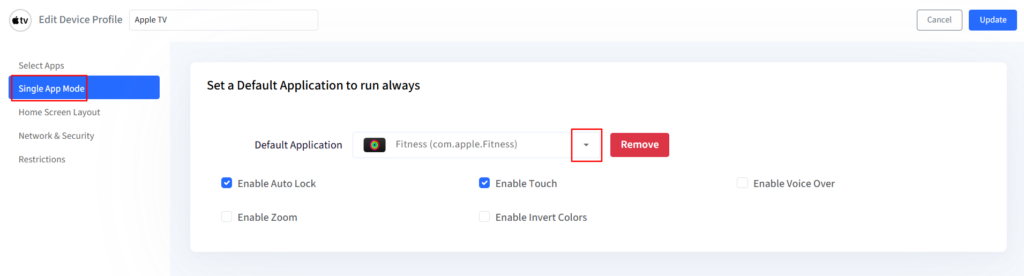
Step 1: From the Default Application dropdown, select the app that you want to set in Single App Mode. You can choose one app from the apps that you have allowed in the Select Apps section of Device Profile.
Step 2: Additionally, you can also control various settings when in Single App Mode, such as Enable Auto Lock, Enable Touch, Enable Voice Over, Enable Zoom, and Enable Invert Colors.
Note that if you have set an app that you have enabled in the Apple App Store or Enterprise Store, then first the app will be installed, if not present, on the device, and then the device will be set in Apple TV single app mode.
| Use Case | Recommended Mode | Why |
|---|---|---|
| Digital signage | Single App Mode | Keeps Apple TV locked to the signage app |
| Conference room display | Single App Mode | Keeps the device focused on room display or meeting content |
| Classroom media device | Multi-app kiosk | Allows only approved learning/media apps |
| Hospitality room display | Multi-app kiosk | Allows approved guest-facing apps while blocking settings and unrelated apps |
| Retail promotion screen | Single App Mode | Displays one dedicated branded app or content feed |
| Shared office screen | Multi-app kiosk | Allows a controlled set of meeting, display, or casting apps |
Home Screen Layout
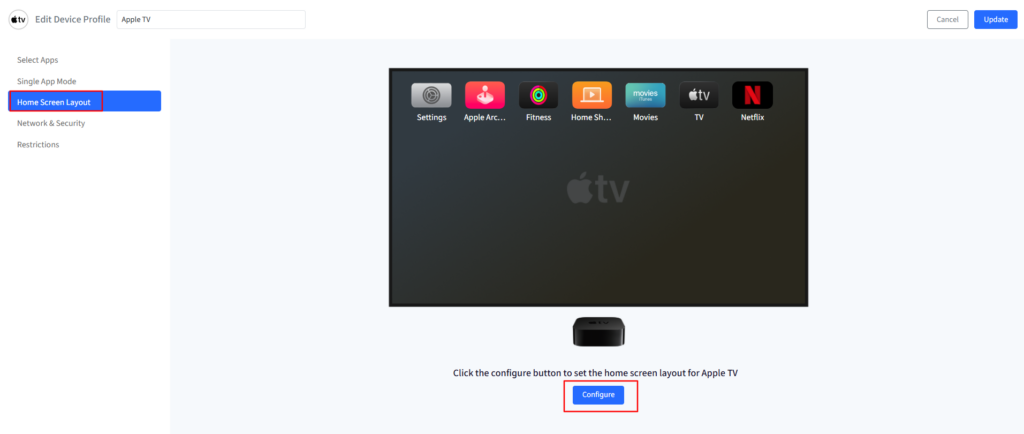
From here, you can configure the home screen layout of your Apple TV.
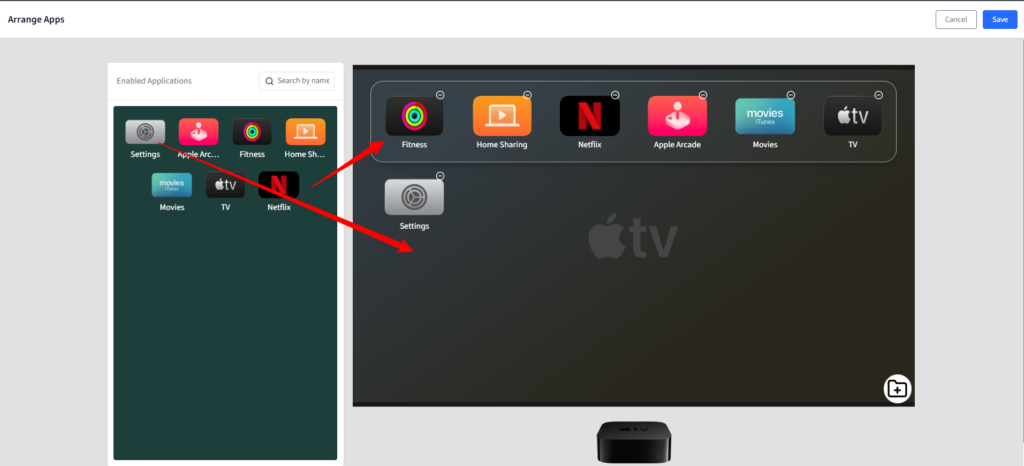
Step 1: Click the Configure button to open the Arrange App screen.
Step 2: On the left-hand side, you will see the apps that you have enabled in the Select Apps section.
Step 3: Drag and drop the apps on the home screen as required.
Step 4: You can also create an App folder.
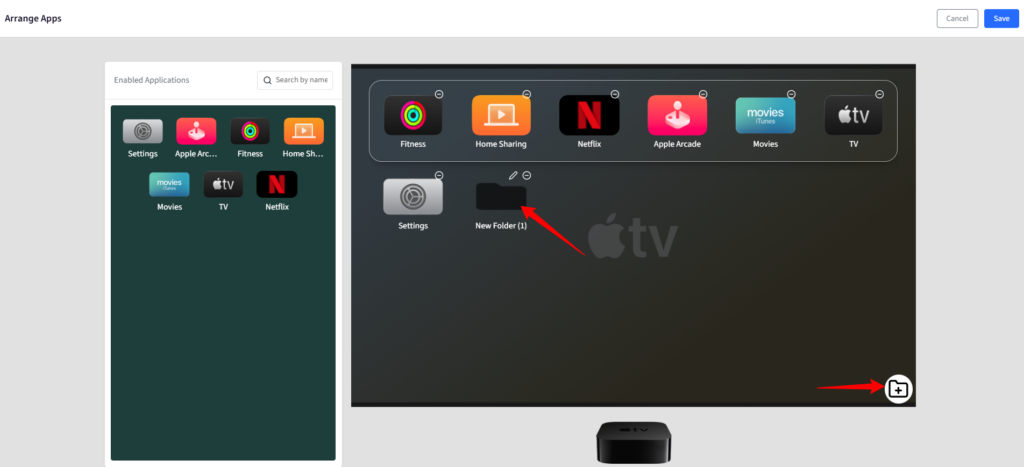
Step 5: Once done, click Save.
Network & Security
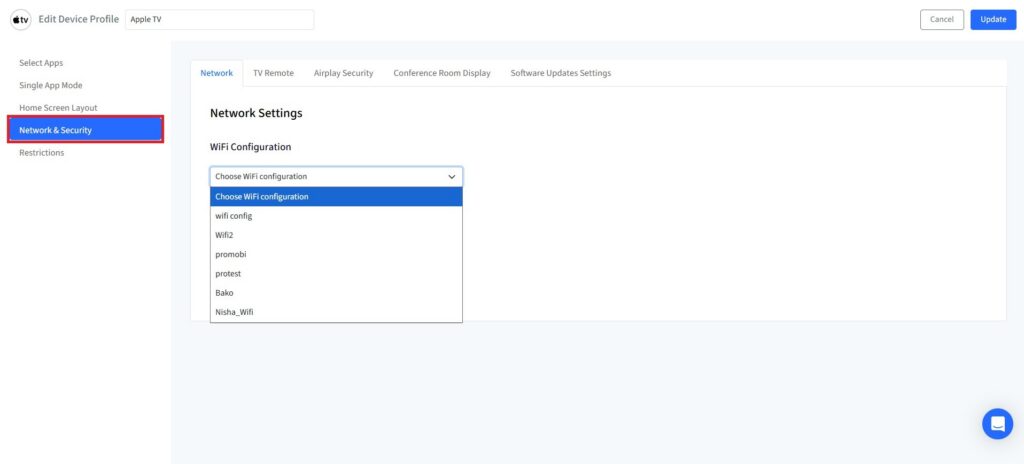
Additionally, you can configure network settings such as Wi-Fi configuration, TV Remote, AirPlay Security, Conference Room, and Software Update Settings.
Restrictions
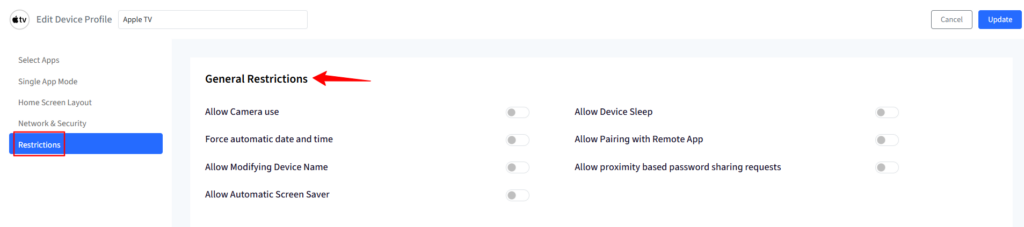
You can also impose certain restrictions on the devices. These are further categorized into two:
- General Restrictions: A collection of common settings that include Allow Camera Use, Allow Device Sleep, Force Automatic Date and Time, Allow Pairing with Remote App, Allow Modifying Device Name, Allow proximity based password sharing requests, and Allow Automatic Screen Saver.
- Media Restrictions: A collection of media-related settings that include Region Code, Allow content ratings for movies, TV shows, and Apps, and Allow playback of explicit music, podcasts, and iTunes.
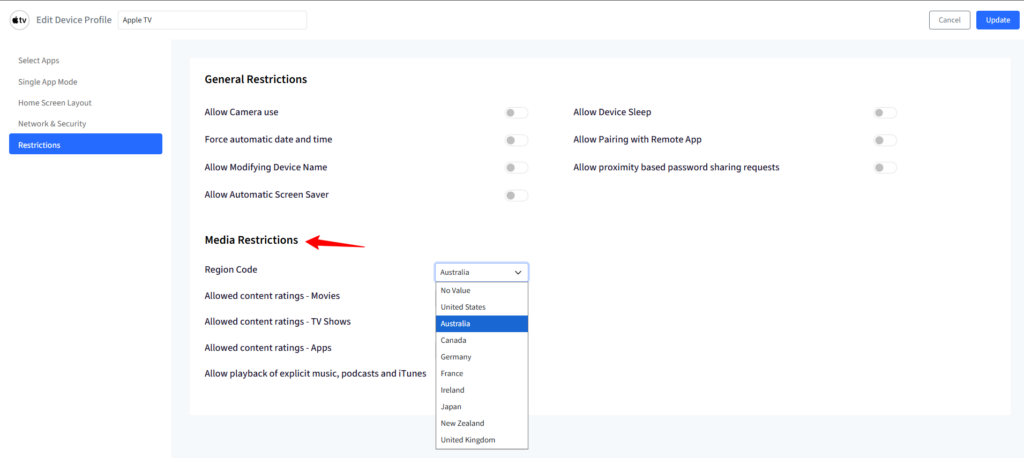
Once you are done editing the profile, click Update in the top right corner of the screen, and you are good to go!
Applying Device Profile to tvOS Device or Device Group
Your tvOS profile can now be applied to all enrolled Apple TV devices, which applies the configured kiosk policy to selected Apple TV devices as per your specifications.
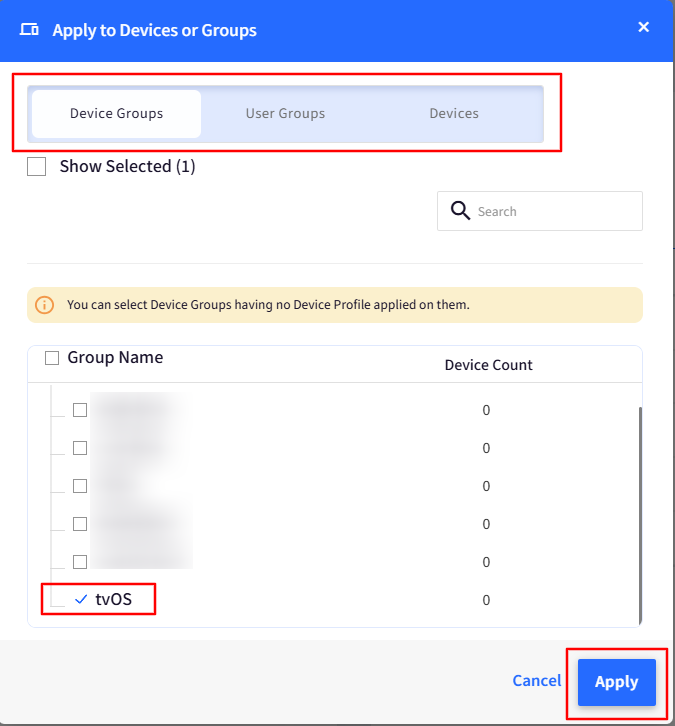
The Device Profile can be applied to one or multiple devices or Device Groups. Any changes in the device profile are automatically applied to all the devices in that profile or the device group.
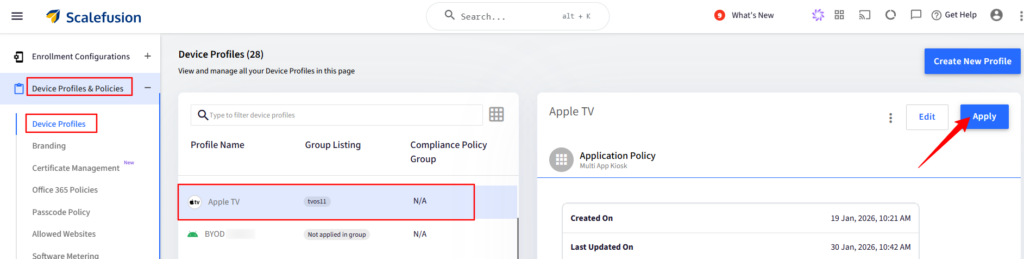
Step 1: Navigate to Device Profiles & Policies > Device Profile and select the respective tvOS device Profile.
Step 2: Click on the Apply button on the right-hand side.
Step 3: In the Apply Profile window, select either the Device Groups/User Groups/Devices tab and click Apply.
Troubleshooting Common Apple TV Kiosk Mode Issues
| Issue | Likely Cause | Fix |
|---|---|---|
| Apple TV does not enter Single App Mode | App is not installed or not assigned correctly | Install or assign the app before applying the profile |
| App does not appear in the dropdown | App has not been added to Apple Apps or Enterprise Store | Add and publish the app to the tvOS profile |
| Device does not receive the profile | Enrollment or APNs communication issue | Check APNs certificate, network connectivity, and MDM enrollment |
| Device goes to sleep during signage | Sleep/auto-lock setting still enabled | Adjust sleep, auto-lock, or screen saver restrictions |
| Users can access unwanted apps | App allow/block list is incomplete | Review Allowed App List and Blocked App List |
| AirPlay behavior is not as expected | AirPlay security setting is misconfigured | Review AirPlay Security and Conference Room settings |
Turn your Apple TVs into dedicated kiosks with ease
Apple TVs are becoming increasingly common across multiple industries, and so the need for a sophisticated yet easy-to-implement kiosk mode for them is crucial. From conference rooms to retail displays, Apple TVs have upped the game and brought the Apple ecosystem to the kiosk mode user base.
Scalefusion provides you with the tvOS management features that allow you to turn your Apple TVs into sophisticated kiosk devices that serve their purpose, are easy to manage, and supports security and compliance efforts when configured with the right policies, access controls, and monitoring. From the first device enrollment to its retirement, Scalefusion’s Apple TV MDM software provides you with the support you need.


FAQs
1. What is needed to enable Apple TV kiosk mode?
To enable kiosk mode, the Apple TV must be supervised by an MDM/UEM solution and running tvOS 10.2+. A device profile must be configured with the specific app, or apps that will be locked to the screen, which must be installed on the device.
2. How do I exit kiosk mode?
To exit the kiosk mode, you must remove the kiosk policy through your MDM portal to restore full functionality.
3. Does kiosk mode prevent the device from going into sleep?
Yes, you can configure the device policy through your MDM solution to disable screen sleep for constant display or set a specific period of time for the device to go into sleep mode, usually after work hours.
4. What is the difference between Single App Mode and multi-app kiosk mode on Apple TV?
Single App Mode locks the Apple TV to one selected app, hiding the rest of the interface — ideal for signage or a dedicated conference-room display. Multi-app kiosk mode allows a curated list of approved apps while blocking everything else, which suits shared screens like classrooms or hospitality rooms where users need a small menu of options.
5. Does Apple TV kiosk mode require Apple Business Manager?
Yes. Apple Business Manager is used to assign Apple TVs to your MDM/UEM server and enable Automated Device Enrollment, which is a prerequisite for applying kiosk policies at scale.
6. Can Apple TV kiosk mode be used for digital signage?
Yes. Single App Mode is commonly used to run a dedicated signage app so the Apple TV displays only that content, with no access to the home screen or other apps.
7. Can I manage Apple TV apps remotely with MDM?
Yes. Through a tvOS device profile, IT teams can remotely install, update, allow, or block apps across all enrolled Apple TVs without physically touching each device.
8. Can I configure AirPlay in Apple TV kiosk mode?
Yes. AirPlay Security and Conference Room settings can be configured within the same tvOS device profile used for kiosk mode, letting you control who can cast to the device.
9. What happens if the selected app is not installed?
If the app chosen for Single App Mode is available through the Apple App Store or your Enterprise Store but not yet on the device, the MDM will install it first, then apply Single App Mode.
10. Is Apple TV kiosk mode secure?
Kiosk mode restricts access to unauthorized settings, apps, and exit paths, which supports security goals — but overall security also depends on your organization’s access controls, monitoring, and policy configuration, not the feature alone.

