

Frontline workers rely heavily on mobile devices to perform everyday tasks across retail stores, warehouses, delivery routes, healthcare facilities, and other field environments. However, giving workers unrestricted access to a smartphone, tablet, or computer may introduce unnecessary applications, settings, and distractions into workflows that are often highly task-specific.
Key Takeaways
- Deploy purpose-built frontline devices: Kiosk mode restricts devices to one or more approved applications so workers can focus on the specific tools required for their role.
- Choose the right kiosk mode: Single-app mode works well for dedicated workflows, while multi-app kiosk configurations support roles that require several approved business applications.
- Support different frontline environments: Retail, logistics, healthcare, education, hospitality, and field service teams can use kiosk devices for task-specific workflows.
- Manage deployments centrally: Scalefusion allows IT teams to configure kiosk policies and apply them to managed devices directly from the Scalefusion dashboard.
- Troubleshoot distributed devices remotely: Scalefusion’s Remote Cast & Control helps IT teams view and troubleshoot supported managed devices without requiring physical access.
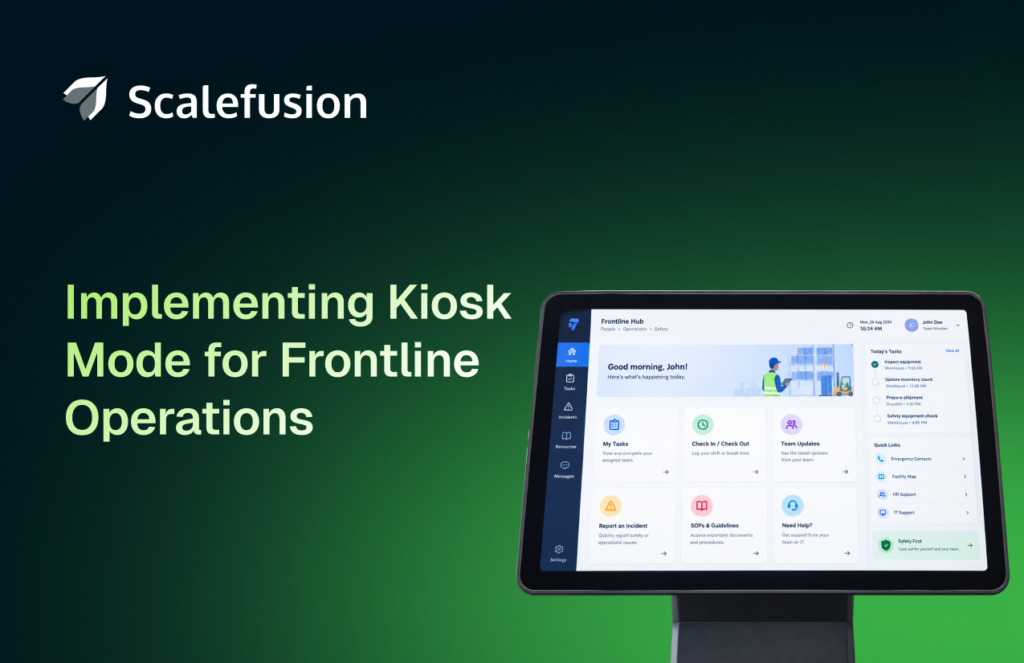
The need for mobile-first workflows and greater control over shared, task-specific devices is growing alongside the deskless workforce. According to an article published on the World Economic Forum website, approximately 2.7 billion workers globally fall into the deskless category, accounting for roughly 80% of the global workforce.[1]
As more frontline workflows rely on mobile and shared devices, IT teams need practical ways to keep those endpoints focused on the applications and functions required for the job.
Kiosk mode helps organizations turn general-purpose hardware into purpose-built devices. Instead of giving employees access to everything on the device, IT teams can restrict devices to one application or a defined set of business applications required for the job.
With a Unified Endpoint Management (UEM) solution such as Scalefusion, organizations can centrally configure and manage kiosk devices across supported platforms. They can also apply application and device policies and remotely troubleshoot supported endpoints.
This guide explains why kiosk mode matters for frontline operations, where businesses can use it, and how IT teams can implement and support kiosk devices with Scalefusion.
What is a frontline workforce?
A frontline workforce is a group of employees who interact directly with customers or perform hands-on, day-to-day operations away from a traditional desk or corporate office. Frontline workers perform their jobs directly where products are manufactured, services are delivered, customers are supported, or physical operations take place.
A frontline workforce includes retail associates, warehouse employees, delivery drivers, healthcare staff, hospitality workers, field technicians, manufacturing teams, and other employees with a deskless role.
The technology requirements of a frontline worker differ significantly from those of a traditional office worker. A warehouse employee may only need an inventory and barcode-scanning application. A driver might require navigation, delivery, and communication tools. A hotel employee may need access to a check-in application and internal communication platform.
In many frontline environments, company-owned or shared devices are deployed for specific business tasks. Since these devices serve defined workflows, workers may not need unrestricted access to every application, setting, or device function. IT teams therefore need a way to provide access to required work tools while limiting functions unrelated to the job.
Kiosk mode provides that control.
How kiosk mode supports frontline operations
Kiosk mode configures a general-purpose device for a specific business workflow by limiting access to the applications and device functions users need for the task.
Depending on the use case, IT teams can configure a device to run one application continuously or provide access to a selected collection of applications. On supported Android deployments, for example, Scalefusion can replace the regular device launcher with its custom launcher and display only applications and browser shortcuts configured through the device policy.
Here is how that approach can support frontline operations.
Create a focused device experience
Frontline workflows are usually task-oriented. Employees may need to scan inventory, process an order, update a delivery status, check a work order, or enter information into a business application. Providing dozens of unrelated applications creates unnecessary steps between the worker and the task. A kiosk configuration helps simplify the experience by presenting only approved work applications.
For a dedicated workflow, IT can use single-app kiosk mode. A warehouse tablet, for example, could continuously run an inventory application. Workers who require multiple tools can use a multi-app configuration instead. A delivery employee might need access to navigation, proof-of-delivery, and communication applications while everything outside that approved application set remains unavailable.
The objective is not simply to restrict device access. It is to create a focused endpoint experience that supports the frontline worker’s actual job.
Control non-business device usage
Company-owned frontline devices are typically purchased for specific operational purposes.
If employees can install unrelated applications, browse unrestricted websites, or use bandwidth-heavy consumer services, organizations can lose control over how corporate endpoints and mobile data are being used.
A dedicated kiosk lockdown software helps IT restrict device access to approved business applications and web resources. This creates a more predictable environment and can help organizations limit non-business use of company-owned devices and their network connections.
The exact restrictions available depend on the device platform, management modes, and configured policies.
Reduce unnecessary access to device functions
Frontline endpoints can contain business applications and access operational data, making unnecessary device access an important consideration.
Kiosk mode can reduce the exposed user surface by limiting which applications and functions workers can reach. Organizations can combine kiosk configuration with additional device restrictions and policies appropriate to the platform and use case.
Kiosk mode should not be treated as a complete security or compliance strategy by itself. Instead, it becomes one layer within the wider device management approach used to control frontline endpoints.
Industry use cases of kiosk mode for the frontline
Frontline roles vary widely, so there is no single kiosk configuration that fits every organization. IT teams should map the configuration to the tasks workers actually perform.
General frontline
Tablets can serve as dedicated employee time-clock stations. Instead of providing a conventional computer with unrestricted functionality, an organization can configure the device to continuously run its approved attendance or workforce management application. The device remains focused on the intended punch-in and punch-out workflow.
Rugged devices
Organizations using Zebra rugged handhelds and tablets can configure them in kiosk mode for purpose-specific frontline workflows, limiting device access to the applications and functions workers need for their assigned tasks.
Field service
Field technicians commonly use smartphones, tablets, or rugged devices to access work orders, manuals, service applications, customer information, or forms. A controlled multi-app experience can give technicians the applications required for their assignments without presenting the device as an unrestricted general-purpose endpoint.
Healthcare
Healthcare organizations can configure shared or dedicated tablets around specific clinical or administrative workflows.
For example, a device could be restricted to an approved patient check-in application or a selected group of workplace applications. Limiting unnecessary applications and device functions can help IT maintain a more controlled device experience.
Organizations handling regulated healthcare information should separately evaluate the complete technical and administrative controls required by their compliance obligations.
Education
Schools and educational institutions can configure devices around specific classroom, testing, library, or information access workflows.
A tablet could run one learning or testing application, while a multi-app deployment could provide a selected set of instructional resources. The appropriate restrictions depend on the operating system, ownership model, enrollment method, and kiosk requirement.
Hospitality
Hotels, resorts, restaurants, and other hospitality businesses can use kiosk devices for guest check-in, ordering, information access, or other self-check-in kiosk experiences. Single-app configurations can keep the customer-facing device focused on one application or web experience rather than exposing the underlying operating system.
Logistics
Drivers and logistics teams often rely on rugged devices for routing, scanning, proof of delivery, and communication. For example, when setting up kiosk mode on Zebra devices, organizations can limit rugged handhelds and tablets to the applications and functions required for these frontline workflows.
A multi-app kiosk can provide access to the approved tools required for those workflows while restricting unrelated applications. For highly dedicated workflows, single-app mode may be more appropriate.
Kiosk deployment checklist
| Deployment area | Question to answer | Recommended action |
|---|---|---|
| Business workflow | What task must the worker complete? | Document the workflow before selecting kiosk mode. |
| Application access | Does the role need one app or several? | Use single-app mode for dedicated tasks and multi-app mode for broader workflows. |
| Device ownership | Is the device corporate-owned, shared, or customer-facing? | Select the appropriate enrollment and management method. |
| Connectivity | Will the device rely on Wi-Fi, cellular, or offline access? | Test connectivity at every deployment location. |
| Security | Which settings, apps, websites, and peripherals should be blocked? | Apply kiosk restrictions alongside broader security policies. |
| User experience | Can workers complete tasks without unnecessary steps? | Test with representative frontline employees. |
| Remote support | How will IT troubleshoot devices in the field? | Validate Remote Cast & Control and define escalation procedures. |
| AI-enabled workflows | Does the device need an AI assistant, scanner, camera, or voice interface? | Allow only approved tools and test permissions carefully. |
| Updates | How will applications and operating systems be updated? | Establish a staged update and rollback process. |
| Measurement | How will success be evaluated? | Track task completion, support tickets, downtime, and device availability. |
Why use Scalefusion for frontline kiosk management?
Scalefusion gives IT teams several capabilities for building and maintaining purpose-specific frontline kiosk deployments.
Single-app kiosk mode
Single-app mode keeps a device focused on one application. Scalefusion supports single-app kiosk configurations on managed platforms including Android, Windows, and supervised corporate iOS devices, subject to their respective requirements.
This approach fits dedicated use cases such as self-service stations, POS workflows, check-in terminals, or other single-purpose endpoints.
Multi-app kiosk mode
Some frontline roles require more than one application. Scalefusion supports multi-app kiosk experiences for applicable platforms. This allows IT to make an approved collection of business applications available while restricting access outside the intended work environment.
Browser-based kiosk experiences
Some frontline workflows rely on web applications rather than native apps. Scalefusion allows IT teams to configure supported browsers for kiosk use and provide access to designated web resources.
On Android, admins can configure Google Chrome or Scalefusion Browser in Single App Mode with a default launch URL. On iOS, ProSurf can be configured as a kiosk browser on supported supervised corporate devices, with approved websites and a default URL.
Scalefusion also supports browser-based kiosk lockdown on Windows using supported browsers such as Microsoft Edge, Google Chrome, Firefox, Windows Kiosk Browser, and ProSurf.
Digital signage
Scalefusion Presentation Mode enables IT teams to configure supported Android, iOS, and Windows devices as digital signage kiosks. Using the Scalefusion Content Management add-on, organizations can publish and manage content for displays used in customer-facing and workplace environments. Organizations can use these deployments for informational or promotional displays in locations such as stores, reception areas, airports, or other public environments.
Remote Cast & Control
Scalefusion’s Remote Cast & Control gives IT teams visibility into what is happening on supported frontline devices during a support session. Depending on platform support, IT admins can view the device screen, interact with the device remotely, and use session capabilities such as VoIP calling to communicate with the user while investigating an issue. This gives support teams more context than relying only on a worker’s description of the problem.
Remote Commands
Scalefusion’s Remote Commands give IT teams another way to manage frontline devices without requiring physical access. Admins can initiate supported device actions remotely from the Scalefusion dashboard. This helps them handle routine operational tasks across distributed kiosk deployments without starting a Remote Cast & Control session. The commands available vary by device platform and management configuration.
Device Profiles and policies
Kiosk lockdown works best when it is part of a wider management policy.
Scalefusion Device Profiles provide the policy layer through which IT teams can configure device behavior and apply configurations across managed endpoints. This helps organizations maintain repeatable configurations rather than manually setting up every frontline device.
Enabling kiosk mode with Scalefusion
A successful kiosk deployment starts with the frontline workflow, not with the lockdown settings. Before configuring devices, identify what employees need to accomplish, which applications they require, and which device functions should remain accessible.
A practical implementation process looks like this:
1. Define the frontline workflow: Identify the employee role and the exact tasks the device must support. Decide whether the worker requires one application or several.
2. Enroll and organize devices: Enroll supported corporate devices into Scalefusion and organize the deployment according to your operational structure. Device Profiles can be applied to individual devices or Device Groups.
3. Create the appropriate profile: From the Scalefusion dashboard, configure a Device Profile for the target platform and deployment.
4. Select the kiosk experience: Choose a single-app configuration for dedicated devices or an appropriate multi-app configuration when employees need access to more than one application.
Platform support and configuration options vary in Scalefusion.
For Android company-owned devices using Scalefusion as the launcher, kiosk mode can present only the applications and browser shortcuts configured in the policy. Android Single App Mode can also designate an enabled application to run as the default application.
Scalefusion also supports Single App Mode while allowing or blocking applications on supervised, corporate iOS devices. Windows devices can be configured for single-app kiosk use and supported multi-app kiosk deployments.
5. Configure applications and restrictions: Allow the business applications required for the job and configure applicable device settings and restrictions based on the workflow.
6. Apply the profile: Assign the configuration to the appropriate managed devices or device group.
7. Test before wider deployment: Validate the kiosk configuration with a small group of representative devices. Check application behavior, connectivity, required peripherals, user workflows, and recovery procedures before expanding the policy across the frontline fleet.
Testing is especially important for task-critical devices because an overly restrictive policy can be just as disruptive as an overly permissive one.
Managing common kiosk challenges with Scalefusion
Frontline endpoints may operate hundreds of miles away from the IT team. Troubleshooting therefore needs to work without requiring every problematic device to return to a central office.
Some of the common kiosk issues include:
1. Application problems: A business application can freeze, display an error, or behave differently than expected.
Scalefusion solution: Use Remote Cast & Control to remotely view managed device screens and take control on supported devices, helping investigate field device problems.
2. Connectivity problems: If a kiosk cannot reach the network, the worker may lose access to cloud-based applications.
Scalefusion solution: Validate Wi-Fi or cellular configuration, application connectivity, and any network policies relevant to the deployment.
3. Incorrect kiosk configuration: Users may be unable to reach a required application or setting if the policy is too restrictive.
Scalefusion solution: Review the Device Profile and confirm that the required application, website, or function is enabled for the affected workflow.
4. Platform/device compatibility issues: A kiosk policy may not provide the expected behavior if a feature or restriction is not supported by the device, operating system, enrollment method, or management mode.
Scalefusion solution: Check the platform and enrollment requirements for the affected kiosk configuration and adjust the Device Profile based on the capabilities supported by that device.
Turn frontline devices into focused workstations
Frontline device management works best when technology reflects the job employees actually need to perform.
A delivery driver does not necessarily need an unrestricted tablet. A warehouse employee does not need every application installed on a shared device. A self-service terminal does not need to expose the operating system behind its business application.
Kiosk mode helps IT teams turn these general-purpose endpoints into focused workstations by aligning each device with a defined frontline workflow. Instead of treating kiosk mode as a simple lockdown feature, organizations can use it to create a clearer, faster, and more consistent work experience.
With Scalefusion, organizations can configure single-app and supported multi-app kiosk deployments, manage applications and policies centrally, build browser or digital signage experiences, and troubleshoot supported endpoints remotely.
The implementation principle is straightforward: start with the frontline job, provide only the capabilities required to complete it, test the configuration, and manage the resulting device experience consistently at scale.
The strongest kiosk deployments are also measurable and adaptable. Organizations should monitor device uptime, application performance, support volume, task completion, and user feedback so they can refine policies as frontline workflows evolve.


FAQs
What is kiosk mode for frontline workers?
Kiosk mode is a device configuration that limits a frontline endpoint to one application or a defined group of approved applications and functions. It helps organizations create devices designed around specific employee or customer workflows.
What is the difference between single-app and multi-app kiosk mode?
Single-app kiosk mode keeps the device focused on one application, making it suitable for dedicated workflows such as check-in stations or task-specific terminals. Multi-app kiosk mode provides access to several approved applications and is better suited to frontline roles that require multiple business tools.
Can kiosk mode be used on shared frontline devices?
Yes. Kiosk configurations can be useful for company-owned devices shared across employees or shifts because IT can maintain a consistent application environment on the endpoint. Organizations that require user-specific sessions, authentication, or data clearing should separately validate those requirements against their chosen applications and device management configuration.
Can kiosk mode help with security and compliance?
Kiosk mode can support an organization’s endpoint security strategy by restricting access to unnecessary applications, settings, and device functions. However, kiosk mode alone does not guarantee compliance with regulations such as HIPAA, GDPR, or PCI DSS. Compliance depends on the organization’s complete set of technical, administrative, and operational controls.
What should organizations measure after deploying kiosk mode?
Organizations should track device uptime, application availability, task completion time, support tickets, failed transactions, device downtime, update success rates, and frontline-worker feedback. These metrics help determine whether the kiosk configuration is improving the workflow without creating unnecessary restrictions.
References:

