UEMMDMHow to whitelist websites? A complete guide

How to whitelist websites? A complete guide

Tired of infested websites that want to scam you? Learn how to whitelist a website so you can browse the web with ease of mind.

Website whitelisting is a cybersecurity tactic in which an administrator explicitly regulates a policy or framework on managed devices in advance, which end-users will be able to access.

With the functionality of whitelisting websites, IT admins can compile a list of pre-approved websites that will be readily accessible by end-users on all devices that adhere to the frameworks.

The malicious intent of cyber-attackers can be prevented by allowing a limited set of functionalities deemed secure by the IT administrator. This can also be viewed as a lockdown measurement, and frustrating to the end-users, but it can be on the verge of being a foolproof barrier to contingent cyber-attacks.

Rising threats from cyberattacks, such as ransomware, malware, phishing attacks, and spyware, companies need to pull their security strings tighter than ever before. Whether an SMB or a larger enterprise, it became imperative to strengthen one’s defence.

By employing an MDM Software, it is possible to reduce the cyber-attacking risk by whitelisting websites on devices. 

Without further ado, let’s dive into what whitelisting is, how it differs from other methods, and how you can do it with Scalefusion.

What is Website Whitelisting?

Website whitelisting is a cybersecurity strategy where IT admins create a controlled environment by pre-approving specific websites that users can access on managed devices.  

This approach allows only the websites deemed safe and necessary for business purposes, effectively blocking access to all other sites. By doing so, it acts as a protective shield against malicious websites, phishing attacks, and other cybersecurity threats. 

There is a whole wide world of hackers and cyber attackers operating from an ever-growing threat landscape with sophisticated ways to steal/abuse corporate data.

Company IT admins are hence advised to follow a multi-step procedure to build a heavy defense against these dangers, which include malware, spyware, trojans, malicious apps, and phishing attacks. Whitelisting of websites plays the role of the gatekeeper, denying entry to harmful and potentially infected websites.

How website whitelisting works

Depending on the specific needs of the company, whitelisting can be implemented at different layers, such as on individual browsers, OS, routers, and through dedicated security software. Each layer offers different levels of control and complexity.

To implement whitelisting, you first need to create a list of approved, authorised entities based on your security policies and access requirements, such as IP addresses, software applications, user accounts, and web domains.

For personal use, configuring browser settings or OS-level controls might suffice, but in the case of businesses, router-level or dedicated software solutions that offer more comprehensive protection are needed. Through the whitelisting process, trusted entities in the enabled list, such as software applications, email addresses, and IP addresses, are granted special access and privileges that other entities are denied by default.

Whitelisting can also be used to provide IT admins precise overview and control over access. This simplifies security by enabling the admins to focus solely on monitoring approved entities, while reducing the amount of false alerts that can come from traditional blacklist approaches.

Whitelisting vs Blacklisting

To better understand whitelisting, let’s compare it directly with its counterpart. 

Blacklisting is the inverse of whitelisting. A blacklist is a list of users, IP addresses, applications, websites, or other entities that are explicitly prohibited from accessing a system, network, or resource. Essentially, when you deploy a whitelist, everything else is blacklisted apart from the allowed list. 

Where whitelisting allows only approved access, blacklisting works to simply block any requests from blacklisted sources while allowing all other access by default. It works on an ‘allow by default’ approach, permitting access unless something is specifically blacklisted.

Blacklisting is put in place after identifying elements that you want to block as they are deemed dangerous for the system. A majority of antivirus and anti-malware programs come with prebuilt blacklists that include a list of known malicious code, and automatically leap into action when these programs are detected on the protected computer.

While both blacklist and whitelist websites help prevent malicious threats from invading the network, a blacklist has a significant disadvantage when compared to a whitelist. Blacklist needs to be constantly updated to stay ahead of the latest attacks. Moreover, it can’t protect you against a zero-day attack or a new form of threat that it hasn’t recognized as harmful beforehand. 

A brief overview of their key differences can be viewed as follows:

FactorWhitelistBlacklist
ApproachAllows access only to pre-approved websites.Blocks access only to predefined malicious or undesirable websites.
MaintenanceRequires building and maintaining a list of all necessary websites.Lists are often pre-populated by security vendors, but require constant updates as new threats are identified.
Security levelProactively blocks new and unknown threats (zero-day attacks).Reactive security, as it cannot protect against threats that haven’t been identified and added to the list yet.
User experience Users may be blocked from legitimate new sites until they are reviewed and added.Users can access most of the internet without restriction, which increases risk.
Use caseBest for controlled environments such as children’s devices, corporate networks with specific job functions, and kiosk devices.General-purpose browsing where flexibility is prioritized over maximum security.
Risk levelsLow risk since allowed sites have been vetted.High risk due to access to unknown sites, which may cause a breach.

How to Whitelist a Website: Step-by-Step Guide

Today, more and more companies, irrespective of their size, are opting to purchase powerful MDM software that can allow the company to enforce dynamic security policies to safeguard corporate data and control device usage.

Scalefusion MDM solution does that and more to ensure that your corporate-owned devices and sensitive company information are managed, monitored, and secured from a centralized and unified dashboard.

Below is a step-by-step guide to configuring website whitelisting on different operating system (OS) platforms using Scalefusion.

Step 1: You need to login to access the Scalefusion dashboard. 

how to whitelist a website

Step 2: After logging in, select “Allowed Websites” from the “Device Profiles & Policies” menu on the left.

whitelist a website


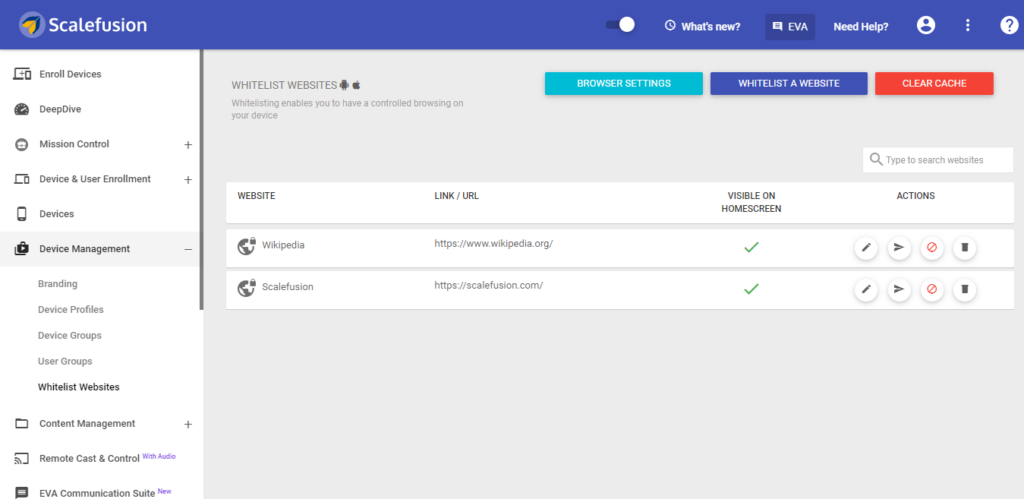
As you can see, one website (https://scalefusion.com/) is already on the whitelisted website list. 

Step 3: In order to whitelist another website, click on the Whitelist a Website tab on the top right-hand side. Once you click, you will see the below screen.

whitelist website

Step 4: Under the Details section, enter the website’s name and well-formatted URL.

Then, choose if the shortcut should be visible on the Scalefusion home screen or not (like it is shown in the above image). Here, it is visible on the home screen. After clicking on Next, you will see the below Android settings tab.
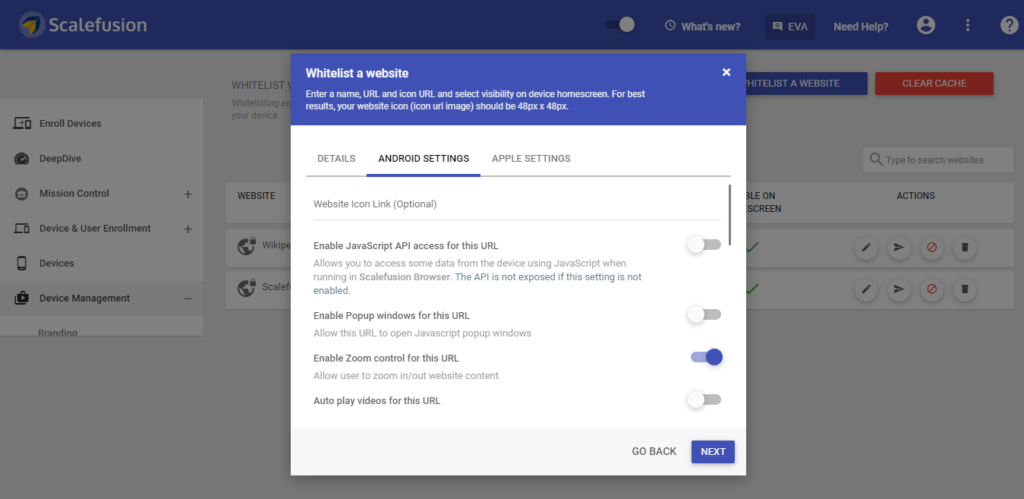
white list website

The Android Settings tab is used to set the shortcut in Scalefusion Kiosk Browser and is hence not used for Google Chrome. So, click Next.

Similarly, Apple Settings is meant for configuring settings for Safari and ProSurf iOS kiosk browser and is not required here. So, just click on Save.
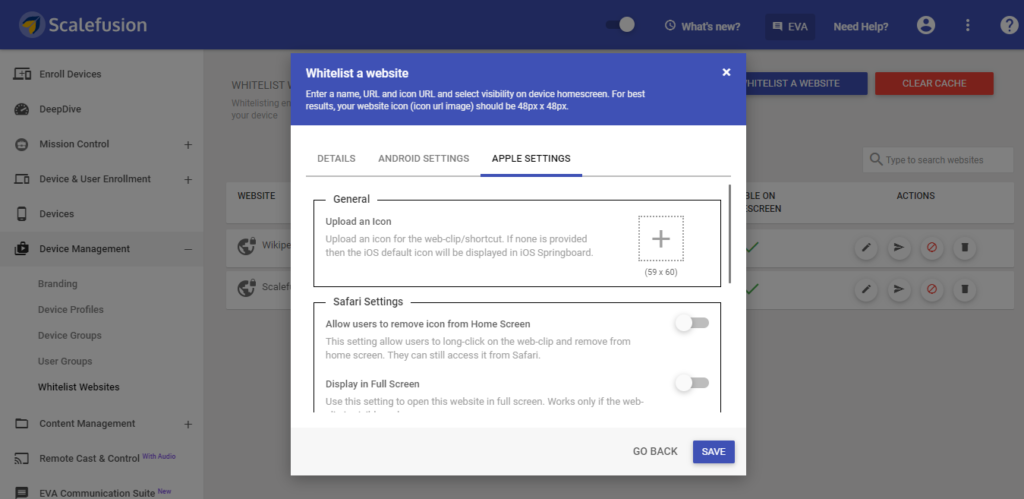
whitelist url

Similarly, Windows Settings is meant for configuring settings for the ProSurf kiosk browser and is not required here. So, just click on Save.

url whitelisting

Step 5: After clicking on Save, your master list of Whitelisted Websites will be ready and it will appear like the below image.
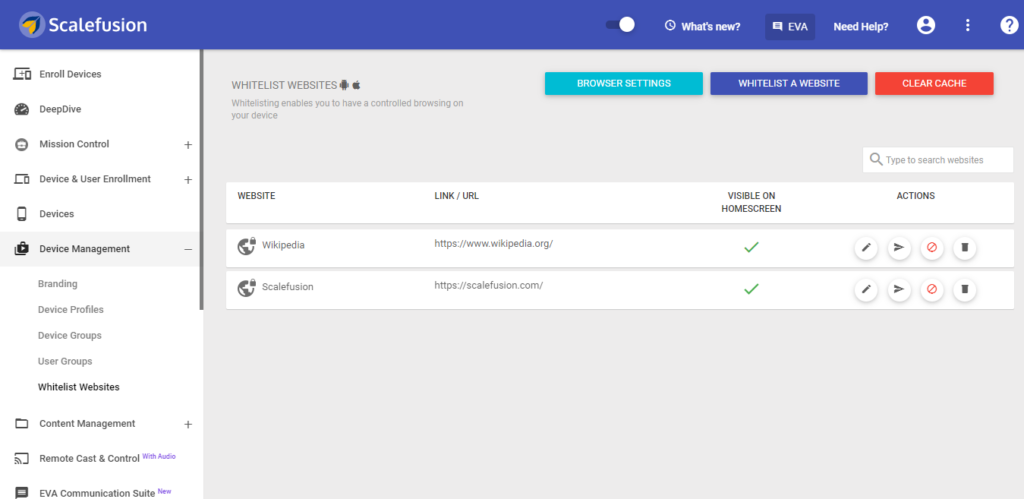
whitelisting a website

Now on this page (refer to the above image), you have the option to take 4 actions under the Actions tab – edit, publish, unpublish and delete. 

Step 6: Click on Publish (the 2nd icon from left) to publish the website shortcut to the selected device groups, profiles, or devices, as shown below.
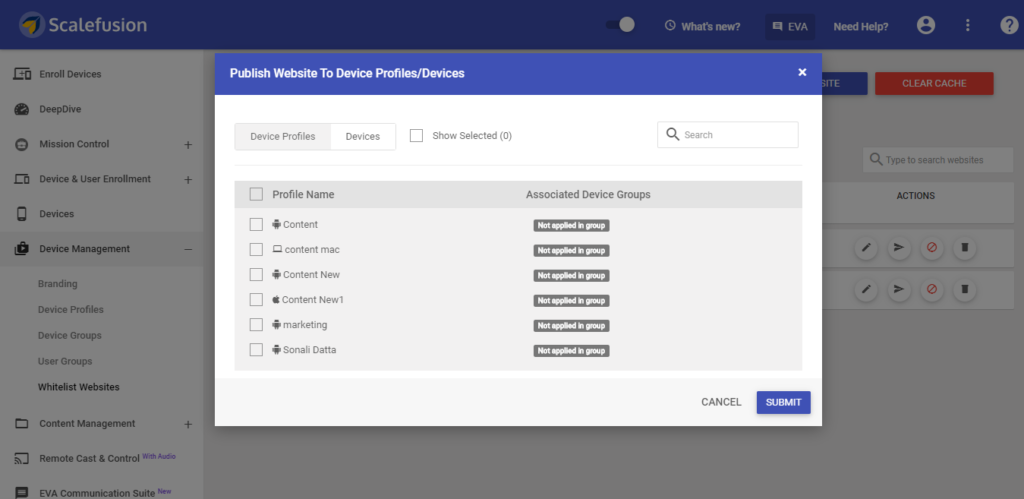
what does it mean to whitelist a website

This is the common procedure for whitelisting websites for any platform, including Android, iOS, macOS, and Windows 10.

Apart from this, you can also publish the list of whitelisted websites directly by going to a particular device profile. 

Step 7: Go to Device Management and click on Device Profiles from the drop-down. Then, click on the ‘Edit’ icon on the top right-hand side beside APPLY tab.

1. Whitelisting website for Windows with Google Chrome and Microsoft Edge Browser Configuration

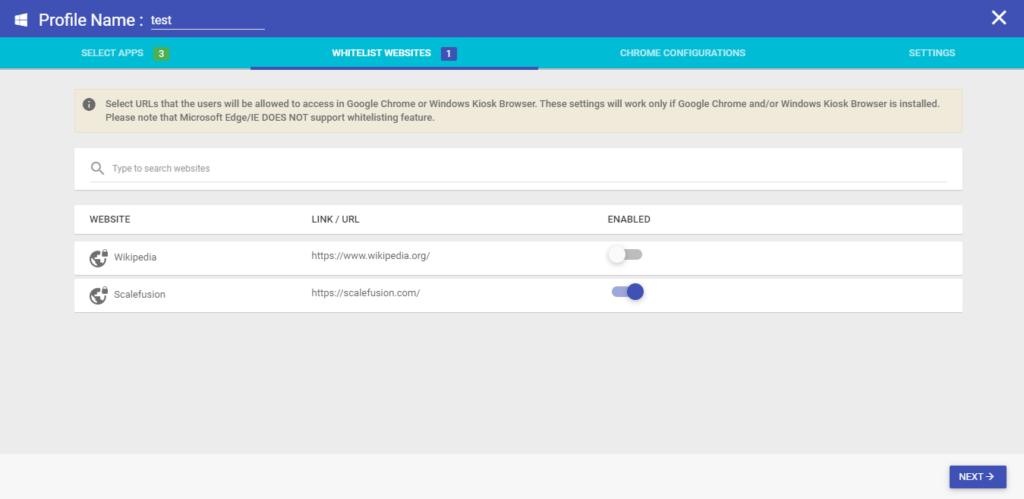
With Windows 10/11 devices, you can update the device profile by editing/applying relevant settings, including the option to whitelist websites, and then saving the changes.

how to whitelist websites on Windows devices

Whitelisting websites using Scalefusion UEM is easy and self-explanatory with a seamless user interface.

Watch the below video with stepwise instructions to whitelist websites on Windows devices:

2. Whitelisting website for MacOS

Likewise, in the case of a device profile with macOS devices, you can edit settings and choose to whitelist new websites on the associated page (refer to the following image).

website whitelisting on macos

To whitelist websites, click the Content Filtering tab on the left-hand side, then select the appropriate settings and click the Save button to update the device profile.

3. Whitelisting website for iOS Devices

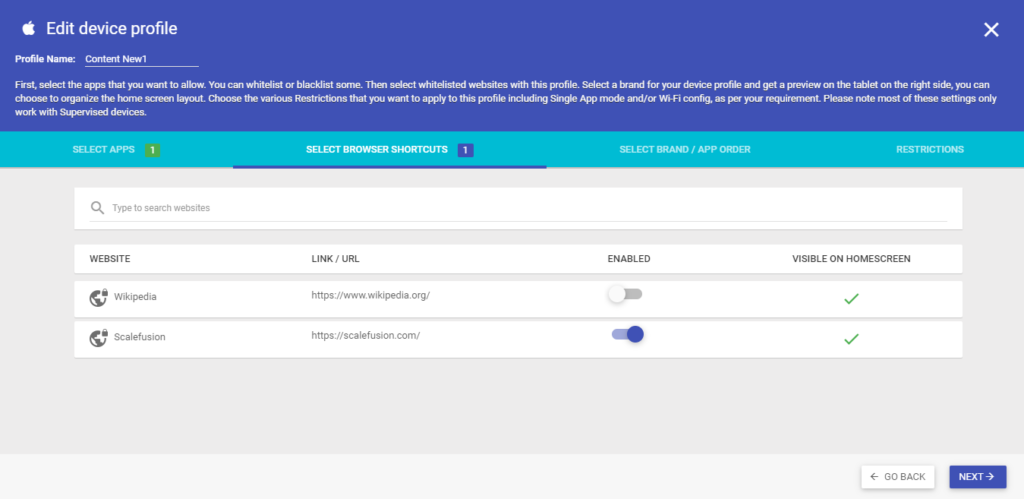
Similarly, you can edit settings, including whitelisting of websites for a device profile with iOS devices, and the associated page will look like this.

whitelist on iOS devices

Watch stepwise instructional video to whitelist websites on iOS devices:

Unblock access and boost productivity, learn how to whitelist any website in minutes.

Connect with product experts for a free demo and master website whitelisting for secure, streamlined access!

4. Whitelisting website for Android Devices

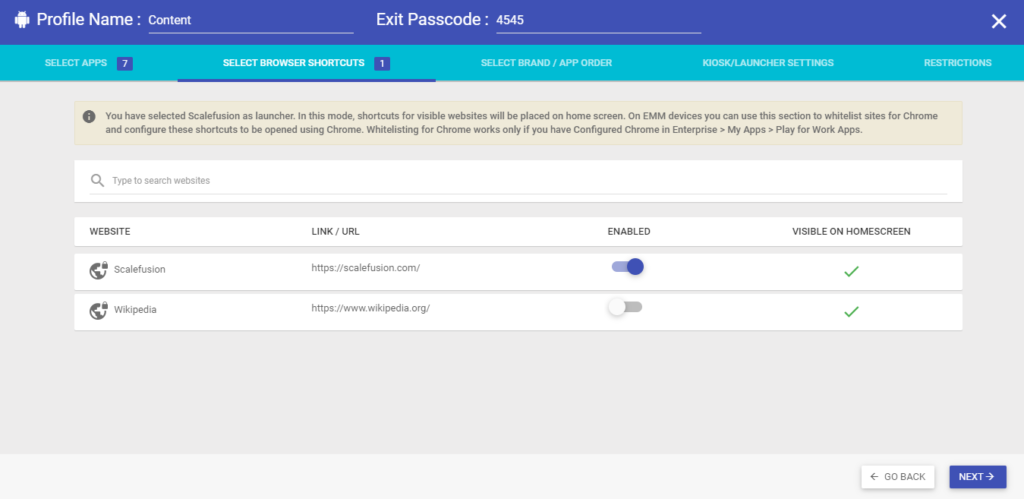
For a device profile containing Android devices, the following page will open. Here, you will see the master list of whitelisted websites. Enable the website to be allowed on the selected device profile with the toggle button, click on Next, save all settings, and update the specific device profile.
how do you whitelist a website on Android devices

Watch the below video with stepwise instructions to whitelist websites on Android devices:

Use cases for website whitelisting

  • Corporate usage: For companies that have frontline executives working from remote locations and using corporate-owned devices for business purposes, having whitelisted websites prove to be quite useful.
  • Kiosk mode applications: Whitelisted websites can be seamlessly applied to devices locked in kiosk mode as well.
  • Educational institutions: Apart from that, schools and educational institutes should also leverage website whitelisting to limit unsafe and inappropriate website browsing by students on tablets/smartphones meant for study purposes.

Benefits of website whitelisting

1. Upgraded security: A suspicious website carrying a nasty code or a malicious app can cause several harms to your device, such as hacking the data, installing ransomware, invading the system network, or corrupting crucial company data. Whitelisting websites prevents that from taking place, as it grants access only to the limited websites that are enabled and meant for business purposes only.

2. Improved productivity: Employees have a natural tendency to browse multiple websites, especially for personal entertainment. Social media websites, for example, are a big example of how employees are distracted due to unlimited access to the websites on the internet. Although it doesn’t apply to everyone in most cases, it leads to the wastage of productive office hours. Website whitelisting automatically disallows employees’ unnecessary website browsing, which improves their performance and productivity at work!

3. Reduced data overages: Whitelisting websites will prevent employees from browsing unnecessary websites for personal/entertainment purposes, which will, in turn, eliminate the chances of excessive data usage that leads to unwanted charges or overages for the company.

4. Simpler to manage: Whitelists tend to be smaller and more defined than blacklists that attempt to identify all possible threats. With whitelists, approved access can be carefully managed instead of trying to indefinitely keep up with new threats and updating the blacklists.

5. Granular policy enforcement: Many industries need to maintain strict regulatory requirements regarding data security and internet usage. Whitelisting helps organizations enforce these policies and demonstrate compliance by maintaining tight control over network access.

Importance of website whitelisting

Let’s understand the various importance of website whitelisting.

1. Network security enhancement

Website whitelisting is a crucial measure for IT admins to strengthen network security. By allowing access only to trusted websites, it significantly minimizes the risk of malware infections, phishing attacks, and other security threats. This proactive approach ensures that the network remains secure, protecting sensitive organizational data and reducing the likelihood of data breaches and unauthorized access attempts.

2. IT efficiency

Whitelisting streamlines network management for IT admins by reducing the number of security alerts and incidents that need to be addressed. It simplifies monitoring and maintenance tasks, allowing admins to focus on more strategic and value-added activities rather than constantly dealing with security threats from blacklist websites. This efficiency leads to a more stable and secure IT environment.

3. Regulatory compliance

Implementing website whitelisting helps organizations comply with industry regulations and standards. By controlling access to only whitelisted sites, IT admins can ensure that their organization adheres to data protection laws, industry regulations, and internal policies. This helps avoid legal complications, potential fines, and maintains a good standing with regulatory bodies.

4. Bandwidth Optimization

Non-work-related streaming and downloads can consume significant network bandwidth, which slows down critical business applications. Whitelisting ensures that bandwidth is reserved for legitimate business purposes only. 

5. Reduced lapse costs

Having an established website whitelist reduces the load on the IT infrastructure to manually enable websites required for the company’s day-to-day functions and the need for manual intervention. It also significantly reduces the costs for remediating security actions by removing the breach factor altogether.

Best practices for whitelisting websites

Now that we’ve explored the important part of whitelisting websites, let’s understand some of the best practices.

1. Regularly update the whitelist

It is essential to maintain an up-to-date whitelist by regularly reviewing and adding new trusted websites while removing obsolete ones. This practice ensures that the whitelist remains relevant and effective in providing secure access. Regular updates also help adapt to changing organizational needs and emerging security threats.

2. Implement granular control

Use granular control to tailor website access based on user roles and departments. This means creating specific whitelists for different user groups within the organization. Granular control minimizes unnecessary access and enhances security by ensuring that users can only visit websites pertinent to their roles and responsibilities. 

3. Monitor and review access logs

Regularly monitor and review access logs to detect any unusual activity or attempts to access non-whitelisted sites. This practice helps IT admins quickly identify and address potential security issues, ensuring that any suspicious activity is promptly investigated and mitigated. Consistent monitoring also provides insights into user behavior and access patterns.

4. Educate users

Educate employees about the importance of website whitelisting and the reasons behind restricted access. User awareness can reduce frustration and enhance cooperation with IT policies. Providing training sessions and clear communication helps users understand the security benefits of whitelisting and encourages them to follow best practices.

5. Utilize advanced security tools

Incorporate advanced security tools such as MDM software to automate the whitelisting process and enhance overall network security. These tools can provide additional layers of protection, such as real-time threat detection and automatic updates to the whitelist. Utilizing MDM software helps streamline management for IT admins and ensures that the network remains secure against evolving threats.

The point is…

Website whitelisting is a powerful security measure that enables organizations to protect sensitive data, enhance employee productivity, and streamline device usage. With Scalefusion MDM, implementing website whitelisting is simple and efficient, providing IT admins with a centralized platform to manage and secure company-owned devices across multiple operating systems.

Whether your organization uses Android, iOS, macOS, or Windows devices, Scalefusion offers an intuitive and effective solution to ensure that only trusted websites are accessible. By taking this proactive step, businesses can stay ahead of evolving cyber threats and maintain a secure digital environment.

Ready to strengthen your organization’s cybersecurity and device management?

Connect with product experts for a free demo and unlock seamless control over your corporate devices!

FAQs

1. Is website whitelisting better than blacklisting for security?

Yes, as it provides a first-hand approach by preventing users from accessing malicious websites from the beginning, compared to the reactive approach of blacklists.

2. How can I whitelist a website for my entire network?

Whitelisting a website for the entire network can be accomplished by configuring the premises router’s firewall, using a network-wide DNS service like OpenDNS, or employing a proxy/firewall appliance to override restrictions. 

3. What are the best MDM solutions for URL whitelisting?

Scalefusion MDM is the most comprehensive solution for whitelisting URLs with advanced features that are easy to implement.

4. Can users bypass website whitelisting?

Yes, users can bypass website whitelisting by using a VPN, DoH, or private connection. These can be disabled by employing an MDM solution, such as Scalefusion, that locks these options. 

5. What’s the best approach for whitelisting websites in a business environment?

Ensure that all mission-critical websites have been identified and added to the whitelist to prevent a lapse in the workflow. 

6. Is IP whitelisting the same as URL whitelisting?

No, IP whitelisting allows specific numeric network addresses, i.e., the source of network request, while URL whitelisting allows access based on specific website addresses.

Sonali Datta
Sonali Datta
Sonali has an extensive experience in content writing, marketing, and strategy and she has worked with companies where she was involved in the 360-degree content production and editing. An avid reader and animal lover, she loves to cook, take care of her plants and travel.

More from the blog

Best Screen Mirroring Apps for Android in 2026

Screen mirroring technology has become an indispensable tool in our tech-savvy era, seamlessly integrating our digital experiences across devices....

MDM vs Zebra Device Tracker: Which one is right...

Zebra devices are built to exist in rugged environments and are used across frontline industries such as warehouses, retail...

How to set up Zebra devices for seamless enterprise...

Zebra devices power some of the most demanding frontline environments in the world. From warehouses and retail floors to...