

Google Workspace SSO can be configured by creating an SSO profile in the Google Admin Console, adding your identity provider (IdP) details such as the Entity ID, SSO URL, SLO URL, and X.509 certificate, assigning the SSO profile to users or groups, and testing the sign-in flow. In this guide, you’ll learn how to configure Google Workspace to use Scalefusion OneIdP as the identity provider and apply conditional access policies based on device trust, browser, operating system, IP address, location, and multi-factor authentication (MFA).
Key Takeaways
Setting up SSO with Google Workspace simplifies application access while enabling IT teams to enforce identity, device, browser, and session-based security policies from a centralized platform.
- Complete the Setup Requirements: Administrators need Google Admin console access, a verified organizational domain, managed devices, and users added and assigned to OneIdP before configuring SSO.
- Configure SAML Settings Carefully: Create a Google Workspace SSO configuration, define its scope, and exchange the required entity ID, sign-in, sign-out, password-reset, and certificate details between both platforms.
- Grant the Required Permissions: Appropriate permissions allow the identity platform to verify domains, manage users and groups, reset passwords, control sessions, and securely complete authentication workflows.
- Apply Context-Aware Access Controls: IT teams can restrict access based on device enrollment, compliance status, operating system, browser type and version, IP address, location, MFA, and user-specific exceptions.
- Control the Complete User Session: After Google verifies the credentials, the identity platform evaluates access conditions and can enforce inactivity timeouts, reauthentication, contextual session expiration, and secure single sign-on to approved apps.
Understanding Google Workspace SSO
Single Sign-On (SSO) with Google Workspace can be configured in two different ways, depending on where user authentication takes place.
| SSO Model | Description | Common Use Case |
|---|---|---|
| Google Workspace as the Identity Provider (IdP) | Users sign in with their Google Workspace credentials to access third-party applications such as Slack, Salesforce, or Zoom. | Google authenticates users for external applications. |
| Google Workspace as the Service Provider (SP) | Users access Google Workspace after authenticating through a third-party Identity Provider such as Scalefusion OneIdP using SAML. | Organizations that centrally manage authentication through an external IAM or SSO solution. |
IT teams are under pressure to simplify access, tighten security, and reduce helpdesk overload. Managing logins across dozens of apps? It’s a daily drain. But Google Workspace SSO login helps fix that.
With Google Workspace SSO, users sign in once to access everything they need: email addresses, files, SaaS apps, and internal tools.

But login is the start. Google SSO and OneIdP together help IT admins move beyond basic authentication. Admins can gain context-aware access, device-level enforcement, and full control over who gets in, from where, and on what terms.
We’ll cover how Google SSO integration works, what makes setup smooth, and how pairing it with Scalefusion gives IT teams better control over identity and access.
Prerequisites for Configuring Google Workspace SSO:
- You must have admin access to the Google Admin console. Devices must be managed by Scalefusion.
- Your organization’s custom domain must be verified in OneIdP. Users from that domain should be added to the Scalefusion dashboard and assigned to OneIdP.
Before configuring Google Workspace SSO with Scalefusion OneIdP, make sure you have the following:
| Requirement | Why It’s Needed |
|---|---|
| Google Workspace Super Admin or Security Admin privileges | Required to create and manage SSO profiles in the Google Admin Console. |
| Verified Google Workspace domain | SSO can only be configured for verified domains. |
| Scalefusion OneIdP tenant | Required to generate the IdP metadata, SSO URL, Entity ID, SLO URL, and X.509 certificate. |
| Users or groups created in OneIdP | Required before assigning the SSO profile. |
| User directory synchronized (optional) | Ensures users and groups remain consistent across identity systems. |
| Pilot user or test group | Helps validate the configuration before organization-wide rollout. |
| Break-glass administrator account | Prevents administrator lockout if the SSO configuration needs troubleshooting. |
Set up Google Workspace SSO (Single Sign-On)
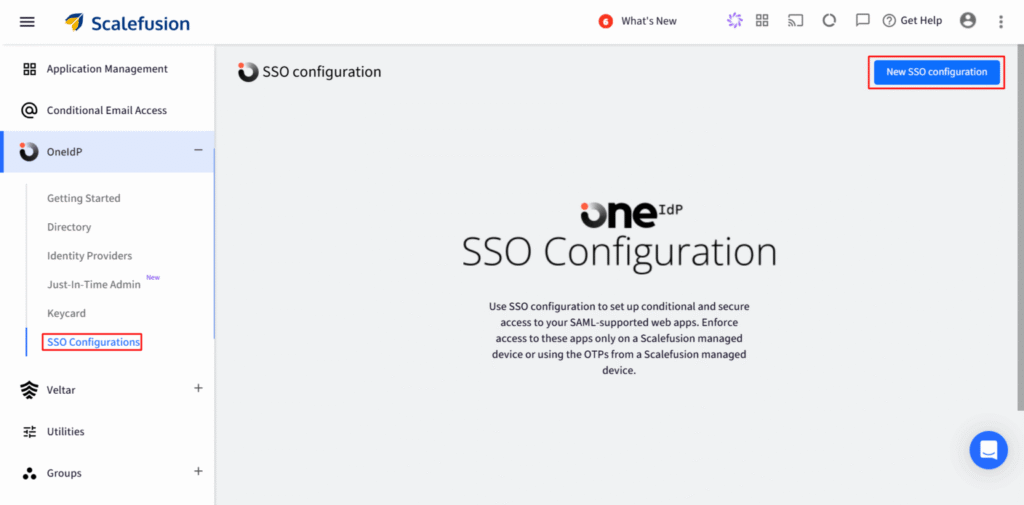
- Create SSO Configuration:In the Scalefusion dashboard, go to OneIdP > SSO Configuration.
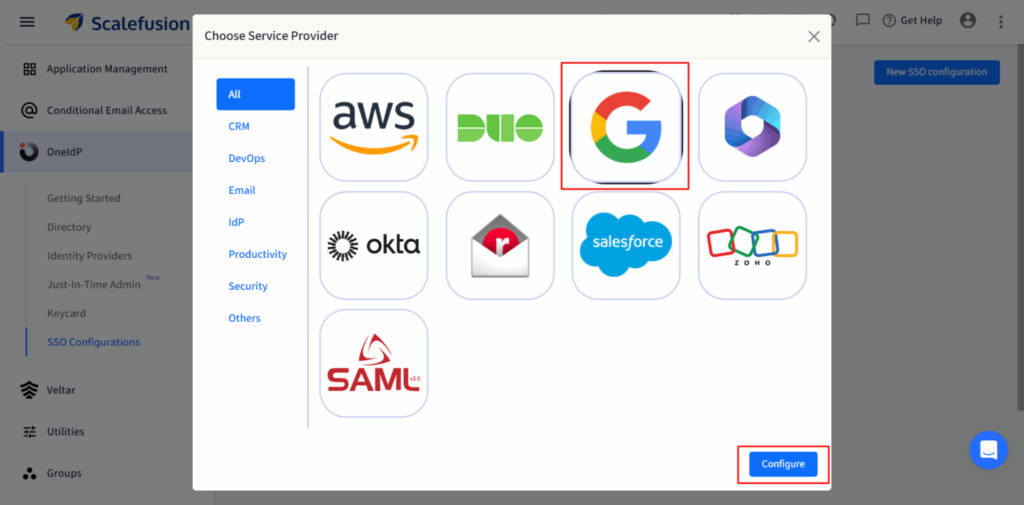
- Click New, select Google Workspace, and start setup.
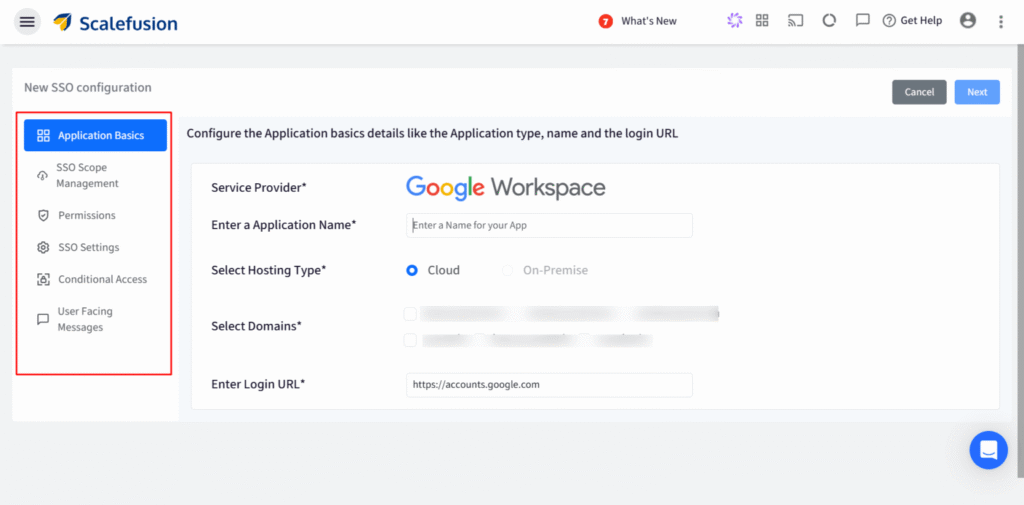
- Fill configuration tabs:
a. Application Basics: Define access rules by user, device, and condition.
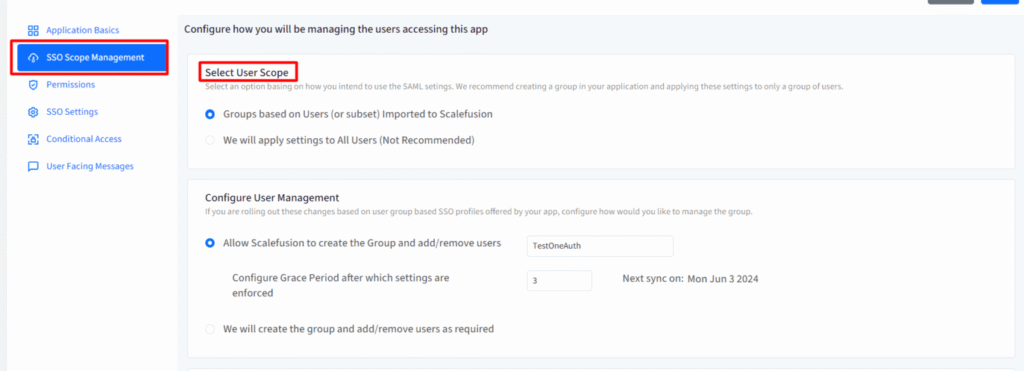
b. SSO Scope: Configure SAML settings, session logout rules, and group-based profiles.
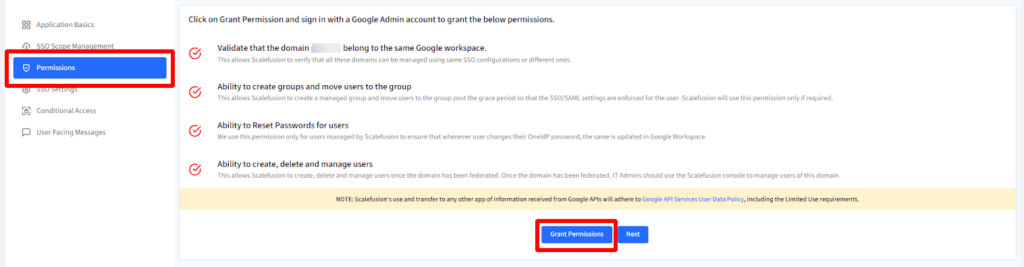
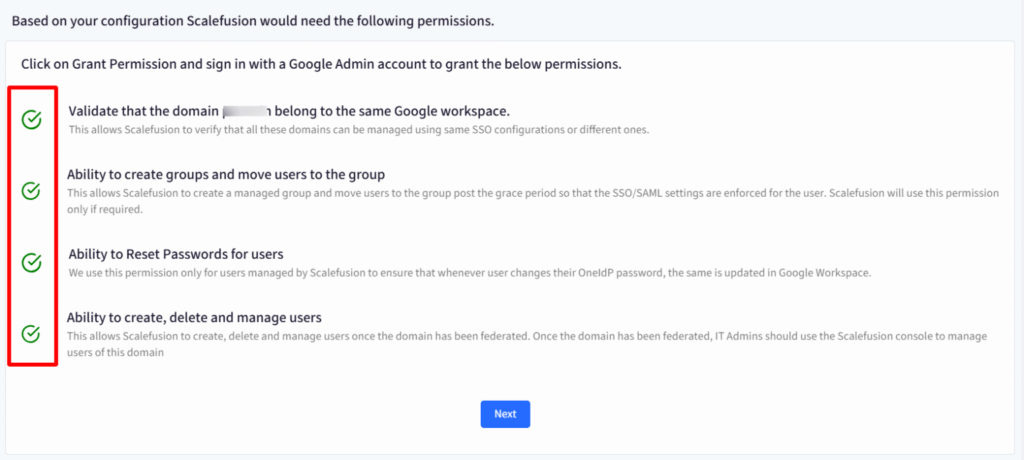
c. Permissions: Set permissions in OneIdP to verify your domain, manage users and groups, reset passwords, control logouts, and handle data securely. Skipping permissions may limit features.
d. SSO Settings: Enter Google Workspace service provider details in Scalefusion. Copy OneIdP URLs and certificate from Scalefusion.
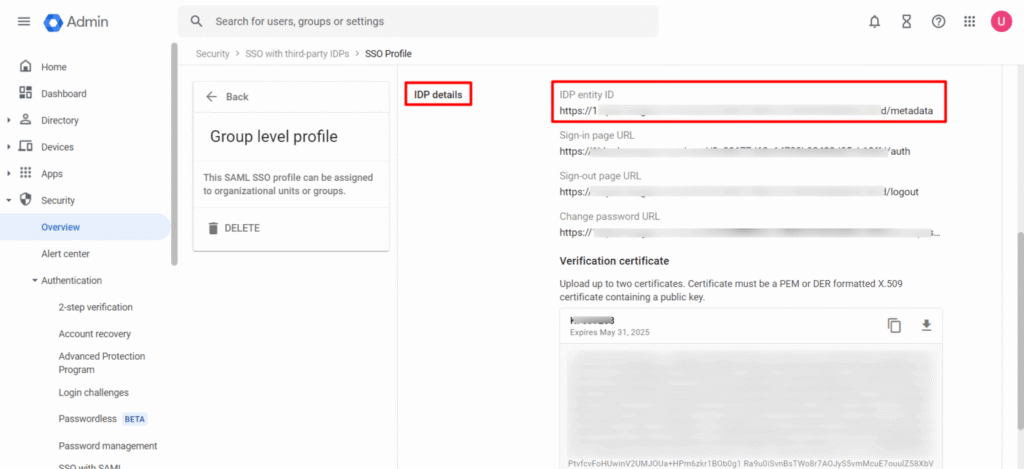
- OneIdP Entity ID → Identity Provider ID
- OneIdP SSO URL → Sign-In Page URL
- OneIdP SLO URL → Sign-Out Page URL
- Change Password URL → Password Reset URL
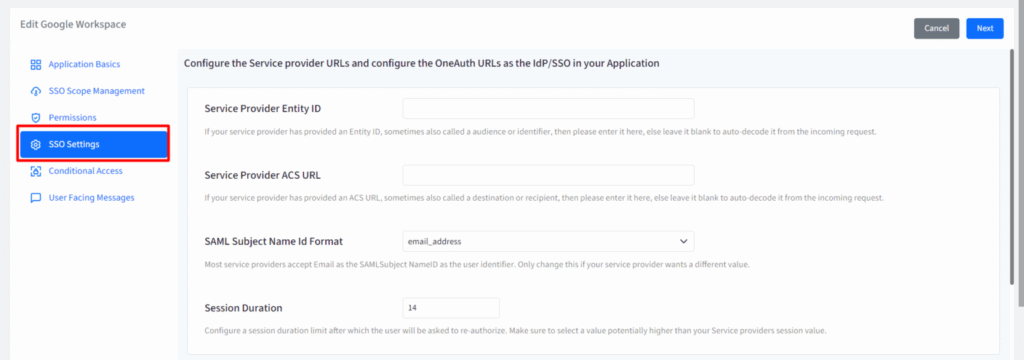
Paste them into the Google Admin Console to complete SAML setup.
e. Conditional Access: Manage access by permitting only managed devices or OTP verification, setting browser type and version limits, and exempting users by email from device requirements.
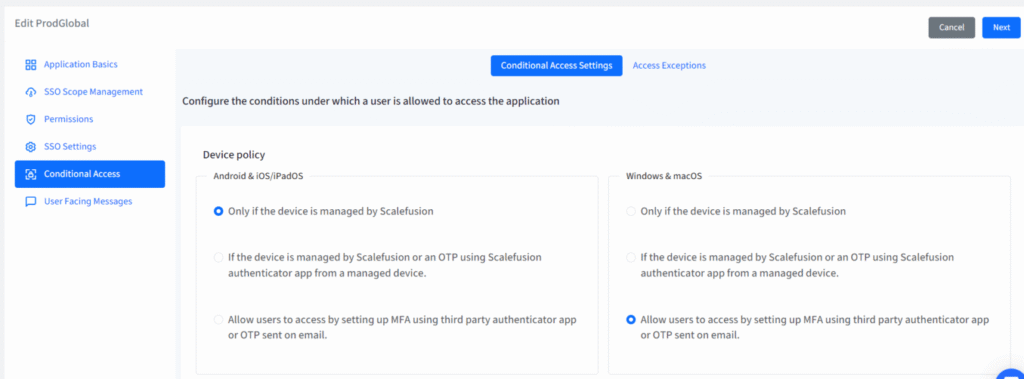
f. User Messages: Customize what users see if access is blocked.
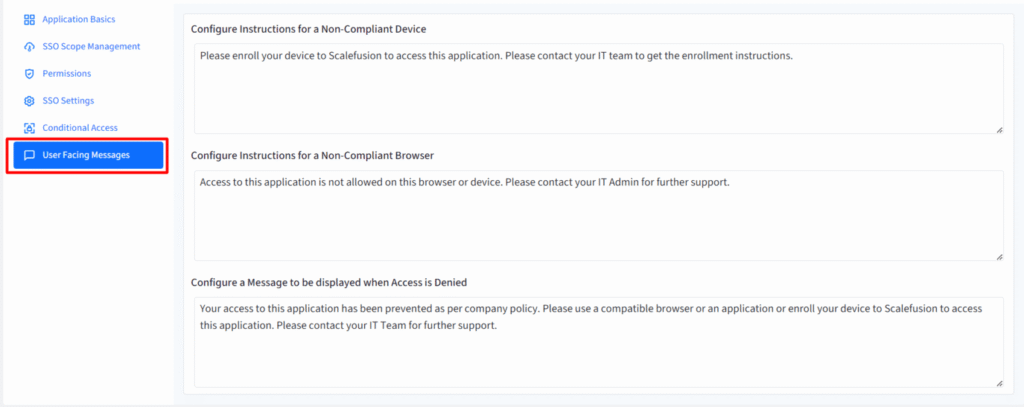
Click Next after filling in all the details across each tab.
- Your configuration appears as a named card on the SSO Configuration page.
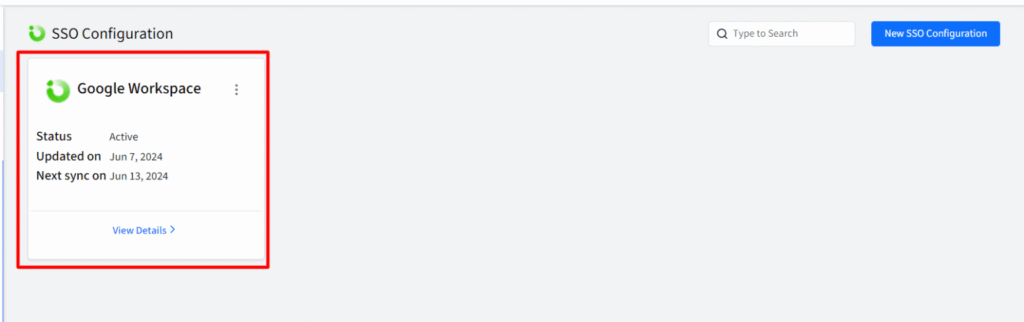
What the user gets:
➡ User tries to access an app from their device.
➡ OneIdP checks device compliance (managed/enrolled or unmanaged), browser type and version, MFA requirements, and any access exceptions set in the SSO configuration.
➡ User enters Google Workspace account credentials on the OneIdP login screen (no separate Google UI).
➡ Google Workspace verifies credentials and sends a secure token to OneIdP.
➡ OneIdP evaluates session rules, conditions, and exceptions before approving access.
➡ User gains seamless, secure access to all allowed apps with a single sign on.
➡ OneIdP establishes a session: Enable SSO across all authorized Google Workspace and connected SaaS applications.
Enforces session controls such as:
- Auto-logout after inactivity
- Re-authentication for sensitive actions
- Context-based session expiration to keep security tight


How Scalefusion OneIdP Secures Modern Google Workspace Application Access
Scalefusion OneIdP redefines SSO with all-in-all zero trust security and conditional SSO. It verifies every access by identity, device, browser, and context. Here’s how OneIdP elevates security to Google Workspace access than it already is:
- Built-in device authentication: Only compliant, managed devices can access corporate data. OneIdP checks device posture at login, automatically blocking rooted, jailbroken, or unmanaged endpoints.
- Browser restrictions: Control access by browser type and version. Block outdated or untrusted browsers without affecting user experience.
- Company User Portal for Single Sign-On (SSO): A centralized portal lets employees sign in once to access all key work apps in one place, eliminating password hassles and helping them focus on their tasks.
- Contextual access policies: Enforce advanced conditions beyond login, including OS, IP address, location, MFA, OTP, and other real-time signals.
- OS-Based Conditional Access: Apply precise rules for Android, iOS, Windows, macOS, Linux, and ChromeOS, dynamically grouping users based on device and login context.
Pairing Google Workspace with Scalefusion means tighter security, cleaner compliance, and smarter user access, all without the overhead.
Next Step
FAQs
1. What is sso integration, and how does it work with Google Workspace?
Single Sign-On (SSO) allows users to log in to multiple applications using one set of credentials. Google Workspace acts as an identity provider (IdP), authenticating users via SAML 2.0 or OAuth 2.0, eliminating the need for separate passwords. When google workspace users access an SSO-enabled app, Google verifies their identity and grants secure access, enhancing productivity and security.
2. What are the prerequisites for configuring the SSO with Google Workspace?
To configure G suite SSO, you need:
- A paid Google Workspace subscription (Business/Enterprise).
- Admin access to Google Admin Console.
- The application must support SAML or OAuth-based SSO.
- Proper DNS settings for domain verification.
- User accounts synced in Google Workspace for authentication.
3. Can I enforce multi-factor authentication (MFA) with Google Workspace SSO?
Yes, Google Workspace supports MFA (2FA) for enhanced security. Admins can enforce SMS, Google Authenticator, or hardware security keys via the Admin Console. MFA adds an extra layer of protection, ensuring only authorized users access SSO-integrated apps, reducing phishing and unauthorized access risks.
4. What are the security benefits of using Google Workspace SSO?
Google Workspace SSO enhances security by:
- Reducing password fatigue and phishing risks.
- Enabling centralized user access control.
- Supporting MFA and strong authentication.
- Providing audit logs for login activities.
- Encrypting all authentication requests via SAML/OAuth.
5. Does Google Workspace SSO support SAML or OAuth?
Yes, Google Workspace supports both SAML 2.0 (for enterprise SSO) and OAuth 2.0 (for API-based authentication). SAML profile is ideal for web app logins, while OAuth is used for mobile and third-party integrations, ensuring flexible and secure authentication across platforms.

