
Google Chrome is widely used across business devices, but unrestricted web access may not always align with an organization’s security, productivity, or device-use requirements. IT teams may need to prevent access to selected websites, limit browsing to approved destinations, or apply broader web filtering across managed endpoints.
There are several ways to block websites on Chrome. The choice of method depends on the OS and whether the device is being managed individually or as part of an enterprise fleet. On Windows, for example, websites can be restricted using local system settings or Chrome policies, while managed Android, Windows, macOS, and iOS devices can use platform-specific management configurations.

For organizations managing devices at scale, a Unified Endpoint Management (UEM) solution offers a more centralized way to configure supported website access controls. It provides different mechanisms for managing Chrome website access across supported platforms. For broader web filtering requirements, an integrated Secure Web Gateway (SWG) provides additional domain and category-based controls.
Ways to block websites on Google Chrome
The right approach depends on the platform, the number of endpoints being managed, and whether IT admins need local or centralized control.
How to block websites in Chrome on Windows
Windows provides several ways to restrict access to websites. Some operate at the OS level, while others configure policies directly for Chrome.
Method 1: Using the Windows Hosts file
The Windows Hosts file maps hostnames to IP addresses before normal DNS resolution takes place. By modifying this file, an IT admin can redirect selected domains so they do not resolve to their intended destination.
To block a website using the Windows Hosts file:
- Open a text editor such as Notepad with IT admin privileges.
- Open the Windows Hosts file.
- Add an entry for the domain that needs to be restricted.
- Save the file.
- Restart Chrome or clear the relevant DNS cache if required.
- Test the website to confirm that it is no longer accessible.
This method can be useful for a small number of individually managed computers, but it is not ideal for larger business deployments. Each endpoint must be configured and maintained separately, and the control is not a Chrome-specific management policy.
For organizations managing multiple Windows devices, centrally deployed browser policies are generally easier to maintain.
Method 2: Using Chrome URL Blocklist via Group Policy
Google provides enterprise policies that IT admins can use to manage which websites Chrome users can access.
The URLBlocklist policy prevents users from accessing URLs that match configured patterns. IT admins can use the complementary URLAllowlist policy to create exceptions. On Windows, they can configure the policy using Google’s Chrome ADMX templates and Group Policy.
To configure a URL blocklist using Group Policy:
- Install Google’s Chrome policy templates on the Windows environment.
- Open the Group Policy Editor.
- Navigate to Administrative Templates > Google > Google Chrome.
- Locate Block access to a list of URLs.
- Enable the policy.
- Add the URLs or URL patterns that should be blocked.
- Save the configuration.
- Apply or refresh Group Policy on the target devices.
- Relaunch Chrome and verify the restriction.
Google also allows IT admins to configure an allowlist alongside the blocklist. The allowlist takes precedence when a URL matches both policies.
This approach is more suitable than making local browser changes individually when Chrome policies are already managed through an organization’s Windows administration infrastructure.
Method 3: Using Chrome URLBlocklist via Windows Registry
Chrome policies can also be configured through the Windows Registry.
Google documents Registry-based Chrome management as an alternative for cases where IT admins are not using Group Policy or need to configure Windows computers outside an Active Directory-based environment.
IT admins can therefore configure the same underlying Chrome URLBlocklist policy through Registry-based deployment.
A typical process includes:
- Open the Windows Registry Editor with IT admin privileges.
- Navigate to the applicable Google Chrome policy location.
- Create or modify the values required for URLBlocklist.
- Add the URLs or URL patterns that should be restricted.
- Save the changes.
- Relaunch Chrome.
- Verify that the configured URLs are blocked.
Group Policy and Registry should not be treated as two different types of Chrome URL restriction. They are two Windows configuration mechanisms for applying the same Chrome enterprise policy.
Changes to the Windows Registry should be tested before wider deployment because incorrect Registry modifications can affect the device.
How to block websites in Chrome on macOS
macOS offers both native content-restriction settings and administrative Chrome policies. However, these approaches have different scopes.
Method 1: Using Screen Time
Mac users can use Screen Time to restrict access to selected websites by applying an App Limit. This is a local, user-level workaround rather than a Chrome-specific website-blocking policy, making it more suitable for personal or small-scale use than enterprise device management.
To restrict website access using Screen Time:
- Open System Settings on your Mac.
- Select Screen Time.
- Open App & Website Activity and turn it on if it is not already enabled.
- Go to App Limits.
- Add a new App Limit.
- Scroll to the Websites section.
- Add the website you want to restrict.
- Set the allowed usage time to the minimum available limit so access is effectively restricted.
- Save the limit.
- Test the website in Chrome.
This method has limitations. A user with sufficient permissions may be able to ignore or extend the Screen Time limit, so it should not be treated as an enterprise-grade Chrome policy. For centrally managed Macs, Chrome’s URLBlocklist policy or a UEM-delivered configuration is more appropriate.
Method 2: Using Chrome URLBlocklist with a plist configuration profile
Google Chrome supports the URLBlocklist policy on macOS to restrict access to specified websites and URL patterns. The policy can be defined using a property list (plist) and deployed to a Mac through a configuration profile.
To block websites using this method:
- Create a configuration profile for Google Chrome.
- Add the URLBlocklist policy to the plist configuration.
- Enter the websites or URL patterns you want to block.
- Add URLAllowlist entries if certain websites need to remain accessible as exceptions.
- Save the configuration as a .mobileconfig profile.
- Install or deploy the configuration profile on the target Mac.
- Relaunch Chrome if required.
- Open the configured websites to verify that access is blocked.
This method provides Chrome-specific website restrictions on macOS, but manually creating, deploying, and maintaining configuration profiles can become difficult when managing multiple Macs. Organizations managing a larger Mac fleet can use a UEM solution to deploy and manage Chrome configurations centrally.
How to block websites in Chrome on Android
For personal or family-managed Android devices, Google Family Link allows parents or guardians to control which websites a supervised child can access in Chrome.
Using Google Family Link
To block a website using Google Family Link:
- Open the Family Link app.
- Select the child’s profile whose browsing settings you want to manage.
- Tap Controls and select Google Chrome and Web.
- Choose the appropriate browsing setting:
- Allow all sites: Allows general website access.
- Try to block explicit sites: Attempts to filter explicit or inappropriate websites.
- Only allow approved sites: Limits browsing to websites that you approve.
- Open Manage sites and select Blocked sites.
- Tap Add site to enter the website or domain you want to restrict.
- Open Chrome on the supervised device and verify the website restriction.
Blocking a specific website may not automatically block every related subdomain. Where broader restriction is required, the domain-level rule should be configured appropriately.
Family Link is designed for parental supervision. It is not a substitute for enterprise device management when an IT team needs to apply and maintain website access policies across a business fleet.
Why use UEM to block websites on Chrome?
Local website blocking methods can work when an IT admin is dealing with one or a few devices. The operational challenge changes when the same rules need to be maintained across hundreds or thousands of endpoints.
A UEM platform provides a central management layer from which IT teams can configure supported policies and apply them to managed devices.
This can help IT teams:
- Configure website access rules centrally
- Apply policies across groups of managed endpoints
- Update restrictions without manually accessing every device
- Use different configurations for different device groups or use cases
- Maintain platform-specific configurations through a centralized administrative environment
The exact website control mechanism still varies by OS. Android Chrome app configurations, Windows browser policies, macOS custom payloads, and iOS managed app configurations are not interchangeable.
UEM solutions such as Scalefusion use platform-specific configurations to manage website access across supported Android, Windows, macOS, and iOS devices.
How to block websites on Google Chrome using Scalefusion
Scalefusion provides platform-specific methods for managing Chrome website access. IT admins should use the workflow designed for the OS being managed rather than assuming that one Chrome configuration applies universally.
Block websites in Chrome on Android using Scalefusion
On Android Enterprise devices, Scalefusion integrates with managed Google Chrome application configurations.
To configure website restrictions:
- On the Scalefusion dashboard, go to Application Management > Play for Work Apps. Click Add from Playstore to add Chrome as a Managed Google Play application.
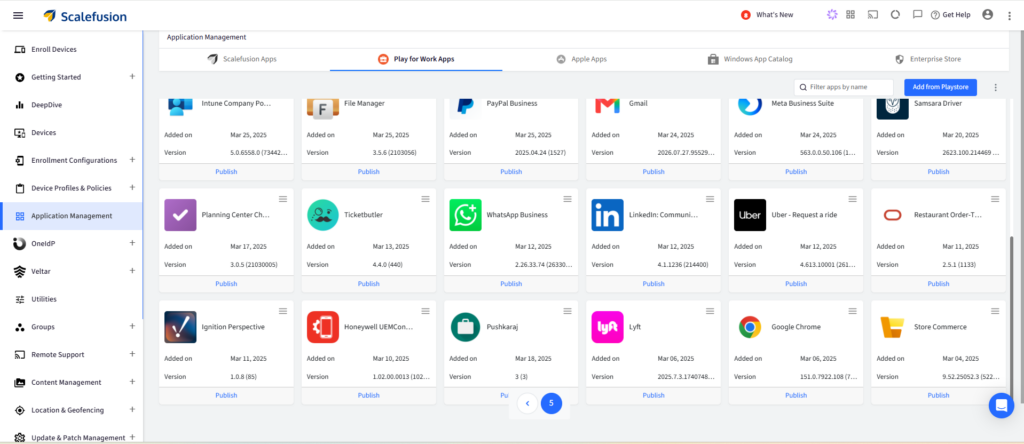
- Once Chrome is added, click on the three horizontal lines and then Details. In App Configs, create or edit a configuration.
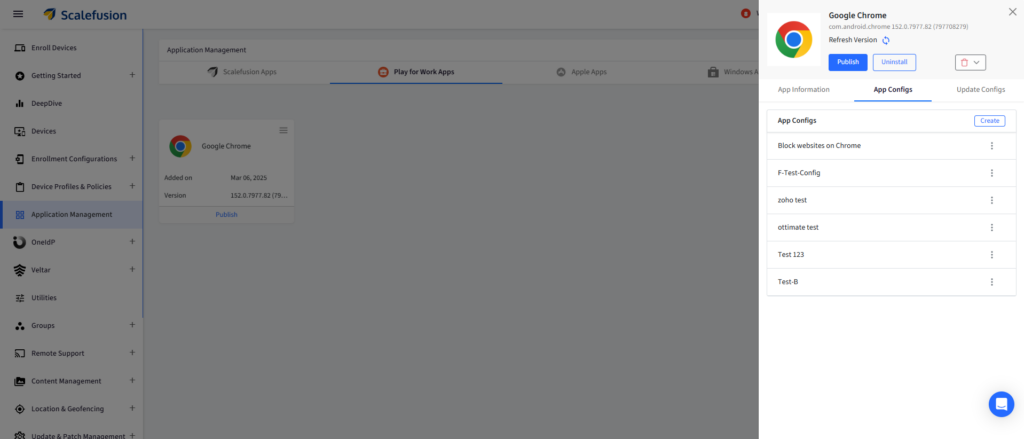
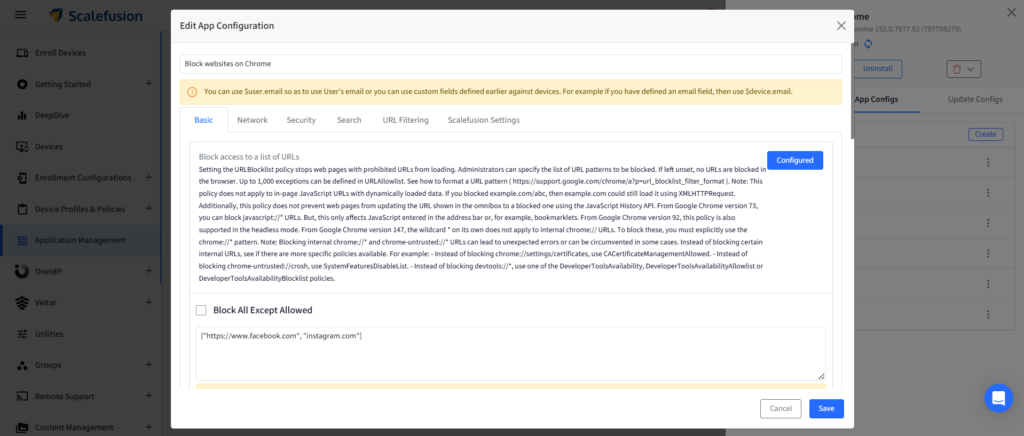
- Locate Block Access to a list of URLs and enter the URLs that users should not be able to access. Set URLBlocklist to [“*”] if you want to block all web requests. Save the configuration.
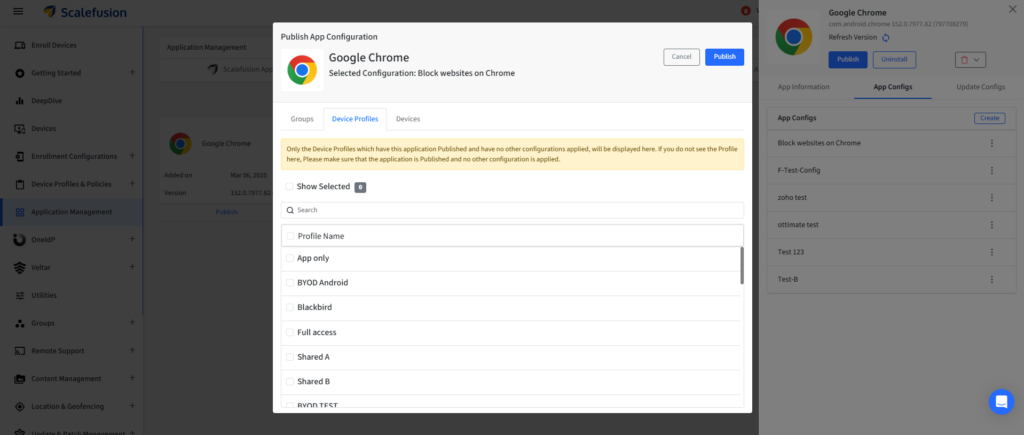
- Once saved, the application configuration will appear in a list under App Configs. Click on the three dots and then Publish to push the configuration to applicable devices or profiles.
- Relaunch Chrome if required and verify that the configured websites are blocked.
Scalefusion also provides an option to use the Scalefusion MDM agent to configure Chrome URL allowlist and blocklist policies. When enabled, the Scalefusion agent applies the configured website access policies on the managed Android device, providing an alternative way to enforce the URL restrictions configured through Scalefusion.
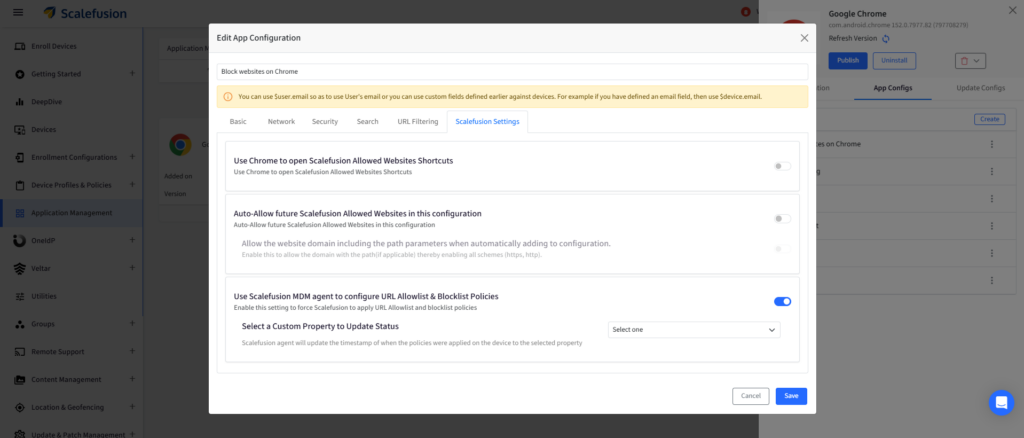
Allow only approved websites in Chrome on Android
Some managed device scenarios require the reverse approach: instead of blocking a handful of websites, IT wants users to access only a defined set of approved destinations.
Scalefusion’s Android Chrome application configuration includes the Allow access to a list of URLs option to specify allowed URLs, along with the option Block All Except Allowed.
IT admins can enter the approved URLs manually or use Import from Allowed Websites to select websites already configured under Device Profiles & Policies > Allowed Websites on the Scalefusion dashboard. The selected websites are then added to Chrome’s allowed URL list in the required format.
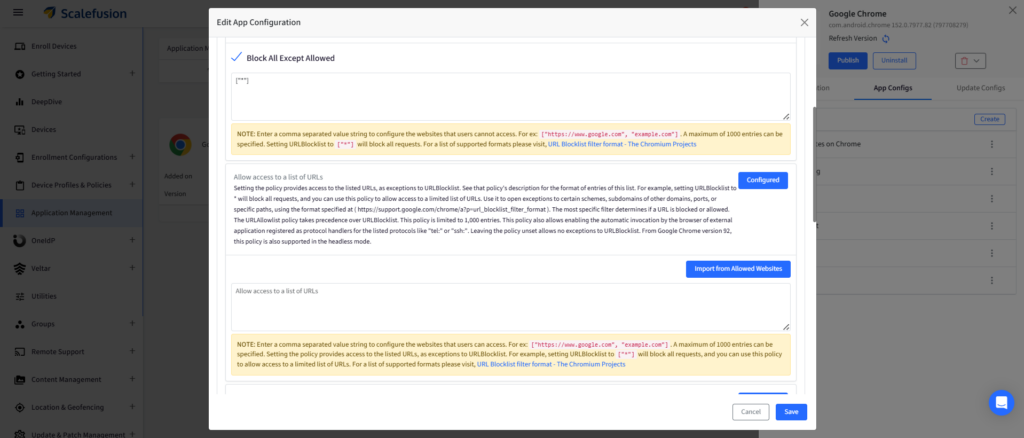
This approach can be useful for devices that have a narrowly defined browsing requirement. For example, rather than maintaining a growing list of prohibited websites, IT can define the business websites that are required and restrict access to other destinations.
Block websites in Chrome on Windows using Scalefusion
Scalefusion manages Chrome website access on Windows through Windows Device Profiles and Browser Configurations.
To configure website restrictions for Chrome:
- On the Scalefusion dashboard, navigate to Device Profiles & Policies > Device Profiles. Create a Windows profile or edit an existing one.
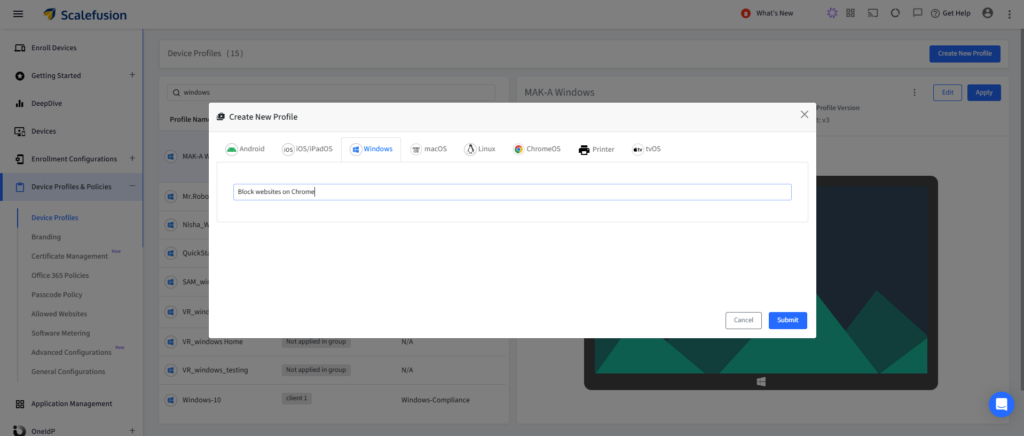
- Go to Browser Configurations in your Windows device profile. Select the applicable browser policy target: In this case, the target is Chrome Browser.
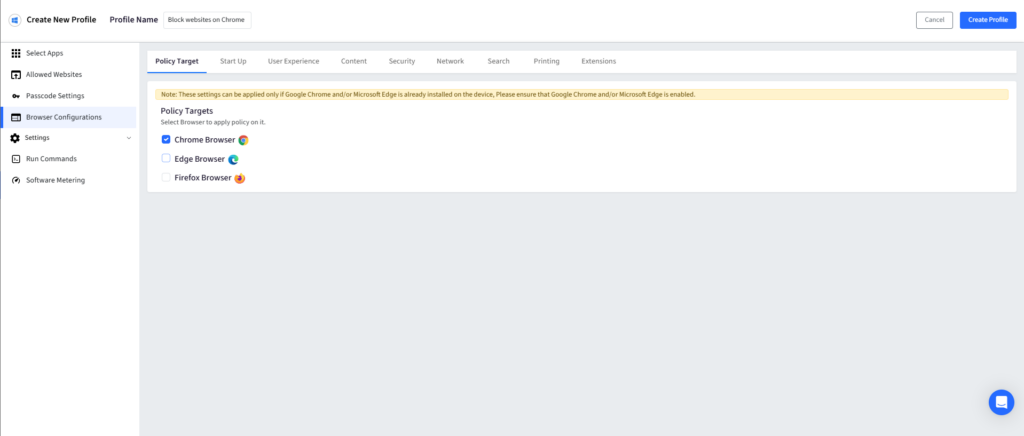
- In Browser Configurations > Content, locate the setting Extend Allowed Websites List Rules. Select the option Allow All except the below URLs/patterns. Enter the websites that should be blocked.
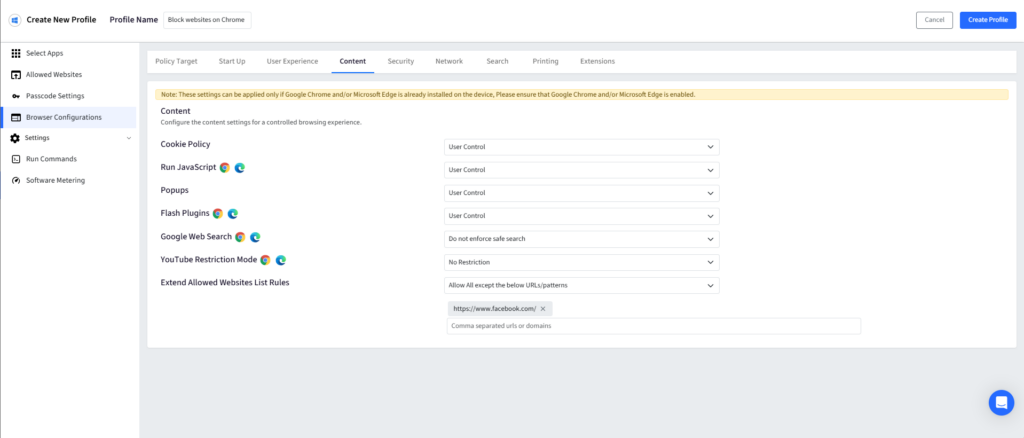
- Save or update the profile and apply it to the relevant managed Windows devices.
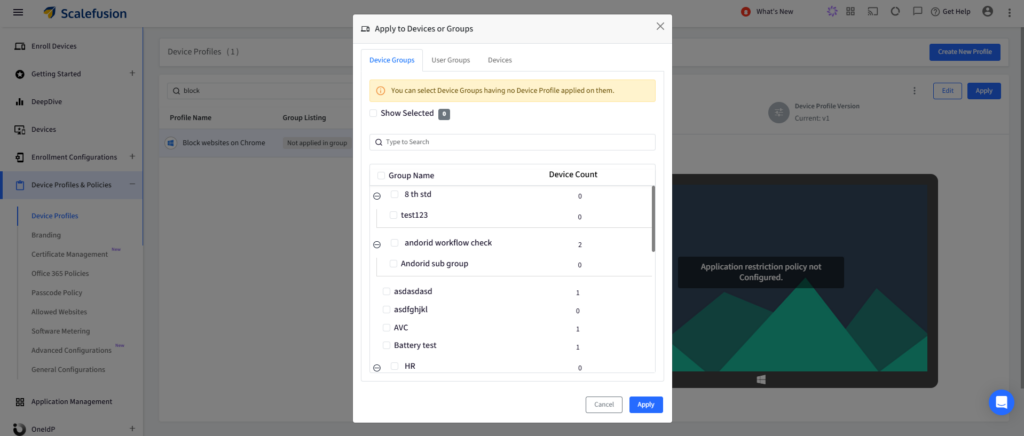
- Verify that the configured websites are restricted in Chrome.
For stricter website access on managed Windows devices, IT admins can use Scalefusion to allow only approved websites in Chrome while restricting access to other destinations.
Block websites in Chrome on macOS using Scalefusion
For managed Macs, Scalefusion documents a Custom Payload specifically for blocking URLs in Google Chrome. The payload configures Chrome’s URLBlocklist and can be deployed remotely to managed Macs.
To block websites using a Scalefusion Custom Payload:
1. Prepare the Chrome Custom Payload provided by Scalefusion to block websites.
<?xml version="1.0" encoding="UTF-8"?>
<!DOCTYPE plist PUBLIC "-//Apple//DTD PLIST 1.0//EN" "http://www.apple.com/DTDs/PropertyList-1.0.dtd">
<plist version="1.0">
<dict>
	<key>PayloadContent</key>
	<array>
		<dict>
			<key>PayloadDisplayName</key>
			<string>Google Chrome</string>
			<key>PayloadIdentifier</key>
			<string>com.google.Chrome.9F99EA6A-1A29-423F-91CD-94A58C46E918</string>
			<key>PayloadType</key>
			<string>com.google.Chrome</string>
			<key>PayloadUUID</key>
			<string>9F99EA6A-1A29-423F-91CD-94A58C46E918</string>
			<key>PayloadVersion</key>
			<integer>1</integer>
			<key>URLBlocklist</key>
			<array>
				<string>https://www.example.com</string>
				<string>example.com</string>
			</array>
		</dict>
	</array>
	<key>PayloadDescription</key>
	<string>Configures the block list urls for Chrome on macOS</string>
	<key>PayloadDisplayName</key>
	<string>Chrome config for macOS</string>
	<key>PayloadIdentifier</key>
	<string>com.promobitech.scalefusion.4B505397-5F71-43A6-897F-DDB6AE76D431</string>
	<key>PayloadOrganization</key>
	<string>Scalefusion</string>
	<key>PayloadRemovalDisallowed</key>
	<true/>
	<key>PayloadScope</key>
	<string>System</string>
	<key>PayloadType</key>
	<string>Configuration</string>
	<key>PayloadUUID</key>
	<string>A64A4724-7351-4026-8B68-C042C46DBAAE</string>
	<key>PayloadVersion</key>
	<integer>1</integer>
</dict>
</plist>
2. Locate the URLBlocklist values in the payload. Replace the sample URLs with the websites or URL patterns that need to be restricted.
<key>URLBlocklist</key>
<array>
	<string>https://www.facebook.com</string>
	<string>instagram.com</string>
</array>
3. On the Scalefusion dashboard, navigate to Device Profiles & Policies > Advanced Configurations. Create a new configuration or edit an existing one.
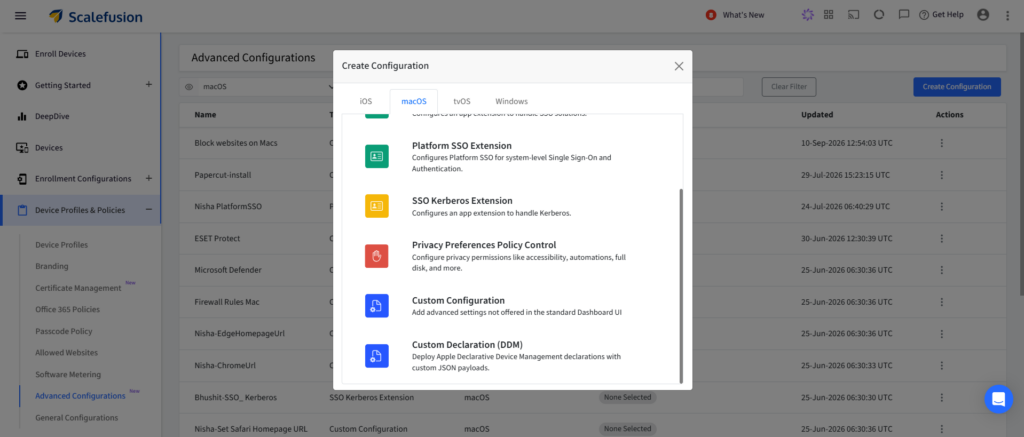
4. Under macOS, head to Custom Configuration and add the custom payload.
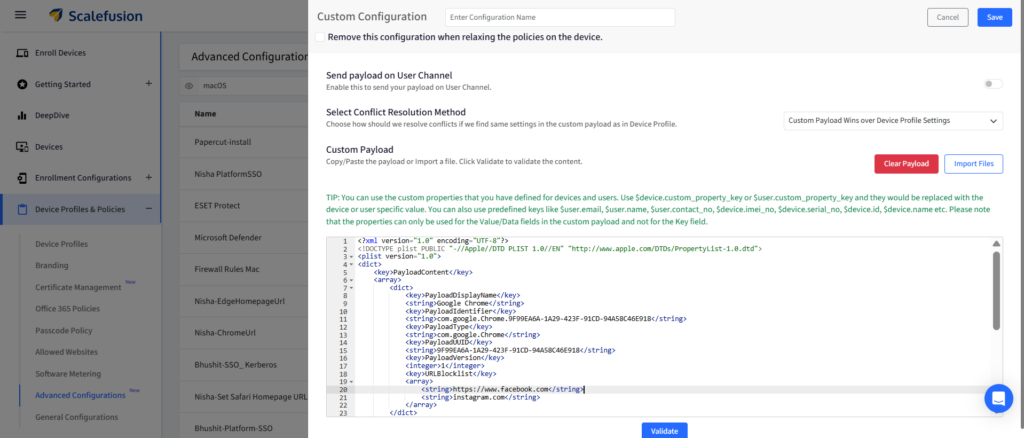
5. Save the configuration and deploy it to the required managed Mac devices.
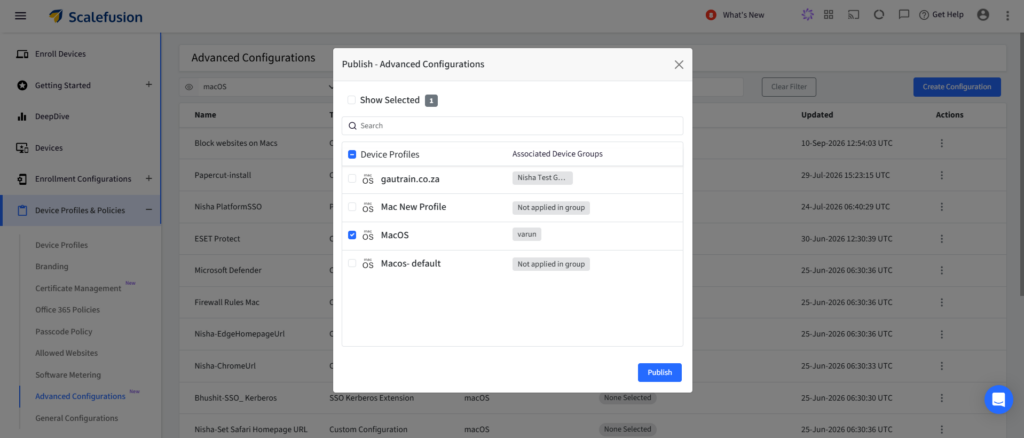
6. Quit and relaunch Chrome if it is already open.
7. Test the configured websites to confirm that they are blocked.
Custom Payloads should be tested on a test Mac before being deployed widely. This helps IT admins verify the payload structure and resulting browser behavior before applying it across a production fleet.
Allow only approved websites in Chrome on macOS
IT admins can use a Scalefusion Custom Payload to allow access to specific websites in Chrome on managed Macs while blocking all other websites. The payload uses Chrome’s URLAllowlist to define the websites users can access and sets URLBlocklist to a wildcard (*) to restrict all other destinations.
<?xml version="1.0" encoding="UTF-8"?>
<!DOCTYPE plist PUBLIC "-//Apple//DTD PLIST 1.0//EN" "http://www.apple.com/DTDs/PropertyList-1.0.dtd">
<plist version="1.0">
<dict>
	<key>PayloadContent</key>
	<array>
		<dict>
			<key>PayloadDisplayName</key>
			<string>Google Chrome</string>
			<key>PayloadIdentifier</key>
			<string>com.google.Chrome.9F99EA6A-1A29-423F-91CD-94A58C46E918</string>
			<key>PayloadType</key>
			<string>com.google.Chrome</string>
			<key>PayloadUUID</key>
			<string>9F99EA6A-1A29-423F-91CD-94A58C46E918</string>
			<key>PayloadVersion</key>
			<integer>1</integer>
			<key>URLAllowlist</key>
			<array>
				<string>URL1</string>
				<string>URL2</string>
				<string>URL3</string>
			</array>
			<key>URLBlocklist</key>
			<array>
				<string>*</string>
			</array>
		</dict>
	</array>
	<key>PayloadDescription</key>
	<string>Configures the ALlow list urls for Chrome on macOS</string>
	<key>PayloadDisplayName</key>
	<string>Chrome config for macOS</string>
	<key>PayloadIdentifier</key>
	<string>com.promobitech.scalefusion.4B505397-5F71-43A6-897F-DDB6AE76D431</string>
	<key>PayloadOrganization</key>
	<string>Scalefusion</string>
	<key>PayloadRemovalDisallowed</key>
	<true/>
	<key>PayloadScope</key>
	<string>System</string>
	<key>PayloadType</key>
	<string>Configuration</string>
	<key>PayloadUUID</key>
	<string>A64A4724-7351-4026-8B68-C042C46DBAAE</string>
	<key>PayloadVersion</key>
	<integer>1</integer>
</dict>
</plist>
After configuring the approved URLs, IT admins can deploy the Custom Payload to managed Macs through Scalefusion. Once Chrome is relaunched, users can access the listed websites while other websites remain blocked.
It is recommended to validate the custom payload on a test Mac before deploying it across all managed devices.
Block websites in Chrome on iOS using Scalefusion
IT admins can use Scalefusion’s Chrome App Configuration to block specific websites in Chrome on managed iOS devices. Before configuring the restriction, ensure that the iOS device is enrolled in Scalefusion, an iOS device profile has been created, and Google Chrome has been published to the device.
To block websites in Chrome on iOS:
- On the Scalefusion dashboard, navigate to Application Management > Apple Apps > App Store.
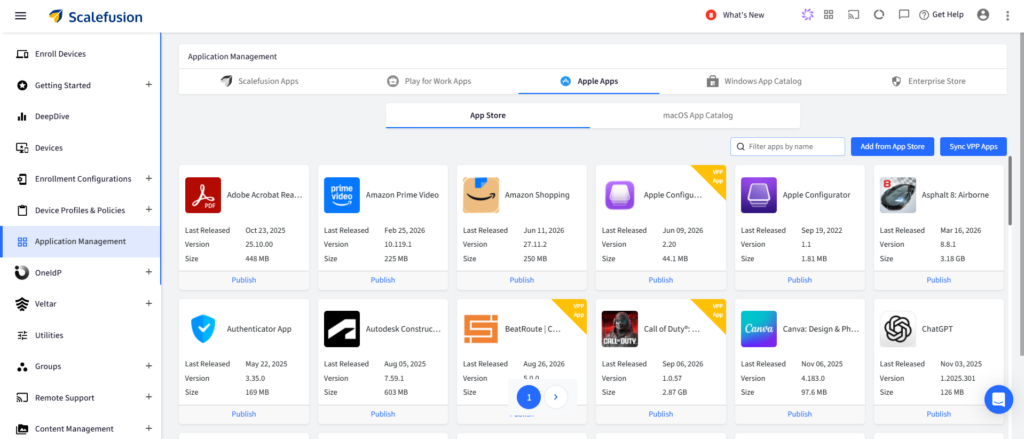
- Select the Chrome application. Open the App Configs tab and click Create.
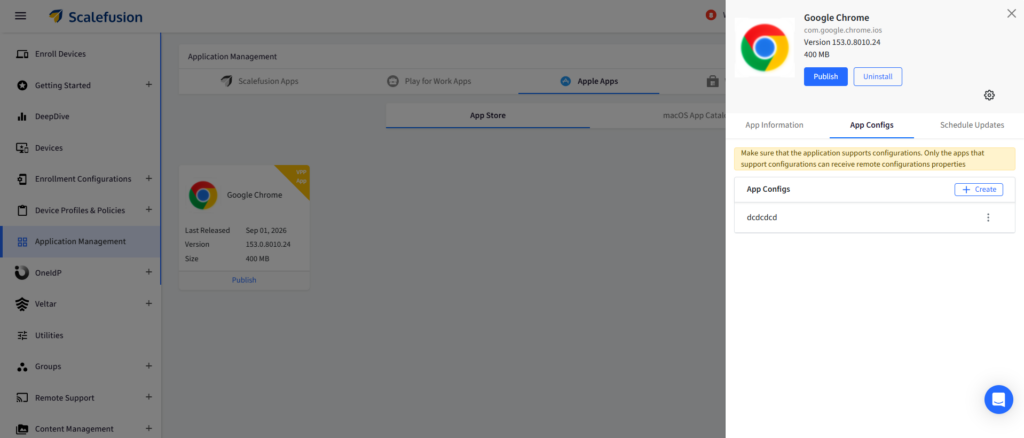
- Enter a name for the configuration. Add a key value pair and configure:
- Data type: String Array
- Key field: URLBlocklist
- Value field: Enter the websites you want to block. Use commas to add multiple websites.
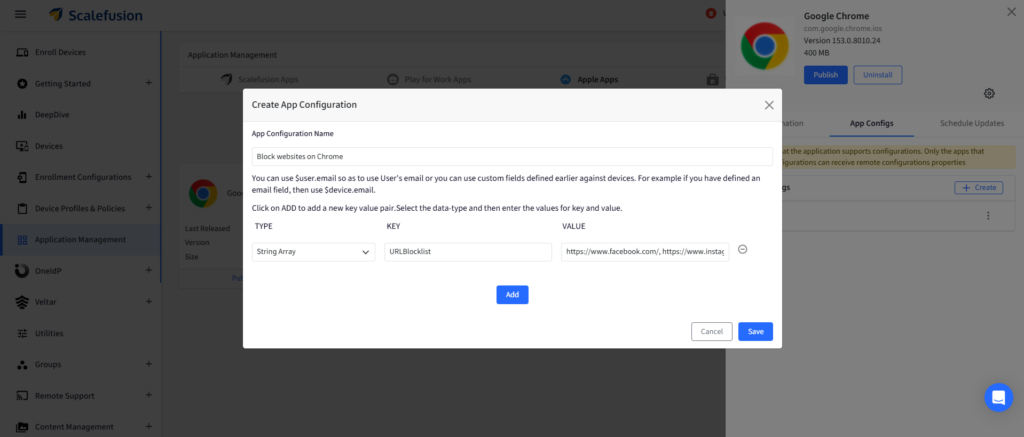
- Save the configuration. From the App Configs tab, click the three dots on the configuration and hit Publish.
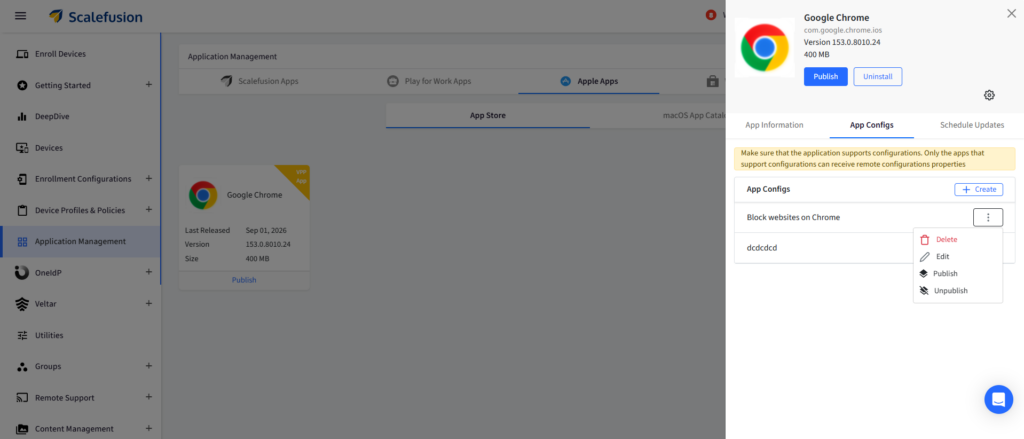
- Select the applicable Device Profiles or Devices to publish the configuration.
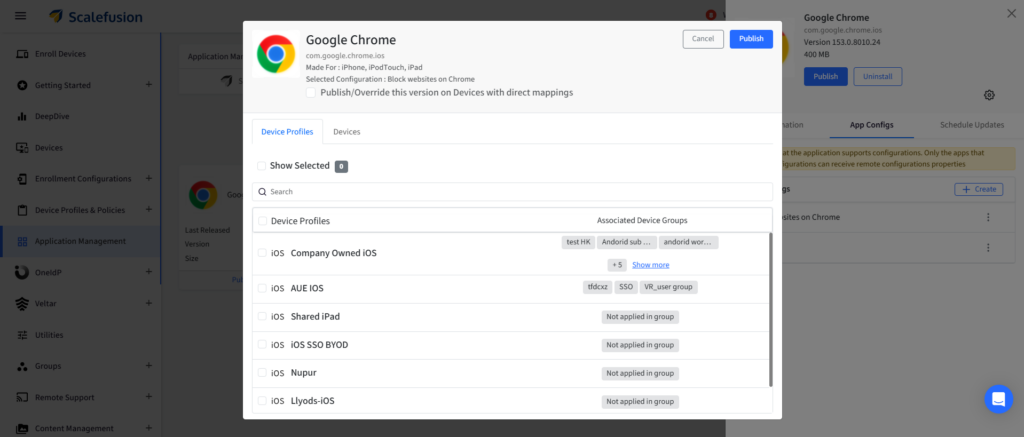
- Relaunch Chrome on the managed iOS device. The websites specified in the configuration will be blocked.
Allow only approved websites in Chrome on iOS
IT admins can use Scalefusion’s Chrome App Configuration to allow access only to approved websites on managed iOS devices.
To configure an allowlist:
1. On the Scalefusion dashboard, navigate to Application Management > Apple Apps > App Store.
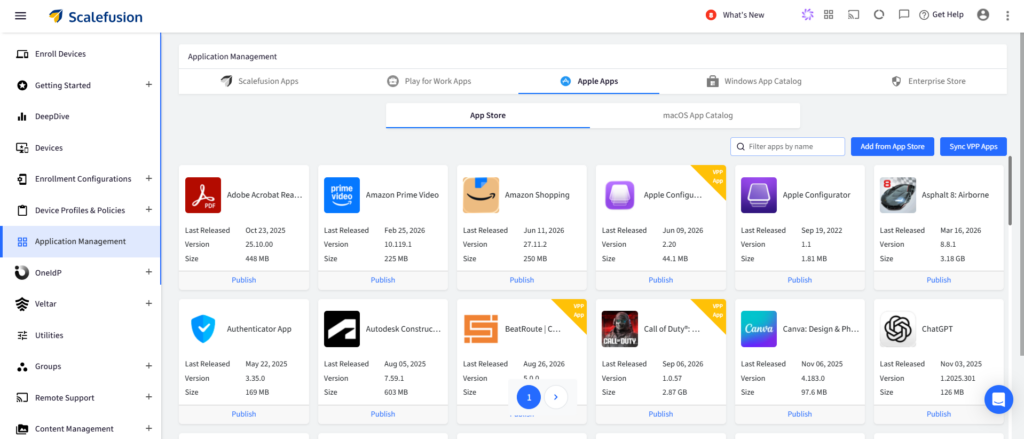
2. Select the Chrome application. Open the App Configs tab and click Create.
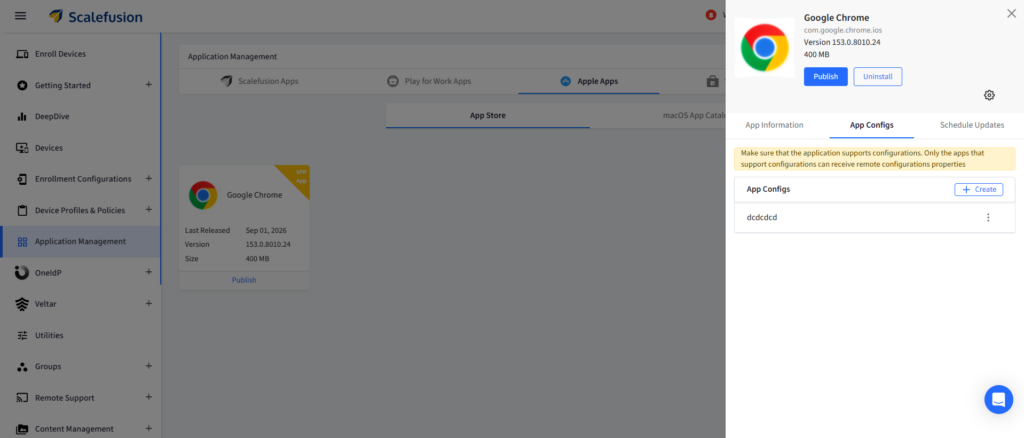
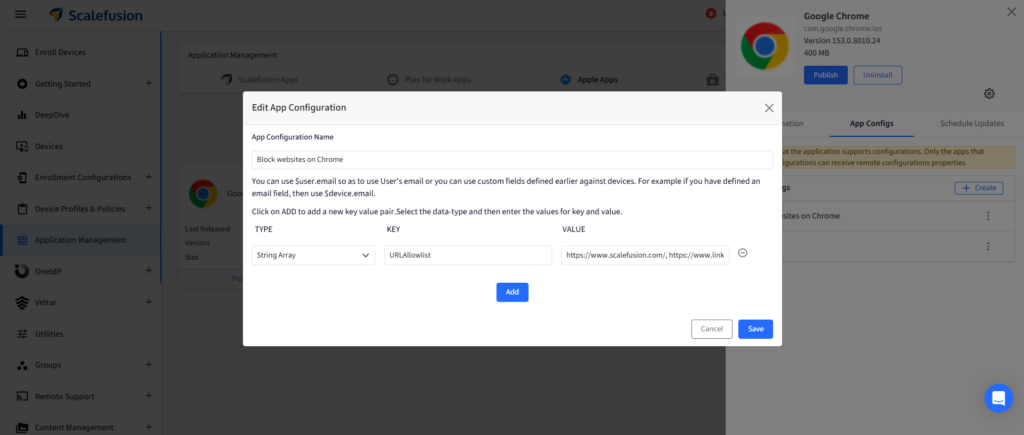
3. Enter a name for the configuration. Click Add and configure the first key value pair:
- Data type: String Array
- Key field: URLAllowlist
- Value field: Enter the websites you want to allow. Use commas to add multiple websites.
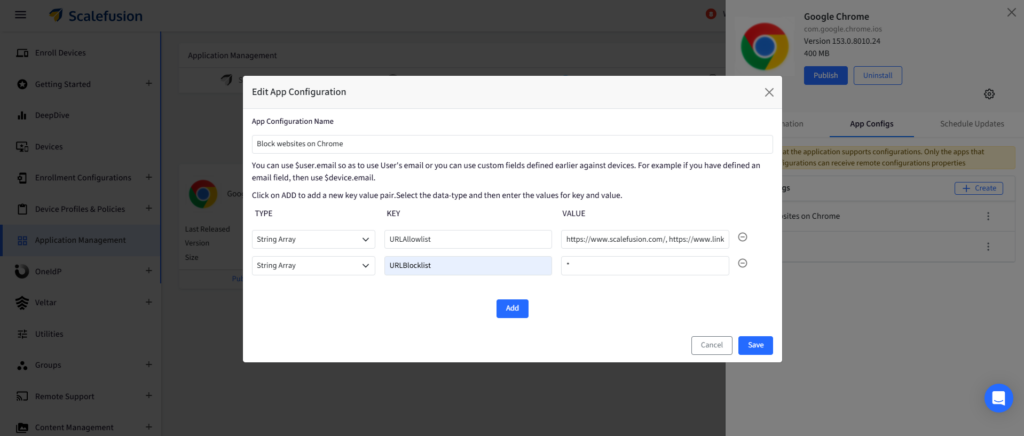
4. Click Add again and configure another key value pair:
- Data type: String Array
- Key field: URLBlocklist
- Value field: *
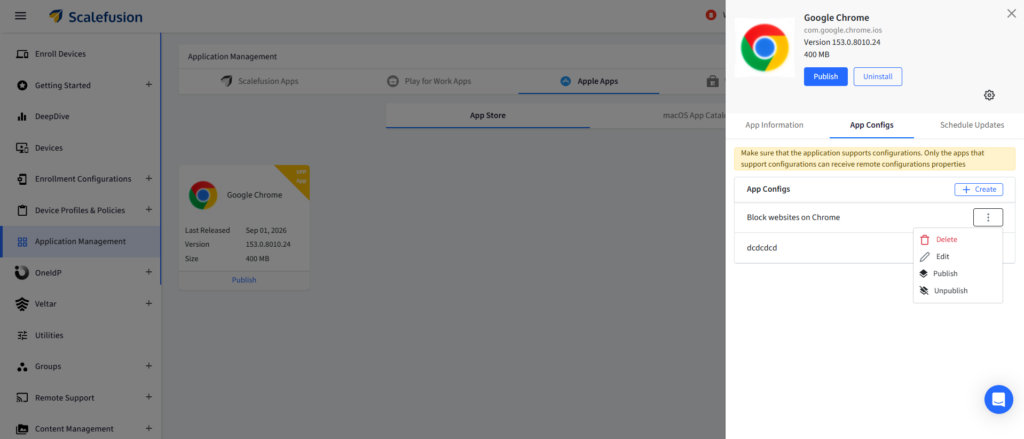
5. Save the configuration. From the App Configs tab, click the three dots on the configuration and hit Publish.
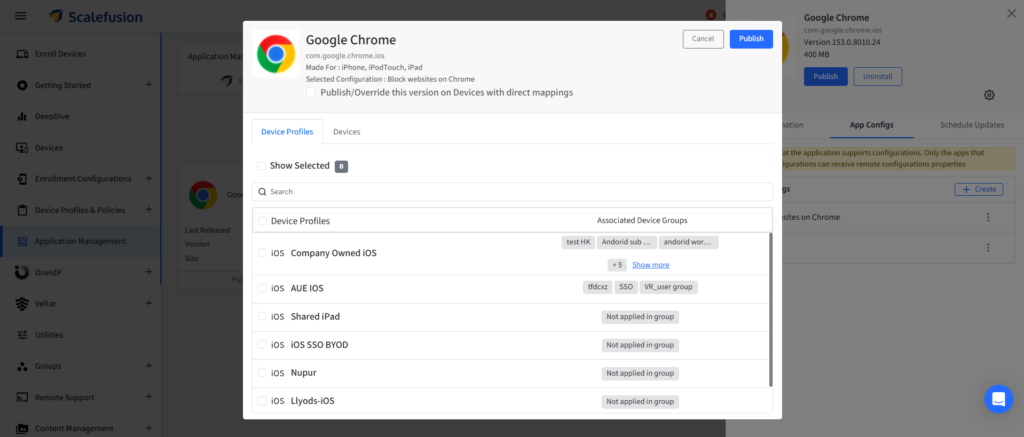
6. Select the applicable Device Profiles or Devices to publish the configuration.
7. Relaunch Chrome on the managed iOS device and verify that the websites specified in URLAllowlist are accessible while other websites are blocked.
Chrome URL policies are designed to control which URLs users can access in Chrome. When IT needs broader web filtering across supported managed endpoints, Scalefusion Veltar SWG provides another policy layer. IT admins can block website categories or specific domains, and define allowed domain and IP exceptions.
How to block websites using Scalefusion Veltar SWG
Chrome URL policies are useful when the requirement is specifically to control URLs inside the browser. Some organizations, however, need web access controls that go beyond maintaining individual Chrome URL lists.
Scalefusion Veltar SWG provides a broader web filtering layer for supported managed environments.
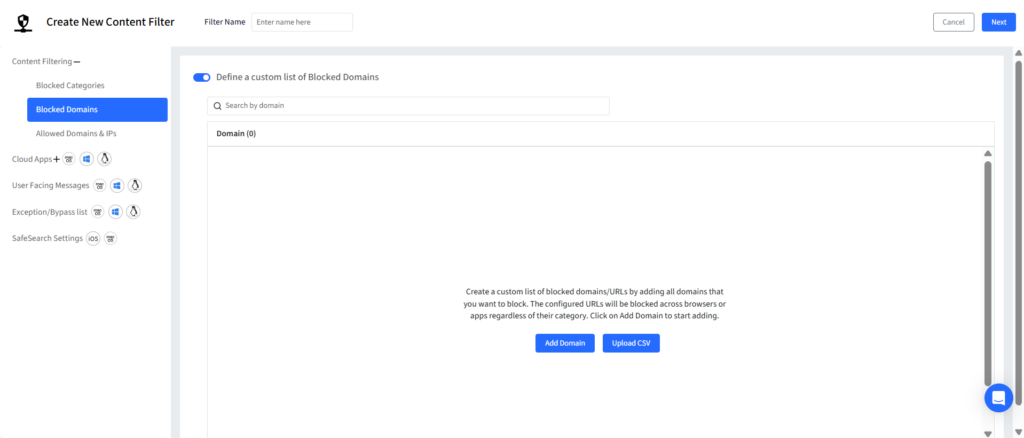
Block specific websites or domains
IT teams can define custom blocked domains when access to specific destinations needs to be restricted. This can be useful when an organization already knows which domains should not be reachable and wants to incorporate those destinations into a broader web access policy.
Domain rules should be configured carefully to ensure that necessary business services or subdomains are not unintentionally affected.
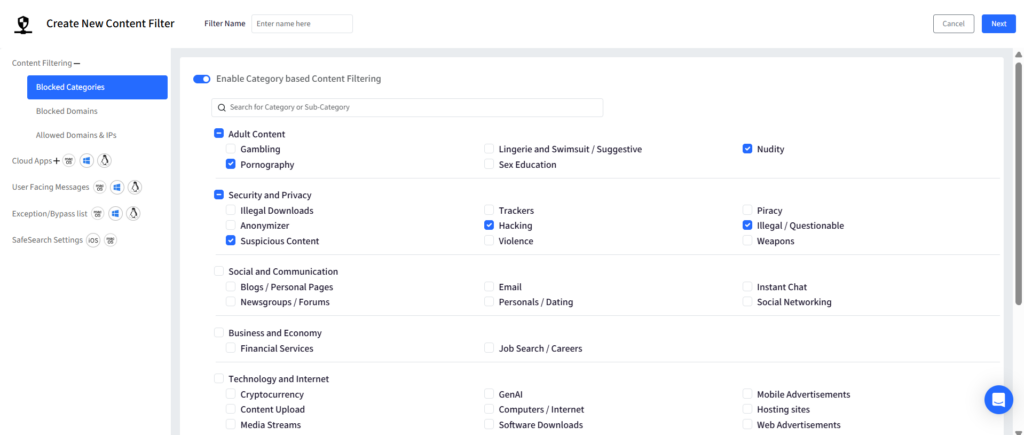
Block website categories
Maintaining individual domain lists becomes harder when an organization wants to control an entire type of web content rather than a handful of known sites.
Veltar SWG supports category-based content filtering, allowing web access rules to be defined by category instead of relying only on manually entered domains. This creates a different control model from Chrome URLBlocklist.
- A Chrome blocklist answers: Which individual URLs should this browser prevent users from opening?
- Category-based web filtering answers: Which types of web destinations should be restricted under this policy?
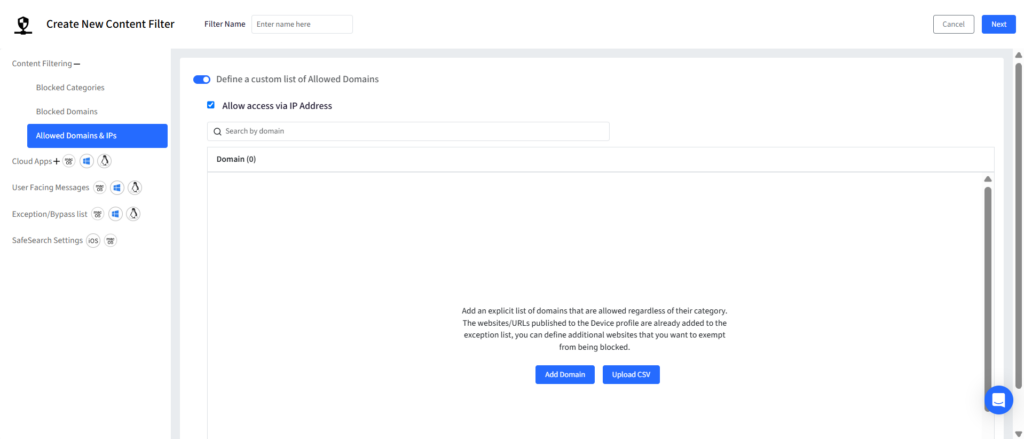
Configure allowed domains and exceptions
Not every domain that falls within a broader restriction should necessarily be blocked.
SWG supports allowed domains and applicable IP-based exceptions that can override blocked entries. This makes it possible to build broader filtering rules while preserving access to business-critical destinations that require an exception.
Manage Chrome website access the right way
There is no single method for blocking websites on Google Chrome across every OS and management scenario.
For individual devices, IT admins can use OS-specific approaches such as Windows Hosts file changes, Windows Group Policy with Chrome ADMX templates, and Registry configuration. Chrome’s URLBlocklist and URLAllowlist policies provide a more structured method for managing browser website access.
For business fleets, Scalefusion enables IT teams to centrally apply supported Chrome website access configurations using the mechanism appropriate to each platform, including Android App Configs, Windows Browser Configurations, macOS Custom Payloads, and iOS App Configs.
When URL-level Chrome controls are not broad enough, Scalefusion Veltar SWG provides an additional web content filtering layer for supported environments, including custom domain rules and category-based controls.
By matching the control to the device and the browsing requirement, organizations can move from manually restricting individual websites to managing website access policies centrally and at scale.