

You can set up HubSpot SSO by connecting HubSpot to an identity provider, configuring SAML-based single sign-on, exchanging the required metadata, assigning users or teams, and testing the login flow. This allows employees to access HubSpot with one secure corporate identity while IT teams centrally manage authentication, access policies, user permissions, and account security.
Key Takeaways
HubSpot SSO lets employees access HubSpot through a trusted identity provider using corporate credentials, while giving IT teams centralized control over authentication, device compliance, browser access, and user permissions.
- Complete the Prerequisites First: Verify the organizational domain, add users to both HubSpot and the identity platform, migrate them to OneIdP, and ensure administrators have access to the HubSpot Admin Console.
- Configure SAML Settings Correctly: Create a HubSpot SSO configuration and transfer the Entity ID, SSO URL, and X.509 certificate to HubSpot’s Single Sign-On settings before verifying the connection.
- Decide Whether to Require SSO: Administrators can make SSO mandatory for HubSpot access, ensuring users authenticate through the organization’s identity provider instead of relying on separate HubSpot passwords.
- Apply Conditional Access Policies: IT teams can restrict access based on device enrollment, MFA or OTP requirements, browser type and version, and temporary enrollment or user exceptions.
- Test the Complete Login Flow: Validate authentication with a test account to confirm redirection, credentials, device and browser policies, exceptions, and final HubSpot access work correctly before wider deployment.
HubSpot is one of the most widely used tools for marketing, sales, and customer engagement. Teams depend on it every day, which makes securing access a top priority. Relying on separate usernames and passwords creates risks like weak credentials, forgotten logins, or the hassle of managing multiple accounts. That’s where HubSpot SSO (Single Sign-On) comes in.
With HubSpot single sign on, employees only need one login through a trusted identity provider (IdP). Once authenticated, they can jump into HubSpot and other connected apps without typing different usernames or passwords each time. For IT teams, it means stronger security, simpler management, and fewer support tickets about lost passwords.
In this guide, we’ll show you why single sign-on (SSO) matters for HubSpot and how to complete a HubSpot SSO setup using Scalefusion OneIdP. By the end, you’ll know how to enable HubSpot login with SSO and create a smoother, more secure experience for your entire organization.
Why enable SSO for HubSpot?
HubSpot has become a central platform for running campaigns, managing contacts, and analyzing performance. But with so many people accessing it from different devices and locations, security becomes a concern.
Enabling HubSpot SSO is the easiest way to balance security with convenience. It not only reduces the chance of weak or reused passwords but also gives IT full control over who can access HubSpot.
Key benefits of enabling HubSpot Single Sign On
- Stronger authentication: Instead of relying on standalone passwords, employees use a centralized identity system. This ensures that HubSpot login with SSO is backed by company security policies like MFA or device checks.
- Faster and simpler access: Users skip the long list of credentials and go straight to their dashboard with HubSpot sign in with SSO.
- Easier onboarding and offboarding: When someone joins or leaves the company, their access to HubSpot can be added or revoked instantly through the IdP.
In short, sign in with SSO HubSpot makes life easier for both employees and IT teams, while tightening security at the same time.
How Does SSO with HubSpot Work?
HubSpot SSO setup connects HubSpot (the Service Provider) to Scalefusion OneIdP (the Identity Provider) using the SAML 2.0 standard.
The login flow works like this:
- A user goes to the HubSpot login page and enters their work email.
- HubSpot checks the domain, sees it’s linked to an SSO configuration, and redirects the user to Scalefusion OneIdP.
- OneIdP verifies the user’s identity — via password, MFA, or a passwordless method — and evaluates any conditional access rules tied to
the request. - OneIdP issues a signed SAML response confirming the user’s identity.
- HubSpot accepts the response and logs the user straight into their dashboard.
Because authentication happens at the identity provider level, IT keeps full control over who can reach HubSpot and from which devices, without HubSpot ever storing or checking a separate password.
Step-by-step guide: Configure SSO for HubSpot
Ready to begin your HubSpot SSO setup? Follow these steps to connect HubSpot with Scalefusion OneIdP.
Prerequisites for HubSpot SSO Setup
Before you start, make sure these checks are complete:
- The custom domain you plan to authorize is verified through OneIdP.
- Users belonging to the custom domain are added to the Scalefusion Dashboard and migrated to OneIdP.
- IT admins have access to the HubSpot Admin Console.
- Users are already added to the HubSpot portal.
Once you have completed these steps, you’re ready to setup HubSpot SSO.
Here’s a visual interactive demo of the set up process.
Now let us walk through the process of setting up Hubspot SSO using Scalefusion OneIdP.
Step 1: Create SSO in Scalefusion
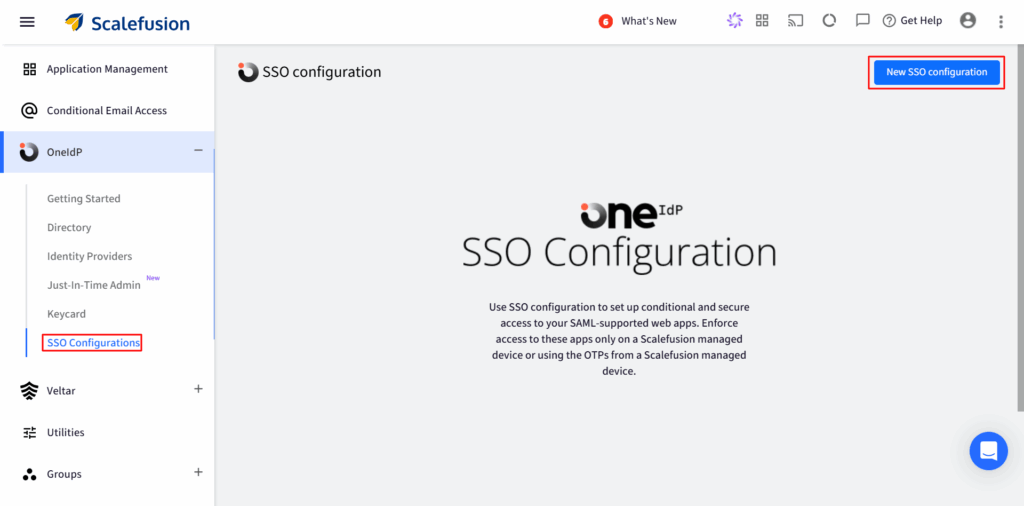
1. Log in to Scalefusion Dashboard → go to OneIdP > SSO Configuration.
2. Click the New SSO Configuration button on the top right.
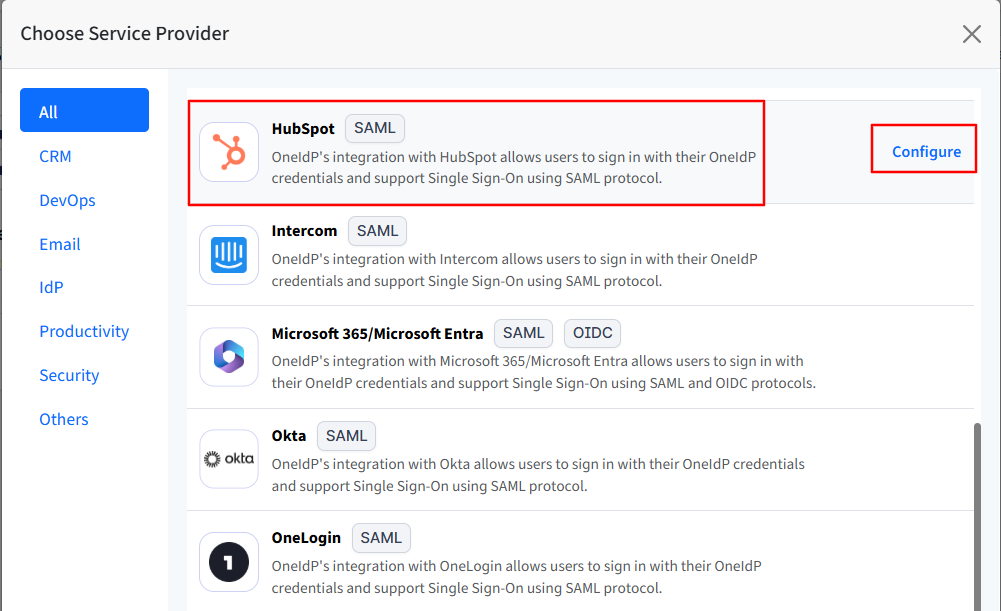
3. After clicking New SSO Configuration, a window will appear. Search for HubSpot in the list, select it, and then click Configure.
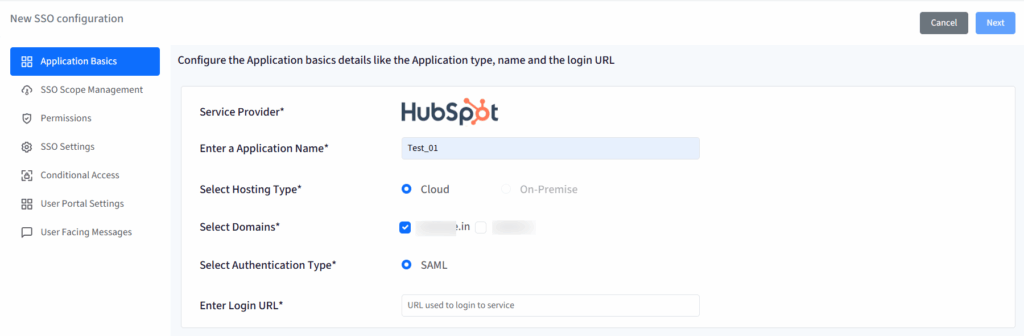
4. This opens a setup wizard with 6 tabs:
- Application Basics
- SSO Scope Management
- Permissions
- SSO Settings
- Conditional Access
- User Facing Messages
Navigate to each tab and enter the required details. You can navigate to the next tab only after you have entered the complete details in the current section.
5. Once you have entered all details click Next
Step 2: Configure SSO in HubSpot
1. In the HubSpot Admin Console, click the gear icon in the upper-right corner of the page.

2. Click on Account Defaults
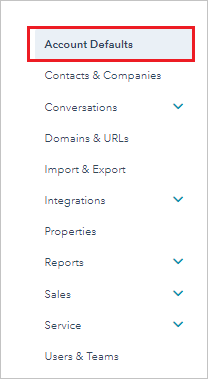
3. Scroll to Security > Set up Single Sign-On.

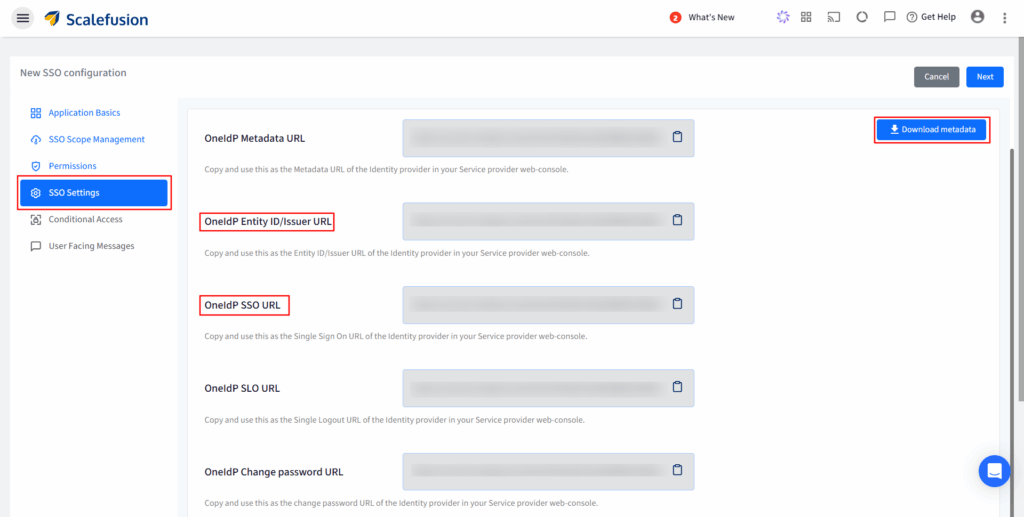
4. Copy these details from Scalefusion dashboard and paste in respective boxes.
- Entity ID/Issuer URL → Identity Provider Identifier
- SSO URL → Identity Provider Sign-On URL
- X.509 Certificate → Paste the certificate from Scalefusion metadata
5. Click Verify.
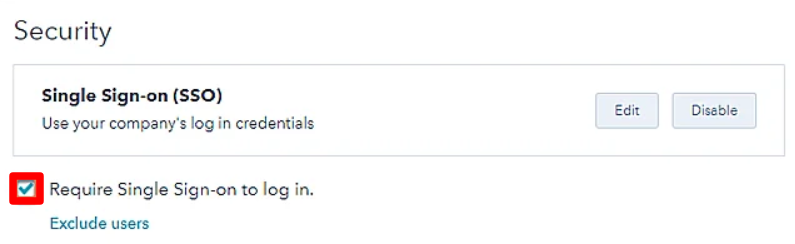
6. Under Single Sign-On, check Require SSO to log in if you want all users to only log in via SSO.
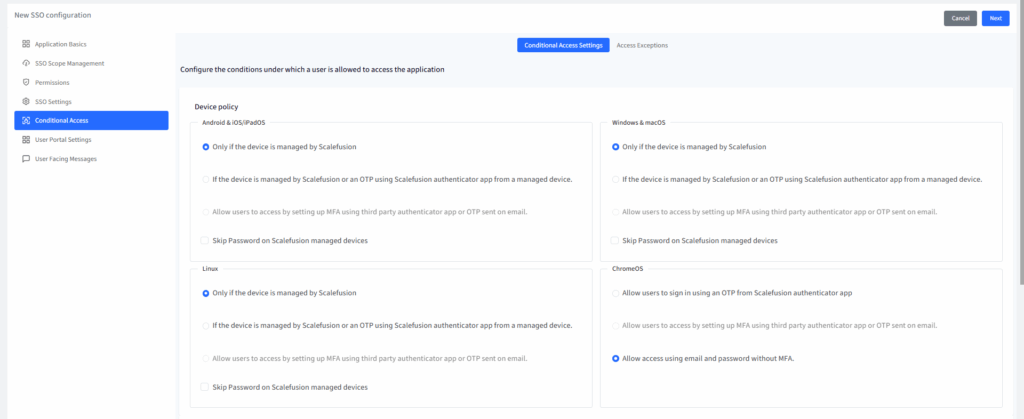
Step 3: Apply Conditional Access (Optional but recommended)
Device Policy
- Allow only Scalefusion-managed devices.
- Or allow both, but ask for OTP if the device is unmanaged.
- Or enforce MFA/OTP if enabled in Directory Settings.
- Optionally, skip password entry on managed devices (except ChromeOS).
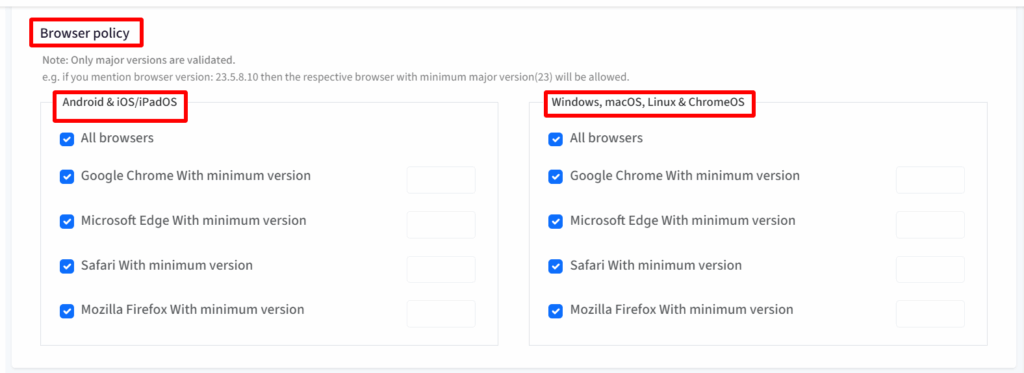
Browser Policy
- Allow all browsers (default), or restrict to specific browsers (Chrome, Edge, Safari, Firefox) with minimum version requirements.
Access Exceptions
- Enrollment Exceptions: Let new users access HubSpot temporarily before enrolling a device, with session and OS limits.
- User Exceptions: Exempt specific users from device/browser rules while still requiring OneIdP login.

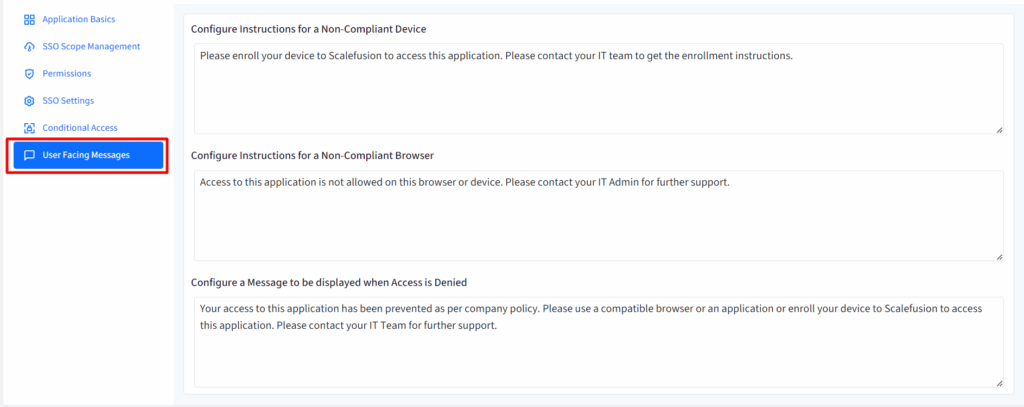
Step 4: Customize User Messages
Set clear instructions for users if access is blocked due to:
- Non-compliant device
- Unsupported browser
- Access denied
Step 5: Save and Test
1. Click Save in Scalefusion.
2. Test the setup:
- Go to your HubSpot Login URL
- Here your Login Link will redirect you to OneIdP page to authenticate.
- After entering credentials, click on Sign In.

- You should be logged in into HubSpot.
Done! Your HubSpot is now secured with OneIdP SSO, and you can control access with device, browser, and user-based rules.

Enable SSO across cloud apps with Scalefusion OneIdP
Configuring HubSpot SSO is one of the most effective ways to secure and simplify access to a critical business tool. From preventing password fatigue to ensuring smooth onboarding, the benefits of HubSpot single sign on reach every corner of your organization.
By using Scalefusion OneIdP, IT teams can easily complete the HubSpot SSO setup, allow employees to HubSpot login with SSO, and extend the same approach to other business applications. The result? Stronger security, happier users, and less overhead for IT.
Scalefusion OneIdP supports a wide range of cloud and on-premise applications. That means once you configure HubSpot single sign on, you can expand the same setup to apps like Dropbox, Salesforce, or Office 365.
Next Step
More SSO setup guides
FAQs
1. What is HubSpot Single Sign-On (SSO) used for?
HubSpot Single Sign-On (SSO) is used to allow users to log in to HubSpot using a single set of corporate credentials instead of separate HubSpot usernames and passwords. It centralizes authentication through an identity provider, helping organizations improve security, simplify access management, and reduce password-related issues.
2. How does HubSpot SSO help with user onboarding and offboarding?
HubSpot SSO simplifies user onboarding and offboarding by centralizing access management through an Identity Provider. IT teams can quickly grant HubSpot access to new users and immediately revoke access when employees leave, without manually creating or deleting accounts. This reduces administrative effort, prevents inactive user accounts, and ensures faster onboarding with more secure offboarding.
3. Is HubSpot SSO useful for remote and hybrid employees?
Yes, HubSpot SSO is highly useful for remote and hybrid employees, as it enables secure access from any location using corporate credentials. It provides a consistent login experience across devices, reduces dependency on local networks or VPNs, and improves security for distributed teams, making it ideal for modern and flexible work environments.
4. Can Multi-Factor Authentication (MFA) be enforced with HubSpot SSO?
Yes, Multi-Factor Authentication (MFA) can be enforced with HubSpot SSO at the Identity Provider level. MFA adds an additional verification step during login, significantly reducing the risk of unauthorized access and phishing attacks while strengthening overall account security for sensitive business data.
5. How does Scalefusion OneIdP simplify HubSpot SSO management?
Scalefusion OneIdP simplifies HubSpot SSO management by centralizing identity and access control in a single dashboard. It allows IT teams to easily configure SSO, manage users, and enforce security policies, reducing administrative effort and improving access security.

