

You can set up SSO with Microsoft Entra ID by registering the application in Entra ID, configuring the required SSO protocol such as SAML or OpenID Connect, mapping user attributes, assigning users or groups, and testing the login flow. This allows employees to access approved business applications with one secure identity while IT teams centrally manage authentication, access policies, MFA, and user permissions through Microsoft Entra ID.
Key Takeaways
Setting up SSO with Microsoft Entra ID gives users secure, streamlined access to business applications while enabling IT teams to centrally enforce identity, device, browser, and session-based access policies.
- Complete the Prerequisites First: Administrators need access to both management portals, a verified organizational domain, assigned OneIdP users, and enrolled devices before beginning the SSO configuration.
- Configure the Entra Integration: Create a new SSO configuration, select Microsoft Entra ID, define application access rules, and grant the required administrator permissions for authentication.
- Control User Access and Sessions: IT teams can choose whether SSO applies to all imported users or selected groups and automatically terminate sessions when access assignments change.
- Apply Context-Aware Access Policies: Conditional access rules can evaluate device management status, browser type and version, location, IP address, OTP verification, and user-specific exceptions before granting access.
- Deliver a Seamless Login Experience: Users authenticate with their Microsoft Entra credentials once, while identity, device, browser, and session checks run in the background before access to approved applications is granted.
IT teams must secure access across users, devices, and locations, without slowing anyone down. Microsoft Entra ID (formerly Azure AD) serves as the core identity layer for many enterprises, set up single sign-on with Microsoft Entra ID to Microsoft 365 and numerous SaaS apps. However, it only handles authentication on its own.
While the Entra admin portal can feel complex and overwhelming, especially for smaller teams, Scalefusion OneIdP simplifies setup and user management.

By integrating with Entra ID, Scalefusion adds the missing layer: context-aware access that considers device health, OS version, location, and usage patterns.
Before you start
Ensure that you have checked the following essentials:
- Admin access: You have admin access in both the Scalefusion Dashboard and the Microsoft Entra Admin Center.
- Verified domain: The custom domain must be verified in OneIdP.
- User management: Users from that domain should be added to Scalefusion and assigned to OneIdP.
- Device enrollment: Devices are enrolled and managed via Scalefusion.
Set up single sign-on (SSO) with Microsoft Entra ID
Prefer a written guide? Our setup guide walks you through it all, clearly and simply.
To create the SSO configuration in Scalefusion
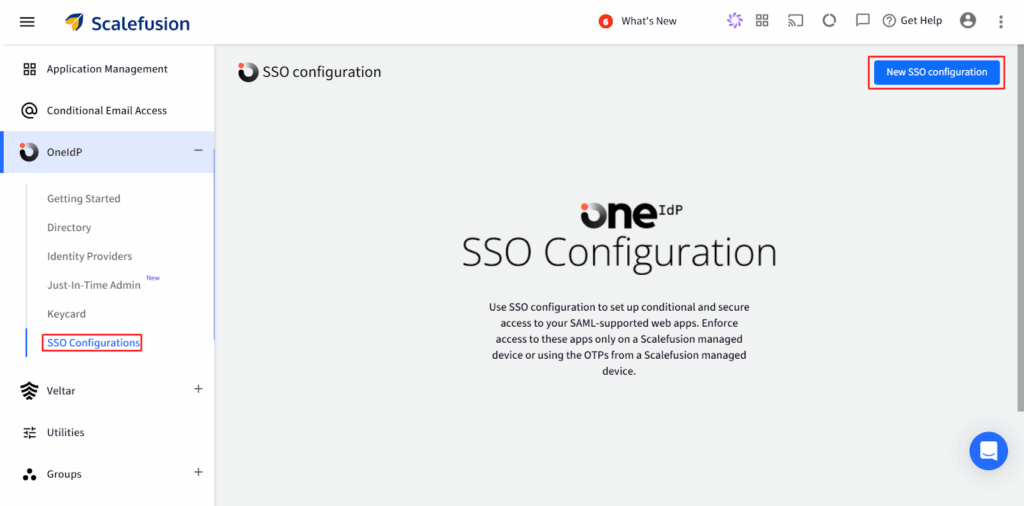
- Log in to Scalefusion, go to OneIdP > SSO Configuration, and click New SSO Configuration to open the setup window.
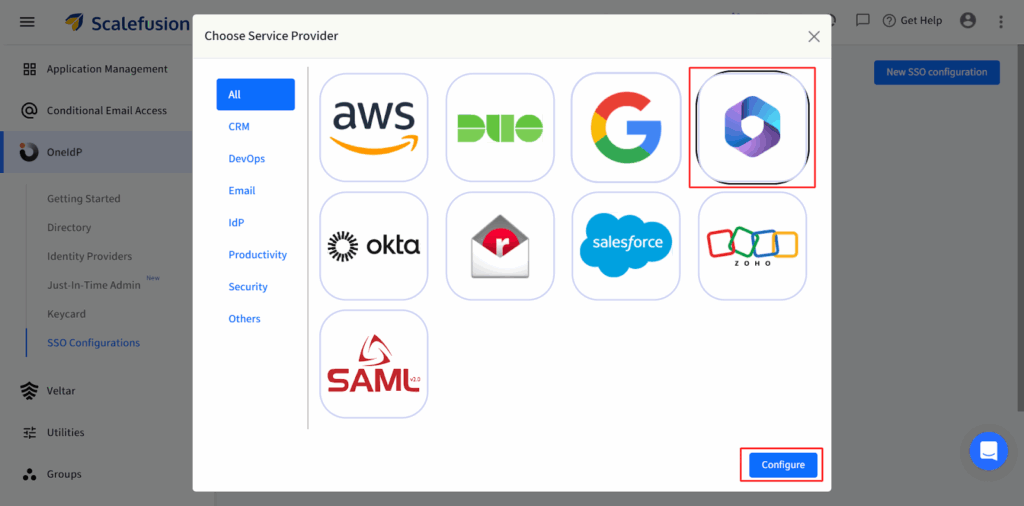
2. Select Entra: In the pop-up window, choose Entra and click Configure.
3. Complete the SSO Configuration wizard. Fill in all the configuration tabs:
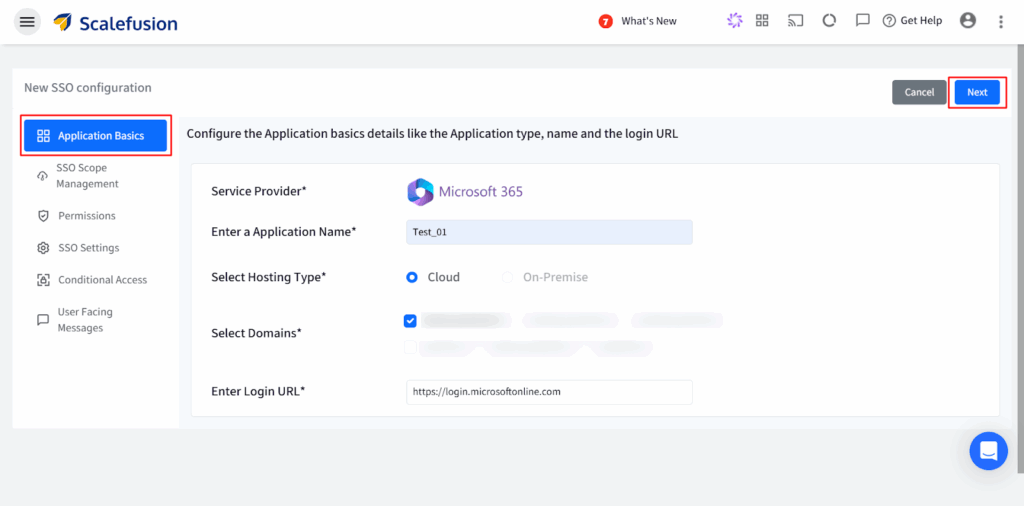
a. Application Basics: Define access rules by user, device, and login url.
b. SSO Scope Management: Set SAML and logout rules to allow all imported users or only assigned ones. Define deprovisioning to auto-end sessions on assignment, unassignment, or SSO removal.

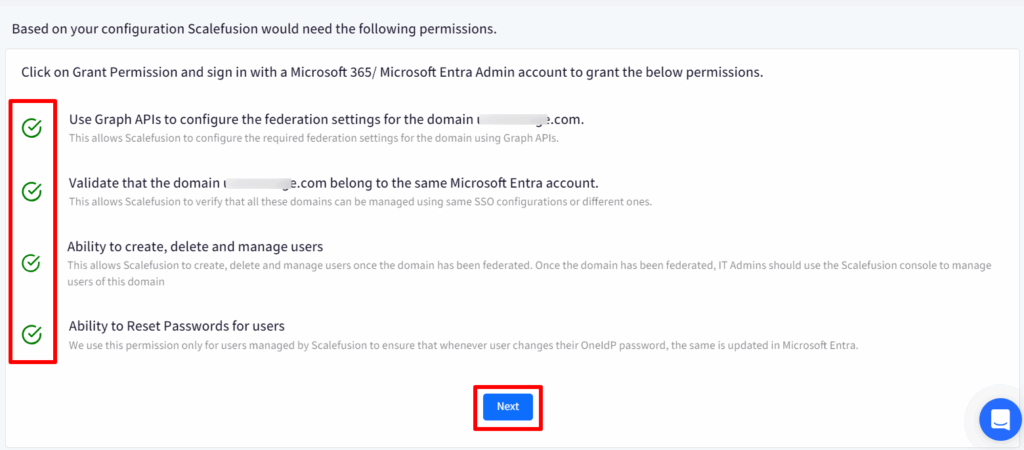
c. Permissions: Grant Entra admin access so OneIdP can authenticate users and enforce SSO.
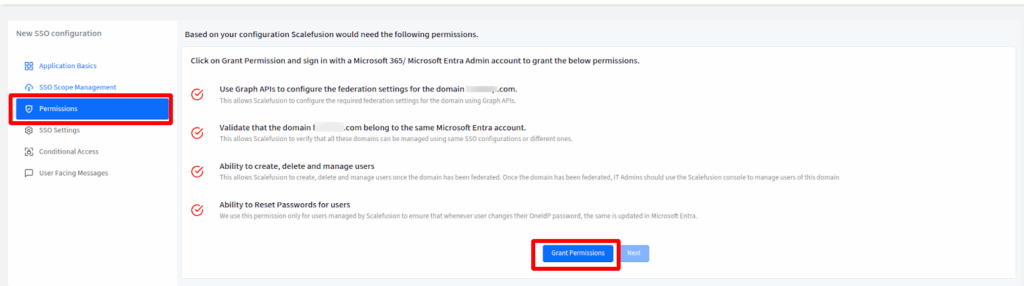
After granting permissions, you’ll return to the Scalefusion Dashboard with green checkmarks showing success.
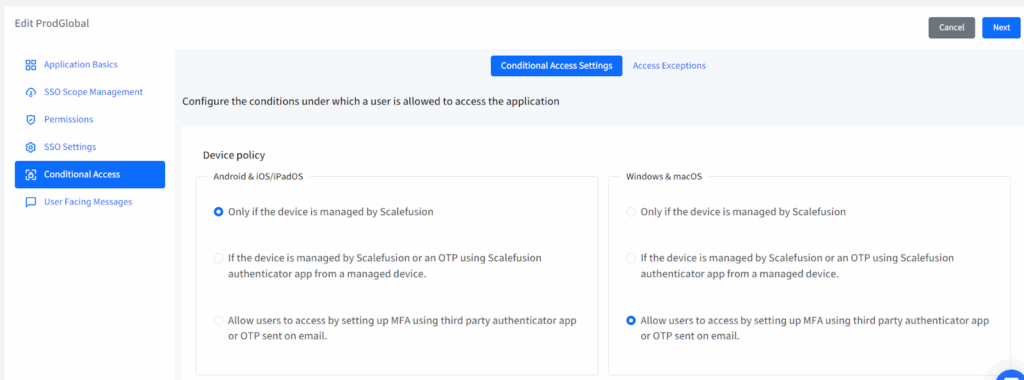
d. Conditional Access: Control access by allowing only managed devices or OTP verification, restricting browsers by type and version, and exempting specific users by email from device checks.
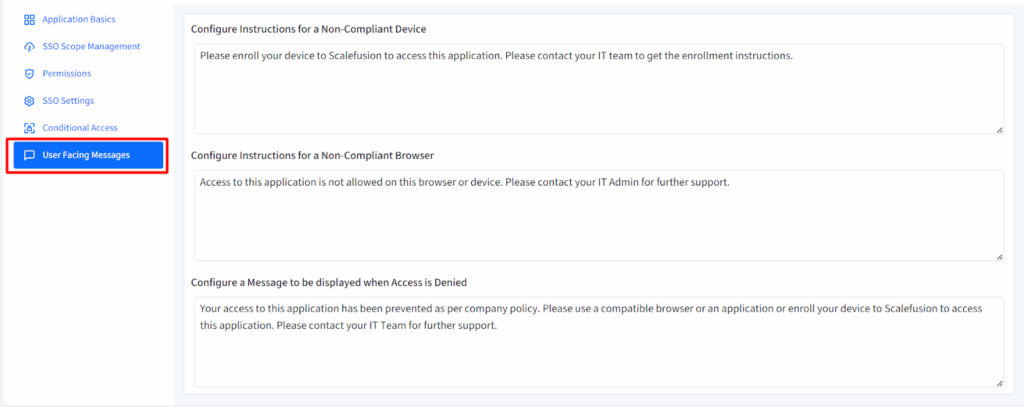
e. User Messages: Customize what users see if access is blocked.
Once all details are added, click Next.
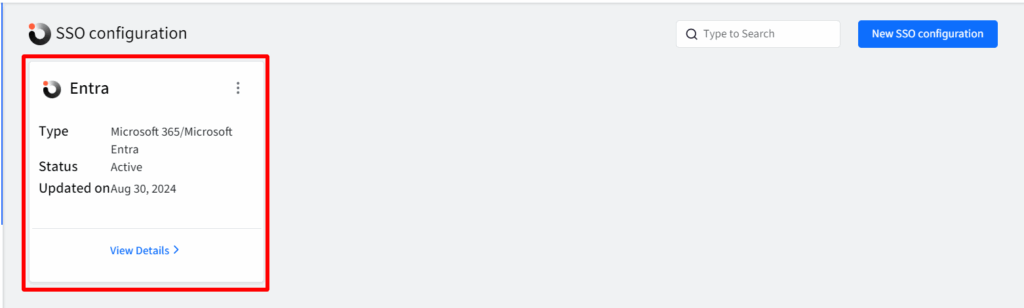
3. Your configuration appears as a named card on the SSO Configuration page.
What the user gets:
➡ User tries to access an app from their device.
➡ OneIdP checks device, browser, and access rules set in the single sign-on configuration.
➡ User enters Microsoft Entra credentials on the OneIdP login screen (no separate Entra UI).
➡ Microsoft Entra verifies the credentials and sends a secure token to OneIdP.
➡ OneIdP evaluates session rules, conditions, and exceptions before approving access.
➡ User gains seamless, secure access to all allowed apps using single sign-on.
➡ OneIdP enforces session policies like automatic logout or re-authentication as needed.

Troubleshooting common setup issues
| Issue | Likely Cause | Fix |
|---|---|---|
| User not imported/assigned in OneIdP | User wasn’t added to the domain in Scalefusion, or wasn’t assigned to OneIdP | Confirm the user appears under OneIdP > Users before troubleshooting further |
| Domain not verified | Domain verification step was skipped or hasn’t propagated yet | Check domain status in OneIdP settings; DNS changes can take time to propagate |
| Consent/admin permission not granted | Microsoft admin consent prompt was declined or skipped | Re-run the Permissions step and ensure an Entra admin approves the consent prompt |
| Wrong user scope | SSO Scope Management set to the wrong group (all vs. assigned) | Review the scope setting under SSO Scope Management |
| Conditional access blocks unmanaged device | Device compliance policy is working as configured | Enroll the device in Scalefusion, or add a scoped exception for pilot testing |
| Browser version restriction blocks login | Browser policy set stricter than the user’s current browser version | Update the browser, or review the allowed browser/version list in Conditional Access |
| OTP/MFA not configured | OTP fallback wasn’t set up for users without managed devices | Configure OTP under Conditional Access before rolling out to unmanaged-device users |
| Token/session/logout behavior not as expected | Deprovisioning or session rules configured differently than expected | Review SSO Scope Management deprovisioning settings |


Benefits of integrating SSO with Microsoft Entra ID
OneIdP extends Microsoft Entra single sign-on with Scalefusion-managed device context and conditional access. It enforces real-time device compliance, blocking rooted, jailbroken, or unmanaged devices before granting access, based on your configured device compliance policies. This closes security gaps beyond standard identity checks. It enhances security by adding browser restrictions, ensuring access only from trusted, up-to-date browsers for a safer, more controlled login experience.
The centralized User Portal of Scalefusion OneIdP lets employees sign in once to access all Entra-integrated apps, reducing password fatigue and streamlining workflows. It extends conditional access by evaluating device OS, IP, location, MFA, and other real-time signals, dynamically grouping users and groups for precise, context-aware policies.
By continuously verifying identity, device, browser, and context, OneIdP supports a zero-trust, adaptive approach to access that strengthens security while improving user experience, making it a smart upgrade to Microsoft Entra single sign-on (SSO) .
Next Step
FAQs
1. What is Microsoft Entra ID, and how does it enable SSO?
Microsoft Entra ID is a cloud identity and access management (IAM) solution that enables secure SSO for enterprise applications. It acts as an identity provider (IdP), allowing users to log in once and access multiple apps via basic SAML configuration, OIDC, or OAuth, streamlining SSO authentication while enforcing security policies.
2. What’s the difference between Azure AD and Microsoft Entra ID?
Microsoft Entra ID is the new name for Azure Active Directory, reflecting its evolution beyond just Azure services. It now includes workload identities, decentralized identity, and CIAM solutions, offering broader identity and access management (IAM) capabilities while retaining all Azure AD features.
3. Which authentication protocols (SAML, OIDC, OAuth) does Entra ID support?
Microsoft Entra ID supports:
- SAML 2.0 (for enterprise application SSO).
- OpenID Connect (OIDC) (for modern web/mobile apps).
- OAuth 2.0 (for API access and delegated permissions).
This ensures compatibility with SaaS apps, custom apps, and cloud services.
4. Can I enable conditional access policies with Entra ID SSO?
Yes, Entra ID’s conditional access policies enforce security rules like MFA, device compliance checks, and location-based restrictions. Admins can require risk-based authentication, ensuring only trusted users and devices access SSO-enabled apps, helping reduce unauthorized access.
5. How do I enforce MFA with Microsoft Entra ID SSO?
To enforce MFA in Entra ID:
- Go to Microsoft Entra Admin Center.
- Navigate to Security > Conditional Access.
- Create a policy requiring MFA for specific apps/users.
Supported methods include SMS, Microsoft Authenticator, and FIDO2 security keys, strengthening SSO security.

