

Chromebooks are not always deployed as general-purpose computers. In schools, stores, reception areas, restaurants, and other shared environments, a device may need to perform one dedicated task rather than give users access to a complete desktop environment.
Chromebook kiosk mode is designed for this type of deployment. It allows an organization to configure a managed ChromeOS device around a specific application or web experience, giving users access to the intended workflow without a normal ChromeOS user session.
For IT teams, however, deploying a kiosk involves more than opening an application in full screen. The device also needs the right application, policies, network configuration, monitoring, update strategy, and security controls. As deployments grow, IT teams need a consistent way to configure and manage these settings across kiosk devices without treating each Chromebook as a separate setup project.
This guide explains what Chromebook kiosk mode is, how it works, how to configure it through the Google Admin console, and how IT teams can set up and manage Chromebook kiosks with a mobile device management (MDM) solution.
What is Chromebook kiosk mode?
Chromebook kiosk mode is a specialized, managed ChromeOS configuration that allows an IT admin to run a dedicated application or web experience in a locked-down, full-screen mode without requiring the user to sign in to the device.
Unlike a traditional user session or managed guest session, where users can access multiple applications and the browser, kiosk mode provides a locked-down, admin-controlled experience focused on a single application. This makes it suitable for Chromebooks that need to perform one predictable task rather than function as general-purpose computers.
Google’s current kiosk management capabilities also support web applications, including websites, Progressive Web Apps (PWAs), and Isolated Web Apps (IWAs), on managed ChromeOS devices in locked-down kiosk mode.
Kiosk mode should not be confused with simply opening the Chrome browser in full-screen mode. ChromeOS kiosk mode is an administrator-managed device configuration that determines the application available to the kiosk and how that application behaves.
Also read: How to run PWA in kiosk mode
How does kiosk mode work on a Chromebook?
Kiosk mode works by applying an administrator-defined kiosk configuration to a managed Chromebook, which determines the application available to users and how the device behaves during the kiosk session.
Chromebook kiosk deployment combines device enrollment, application configuration, and administrative policies. A typical deployment process involves the following steps:
- Enroll the Chromebook in the organization: ChromeOS devices need to be enrolled before an IT admin can enable kiosk mode.
- Choose the kiosk application: IT configures the web app, PWA, IWA, or other supported kiosk application required for the deployment.
- Apply the configuration to the right devices: Organizational units can be used to determine which ChromeOS devices receive the kiosk configuration.
- Configure launch behavior: The application can be available for manual launch or configured to start automatically when the device boots.
- Manage the kiosk after deployment: IT admins can configure relevant application and device policies, monitoring, and troubleshooting settings.
Google allows multiple kiosk applications to be deployed to ChromeOS devices, but only one can be configured to launch automatically when the device starts.
Chromebook kiosk mode vs. Regular ChromeOS user session
The main difference between Chromebook kiosk mode and a regular ChromeOS user session is the purpose of the device and how much of the operating environment is available to the user.
| Aspect | Chromebook kiosk mode | Regular ChromeOS user session |
|---|---|---|
| Primary purpose | Dedicated application or workflow | General-purpose computing |
| User sign-in | Normal user login is not required | User typically signs in |
| Application access | Focused on the configured kiosk application | Multiple permitted apps and browser resources |
| Interface | Restricted application experience | Standard ChromeOS user environment |
| User control | Limited by administrator configuration | Depends on user and organizational policies |
| Typical deployment | Signage, testing, self-service, and other dedicated devices | Employee, student, or general-purpose devices |
Kiosk mode is therefore most appropriate when the Chromebook has a clearly defined purpose. If users need a normal desktop session with access to multiple applications, another ChromeOS session type may be more suitable.
Common use cases for Chromebook kiosk mode
Chromebook kiosk mode works best when the device has one clearly defined job.
Digital signage: ChromeOS devices can be used to display menus, schedules, announcements, dashboards, promotional content, or other information. Kiosk mode allows the Chromebook to run the configured digital signage application as a dedicated display, without providing access to a regular ChromeOS user session.
Self-service kiosks: A Chromebook can provide a dedicated interface for self-service kiosks through which customers or visitors complete a particular workflow. Depending on the application, this could include submitting information, browsing a service catalog, filling out a form, or navigating a self-service portal.
Retail and hospitality kiosks: Retail and hospitality organizations can use ChromeOS kiosk deployments for purpose-built customer workflows such as ordering, product information, or check-in. The kiosk application provides the customer-facing function, such as ordering or check-in, while kiosk mode keeps the Chromebook dedicated to that application.
Education and standardized testing: ChromeOS kiosks can also support assessment environments. When auto-launch is configured, Google notes that a Chromebook can immediately load the designated kiosk app when the device starts. This allows the testing experience to run separately from a student’s normal ChromeOS session.
Visitor and check-in stations: Organizations can deploy Chromebooks as reception or visitor stations when the underlying application supports the required workflow. The Chromebook remains focused on the registration or check-in experience rather than functioning as an unrestricted shared computer.
What do you need before setting up Chromebook kiosk mode?
If you are setting up a kiosk mode Chromebook for a dedicated task, prepare both the ChromeOS device management environment and the application the device will run. Depending on the deployment, IT teams should account for:
- A managed ChromeOS environment
- An appropriate ChromeOS management license or subscription
- A Chromebook that can be enrolled into the organization
- A supported kiosk application, website, PWA, or IWA
- An organizational unit for the relevant devices
- Network access required by the kiosk application
- Any printers, scanners, displays, keyboards, or other peripherals required by the workflow
The application itself should also be tested carefully.
Google recommends adding only web apps that the organization fully trusts because web permissions in locked-down kiosk mode can be granted without requesting user consent. Google also advises against specifying URLs that redirect to another origin because permissions requested by an unexpected origin can be rejected.
Note: Google describes kiosk mode as a session that runs a single Chrome or Android app. However, support for legacy Chrome apps is being phased out, so organizations should prefer current supported app types such as web apps and PWAs where appropriate.
How to set up kiosk mode on a Chromebook
Chrome admins can configure kiosk applications through the Google Admin console.
Step 1: Sign in to the Google Admin console
Sign in to the Google Admin console using an admin account with the required Chrome management privileges. For a phased rollout, use an organizational unit that contains only the devices intended for testing before expanding the configuration to a larger fleet.
Step 2: Open the Kiosks configuration
Go to Devices > Chrome > Apps & extensions > Kiosks. Google uses this area of the Admin console to deploy and configure kiosk applications on managed ChromeOS devices.
Step 3: Select the organizational unit
Select the organizational unit containing the devices that should receive the kiosk configuration. This lets IT apply the configuration to a defined set of ChromeOS devices rather than configuring each Chromebook individually.
Step 4: Add the kiosk application
Add the Chromebook kiosk app required for the deployment. For websites and PWAs, Google provides an ‘Add by URL’ option. Enter the application URL and save it.
Google recommends using URLs that do not redirect to a different origin. For applications that request permissions from multiple URL origins, additional trusted origins can also be specified where supported.
Step 5: Configure auto-launch if required
If the Chromebook should start directly in the kiosk application, configure the application as the Auto-launch app. In the Kiosks configuration, select the application under the auto-launch setting and save the configuration.
Google allows multiple kiosk applications to be deployed to a device, but only one application can automatically launch when the ChromeOS device starts.
Step 6: Configure relevant kiosk settings
Review the available kiosk settings according to the deployment requirements. Google documents controls including:
- Health monitoring
- System log uploads
- Screen rotation
- Application power management
- On-screen keyboard behavior
- Multi-display settings
- Maintenance windows
For example, enabling health monitoring allows IT admins to receive kiosk health status information. System log uploads can assist with troubleshooting, but Google requires organizations to inform users that device activity may be monitored and that information may be captured in uploaded logs.
Step 7: Enroll and test the Chromebook
Enroll the Chromebook into the organization and confirm that it receives the intended kiosk configuration. Restart the device and test the entire kiosk workflow:
- Does the correct application launch?
- Does auto-launch work after startup?
- Can the application reach all required URLs?
- Does network connectivity work as expected?
- Do required peripherals function correctly?
- Are the intended kiosk policies applied?
Test the complete operational workflow rather than treating successful application launch alone as proof that the kiosk is ready for deployment.
Security hardening checklist for Chromebook kiosks
Kiosk mode narrows the user experience, but the Chromebook still needs appropriate security and operational controls.
1. Use trusted kiosk applications: Google notes that web permissions for kiosk web applications can be granted without requesting user consent. Review the application, its required permissions, and its URL origins before deployment.
2. Limit unnecessary access: Keep the kiosk focused on the application and web resources required for its intended purpose rather than exposing unnecessary resources.
3. Maintain ChromeOS and kiosk applications: Plan how operating system and application updates will be tested and deployed without unnecessarily disrupting kiosk availability.
Note: Legacy Chrome Apps are being phased out for kiosk deployments. ChromeOS 150 is the last regular ChromeOS release supporting Chrome Apps in kiosk sessions. Starting with ChromeOS 151, general Chrome App kiosk support ends, although Google documents limited exceptions and longer support for some long-term support (LTS) configurations. Organizations should plan migrations toward supported web technologies such as web apps and PWAs.
4. Enable appropriate health monitoring: Where applicable, kiosk health monitoring can help IT determine whether devices are online and operating correctly.
5. Configure logging deliberately: System logs can help diagnose device and application problems, but they may capture device or user activity. Follow Google’s notice requirements and the organization’s internal data handling policies before enabling log uploads.
6. Test connected hardware: Validate scanners, printers, touchscreens, keyboards, external displays, and other peripherals the kiosk workflow depends on.
7. Review kiosk policies periodically: Application requirements, URLs, ChromeOS versions, and business workflows change over time. Review the kiosk configuration instead of assuming the initial policy will remain suitable indefinitely.
8. Plan for recovery: Define how IT will respond if the kiosk application fails, connectivity is lost, or a configuration change prevents the device from operating as intended.
How to set up Chromebook kiosk mode with Scalefusion
Scalefusion manages ChromeOS settings through ChromeOS Device Profiles and Organizational Units. Before enrollment, Scalefusion requires a ChromeOS Device Profile to be created, Organizational Units to be imported, and the relevant profile to be applied to the Organizational Unit.
Step 1: Create a ChromeOS Device Profile
On the Scalefusion dashboard, go to Device Profiles & Policies > Device Profiles. Create a new ChromeOS Device Profile or edit an existing one.
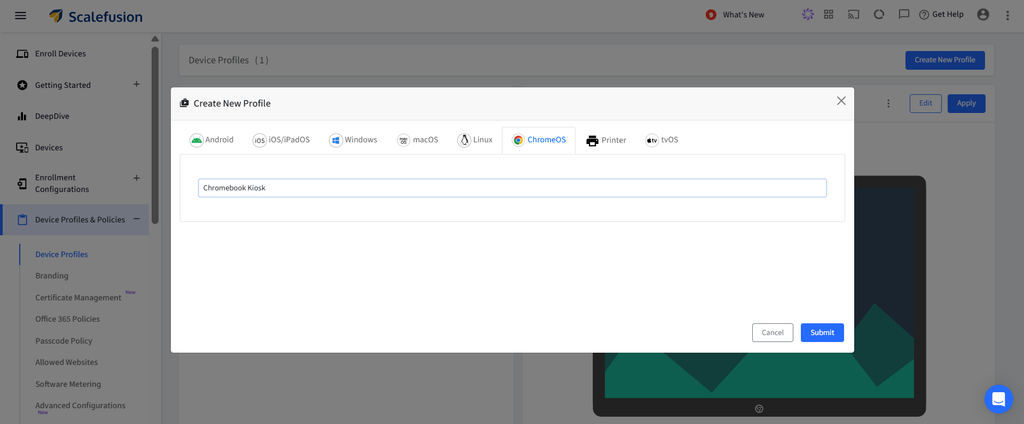
ChromeOS Device Profiles contain configuration areas for enrollment and sign-in, application management, OS updates, custom settings, and other ChromeOS policies. Once a profile is saved, Scalefusion allows it to be applied to an Organizational Unit.
Step 2: Add the website or PWA
If the kiosk uses a web application or PWA, navigate to Device Profiles & Policies > Allowed Websites. Click Allow a Website, enter the website name and URL, and save it.
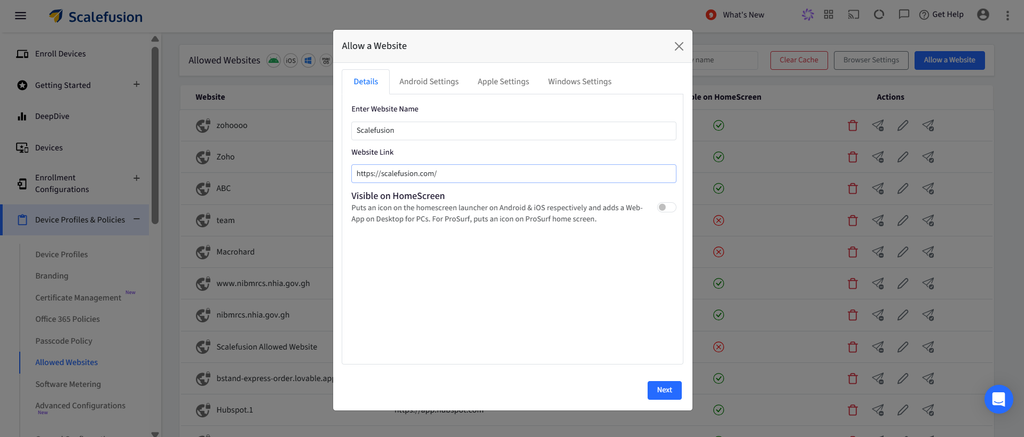
Scalefusion then makes the website available in the ChromeOS Device Profile under Application Management > Web Application.
Step 3: Configure the application for kiosk use
Open the ChromeOS Device Profile to access Application Management > Web Application. For a PWA, select the appropriate kiosk installation setting. For ChromeOS kiosk deployments, Scalefusion lets IT admins configure web applications with kiosk-specific settings for devices used as kiosks or digital signage.
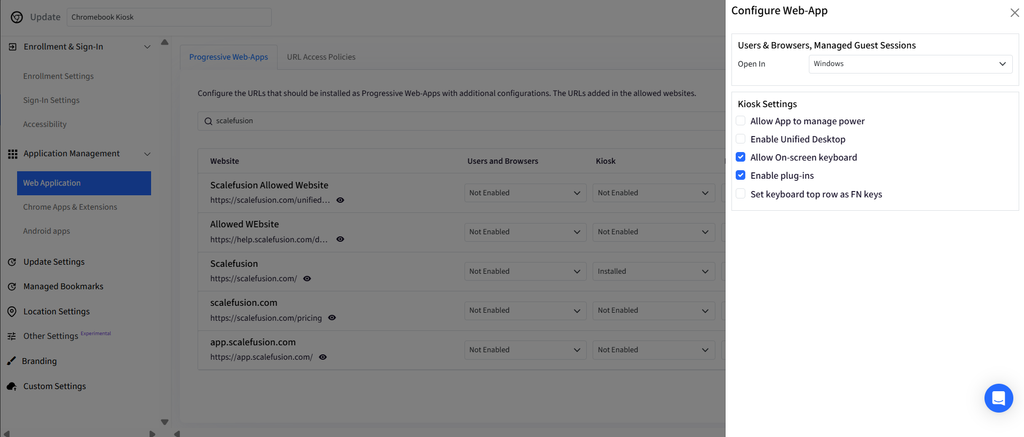
Additional kiosk application settings include:
- Allow app to manage power
- Enable Unified Desktop
- Allow on-screen keyboard
- Enable plug-ins
- Set the keyboard top row as function keys
Configure only the options required by the kiosk application and hardware environment.
Step 4: Configure the application to auto-launch
Within the ChromeOS Device Profile, head to Other Settings > Kiosk. Use the ‘Configure an Auto-Launch App’ setting to select the application that should automatically launch when the Chromebook boots into kiosk mode.
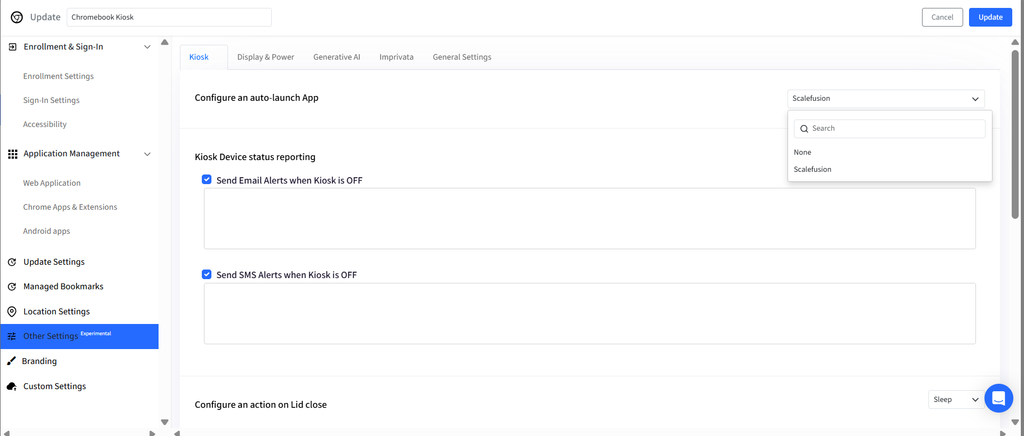
Scalefusion currently lists configured web apps and PWAs as available auto-launch options in this setting. The same Kiosk settings area includes Kiosk Device Status Reporting, while the broader Other Settings section contains related display, power, and device configuration controls.
Step 5: Apply the Device Profile to the Organizational Unit
Save the ChromeOS Device Profile and apply it to the appropriate Organizational Unit. When IT admins update the Device Profile, the revised policies apply to devices associated with that Organizational Unit.
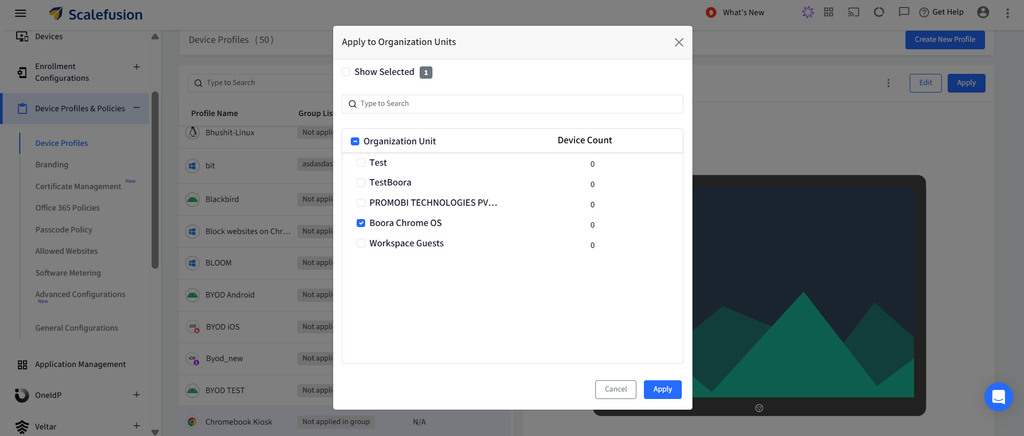
Step 6: Enroll the Chromebook as a kiosk or signage device
On a new or factory-reset Chromebook:
- Power on the Chromebook and select Get Started.
- Connect the device to Wi-Fi.
- Select For Work during Chromebook setup.
- Select Enroll Device.
- Sign in using the required Google Workspace account.
- Select Enroll kiosk or signage device.
- Complete the remaining enrollment prompts.
Once the enrollment is complete, the Chromebook is managed through Scalefusion and receives the policies associated with its Organizational Unit and Device Profile.
Step 7: Verify the kiosk configuration
After enrollment, restart the Chromebook and verify the complete configuration. Check that:
- The intended application is available
- The configured application auto-launches if required
- Required websites and network resources are accessible
- Display and power behavior match the deployment requirements
- Required peripherals work correctly
- Kiosk device status reporting works if it has been enabled
Test with a limited number of devices before applying the same configuration across a wider kiosk fleet.
Managing Chromebook kiosks at scale with Scalefusion
Setting up Chromebook kiosk mode is only the first part of a long-term deployment. As kiosk fleets expand across stores, schools, offices, or other locations, IT teams also need to maintain common applications, policies, and device configurations without treating every Chromebook as an individual setup project.
Scalefusion uses ChromeOS Device Profiles and Organizational Units to provide that management structure. IT admins can group ChromeOS policies into a Device Profile, apply that profile to an Organizational Unit, and push saved profile changes to the associated devices.
For kiosk deployments, IT teams can manage web applications and PWAs, configure auto-launch behavior, and enable kiosk device status reporting. They can also manage OS updates and other relevant ChromeOS settings.
Additionally, Scalefusion provides ChromeOS inventory visibility and remote actions such as reboot, shutdown, and factory reset to support ongoing management of distributed Chromebook fleets.
The result is a repeatable approach to Chromebook management. IT teams can configure the required applications and policies, apply them to the appropriate Organizational Unit, enroll the devices, and update the Device Profile as deployment requirements change.

FAQs
1. How do you enable kiosk mode on a Chromebook?
To enable kiosk mode on a Chromebook, enroll the device in Google Workspace management, open the Google Admin console, and configure the kiosk app under device settings. You can also use a unified endpoint management (UEM) solution like Scalefusion to manage supported ChromeOS devices centrally, apply device policies, and simplify kiosk deployments, depending on device and platform compatibility.
2. What is the difference between Chromebook kiosk mode and guest mode?
Chromebook kiosk mode runs a specific app in a restricted, full-screen environment, making it ideal for digital signage, self-service kiosks, and dedicated business applications. Guest mode allows general-purpose browsing without signing in to a personal Google account, where available. With Scalefusion, IT teams can centrally manage supported devices used for dedicated business purposes, helping maintain consistent configurations and control.
3. Can you put any Chromebook into kiosk mode?
Not every Chromebook supports every kiosk configuration. Compatibility depends on the ChromeOS version, device enrollment and management requirements, and the application you want to run. Before deployment, verify that your device and app meet Google’s kiosk requirements. Scalefusion can help IT teams manage supported devices centrally, subject to its ChromeOS capabilities and compatibility requirements.
4. How do you manage Chromebooks remotely in kiosk mode?
Chromebooks can be managed remotely in kiosk mode through the Google Admin console or a compatible unified endpoint management (UEM) solution. Depending on device and platform support, IT administrators can configure kiosk deployments, enforce policies, manage updates, and monitor device status. Scalefusion helps organizations centrally manage supported devices, streamline administration, and maintain consistent configurations across business environments such as digital signage and self-service kiosks.

