

You can block websites on Safari by using Screen Time settings on iPhone, iPad, and Mac, or by applying web content restrictions through an MDM solution for managed Apple devices. For businesses and schools, MDM-based website blocking is the most reliable option because it lets IT teams remotely restrict harmful, distracting, or non-compliant websites across multiple Safari browsers without manually configuring each device.
Key takeaways
Blocking websites on Safari requires the right approach to ensure consistent control, improved productivity, and secure browsing across devices and users.
- Why It Matters: Blocking websites helps reduce distractions, protect users from harmful content, and enforce acceptable usage policies in schools, workplaces, and managed device environments.
- Manual Methods: Safari allows basic website blocking through Screen Time settings on iOS and macOS, enabling admins or users to restrict access to specific URLs on individual devices.
- Limitations: Manual controls lack scalability, centralized management, and real-time enforcement, making them inefficient for managing multiple devices or preventing bypass attempts.
- Advanced Control: MDM solutions enable IT teams to block websites remotely, apply URL filtering policies, and enforce restrictions consistently across all managed Apple devices.
- Business Impact: Centralized website control improves security, ensures compliance, enhances productivity, and gives IT teams visibility and control over browsing behavior across the organization.
Safari is a solid browser fast, clean, and secure. But what it doesn’t offer out of the box is deep website blocking, especially when you’re trying to prevent distractions like YouTube or restrict certain sites for kids or teams.
So, what do most people do first? They go manual. And while manual methods do offer some control, they’re not foolproof, especially if you’re managing multiple devices across home, classroom, or workplace.
Let’s discuss how to block a website on Safari manually on iPhones and Macs, where those methods fall short, and how a unified solution like Scalefusion helps block websites on Safari at scale with more control and visibility.
Why would you want to block websites on Safari?
Let’s start with the obvious.
Blocking websites in Safari serves the purpose of enhancing focus, safety, and productivity, rather than being an exercise in mere control. Common reasons for doing so include:
- Parents want to restrict adult content or social media on kids’ iPads.
- Schools need to stop access to YouTube and similar sites during lessons.
- Businesses aim to cut down on time-wasting sites or secure devices from risky URLs.
Regardless of the goal, the question remains the same: How to block a website on Safari Mac, iPhone, and iPad effectively?
Step-by-step guide to manually block websites on Safari (iPhone/iPad)
If you’re on an iPhone or iPad, Apple offers basic tools under Screen Time settings. Here’s how to block websites on Safari iPhone using those options:
Steps:
- Go to Settings > Screen Time.
- Tap Content & Privacy Restrictions.
- Turn on Content & Privacy Restrictions (if not already).
- Tap Content Restrictions > Web Content.
- Select Limit Adult Websites
- Under Never Allow, tap Add Website and enter the URL you want to block (e.g., www.youtube.com).
And that’s how you manually block a website like YouTube on Safari on an iPhone.
What’s good?
- No extra apps.
- Free and built-in.
- Works for specific URLs.
What’s missing?
- Limited scope: Only works on that one device.
- No bulk control: Can’t push this across multiple iPhones or iPads.
- Bypass risks: Smart kids or users can reset Screen Time passcodes.
- No URL filtering: Only blocks exact URLs, not categories or partial domains.
Step-by-step guide to manually block websites on Safari (MacBook)
On a Mac, there’s no “Screen Time” level website blocking like on iOS, but it’s still possible using Screen Time or third-party workarounds.
Method 1: Use Screen Time on macOS
- Open System Settings > Screen Time.
- Select your user profile.
- Click Content & Privacy.
- Enable Limit Adult Websites under Web Content.
- Click Customize > Restricted, then add the URLs manually.
Method 2: Edit the Hosts File (Not recommended for everyday users)
You can technically block sites using the Mac’s /etc/hosts file, but this method is tricky and resets after OS updates or if tampered with.
Common manual method limitations
Whether you’re using iPhone or Mac, here’s what manual methods lack:
- No central control: You can’t manage or push policies remotely.
- Scalability issues: For schools or businesses with 10+ devices, repeating the same steps is time-consuming.
- No tracking or visibility: You don’t know if the user accessed a blocked site via a different browser or bypassed the restriction.
- Zero real-time control: You can’t update or adjust restrictions on the go.
So if you’re wondering how to block websites on Safari at scale or without constant manual effort, the manual route isn’t enough.


How to block sites on Safari with Scalefusion UEM
Scalefusion offers a simple, scalable way to block websites on Safari across managed iPhones, iPads, and Macs—no manual device handling needed.
Whether you’re preventing access to social media or need to block websites on Safari for work compliance, Scalefusion’s Custom Payloads let you enforce these restrictions remotely.
For iOS and macOS devices:
- Enroll Mac devices in Scalefusion.
- Go to Device Profiles > Create/Edit device profile.
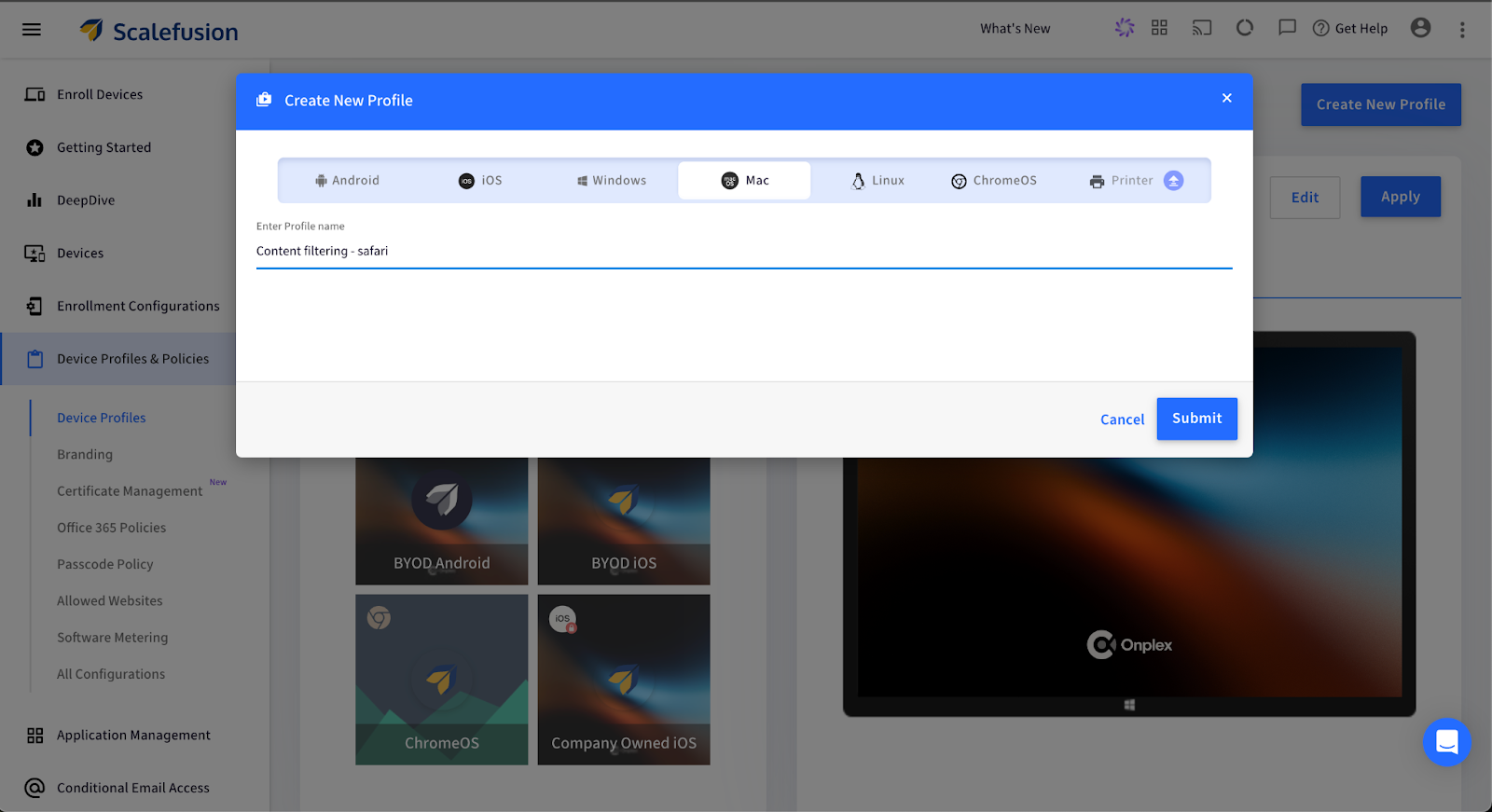
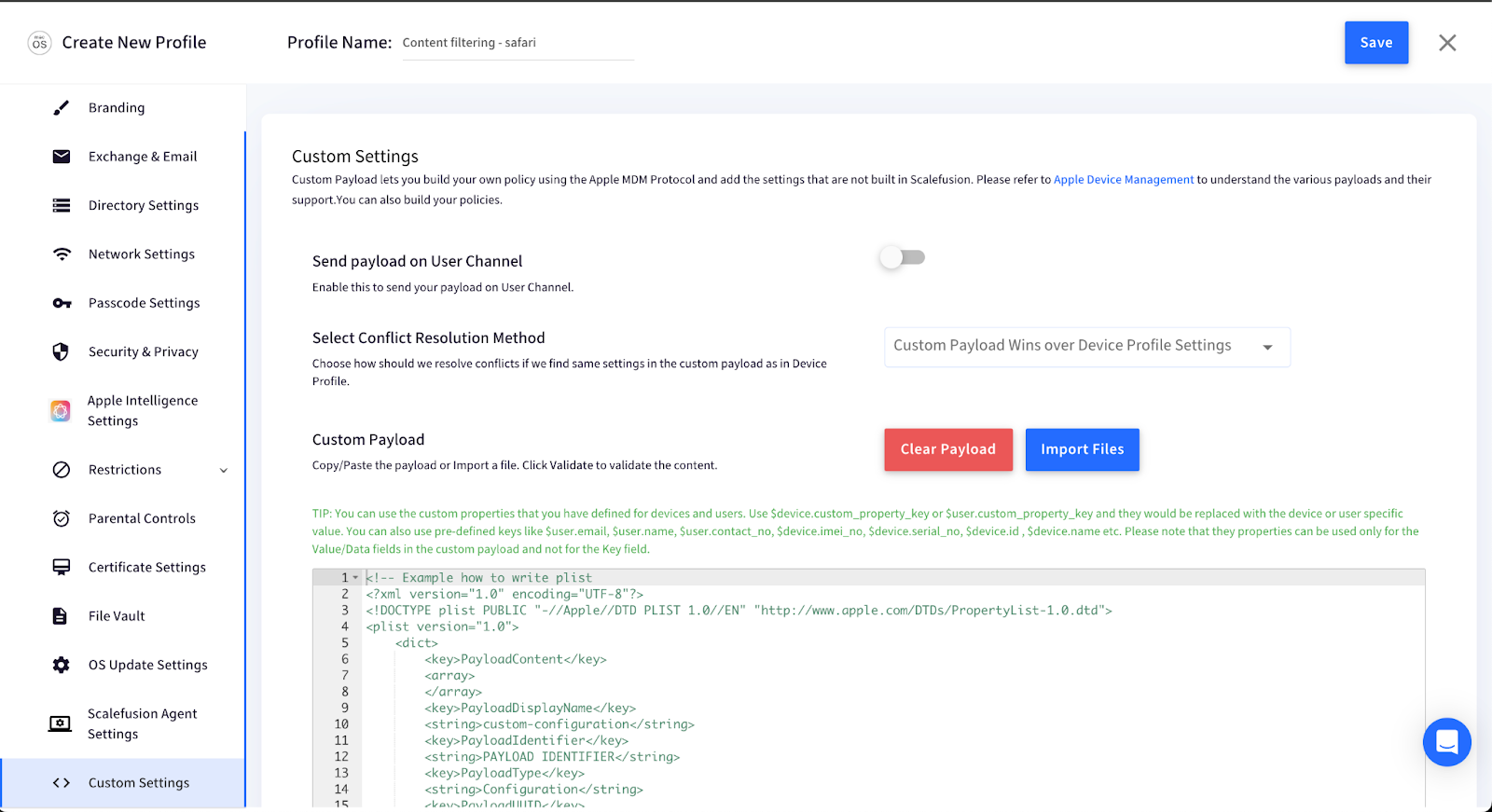
- Scroll to Custom Settings.
- In the Custom Payload section, paste your XML-based policy using Apple’s MDM protocol. You can allow or deny specific URLs while keeping general browsing open.
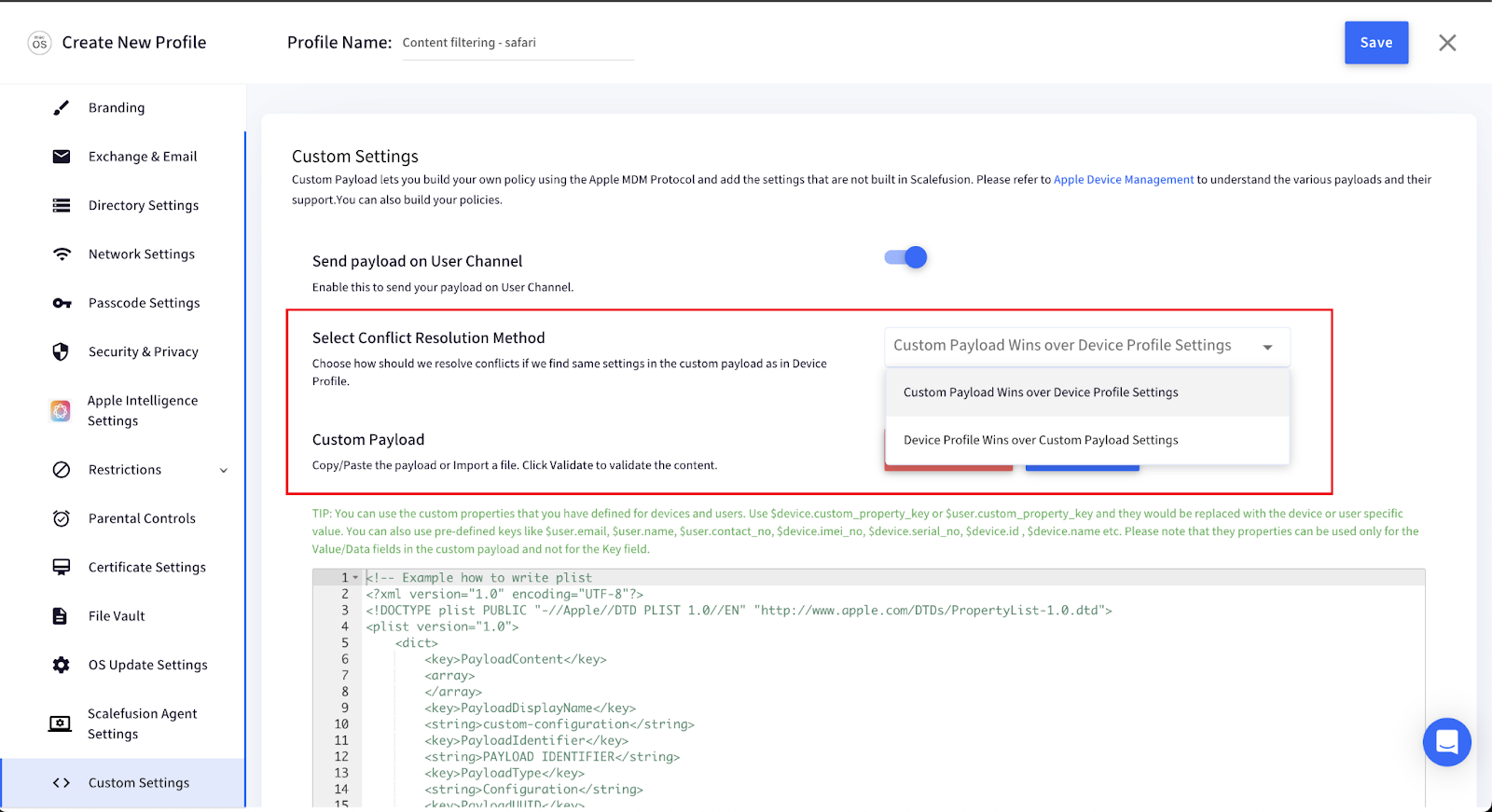
- Under Select Conflict Resolution Method, you can choose how to resolve conflicts if the same settings are found in both the custom payload and the Device Profile:
- Custom payload wins over device profile settings.
- Device profile wins over custom payload settings.
Full guide & tested XML code: Block Websites on the Safari Browser
Note: Always test the payload on a single machine before mass deployment.
Why use Scalefusion to block websites on Safari?
Here’s what makes Scalefusion a better answer to how to block sites on Safari:
| Feature | Manual | Scalefusion |
|---|---|---|
| Works on iOS and macOS | ✅ | ✅ |
| Blocks exact URLs | ✅ | ✅ |
| Category-based blocking | ❌ | ✅ |
| Centralized control | ❌ | ✅ |
| Scalable to 100s of devices | ❌ | ✅ |
| Prevents bypass | ❌ | ✅ |
| Audit logs & reporting | ❌ | ✅ |
| Supports kiosk/lockdown modes | ❌ | ✅ |
Who needs this?
- Schools managing student iPads/Macs for distraction-free learning.
- Retailers or logistics companies using iPhones or iPads as POS or field tools.
- Corporate IT teams wanting to restrict access to entertainment, social media, or unknown sites.
- Parents looking for more effective control than Apple’s built-in options.
Final thoughts
If you’re just trying to block a site or two on your own device, manual methods are fine for now. But if you’re dealing with multiple users, devices, or looking for tighter management, you’ll hit a wall quickly.
Scalefusion Apple MDM solution offers a better way to block websites on Safari efficient, scalable, and secure. Whether it’s blocking websites on Safari for a classroom or restricting all social media in a retail setup, it gives you the tools and visibility to manage it all from one place.
FAQs
1. Can I block a specific website on Safari without downloading any app?
Yes. On iPhone and iPad, you can go to Settings > Screen Time > Content & Privacy Restrictions > Web Content and add the URL under “Never Allow.” On Mac, the same is possible via System Settings > Screen Time > Content & Privacy. No third-party app is needed for basic blocking.
2. How do I block YouTube on Safari on an iPhone?
Go to Settings > Screen Time > Content & Privacy Restrictions > Content Restrictions > Web Content, select “Limit Adult Websites,” then under “Never Allow,” tap “Add Website” and enter www.youtube.com. This will prevent Safari from loading YouTube on that device.
3. Can a child or user bypass Safari website blocks set via Screen Time?
Yes – Screen Time passcodes can be reset under certain conditions, and a determined user may find workarounds (e.g., switching browsers). For more tamper-proof control, an MDM platform like Scalefusion is recommended, as it enforces restrictions at the device management level.
4. How do I block websites on Safari across multiple devices at once?
Manual Screen Time settings only apply to one device at a time. To block websites across multiple iPhones, iPads, or Macs simultaneously, you need an MDM tool such as Scalefusion UEM, which lets IT admins push URL-filtering policies remotely to all enrolled devices.
5. Can I block websites on Safari on a Mac?
Yes. On macOS, go to System Settings > Screen Time, select your user profile, then navigate to Content & Privacy > Web Content and add restricted URLs. Alternatively, advanced users can edit the /etc/hosts file, though this method is not recommended as it can be reset after OS updates.
6. Can I block website categories (e.g., all social media) rather than individual URLs on Safari?
Native Screen Time tools only block specific URLs, not categories. Category-based filtering – such as blocking all social media, gambling, or adult content sites – requires a dedicated MDM platform. Scalefusion, for instance, supports policy-level content filtering across entire device fleets.
7. Is there a way to track whether users are trying to access blocked websites on Safari?
Built-in Screen Time does not offer detailed audit logs. Purpose-built MDM tools like Scalefusion provide reporting and visibility into browsing behavior, including attempts to access restricted sites, making them well-suited for compliance-driven environments like schools, healthcare, or enterprises.
8. How does Scalefusion block websites on Safari, and what devices does it support?
Scalefusion uses Apple’s MDM protocol via Custom Payloads (XML-based policies) applied through Device Profiles. It supports both iOS/iPadOS and macOS devices. Once a device is enrolled, IT admins can remotely deploy URL allow/deny lists without physically touching the device.

