

There is a plethora of apps on the Google Play Store. Despite this, many companies have their own custom Android package kits (APKs) that are designed to be used internally within an organization and, therefore, not hosted on Google Play.
These apps can be designed to carry out specific tasks that meet the company’s standards and are an integral part of daily operations. Many Android kiosk devices are set to run only one or a selection of apps at a time, and thus integrating such APKs into them is of critical importance to maintain the workflow.
Let’s see how you can set up these apps on your Android kiosk devices through Scalefusion to ensure that your productivity doesn’t take a dip.
What is a custom APK?
By definition, custom APKs are modified application files used to install software on Android devices outside the official Google Play Store. They can be provided either by a third-party or developer-signed, i.e., made in-house. These packages allow modifications to existing apps, testing, gaining access to region-restricted apps, and installing custom ROM features.
They can be utilized in any number of ways depending on their configuration and use cases, such as custom payment systems, inventory management, and even interactive devices.


How to Register your custom APK in the Enterprise Store
To enable your custom APK in Android kiosk mode, you first have to make it available via the Enterprise Store. To do so, you need to make sure:
- Enterprise Store has been enabled for your Scalefusion account.
- Your account has been allocated the space required for your enterprise application.
Scalefusion allows you to upload your enterprise applications in the following two ways:
I. Upload the APK file to the Scalefusion dashboard
- Log in to the Scalefusion dashboard.
- Navigate to Application Management > Enterprise Store section.
- Click on Upload New App > Upload Android App.
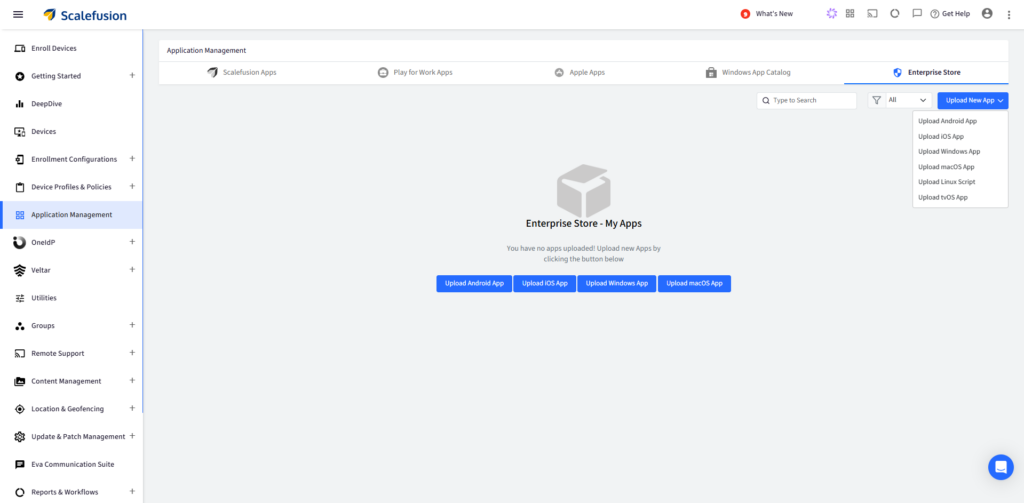
- You will be shown a dialog box with two buttons:
- Upload the APK file
- Link to External APK
- Select Upload APK File.
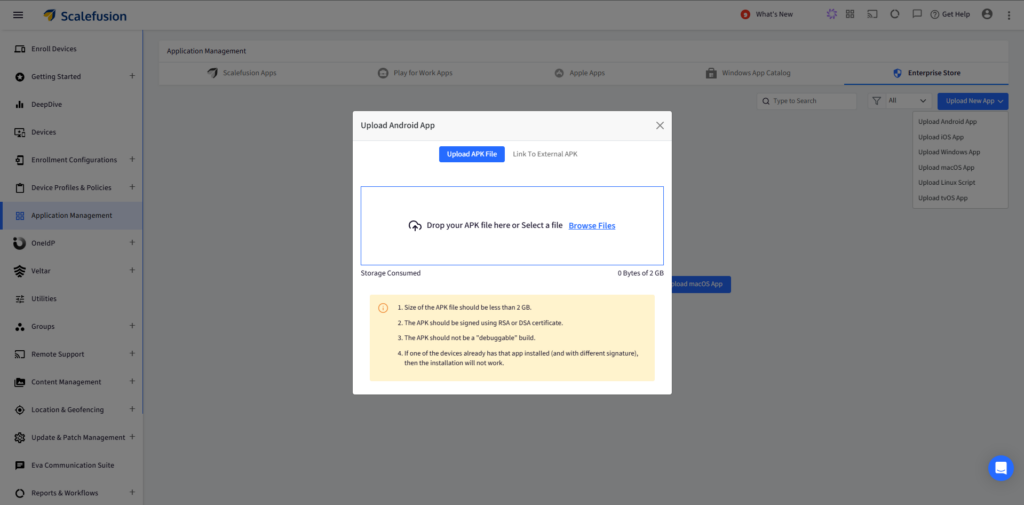
- Either drag and drop the APK file or click on Browse Files and select the file on your machine.
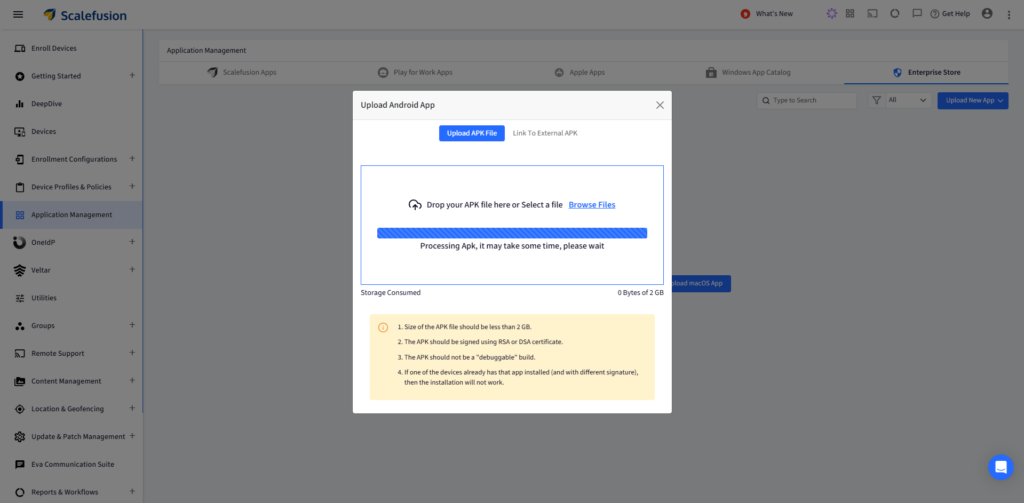
- Once you upload the APK file, Scalefusion checks its validity to make sure that it is an enterprise application. This process will take around 3-5 minutes, depending upon the size of the application being uploaded.
- If the application verification succeeds, then you will be shown a dialog box with the App Information, following the list of Device Groups / Device Profiles / Device(s) where the APK file can be published.
- If you want to publish the application now, select the Device Groups / Device Profiles / Device(s) where you want to push it and click Publish.
- If you want to publish the application later, just close the dialog box.
- The application will start appearing on the Enterprise Store section.
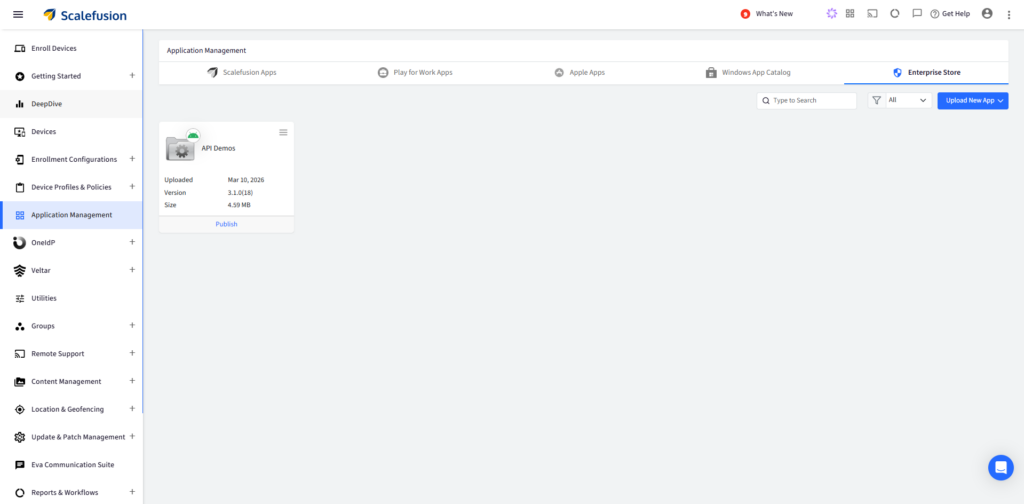
II. Manifest path: Provide the link to the location where the APK file resides
- Log in to the Scalefusion dashboard.
- Navigate to Application Management > Enterprise Store section.
- Click on Upload New App > Upload Android App.
- You will be shown a dialog box with two buttons:
- Upload the APK file
- Link to External APK
- Select Link to External APK.
- Here, you will see a text box to enter the link to your APK file. Copy/paste the link to your manifest file here.
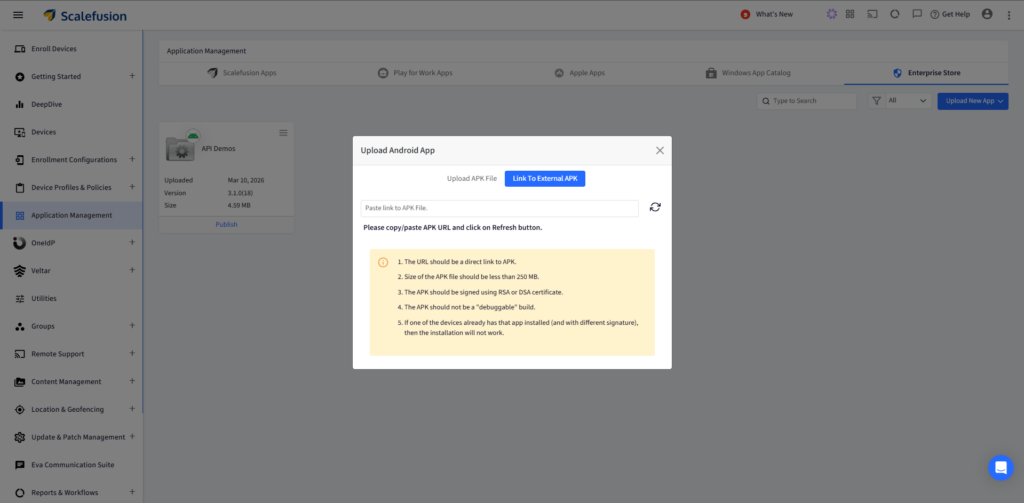
- Scalefusion will now start reading the APK file and validating it, as well as other entries.
- If the application verification succeeds, then you will be shown a dialog box with the App Information, following the list of Device Groups / Device Profiles / Devices where it can be published.
- If you want to publish the application now, select the Device Groups / Device Profiles / Devices where you want to push it and click Publish.
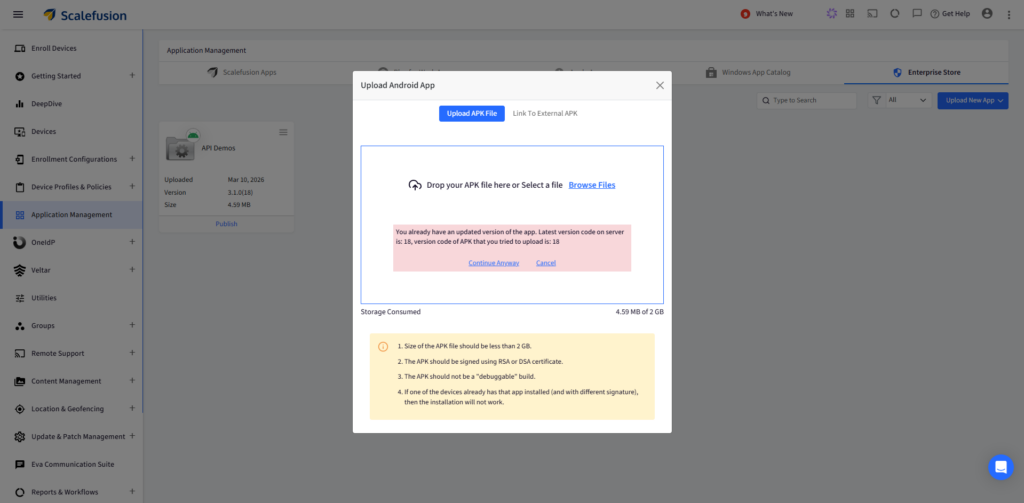
Your custom APK will now be available for installation on all devices.
How to auto-launch a custom APK in Android kiosk mode
Now, let’s look at how you can set a custom APK up to auto-launch it on all your Android kiosk devices.
- On your Scalefusion dashboard, navigate to Device Profiles & Policies > Device Profile.
- Select the Android device profile on which you need to set the application in Single App kiosk mode.
- Click on Edit Device Profile.
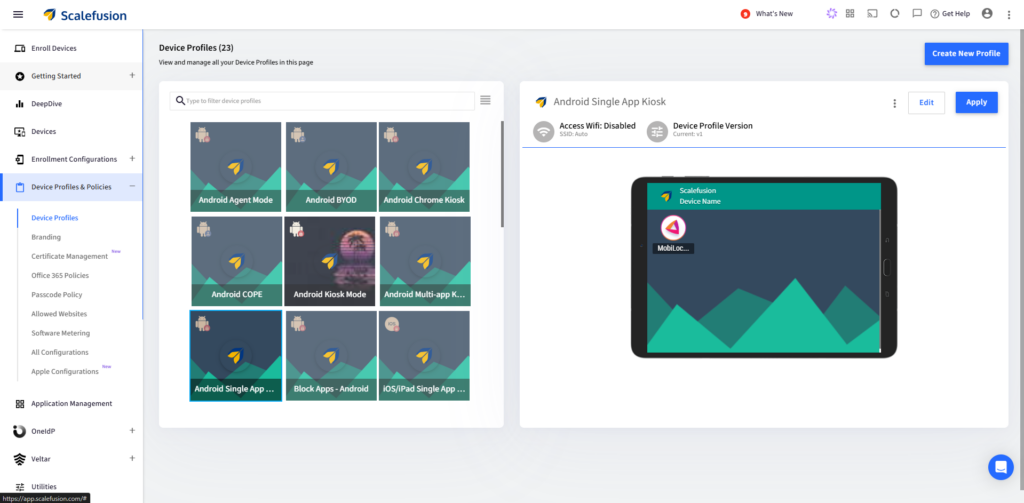
- Click on Select Apps, and search for the custom APK in the search bar.
- Make sure that your custom APK is enabled. You can also toggle the app visibility from here.
- In Device Profiles, go to Kiosk/Launcher Settings > Single App Mode.
- In the ‘Set a Default Application to run always’ drop-down, choose the custom APK from the list of enabled applications that will be set to run as the default app.
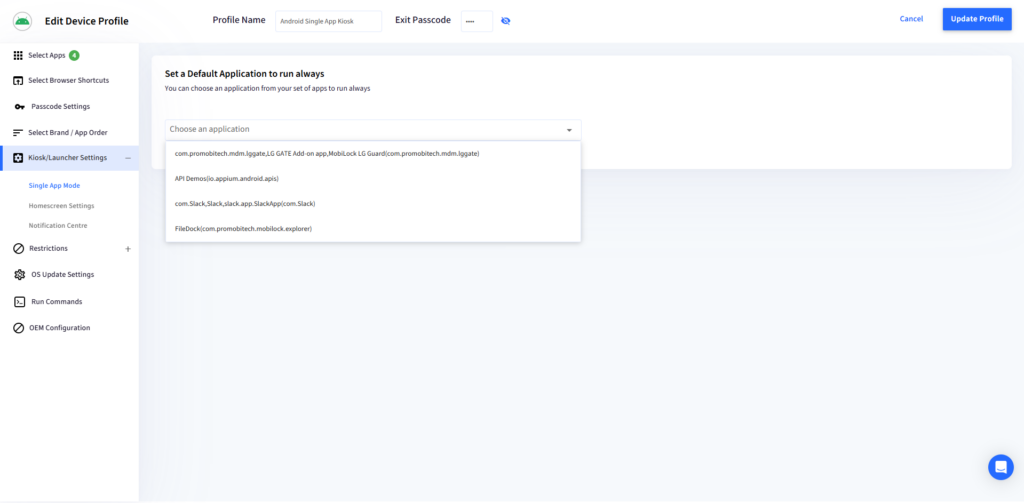
- Once you select the app, you can do the following settings:
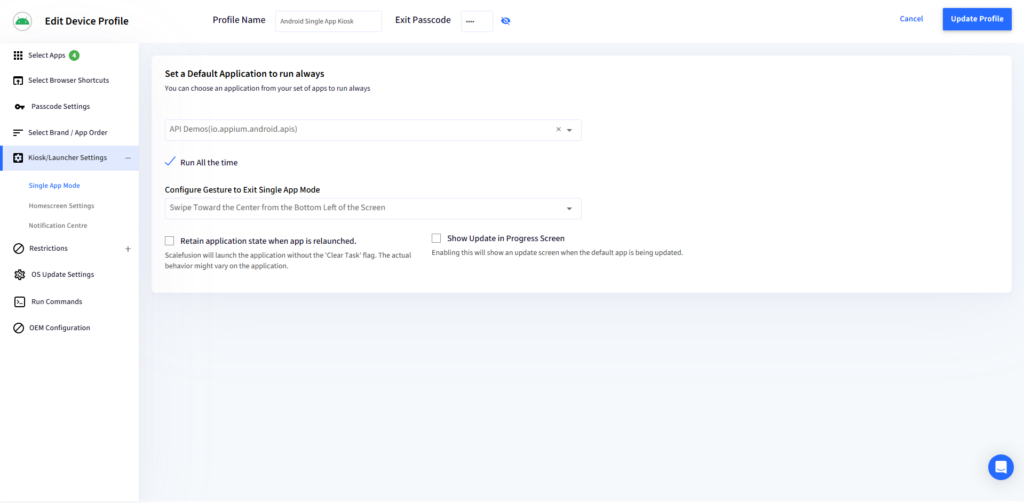
- Run All the Time: Select this checkbox to set the app to run all the time. By default, the app is set to run always.
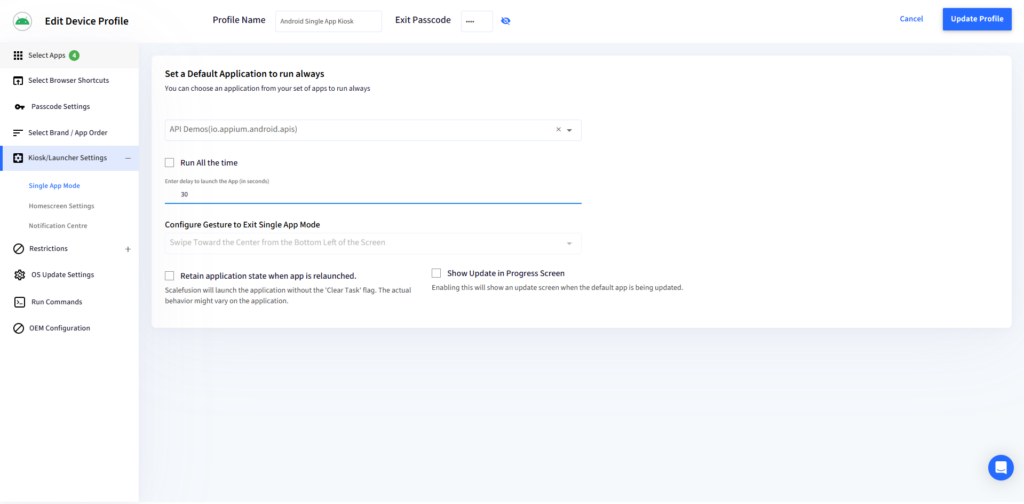
- Enter delay to launch the app (in seconds): If you do not want the app to run all the time, you can even set a delay time (in seconds), after which the app will launch. To set a delay time, uncheck the ‘Run All the time’ checkbox and enter the delay value (in seconds).
- Configure Gesture to Exit Single App Mode: With this, you can set a gesture with which you can leave the Single App Mode.
- Retain application state when an app is relaunched: Select this option to retain the application state when it is relaunched due to an invariant user action that causes a blocked app to be opened. For example, the action could be pressing the app switch key. This ultimately depends on app behavior.
- Show Update in Progress Screen: Enabling this option will show the update’s progress screen whenever the default app is being updated. It can be enabled only when you make the default app Run All the Time.
- Once you are done with the configurations, click Next and then Update Profile.
- Your Android kiosk device should run with the custom APK in Single App mode.
To wrap it up
Custom APK enables your Android kiosk devices to function according to your desired specifications and maintain efficiency across your fleet.
With the Scalefusion Unified Endpoint Management, you can run any number of custom APKs across all your devices in different profiles with a few easy steps. Unlock the full potential of your devices with tailored experiences made just for you.

