

Zebra device enrollment enables businesses to deploy robust devices built for the world’s most demanding frontline settings. Zebra devices are built to perform in rugged environments and are used across frontline industries such as warehouse, retail, and manufacturing.
However, just having the right tool is not enough. Managing these devices and ensuring they’re secure, free from system crashes, and continuously driving productivity without constant manual intervention is the primary need.
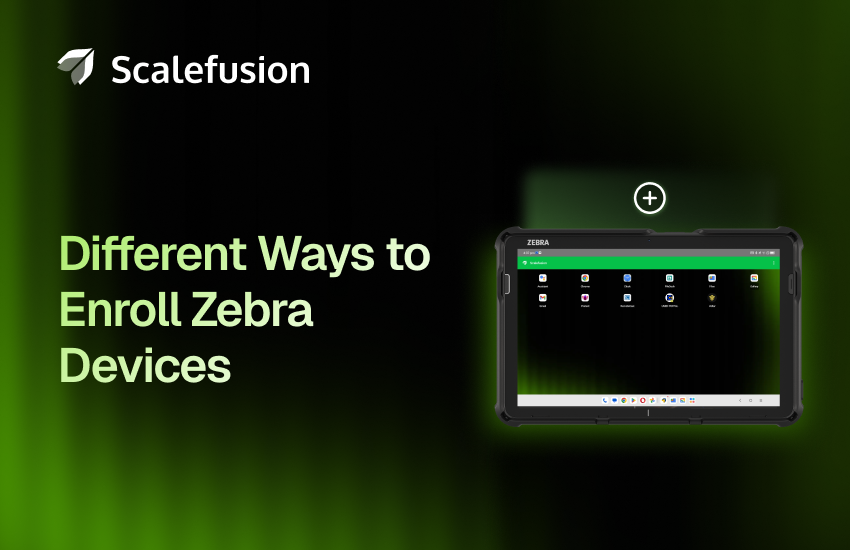
That is why managing these Zebra devices with a mobile device management (MDM) solution becomes essential. MDM helps organizations deploy rugged Zebra devices with enterprise-ready tools that are secure, standardized, and easy to manage at scale.
Let us delve further into why Zebra devices are best suited for unforgiving environments and how you can easily enroll them into an endpoint management solution.
What are Zebra devices?
Zebra devices are built to handle the toughest working conditions. With rugged designs, long battery life, and advanced features like barcode scanning and real-time data collection, they’ve become a go-to choice for industries requiring reliability in the field. Be it ensuring real-time inventory tracking in retail or improving accuracy in healthcare settings, Zebra devices provide the tools needed to get the job done.
Industries that rely on Zebra devices include:
- Retail & E-commerce: For inventory tracking, point-of-sale transactions, and customer service.
- Logistics & warehousing: For real-time shipment tracking, barcode scanning, and managing logistics data.
- Healthcare: To track patient data, medication, and assets.
- Manufacturing: For asset management, quality control, and streamlined operations.
Zebra devices can improve operational efficiency, reduce errors, and enhance productivity for businesses in these sectors. When combined with a centralized management solution, they can be utilized to their utmost capabilities.
Therefore, the need for easy enrollment with quick deployment is paramount for Zebra devices.
Zebra device enrollment methods
There are several ways for quick and efficient enrollment of Zebra devices. These include:
1. StageNow enrollment
StageNow is Zebra’s staging tool that makes it easy to create enrollment and provisioning profiles. StageNow works by creating configuration profiles that can be applied by scanning barcodes or using near-field communication (NFC). When a new device scans the barcode, it automatically applies Wi-Fi network settings, installs apps, enrolls, and configures basic policies.
StageNow is useful for:
- Small or medium batch deployments
- Environments with limited connectivity
- Initial factory staging
Prerequisites:
- Create a Device Profile
- Ensure the Zebra device is running Android OS 8.0 (Oreo) or greater with a minimum of MX 8.0
Steps to use StageNow:
- Getting the configuration data ready: The MDM app needs to be provided with the enrollment data, which can also be called configuration data.
- Creating the StageNow profile: Through the StageNow dashboard, you can create and configure the exact configurations for your Zebra devices. You can also set up the MDM agent of your choice that you wish to enroll the devices under.
- Enrolling a device: Depending on the state of your device, factory reset or fresh, you can then enroll the device by scanning the barcode, and the device profile will load itself onto the device.
2. Android Enterprise enrollment
Android Enterprise enables the use of Android devices and apps in the workplace by securely separating corporate and personal data. Android Enterprise equips organizations with the right tools to tailor device management to their business needs, such as securing work data or locking down devices for dedicated use. It also allows the IT admins to set security policies, manage apps, and control user access effortlessly.
Prerequisites:
- Android Enterprise recognized MDM solution
- You will need one Gmail ID (non-GSuite)
- AMAPI should be enabled for your account
- Supported OS for devices: Android OS 8.0 onwards
Steps to use Android Enterprise:
Register your Enterprise on the Android Enterprise website through the MDM solution. This can be done in the following 2 ways:
- Android Enterprise Setup with any email: For the devices that are company-owned, in kiosk mode, or BYOD, this method is suitable.
- Android Enterprise Setup with Google Workspace: For an organization using Google Workspace ID on devices that are employee-owned or BYOD (using Google Workspace ID), this method is suitable.
Which ownership model actually fits your Zebra fleet?
Android Enterprise supports more than one way to define who owns a device and what that means for management. For Zebra deployments — which are typically corporate-owned, task-specific hardware rather than personal devices — two models are the most realistic starting point:
- Fully managed (corporate-owned): the device belongs to the organization, giving IT complete control over the apps and settings on it. This is the standard model for rugged handhelds, scanners, and kiosk-mode tablets used in warehouses, retail floors, and logistics operations — the environments most Zebra devices are deployed in.
- COPE (company-owned, personally enabled): also company-owned, but allows a defined space for personal use alongside work apps — worth considering if a Zebra device (for example, a tablet used in a less locked-down role) needs to support some personal use without giving up corporate control of the work side.
A third model, BYOD (Work Profile on a personally-owned device), exists in Android Enterprise and separates work and personal data on an employee’s own device. It’s a real option supported by the platform, but it’s a less common fit for Zebra’s typical corporate-owned, rugged-device use cases than it is for standard smartphones — worth knowing about, not the default starting point for most Zebra fleets.
What can go wrong during enrollment?
Android Enterprise enrollment issues aren’t unique to Zebra devices, but one worth knowing about if a device won’t boot correctly after enrollment: some Android 10 devices can fail to boot and enter Rescue/Recovery mode, caused by a timing issue when system apps are uninstalled or updates are interrupted during enrollment. This isn’t confirmed as a Zebra-specific issue, but if it comes up, the fix is the same regardless of hardware: avoid running remote uninstall or app-update actions on system apps mid-enrollment, and where possible, enroll on Android 11 or later.
A few enrollment issues that are specific to Zebra hardware and OS behavior are worth flagging separately:
- Devices built on the SDM660 chipset can fail to enroll if the setup profile tries to configure a cellular access point for internet connectivity. Enrolling over Wi-Fi instead resolves it.
- Enrollment can silently fail partway through — an app download or install step drops — leaving the device stuck showing an “Enrolling” status. Left alone, it can take up to five days for the status to flip to “Not Enrolled.” Running an Enterprise Reset on the device forces an immediate retry instead of waiting it out.
- On Android 13 and later, Google now requires the device to be manually unlocked with a PIN, password, or pattern before the management client can launch. Zero-touch staging isn’t fully hands-off on newer OS versions without at least one manual unlock somewhere in the process.
These three come from Zebra’s own DNA Cloud documentation. The specific fixes are described in the context of Zebra’s native MDM tool, but the underlying causes — chipset behavior and Google’s Android 13 setup requirements — apply regardless of which EMM is enrolling the device.
3. Zero-touch enrollment
Zero-touch deployment or zero-touch provisioning is an automated way of setting up Zebra devices on their first boot without any manual intervention from IT teams or end users. If the device has been assigned an enterprise configuration, then it initiates the fully managed device provisioning method and downloads the MDM agent.
Zero-touch enrollment offers a seamless deployment method for corporate-owned Zebra devices, making large-scale rollouts fast, easy, and secure for organizations, IT, and employees.
In simple words, zero-touch device deployment is a seamless way for companies to deliver “ready-to-work” devices straight out of the box.
Zero-touch deployment is now a standard expectation for organizations managing distributed workforces, frontline operations, and global teams.
Prerequisites:
- You will need a zero-touch portal account from a reseller partner.
- Make sure your device is a compatible zero-touch device from the list on the Android Enterprise website.
- You will need to complete the Android Enterprise setup, create a Device Profile, and a QR Code configuration on the MDM platform.
Steps for Zero-touch enrollment:
- Select the device profile and create the Zero-touch configuration for the device on the MDM platform.
- Sign in to the zero-touch portal and create a new configuration with the necessary details, such as the configuration name, chosen MDM solution, support email, and the devices you wish to apply it to.
- On the first boot of the device that has zero-touch configuration assigned to it will download the MDM client and enroll in it.
4. QR code-based enrollment
QR code is a quick and easy way to enroll your Zebra devices, as it allows you to skip the entire process of entering/sharing credentials or license keys and cuts down the enrollment time.
In brief, admins can create QR codes and distribute them to their employees or IT teams. Employees or the IT team can scan the QR Code, after which the permissions page is shown directly.
Prerequisites:
- You must have a device profile already configured for deployment
- An MDM agent on the device you wish to enroll
Steps for QR-based enrollment:
- Through your MDM dashboard, select the type of enrollment you wish to use: userless enrollment or user authenticated enrollment.
- Assign the device or group policy you wish for the QR code to enforce.
- After creating the configuration and generating a QR code, launch the MDM agent on the device and scan the code via the camera or open it on the agent app.
Best practices for Zebra device enrollment
The following are the best practices to ensure a smooth and hassle-free Zebra device enrollment:
- Utilize Zebra StageNow to create barcodes that automate Wi-Fi setup, security settings, and MDM agent installation.
- Configure devices as Device Owner for maximum control and security.
- Use StageNow Xpert Mode for customizing settings like FileMgr (to download the MDM agent), AppMgr (to install it), and Intent (to launch it) in the correct sequence.
- Push the EMM/MDM Agent app file (.apk) directly to /data/tmp/public/ to ensure a silent, automated installation.
- Ensure that connectivity checks (connectivitycheck.android.com, google.com) are not blocked, as this can halt the enrollment process.
- Check that all the devices are running Android 8.0 or higher with up-to-date Zebra MX (Mobile Extensions).
Simplify Zebra device enrollment and management with Scalefusion
An MDM solution extends beyond device enrollment to provide a complete device configuration cycle. For organizations, a centralized management solution ensures consistent security with seamless long-term operational management.
As a Zebra-validated solution and an Android Enterprise partner, Scalefusion is compatible with all Zebra devices and provides all the above-mentioned enrollment methods. Streamline Zebra device management with features like zero-touch enrollment, app management, advanced security policies, and real-time troubleshooting.
FAQs
1. What are the different methods to enroll Zebra devices in MDM?
Zebra devices support multiple enrollment methods depending on the deployment scale and MDM platform. The most widely used are StageNow-based enrollment, zero-touch enrollment, QR code-based enrollment, NFC-based provisioning, OEMConfig-based setup, and Android Enterprise enrollment. Each method suits different scenarios, zero-touch works best for large-scale bulk deployments, while QR code enrollment is ideal for smaller rollouts or device replacements.
2. What is StageNow, and how is it used to enroll Zebra devices?
StageNow is Zebra’s proprietary staging and enrollment tool that allows IT admins to configure and enroll Zebra devices by scanning a barcode or NFC tag. It creates deployment profiles that automate device setup, including Wi-Fi configuration, MDM agent installation, and policy enforcement, directly from the first boot. StageNow is particularly useful for bulk deployments where consistent, repeatable provisioning across large device fleets is required.
3. How do you enroll Zebra devices in bulk for enterprise deployments?
For enterprise-scale Zebra deployments, the most efficient methods are zero-touch enrollment and StageNow with barcode or NFC scanning. Zero-touch enrollment allows IT teams to pre-configure devices before they are physically handed to end users — devices automatically connect to the MDM platform the moment they are powered on for the first time. Combined with OEMConfig, IT admins can push device-specific policies, app configurations, and security settings at scale without manual intervention on each unit.
4. Can Zebra devices be enrolled and managed through a single UEM platform?
Yes. A Unified Endpoint Management platform like Scalefusion supports multiple Zebra enrollment methods from a single dashboard, including zero-touch enrollment, StageNow-based QR provisioning, OEMConfig integration, and Android Enterprise enrollment. This eliminates the need for separate tools per enrollment type and allows IT admins to manage the full device lifecycle — from initial enrollment and policy deployment to remote troubleshooting and decommissioning — in one place.
5. What is the difference between zero-touch enrollment and QR code enrollment for Zebra devices?
Zero-touch enrollment is designed for large-scale, fully automated deployments where devices are pre-registered with the MDM platform before they reach end users. The device self-configures on first boot with no manual steps required. QR code enrollment, on the other hand, requires an IT admin or user to scan a QR code during the initial setup process to connect the device to the MDM platform. Zero-touch is better suited for shipping devices directly to field locations, while QR code enrollment offers more flexibility for individual device setups or replacements.

