
When a Mac starts behaving unexpectedly, the visible symptom rarely tells the whole story. An application may stop responding, a software update may fail, or a network connection may repeatedly drop without explaining why.
macOS logs give IT admins a deeper view into what was happening on the device around the time of an issue. They record events generated by the operating system, applications, services, and processes, helping admins narrow down potential causes instead of troubleshooting from symptoms alone.
This guide explains how macOS logging works, how to view logs using Console and the log command, and how IT teams can use them when troubleshooting Macs.
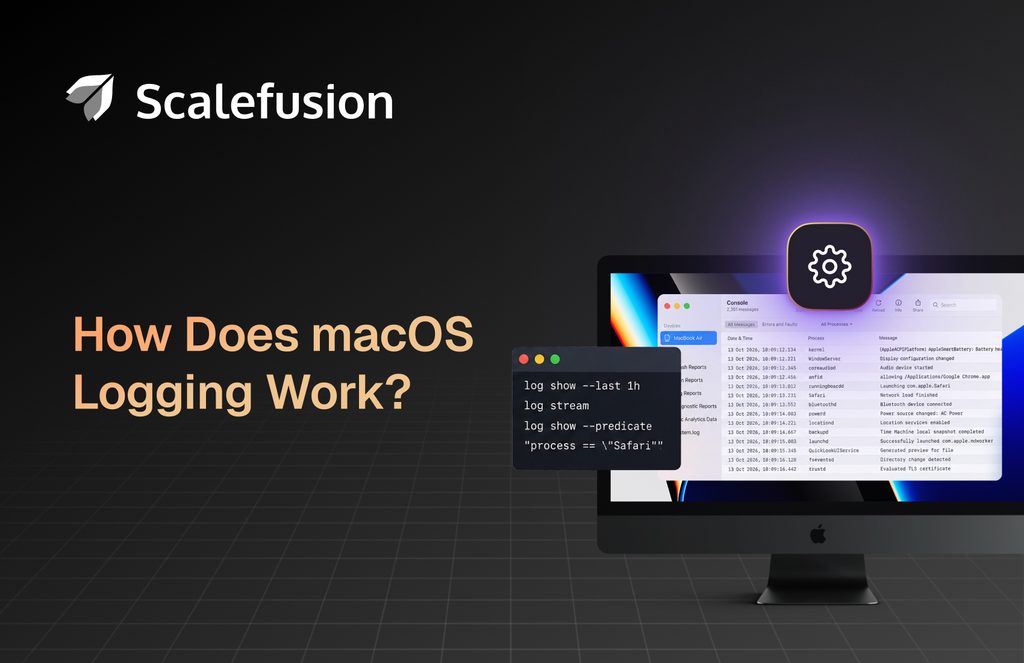
What are macOS logs?
macOS logs are automated records that capture operating system events, app operations, background processes, errors, security activities, and diagnostic data generated on a Mac. These records include Mac system logs as well as logging information generated by applications and services.
Depending on the event, a log entry can provide information about the process that generated it, when it occurred, its message type, and other details associated with the event. For example, Apple’s Console app categorizes log messages as faults, errors, debug messages, or informational messages based on the type of activity being recorded.
For IT admins, these records provide additional context during troubleshooting. Instead of knowing only that something failed, an admin can inspect activity around the time of the failure and look for messages associated with the affected process or service.
What is Apple Unified Logging?
Apple Unified Logging is a centralized system-level logging infrastructure used across Apple platforms to collect, store, and manage log data and events generated by the operating system, services, and applications. It centralizes log data in memory and on disk instead of relying on traditional text-based log files.
Introduced in 2016 with macOS Sierra and iOS 10, Apple Unified Logging superseded older logging systems and APIs, including Apple System Logger (ASL) and Syslog. On macOS, it provides the underlying logging system that tools such as Console and the log command use to retrieve and analyze log messages.
How does Unified Logging work on macOS?
Unified Logging collects messages generated by applications, system services, and other processes and makes that information available through a centralized logging system. Log data is stored in a compressed binary format rather than solely as conventional plain-text log files.
Since a Mac can generate a significant volume of logging information, effective troubleshooting usually requires narrowing the data to the activity relevant to an issue. IT admins can query and filter logs based on factors such as time, process, and other event properties.
On macOS, IT admins primarily interact with this information through two tools:
- Console, which provides a graphical interface for viewing, searching, and analyzing log messages and reports.
- The log command, which provides command-line access to logging data and allows admins to query historical events, monitor activity as it occurs, and collect logs for further analysis.
Understanding this distinction is useful during troubleshooting: Unified Logging is the underlying logging infrastructure, while Console and the log command are tools used to access and investigate the information it contains.
Where are system logs stored on a Mac?
macOS diagnostic information does not exist in a single conventional log file that IT admins can open and read from top to bottom.
Many macOS system logs are maintained through Unified Logging in a structured form that tools such as Console and the log command can query. At the same time, some applications and system components can still maintain individual log files and reports.
This distinction matters when troubleshooting. Not all macOS system logs are available as individual .log files that IT admins can locate through Finder. In many cases, Console or the log command is a more useful starting point.
How to view logs on a Mac
The easiest way to start investigating logs without using Terminal is Apple’s built-in Console app.
Console collects log messages and compiles reports that can help with system troubleshooting. An IT admin can select the Mac in the Devices list and start viewing its log messages. Depending on the view, Console can display information such as the message, process, message type, and associated details.
Console also supports searching, which is important because manually reading a continuous stream of system events is rarely practical.
For example, if an IT admin knows which application or process is experiencing a problem, searching for terms associated with it can reduce the amount of unrelated information.
Console is particularly useful for exploratory troubleshooting. When an IT admin needs more control over which events are returned, Terminal provides another option.
How to use the macOS log command
The log command provides command-line access to macOS logging information. IT admins can use different subcommands depending on whether they want to inspect previous activity, observe events as they happen, or collect logging data for later analysis.
View historical events with log show
The log show command is used to view historical log events stored on a Mac. Since a broad query can return a large amount of information, IT admins can narrow the results to the timeframe relevant to an issue.
For example: log show –last 1h
This command displays log events from the last hour. The –last option can also be used with other time intervals, such as 30m for the last 30 minutes or 1d for the last day.
For investigations tied to a more specific timeframe, IT admins can use –start and –end to define when the query should begin and end.
Historical queries are particularly useful after an issue has already occurred. If a user reports that an application failed earlier in the day, for example, an IT admin can narrow the logs to the approximate time of the incident and investigate the activity that occurred around it.
Watch events with log stream
Some problems are easier to investigate while they are happening. The log stream command lets IT admins view log messages in real time as macOS generates them.
For example: log stream
Also read: Essential Mac Terminal commands for IT admins
An IT admin can start the stream and then reproduce the problematic action, such as launching an application or repeating the workflow that is failing. The stream continues until it is stopped, typically by pressing Ctrl+C.
By default, the command does not show every available message level. IT admins can use the –level option when they need additional detail, such as debug-level messages.
Since a live stream can generate a large volume of output, filtering the results by process, subsystem, category, or other properties is usually necessary for practical troubleshooting.
Collect logs with log collect
Sometimes logs need to be captured for later analysis rather than inspected immediately. The log collect command collects system logging data into a .logarchive file that can be stored, transferred, and examined later.
For example: log collect –output ~/Desktop/SystemLogs.logarchive –last 20m
This command collects logs from the last 20 minutes and saves them as SystemLogs.logarchive on the desktop. IT admins can also use options such as –start or –last to limit the collection to a relevant timeframe.
The resulting archive can later be opened in Console or queried from Terminal using: log show –archive ~/Desktop/SystemLogs.logarchive
This is useful when an issue requires deeper investigation or when logs need to be collected from an affected Mac and analyzed separately.
As with any diagnostic data, IT admins should consider organizational policies and the sensitivity of the information before storing or sharing log archives.
How to filter macOS logs with predicates
A Mac can generate a large volume of log messages, making it impractical for IT admins to review everything manually. Predicate filtering helps narrow the output by specifying conditions that log entries must match.
For example, an IT admin can filter historical logs by the process that generated them: log show –last 1h –predicate ‘process == “process-name”‘
Predicates can also filter logs using properties such as the subsystem, category, message type, or text contained in the event message. Multiple conditions can be combined when an investigation needs a narrower result.
For example: log show –last 1h –predicate ‘process == “mdmclient” and subsystem == “com.apple.ManagedClient”‘
Depending on the macOS version and issue being investigated, MDM-related activity may involve processes such as mdmclient and subsystems such as com.apple.ManagedClient. These implementation details can change across macOS releases, so IT admins should verify the relevant process or subsystem when troubleshooting.
String operators such as contains, beginswith, and endswith can also help IT admins search for specific text within log properties.
The exact predicate depends on the problem being investigated. A practical starting point is to ask:
- When did the problem occur?
- Which application, process, or service was involved?
- What specific activity or message are you trying to find?
- Can the problem be reproduced?
The answers help determine whether to query historical events with log show, observe activity using log stream, and which predicate conditions will reduce the output to the most relevant messages.
Useful macOS logs for IT admins
The logs worth examining depend on the problem being investigated. For Macs used in an organization, IT admins commonly need to investigate activity related to device management, software updates, networking, authentication, and security.
Device management: When a managed Mac does not receive or apply an expected management action, IT admins can examine activity associated with processes such as mdmclient and related device management services. These logs can provide additional context about MDM activity on the device.
Software updates: If a macOS update fails or behaves unexpectedly, admins can investigate activity associated with processes such as softwareupdated around the time of the update attempt.
Network connectivity: When troubleshooting Wi-Fi or other connectivity problems, admins can examine network-related processes and subsystems to identify activity occurring when the connection failed or changed.
Login and authentication: If a user encounters problems signing in to a Mac, activity associated with processes such as loginwindow and related authentication services can provide context about what occurred during the login attempt.
Security processes: macOS security components also generate logs that can be useful during troubleshooting. Depending on the issue, IT admins may investigate activity related to components such as Gatekeeper or XProtect to understand how macOS handled an application or security-related event.
Rather than reviewing every available log message, start with the symptom, identify when it occurred and which process or service may be involved. Then, use those details to narrow the logs to the most relevant activity.
Using macOS logs for IT troubleshooting
Logs are most useful when they are used as part of a structured troubleshooting process rather than examined in isolation.
Suppose an employee reports that a work application repeatedly fails to open. An IT admin could first establish when the problem started and whether it can be reproduced. Console or the log command can then be used to examine activity associated with the application and the surrounding time period.
The same approach applies to other issues: Symptom → Timeframe → Relevant process or service → Filtered logs → Investigation
For managed Mac fleets, this approach is particularly useful because IT teams may be supporting devices they cannot physically access. Having a repeatable method for narrowing log data can help admins investigate an issue before deciding what corrective action is required.
Best practices for working with macOS logs
A few practices can make log-based troubleshooting more manageable.
- Start with a specific problem: Searching logs without knowing what you are investigating produces noise rather than useful context.
- Narrow the timeframe: If the problem occurred recently, focus on that period first.
- Filter before reading: Use the affected process, service, or other relevant properties to reduce unrelated entries.
- Reproduce the issue where appropriate: Live logging can make it easier to correlate an action with the events it generates.
- Preserve useful diagnostic data: For intermittent issues, collecting relevant information can make later investigation easier.
- Handle logs carefully: Diagnostic information can contain operational or potentially sensitive data, so collection and sharing should follow organizational security policies.
- Do not treat every error as the root cause: An error appearing near an incident does not automatically mean it caused the problem. Interpret log entries in the context of the device behavior and other evidence.
- Account for redacted data: Unified Logging can hide potentially sensitive values in log messages. If information appears redacted or private, consider Apple’s logging privacy behavior when interpreting the results rather than assuming the log entry is incomplete.
How Scalefusion can support Mac troubleshooting
macOS logs can help IT teams understand what is happening on a device, but troubleshooting managed Macs may also require investigating or interacting with the device remotely. Scalefusion provides several capabilities that can support this process.
Troubleshoot Macs with Remote Cast & Control
With Scalefusion Remote Cast & Control, IT admins can remotely view a Mac’s screen. Where supported and configured, they can also interact with the device to investigate and resolve issues without requiring physical access.
Investigate issues with Remote Terminal
Scalefusion Remote Terminal for macOS enables IT admins to access the terminal of a managed Mac from the Scalefusion dashboard. Admins can run commands and scripts, perform administrative tasks, and investigate device issues remotely.
Track elevated activity with JIT Admin Access
Scalefusion OneIdP’s Just-in-Time (JIT) Admin Access for macOS can be configured to capture logs of critical operations performed while a standard user is temporarily elevated to admin privileges. These logs are captured during the elevation period and synced to the Scalefusion dashboard, where admins can review or download them for further investigation.
Together, these capabilities complement native macOS logging by giving IT teams additional ways to investigate managed Macs remotely, troubleshoot through the command line, and gain visibility into activity performed during temporary admin sessions.
Make macOS logs part of structured troubleshooting
macOS logs give IT admins valuable context when investigating application failures, update issues, connectivity problems, authentication events, and other unexpected device behavior. Console provides a graphical way to explore this activity, while the log command gives admins greater control over historical queries, live events, filtering, and log collection.
Effective log analysis is less about reviewing every event and more about narrowing the investigation to the relevant timeframe, process, service, or activity. Used alongside other troubleshooting methods, logs can help IT teams better understand what occurred and determine the appropriate next step.
For organizations managing Macs remotely, Scalefusion can complement native macOS logging with capabilities for remote troubleshooting, command-line investigation, and visibility into activity during temporary admin sessions.