
When a Mac needs troubleshooting or its files need to be moved to another computer, starting macOS normally is not always the most practical option. On supported Intel-based Macs, Target Disk Mode provides another way to access the computer’s storage.
Target Disk Mode lets an Intel Mac behave like an external disk when connected to another Mac. This allows files to be accessed and transferred without using the target Mac in the usual way.
However, Target Disk Mode is specific to Intel-based Macs. Apple silicon Macs use a different file sharing workflow through macOS Recovery.
Let’s understand how Target Disk Mode works, how to use it, when it can be useful, and what IT teams need to know when supporting newer Apple silicon Macs.
What is Target Disk Mode?
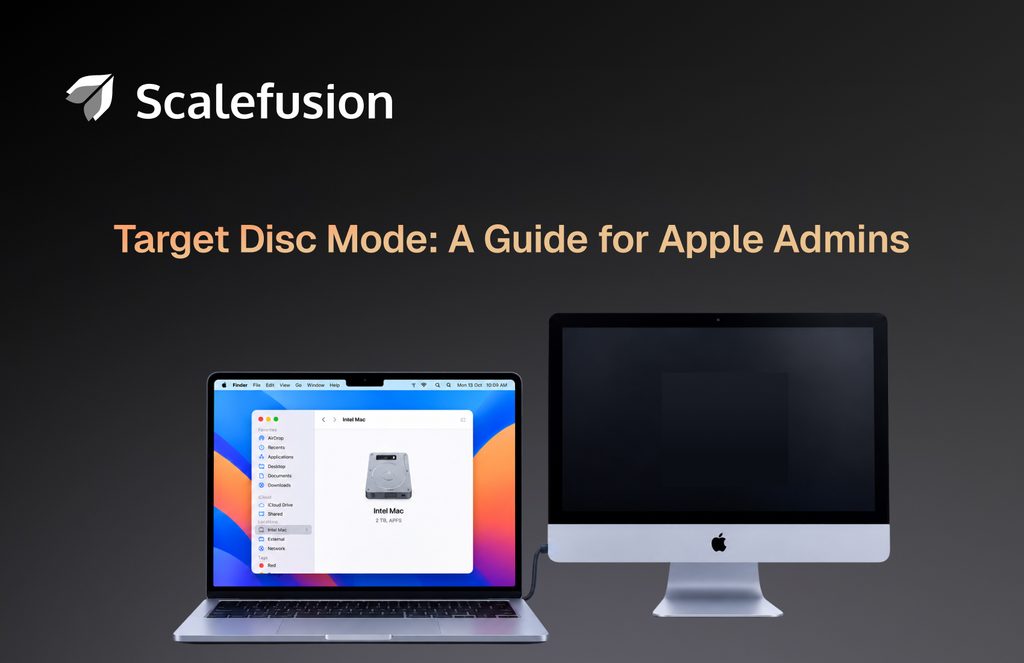
Target Disk Mode is a boot mode that allows an Intel-based Mac to appear as an external disk on another connected Mac to access and transfer files. Instead of using the Mac normally, its storage becomes accessible through the other Mac, allowing files to be moved between the two computers.
Think of it as temporarily changing the role of the Mac. Rather than functioning as a complete computer for the session, the Intel Mac exposes its disk to the connected Mac.
This can be useful when IT teams or users need direct access to files on an Intel Mac, particularly when normal file transfer workflows are inconvenient or when the Mac cannot be used normally.
Target Disk Mode should not be confused with a backup or data recovery tool. It provides access to storage that is available. However, it does not guarantee that files can be recovered from damaged or inaccessible storage.
How does Target Disk Mode work?
Target Disk Mode requires two Mac computers to be physically connected. The Intel-based Mac starts in Target Disk Mode, while the second Mac remains the computer used to browse and transfer files.
Once the Intel Mac enters Target Disk Mode, its disk becomes available on the other Mac. The user can then open it through Finder, macOS’s built-in file management app, and drag files to or from the disk.
The process gives the second Mac access to the other computer’s available storage rather than relying on a normal macOS session. This can be useful in some troubleshooting situations where the target Mac doesn’t start as expected.
How to use Target Disk Mode on an Intel Mac
Follow these steps to use Target Disk Mode on an Intel-based Mac.
Step 1: Connect the two Macs
Connect the Intel-based Mac to the other Mac using a Thunderbolt cable. Apple’s current Mac User Guide specifies a Thunderbolt connection for this workflow.
Step 2: Start the Intel Mac in Target Disk Mode
If the Intel Mac is turned off, start it while pressing and holding the T key. Apple lists the T key as the startup combination for entering Target Disk Mode on Intel-based Macs.
If the Mac is already running, go to: Apple menu > System Settings > General > Startup Disk. Then, select Restart in Target Disk Mode. Apple identifies this option as available for Intel Macs.
Step 3: Access and transfer files
Once the Intel Mac starts in Target Disk Mode, its disk appears as an icon on the other Mac.
Open Finder on the second Mac and select the Mac being used as an external disk from the sidebar. Files can then be transferred by dragging them to or from the disk.
Step 4: Eject the disk
When the transfer is complete, Control-click the disk in Finder and select Eject. Use the power button to shut down the Mac being used as the disk before disconnecting the cable.
When is Target Disk Mode useful?
Target Disk Mode can support several file access and troubleshooting scenarios on Intel Macs.
Accessing files when a Mac cannot start normally
A Mac may experience an operating system problem that makes normal startup difficult while its storage remains accessible. In such cases, Target Disk Mode may give IT teams another way to access available files from a second Mac.
This is one reason Target Disk Mode can be useful in IT recovery workflows. For example, IT teams can use it to retrieve user files from Macs experiencing boot problems before repair, replacement, or reimaging.
Transferring files between Macs
Target Disk Mode also provides a direct way to move files between supported Macs. Once the target Mac appears as a disk, files can be copied using Finder rather than setting up a separate network-based file sharing workflow.
Supporting device recovery and replacement
Some organizations still maintain Intel Mac fleets. Target Disk Mode can be relevant during troubleshooting, device replacement, or migration workflows where IT admins need access to files stored on an existing device.
Its usefulness depends on the condition and accessibility of the Mac’s storage, so it should be treated as one troubleshooting option rather than a guaranteed recovery method.
Does Target Disk Mode work on Apple silicon Macs?
Traditional Target Disk Mode is an Intel Mac feature. Apple directs users with Apple silicon Macs to use a file sharing workflow through macOS Recovery instead.
On an Apple silicon Mac, a user can start macOS Recovery and open Utilities > Share Disk. After selecting a volume and starting sharing, the other connected Mac can access the shared Mac through the Network section in Finder. Apple supports USB, USB-C, or Thunderbolt connections for this Share Disk workflow.
The distinction matters for IT teams supporting mixed Mac environments. Older instructions that tell users to hold the T key apply to Intel-based Macs and should not be treated as instructions for Apple silicon devices.
What are the limitations of Target Disk Mode?
Target Disk Mode has some practical limitations that IT teams should consider:
- Requires physical access: The Macs need to be physically accessible and directly connected, making Target Disk Mode primarily a local troubleshooting and file access workflow.
- Depends on storage accessibility: Access to files depends on the condition and accessibility of the Mac’s storage. If the storage has failed or is damaged, Target Disk Mode may not provide access to the required files.
- Does not repair storage: Target Disk Mode provides access to available storage. However, it does not repair failing hardware or guarantee that damaged or inaccessible files can be recovered.
Organizations should therefore treat Target Disk Mode as one option within a broader Mac troubleshooting and recovery process.
Target Disk Mode in enterprise Mac environments
Target Disk Mode addresses a specific local file access scenario. Enterprise Mac management involves a much wider set of ongoing requirements, including enrolling devices, applying policies, distributing applications, configuring security settings, and supporting users remotely.
Scalefusion enables IT teams to enroll and manage organizational Macs, apply Mac device profiles and policies, distribute applications, and perform supported device actions from the Scalefusion dashboard.
For managed Macs, Scalefusion Remote Cast & Control supports remote troubleshooting by allowing IT admins to view a user’s Mac screen, assist with device issues, and use Remote Terminal to execute commands on supported devices.
These workflows serve a different purpose from Target Disk Mode.
Target Disk Mode provides local access to an Intel Mac’s storage, while Mac device management and remote support help IT teams manage and troubleshoot enrolled Macs during their operational lifecycle.
Choose the right file access workflow for your Mac
Target Disk Mode provides a practical way to access available files on Intel-based Macs during file transfers and certain troubleshooting scenarios. For IT teams managing both Intel-based and Apple silicon Macs, understanding how file access methods differ between these devices helps select the appropriate approach for each situation.