How do you manage hundreds of rugged Zebra devices spread across warehouses, retail stores, and logistics hubs without creating a tangle of manual work?
Every IT admin who has handled rugged enterprise hardware knows the struggle. Devices need to stay updated, secure, and configured the same way no matter where they’re used. But when each Zebra device must be set up by hand, even simple updates turn into hours of repetitive effort.
That’s why Zebra Technologies developed MXConfig, a tool that simplifies Android device configuration and remote management. Instead of wrestling with XML files or walking from device to device, MXConfig allows IT teams to create and push policies automatically.
In this blog, we’ll break down what MXConfig is, why it’s important for managing Zebra Android devices, and how you can deploy MXConfig and push remote commands effortlessly using Scalefusion UEM.
What is MXConfig for Zebra?
MXConfig is Zebra’s configuration and management framework designed to make Android devices enterprise-ready. It is built on top of Zebra’s Mobility Extensions (MX) layer, which adds deeper control and management options to standard Android.
At its core, MXConfig allows IT teams to create XML-based configuration profiles that tell Zebra devices what to do. These profiles define settings like network access, app permissions, security restrictions, and user interface behavior.
MXConfig bridges the gap between enterprise management tools and Zebra hardware. It gives administrators granular control over every detail of device setup, without the need to modify Android code or root the device.
MXConfig works across most Zebra Android devices, including:
- Rugged handheld scanners
- Mobile computers
- POS terminals and payment systems
- Field-ready tablets
It also integrates seamlessly with Zebra StageNow, a provisioning tool that helps push configurations during device setup, and with UEM or EMM platforms such as Scalefusion, which extend those capabilities across thousands of endpoints.
In short, MXConfig gives Zebra devices their enterprise brain by translating IT policies into precise device behavior.
Also Read: What is MXConfig for Zebra Devices
Why is MXConfig important for Zebra device management?
Managing rugged devices at scale is a challenge. Each device must follow the same security, connectivity, and compliance rules, regardless of where it’s located. MXConfig makes that consistency achievable.
- Simplifies setup: Instead of configuring devices one by one, admins can build a single XML profile that applies to the entire fleet. Wi-Fi networks, password policies, app permissions, and kiosk restrictions can all be defined once and distributed remotely.
- Enables true remote configuration: MXConfig supports remote command execution, which means IT can modify devices on the go without physical access. Whether you need to push an OS update, install a new app, or disable a risky feature, the configuration can be sent over the air.
- Saves time and reduces errors: Manually setting up devices leaves room for inconsistency. MXConfig removes that risk by ensuring every configuration is uniform and verified by Zebra’s MX engine before it applies. As a result, IT teams spend less time on troubleshooting and more time focusing on core operations.
- Minimizes downtime: Because MXConfig commands can be triggered remotely, devices no longer have to be returned to IT for setup or maintenance. That translates directly to higher uptime and smoother workflows for front-line employees.
How to deploy MXConfig remote commands using Scalefusion MDM?
XML configurations (MXConfig) make it easy to define and apply settings on Zebra devices. With Scalefusion, IT teams can deploy these XML configs remotely across all managed devices, no cables or manual setup needed.
You simply create the XML file in Zebra’s StageNow tool and run it using the Zebra StageNow Config Remote Command on the Scalefusion Dashboard.
Pre-requisites
Before deploying MXConfig through Scalefusion, make sure:
- Zebra devices are enrolled in the Scalefusion dashboard.
- Devices run a firmware version that supports MXConfig.
- Admin accounts have permission to manage OEM configurations.
- Devices are connected to a secure Wi-Fi or mobile network.
Once these are in place, you are ready to roll out remote configurations.
Steps to deploy MXConfig & push remote commands
Step 1: Create a StageNow Profile
Learn more: How to create a StageNow Profile?
Step 2: Create XML file
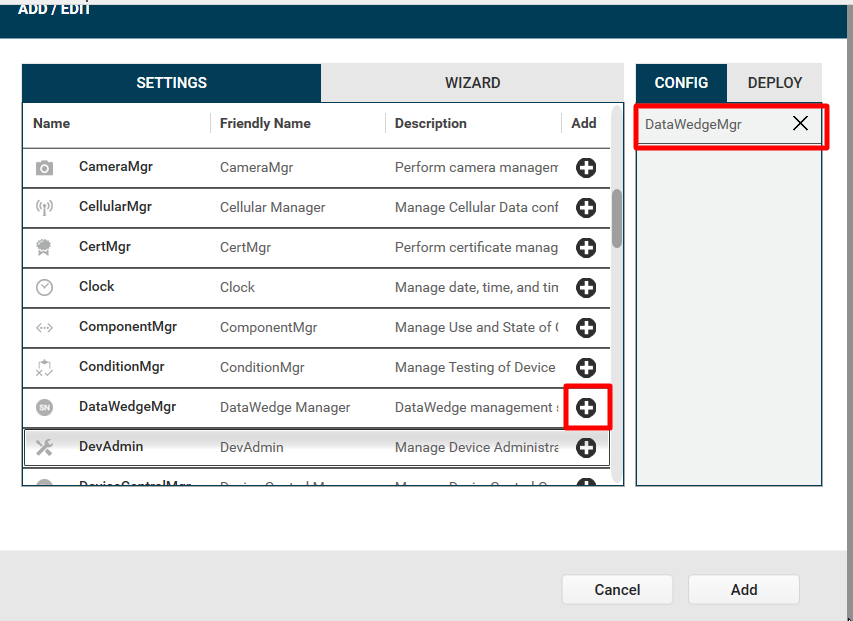
- Add DataWedgeMgr on Stagenow
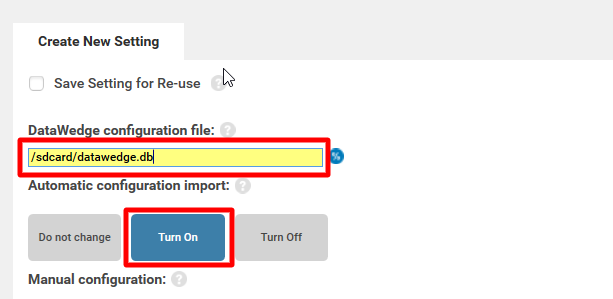
- Enter the device’s path to the /sdcard/datawedge.db file and select the button to turn Automatic configuration import to ON.
- Click on the Continue button.
- Next, click on the Complete Profiles button.
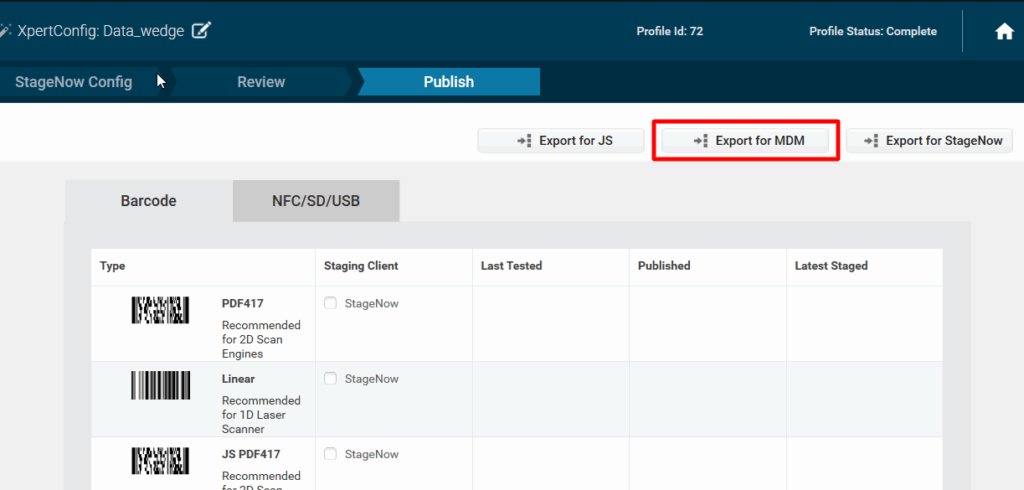
- Click on Export for MDM button to save the configuration as an XML file.
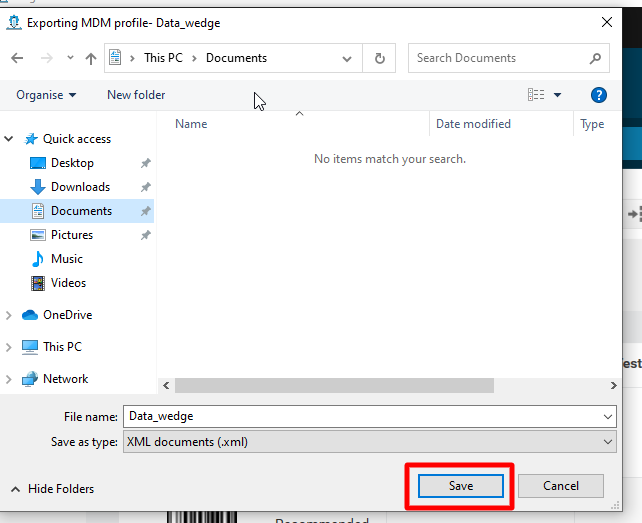
- Click Save to save the file on your Windows PC as an XML.
- Copy the XML content to deploy on Zebra Devices using Remote Commands on Scalefusion Dashboard.
Step 3: Create Zebra StageNow Config Remote Command
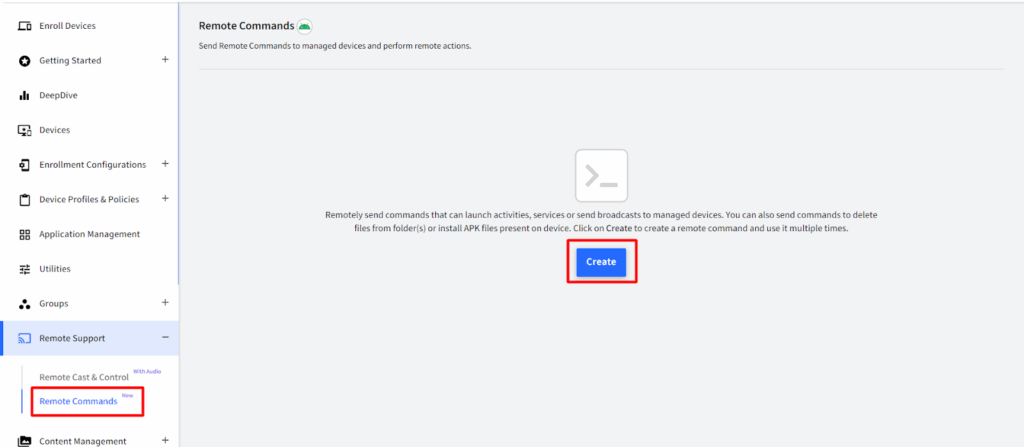
- On the Scalefusion Dashboard, navigate to Remote Support > Remote Commands and click on Create
- This would bring up a pop-up with a list of commands to select from. Scroll down and choose Zebra StageNow Config.
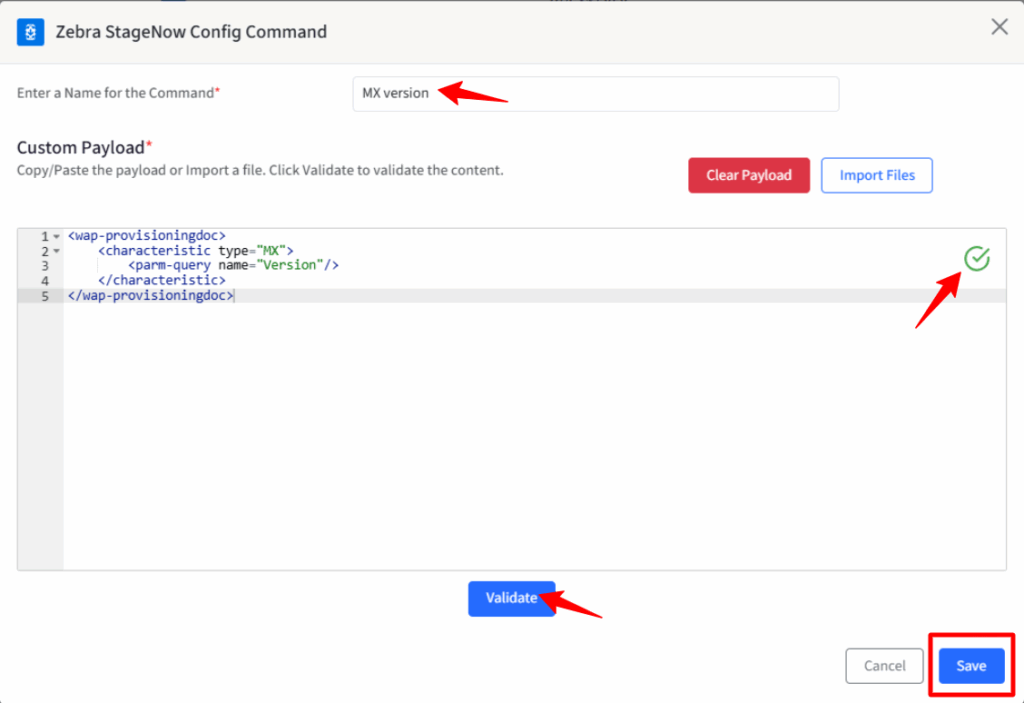
- In the dialog that opens, enter the following:
- Enter a name for the command.
- Custom Payload: You can copy/paste the payload, or if you have an XML file, you can import it.
- Click Validate.
- Once it is validated, click Save.
Note: You can also set Custom properties from Groups and add those custom properties in Remote Commands to be applied to a group of devices.
Few XML Examples:
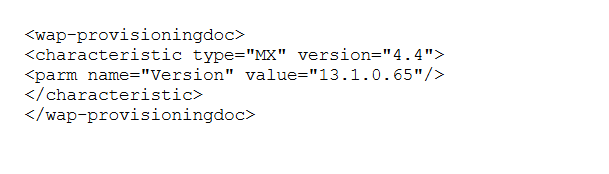
- To get the MX version:
<wap-provisioningdoc>
<characteristic type="MX">
<parm-query name="Version" />
</characteristic>
</wap-provisioningdoc>
2. To turn on/off Battery Saver mode: To turn on, use 1, and to turn off, use 2.
<wap-provisioningdoc>
<characteristic version="10.1" type="PowerMgr">
<parm name="BatterySaverMode" value="2" />
<parm name="BatterySaverControlMode" value="2" />
</characteristic>
</wap-provisioningdoc>
3. For Wifi Config:
<wap-provisioningdoc>
<characteristic version="8.4" type="Wi-Fi">
<characteristic type="System">
<parm name="WiFiAction" value="enable" />
</characteristic>
<parm name="UseRegulatory" value="0" />
<parm name="UseDiagnosticOptions" value="0" />
<parm name="UseAdvancedOptions" value="0" />
<parm name="NetworkAction" value="Add" />
<characteristic type="network-profile">
<parm name="SSID" value="SSID name" />
<parm name="SecurityMode" value="1" />
<parm name="WPAMode" value="2" />
<characteristic type="key-details">
<parm name="KeyType" value="Passphrase" />
<parm name="ProtectKey" value="0" />
<parm name="PassphraseWPAClear" value="Test@123" />
</characteristic>
<parm name="UseDHCP" value="1" />
<parm name="UseProxy" value="0" />
</characteristic>
<parm name="UseHotspotOptions" value="0" />
</characteristic>
<characteristic version="8.4" type="Wi-Fi">
<characteristic type="System">
<parm name="WiFiAction" value="enable" />
</characteristic>
<parm name="UseRegulatory" value="0" />
<parm name="UseDiagnosticOptions" value="0" />
<parm name="UseAdvancedOptions" value="0" />
<parm name="NetworkAction" value="Connect" />
<characteristic type="network-profile">
<parm name="SSID" value="SSID name" />
</characteristic>
<parm name="UseHotspotOptions" value="0" />
</characteristic>
</wap-provisioningdoc>
Likewise, you can create different XML configs and run them on devices using this Remote Command.
Step 4: Run the command
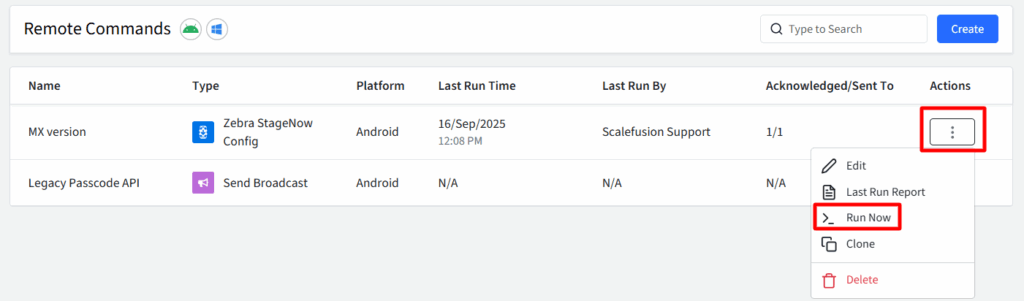
To execute this remote command on the device, run it from the Dashboard.
1. Click the 3 dots under the Actions column and click Run Now.
2. Select Device Group or Device and click Execute.
3. Once done, you will be able to see the Last Run time and Acknowledgment status.
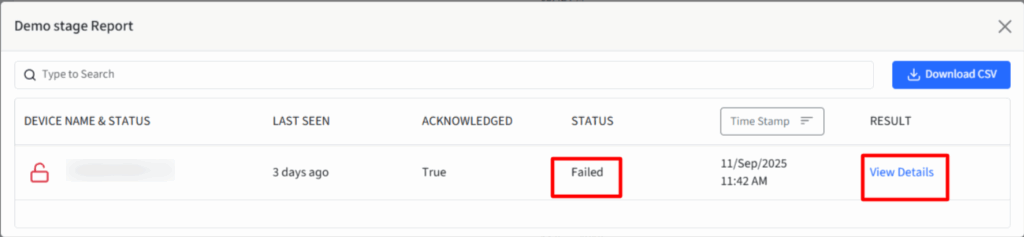
4. Click the 3 dots under the Actions column and click Last Run Report to see the Status of the command.

- If the command executes successfully, the Status will display as ‘Success’ and the Result will show as ‘NA’, since no output is returned by the stage upon successful completion.
There are a few exceptions; for instance, with MX version configuration, you can view details under Results. Click ‘View Details’ to download the output. Eg.
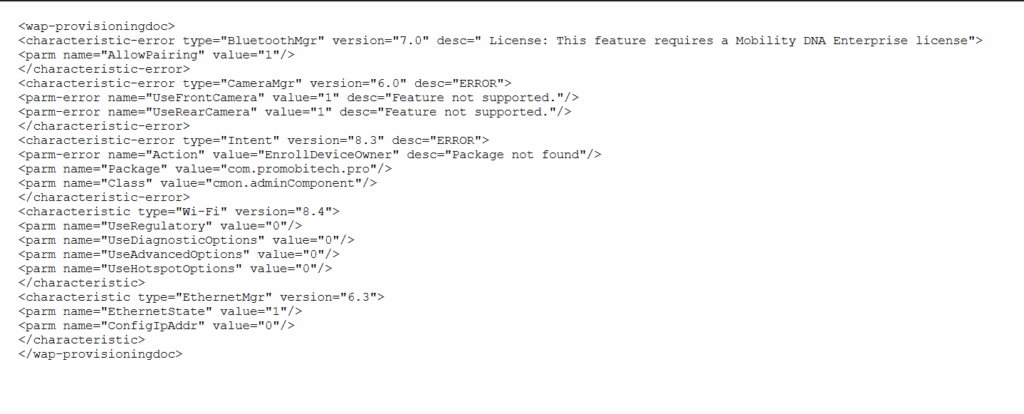
- If the command does not succeed, the Status will show as ‘Failed‘, and you can click on ‘View Details‘ under Results to see the reason.
Note: If you have existing Remote command(s) for Zebra created using the Send Broadcast command, they will continue to function as usual.
Simplify Zebra Device management with Scalefusion’s MXConfig support
Managing hundreds of Zebra rugged devices manually can quickly turn into a full-time job. Firmware mismatches, XML errors, and inconsistent configurations drain time and resources. That’s where Scalefusion MDM steps in, automating Zebra MXConfig to deliver fast, consistent, and hands-free device management.
With Scalefusion Zebra Device Management, IT teams can configure, monitor, and troubleshoot all Zebra devices from a single dashboard, with no XML files, no scripting, and no manual intervention.
How does Scalefusion enhance MXConfig?
- Auto Schema Parsing: Automatically detects and applies the latest Zebra MXConfig schemas for accurate configuration.
- Guided Interface: Simplifies complex OEM setups through a visual interface, removing XML errors.
- Firmware Compatibility: Keeps schema libraries updated with Zebra firmware releases for seamless version control.
- Remote Troubleshooting: Allows real-time device view and control to diagnose and fix issues instantly.
- Zero-Touch Enrollment: Enables instant provisioning via QR code or Zero-Touch, eliminating manual setup.
- Unified Dashboard: Manages Zebra, Android, iOS, Windows, and macOS devices from one centralized console.
Scalefusion with its MXConfig support helps IT teams push updates, enforce policies, and maintain compliance in minutes instead of hours with remote commands, keeping every Zebra device secure, consistent, and ready for work.