

You can enroll Zebra devices using StageNow by creating a staging profile that contains the required Wi-Fi, enrollment, and MDM configuration settings, then scanning the generated barcode or NFC tag on the Zebra device. This method helps IT teams quickly provision multiple Zebra rugged devices without manual setup, making it useful for retail, logistics, warehousing, healthcare, manufacturing, and field operations.
Key Takeaways
Zebra StageNow streamlines large-scale device deployment by automating enrollment, configuration, and provisioning for rugged Android devices.
- Why Use StageNow: Zebra StageNow simplifies bulk device provisioning by automating Wi-Fi setup, MDM enrollment, application installation, and policy configuration through barcode or NFC-based profiles.
- Prepare Before Enrollment: Successful deployment requires compatible Zebra devices, StageNow installed on a Windows PC, and the necessary MDM enrollment details, including configuration files and APK download information.
- Automate Large Deployments: IT teams can create reusable StageNow profiles that rapidly provision hundreds or thousands of Zebra devices with consistent settings and minimal manual intervention.
- Pair StageNow with MDM: While StageNow handles initial provisioning, integrating it with an MDM solution enables ongoing device management, security policy enforcement, application updates, remote support, and compliance monitoring throughout the device lifecycle.
- Best for Frontline Operations: Organizations in warehousing, retail, manufacturing, healthcare, and logistics benefit from faster device rollouts, standardized configurations, and reduced deployment errors using StageNow-based enrollment.
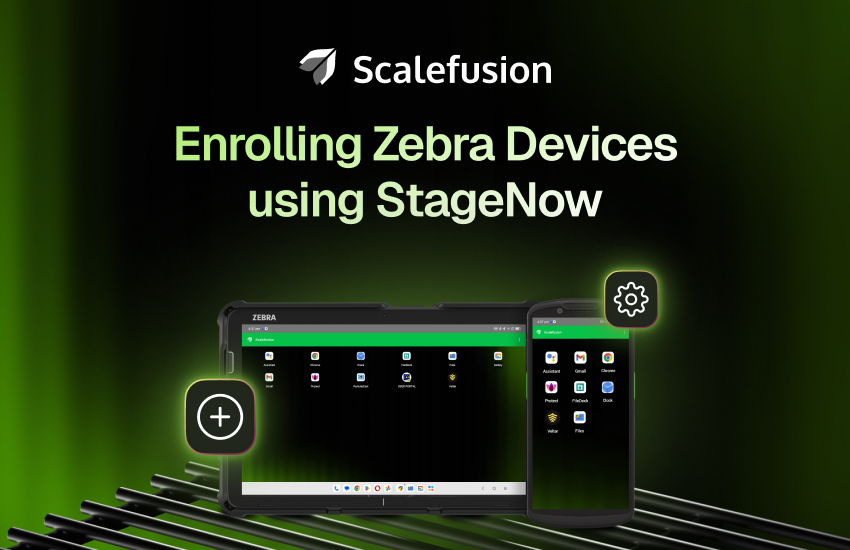
Zebra StageNow is Zebra’s official staging tool for provisioning Android-based Zebra devices. It lets IT teams scan a barcode or NFC tag to automatically install a mobile device management (MDM) agent, apply Wi-Fi settings, and enroll the device, without touching each unit manually. This guide walks through enrolling Zebra devices into an MDM (Scalefusion) using StageNow, from creating the configuration profile to scanning the device.
What is StageNow?
Zebra StageNow is a staging application that creates provisioning profiles for Zebra Android devices. Instead of manually configuring Wi-Fi, installing an MDM agent, and enrolling every device by hand, StageNow packages all of that into a barcode or NFC tag. IT teams scan it once per device or once for a whole batch, and the device configures itself.
This is what StageNow does on scan, in order:
- Applies Wi-Fi network settings
- Downloads and installs the MDM agent (in this case, Scalefusion)
- Enrolls the device into the MDM as Device Owner
- Applies the enrollment policies configured in the profile
StageNow vs. other Zebra enrollment methods
StageNow is one of several ways to enroll Zebra devices; it’s the right choice for bulk, repeatable deployments where devices are factory-default or factory-reset.
| Method | Best for | Manual effort |
|---|---|---|
| StageNow | Bulk enrollment of factory-default/reset Zebra devices | Low, one scan per device after setup |
| QR code (Android Enterprise) | Smaller rollouts, non-Zebra Android devices too | Low-medium |
| Zero-touch enrollment | Large-scale, pre-configured at purchase | Very low, but needs reseller setup in advance |
| Manual agent install | One-off devices, troubleshooting | High |
How to enroll Zebra devices using StageNow with MDM
Prerequisites
Before starting the enrollment process, there are certain prerequisites that must be in place. These are:
1. From your Scalefusion account:
- Create a Device Profile
- Create a QR Code Configuration
2. The Zebra device is equipped with:
- Android OS 8.0 (Oreo) and greater
- Minimum of MX 8.0
- LifeGuard patch 7 or greater is installed
3. Download and install Zebra StageNow software on a Windows PC
Step-by-step guide to enroll Zebra devices using StageNow
Step 1: Get your configuration data ready
Scalefusion needs two pieces of configuration data before you can build a StageNow profile.
Sign in to Scalefusion and go to Enrollment Configurations > QR Code. Select the QR code configuration you want to use, then click Show Android QR. From the QR code dialog, get both of these:
- APK Download URL — click Copy and save it; you’ll paste this into StageNow in Step 2.
- Config JSON — click Download Config JSON and note where it saves; you’ll upload this file in Step 2.
Step 2: Create the StageNow profile
- Launch StageNow and click Create New Profile. Enter your StageNow admin password if prompted.
- Select the correct MX Version (this guide uses MX 8.0 — check yours under Settings > About Device > SW Components on the device, or via View Client Info in the StageNow app). Select XpertMode as the wizard type, name the profile, and click Start.
- Add these to the config:
- Under Wizard, add MDM Enrollment
- Under Settings, add Intent
- Click Add to begin profile creation
Work through the profile creation steps:
- MDM Agent Type: select Others
- Enroll Method: select “No, I want to download the file to my device”
- Support App: select No
- Download Config: select No
- Download MDM Agent: set the Target Path and File Name on Device (e.g.
/sdcard/Scalefusion.apk), then set Source File Location → Staging Server: External → Source Path: paste the APK Download URL from Step 1 - Install MDM: click Continue
- Launch MDM: select No
- Intent — this is where enrollment data gets passed to Scalefusion:
- Action: Enroll a Device Owner
- Package Name:
com.promobitech.mobilock.pro - Class Name:
com.promobitech.mobilock.component.MobilockDeviceAdmin - JSON Values: upload the Config JSON file you downloaded in Step 1
Click Continue to generate the enrollment barcodes. Choose the scanner/barcode type your devices support, then click Publish. Optionally add instructions for the generated PDF, then click Publish Now. This produces a PDF with the QR/barcodes you’ll scan in Step 3.
Step 3: Enroll the device
1. On factory default devices: If your device is already powered on but is in a factory default state with no third-party apps or other MDMs installed, then launch the StageNow app on the device to scan the QR/barcodes one by one to complete the enrollment.
2. On factory fresh/reset devices: If your device is factory fresh/reset, depending upon the MX version and device support, a barcode may be generated, which can be used to bypass the GMS Android Setup Wizard. Once done, launch the StageNow app on the device to scan the QR/barcodes one by one and complete the enrollment.
Enrollment is complete once all barcodes in the sequence have been scanned, the device will show the Scalefusion agent installed and enrolled as Device Owner.
Manage your enrolled Zebra fleet with Scalefusion
Enrollment is step one, Zebra devices still need ongoing policy management, security enforcement, and lifecycle control once they’re in the field. Scalefusion gives you a single console to manage your entire Zebra fleet after StageNow enrollment. A centralized Zebra device management solution is the need of the hour for every organization using Zebra devices. This is because it allows for seamless enrollment and ensures consistent security with efficient operational management throughout the lifecycle of the devices. Scalefusion helps organisations manage their Zebra device fleet effectively, ensuring productivity, security, and compliance from a centralized operations point.

FAQs
1. How to enroll Zebra devices as device owner using StageNow?
Create a StageNow profile with the MDM Enrollment and Intent settings, set the Enroll a Device Owner action with your MDM’s package and class name, and generate a barcode. Scanning it on a factory-reset device installs the MDM agent, sets Device Owner, and completes enrollment automatically.
2. What are the ways to enroll a Zebra device?
Zebra devices can be enrolled using StageNow, QR code (Android Enterprise), Zero-Touch, or manual agent-based methods. StageNow is the most common approach, allowing IT teams to scan a barcode or use NFC to configure settings and enroll devices quickly, especially for bulk deployments.
3. Can StageNow be used for zero-touch deployment of Zebra devices?
Yes, StageNow supports a form of zero-touch or near zero-touch deployment by allowing IT teams to preconfigure device settings and enrollment parameters. Devices can be provisioned instantly by scanning a barcode, tapping an NFC tag, or using USB staging, making it ideal for large-scale deployments where manual configuration is not practical.
4. What is the difference between StageNow and an MDM like Scalefusion?
StageNow is a device provisioning tool used for initial setup and configuration of Zebra devices, such as applying settings and enrolling them into an enterprise mobility management (EMM) solution. Scalefusion, on the other hand, is a full mobile device management (MDM) platform that provides ongoing device management, security policies, monitoring, and lifecycle control after enrollment.
5. Do I need a third-party MDM if I’m already using StageNow?
Yes, StageNow only handles the one-time enrollment step. It doesn’t provide ongoing management, remote monitoring, security policy enforcement, or app management after the device is enrolled. An MDM like Scalefusion is what manages the device for the rest of its lifecycle.
6. What Android and MX version do I need for StageNow enrollment?
This guide requires Android 8.0 (Oreo) or later, MX 8.0 or higher, and LifeGuard patch 7 or later. Check your device’s MX version under Settings > About Device > SW Components before starting.

