
Windows multi-app kiosk mode is gaining traction as businesses seek controlled, purpose-driven device experiences. This growing demand aligns closely with the widespread adoption and dominance of Windows devices worldwide.
According to Statcounter data reported in March 2026, Windows captures a lion’s share of an estimated 60% in the global desktop OS market. Windows 11 has experienced high adoption, with an approximately 67% share in the global desktop Windows version market, effectively overtaking Windows 10.
As Windows devices are increasingly used across business and educational environments, managing them effectively has become critical. This is especially true when devices are deployed for specific, task-driven use cases.
Multi-app kiosk mode is one of the most practical ways to optimize Windows devices for such scenarios. This feature allows organizations to restrict devices to a set of approved apps, creating a secure and distraction-free user experience. Windows kiosk mode is particularly popular in self-service and shared-device environments, a segment that is growing rapidly worldwide.
This dedicated mode can transform Windows devices into dedicated-purpose systems. Self-service kiosks improve customer interactions in public spaces like museums, libraries, or restaurants. In enterprises, they streamline processes such as employee training while ensuring productivity by limiting access to only essential apps. Managing these kiosk devices effectively is key to maximizing their potential, whether for education, retail, or corporate settings.
What is Windows multi-app kiosk mode?
Multi-app kiosk mode in Windows is a feature that allows you to configure devices to run in a locked-down environment, where only selected apps are accessible to users. It is beneficial when the device is intended for a specific purpose, such as a public kiosk, information booth, or self-service terminal.
With Windows multi-app kiosk mode, you can set up a custom user interface that restricts users from accessing the desktop, Start menu, and other system settings. Instead, users are presented with a restricted interface that displays a specific set of apps or content they choose.
This mode allows you to personalize the experience for users by controlling which apps they can access. You can set it up so that certain apps open automatically when the device starts, stop users from switching between apps, and limit access to specific features within the allowed apps. This way, you can tailor the device to fit your needs better and enhance the user experience.
Administrators can configure and manage Windows multi-app restricted mode using tools provided by Microsoft, such as the Assigned Access feature, Windows Configuration Designer, or third-party kiosk software. These tools allow you to define the user experience, specify which apps can be accessed, and set up additional restrictions if necessary.
By using Windows multi-app restricted mode, organizations can create dedicated and secure environments for users. This ensures that the device is used only for its intended purpose and prevents unauthorized access to sensitive information or system settings.
Key features of multi-app kiosk mode on Windows 11 & 10
1. App restriction
- Pre-selected app access: Administrators define a strict allowlist of apps (UWP, Win32, or Microsoft Edge) that users can run. Unauthorized apps are blocked, ensuring the device operates only for its intended purpose.
Example: A retail kiosk might allow only a point-of-sale (POS) app and an inventory management tool.
- App dependencies: All required components must be included in the allowlist if an app relies on additional processes or executables (e.g., both 32-bit and 64-bit binaries, if used).
2. Consistent user experience
- Customized Start menu: Users see a Start menu with only the allowed apps pinned as tiles, hiding all other programs and system features. This ensures uniformity across devices and reduces distractions.
- Locked-down desktop: The Windows desktop is accessible but stripped of non-essential UI elements (e.g., context menus, system tray). Users cannot access File Explorer or modify taskbar settings.
- Multi-monitor support: Configurations can extend across multiple displays, which is ideal for complex workflows like digital signage paired with transactional interfaces.
3. Blocked app downloads and installations
- No new apps: Users can’t install or download apps. The managed multi-app environment enforces strict app execution policies, ensuring only pre-approved software runs.
- Edge browser limitations: If Microsoft Edge is included, administrators can restrict browsing to specific URLs using allow/block lists. Features like developer tools (F12) and new tab creation (Ctrl+T) are disabled.
4. System change prevention
- Settings lockdown: Access to system settings (e.g., Control Panel, network configurations) is blocked, except for essential functions like Wi-Fi connectivity or screen brightness adjustments.
- Policy enforcement: Group policies or mobile device management (MDM) tools like Scalefusion apply configurations such as:
- Disabling taskbar customization
- Hiding notification pop-ups and toast messages
- Session reset: After inactivity, sessions automatically reset to clear temporary data (e.g., cookies and downloads) and restore the default state.
5. Security and compliance
- AppLocker integration: Unauthorized app launches trigger AppLocker alerts (e.g., “This app has been blocked by your system administrator”).
- Audit logs: Event logs (e.g., Microsoft\Windows\AssignedAccess\Operational) track configuration errors and unauthorized access attempts.
- Autologon accounts: Kiosk devices can use dedicated local or cloud accounts (e.g., Azure AD) without admin privileges, reducing breach risks.
6. Implementation methods
- UEM: Deploy XML configurations via Scalefusion UEM to enforce kiosk settings globally.
- PowerShell scripts: Use MDM Bridge WMI Provider and tools like PsExec to apply XML-based profiles for multi-app setups.
- Custom XML configuration: Define allowed apps, Start menu pins, and taskbar visibility in an XML file (example below):
<AllowedApps>
<App AppUserModelId="Microsoft.WindowsCalculator_8wekyb3d8bbwe!App" />
<App DesktopAppPath="C:\Windows\System32\notepad.exe" />
</AllowedApps>
7. Key considerations
- Windows edition requirements: Multi-app kiosk mode is supported on Windows 11 and 10 Pro, Enterprise, and Education editions.
- User authentication: Supports local accounts, Azure AD users, or auto-login for public-facing devices.
Turn your Windows device into a dedicated kiosk in moments.
Sign up for a 14-day free trial now.
How to manually set up Windows 11 & 10 kiosk mode using Assigned Access
You can configure kiosk mode on a Windows 11/10 device, but for a single-app setup, using the Assigned Access feature. When you sign into the kiosk account, the app is launched automatically.
1. Open the Settings app > Accounts. Select Other users or Family and Other users.
2. Go to Set up a kiosk > Assigned Access. Click on Get started.
3. Enter a name for a new account.
4. Choose the app that will run when the kiosk account signs in.
Limitations of Assigned Access
While Assigned Access in Windows does offer simple kiosk configurations, it has several limitations that could impact functionality and security:
- Single-app limitation: It is primarily designed for single-app kiosk configurations. Setting up Assigned Access multi-app kiosks can be complex and may not deliver the seamless experience that businesses need.
- Manual app provisioning: Administrators must manually install and configure apps on each device before enabling kiosk mode, leading to increased setup time and potential inconsistencies across devices.
- Restricted control over system commands: It lacks built-in functionality to turn off specific keyboard shortcuts, such as Ctrl+Alt+Delete, which users could exploit to access system functions and exit the kiosk environment.
Given these limitations of Assigned Access, businesses need a more robust and scalable solution. To overcome these challenges and enable seamless Windows multi-app kiosk experience, organizations can leverage Scalefusion UEM.
Watch this step-by-step instructional video to enable multi-app kiosk mode on Windows devices:o:
Prerequisites to configure Windows multi-app kiosk mode using Scalefusion
For multi-app kiosk configuration on Windows, you must meet certain prerequisites and follow specific steps to apply the kiosk policy. Here are the prerequisites:
1. Supported operating systems
- Windows 10 and above: Pro, Enterprise, Education, or Business editions with version 1803 or later.
- Windows 7, 8.1, and Windows Home (10 & 11): These versions require enrollment with the Scalefusion MDM agent for multi-app kiosk functionality.
2. Scalefusion MDM Agent
Install the Scalefusion MDM agent on Windows 7, 8.1, or Windows Home editions to enable multi-app kiosk features.
3. User account configuration
The multi-app kiosk policy applies exclusively to non-administrator user accounts. Ensure a dedicated standard user account is set up for kiosk mode deployment on each device.
4. App installation
Verify that all apps intended for multi-app kiosk mode are pre-installed on the Windows devices. This includes both Universal Windows Platform (UWP) and Win32 apps.
5. Administrative access
Maintain administrative credentials for initial device setup and configuration.
6. Scalefusion dashboard access
Confirm that you have an active Scalefusion account and can access the dashboard to create and manage device profiles.
How to set up multi-app kiosk mode on Windows 11 & 10 with Scalefusion
Experience every step of the Windows multi-app kiosk mode setup process firsthand with our interactive demo:
Follow this step-by-step process to configure multi-app kiosk mode on Windows 11 and 10 devices right from the Scalefusion dashboard. To configure Windows multi-app kiosk mode, it is necessary to create a Windows kiosk mode profile.s.
Follow this step-by-step process to configure the setting on the dashboard to experience Windows multi-app kiosk mode:
To configure a Windows multi-app kiosk, it is necessary to create a Windows kiosk mode profile.
1. Navigate to Device Profiles & Policies > Devices Profiles
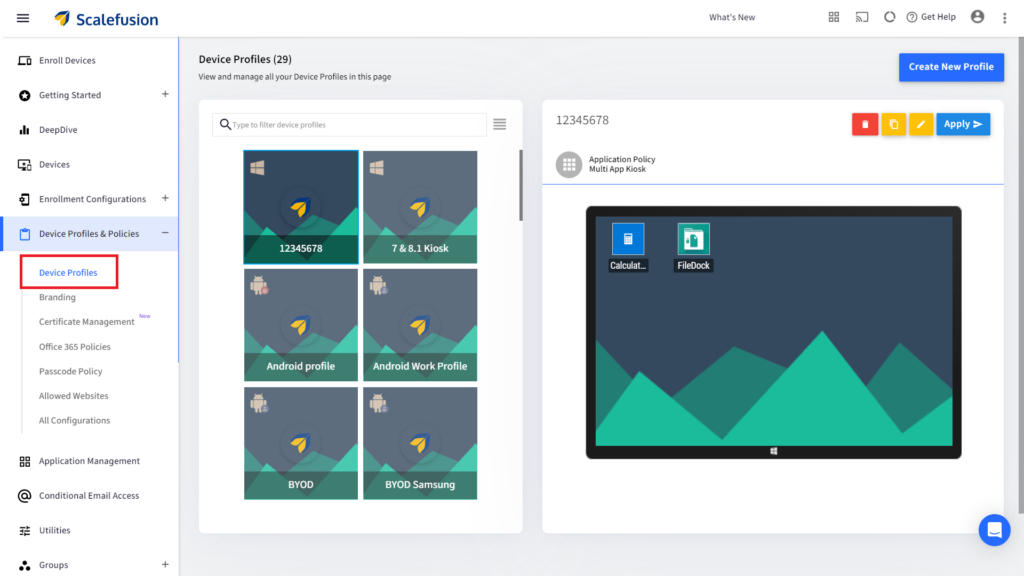
2. Click Create New Profile on the upper right corner of the screen
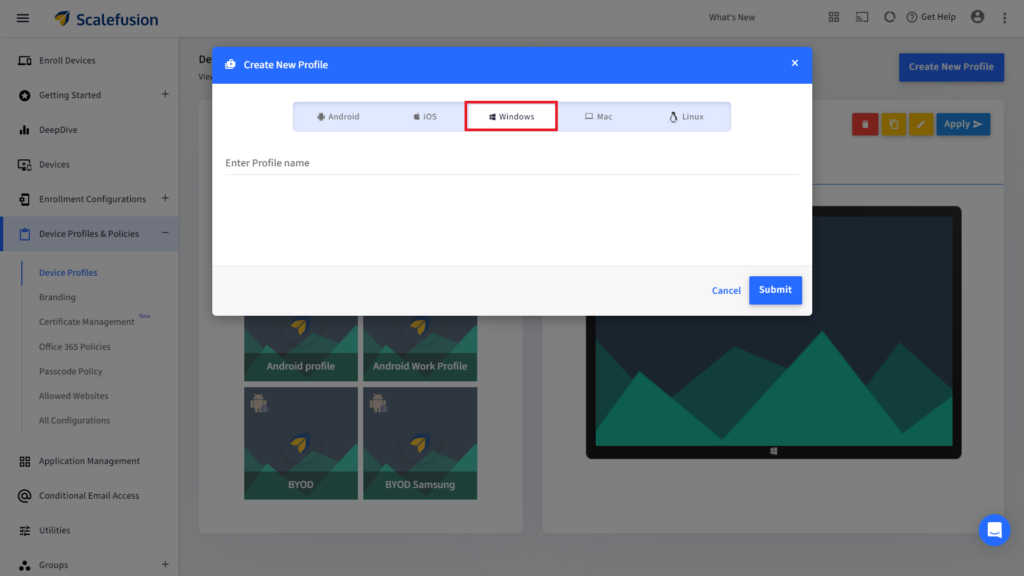
3. Select the Windows tab; Enter a profile name; Click Submit
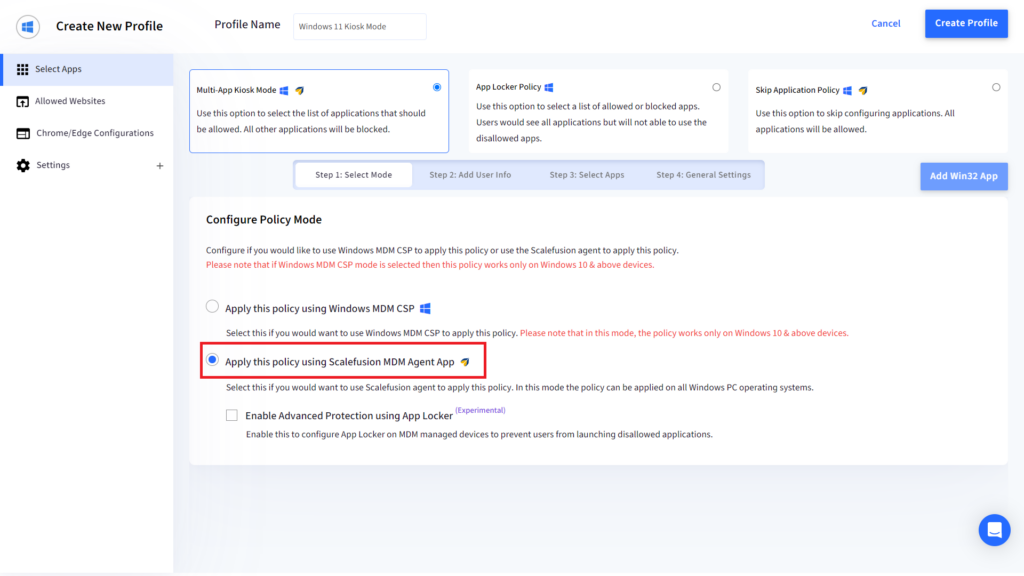
4. Now, under Select Apps (on the left menu), choose Multi-app Kiosk Mode
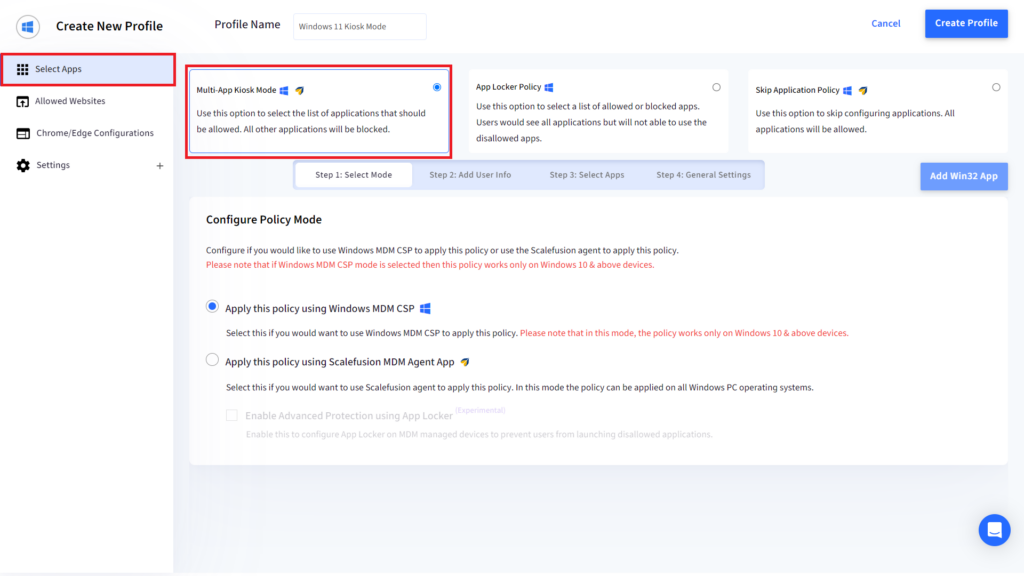
- Step 1: Configure policy mode – Select Scalefusion MDM Agent App
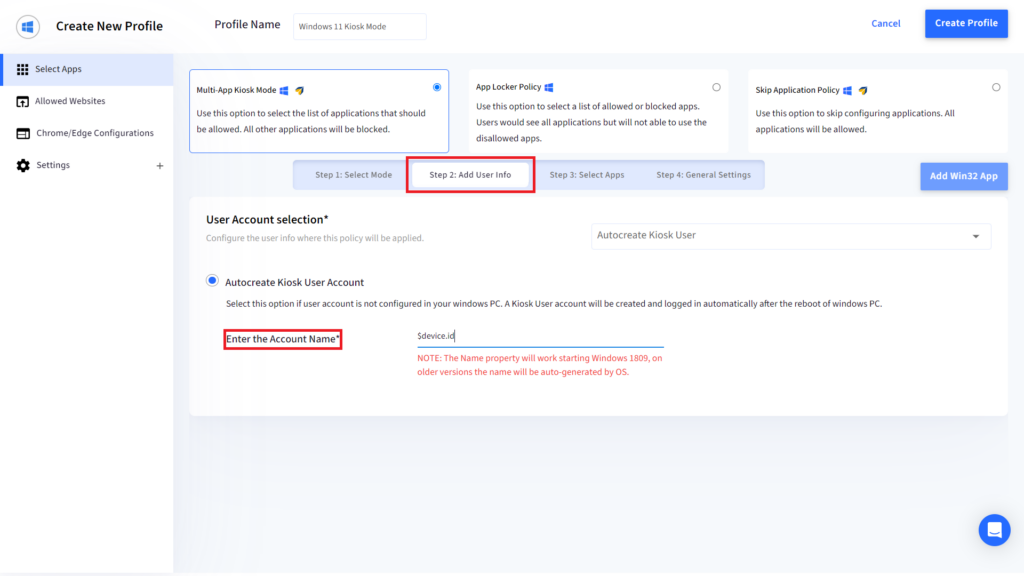
- Step 2: Add user info – Configure the user info
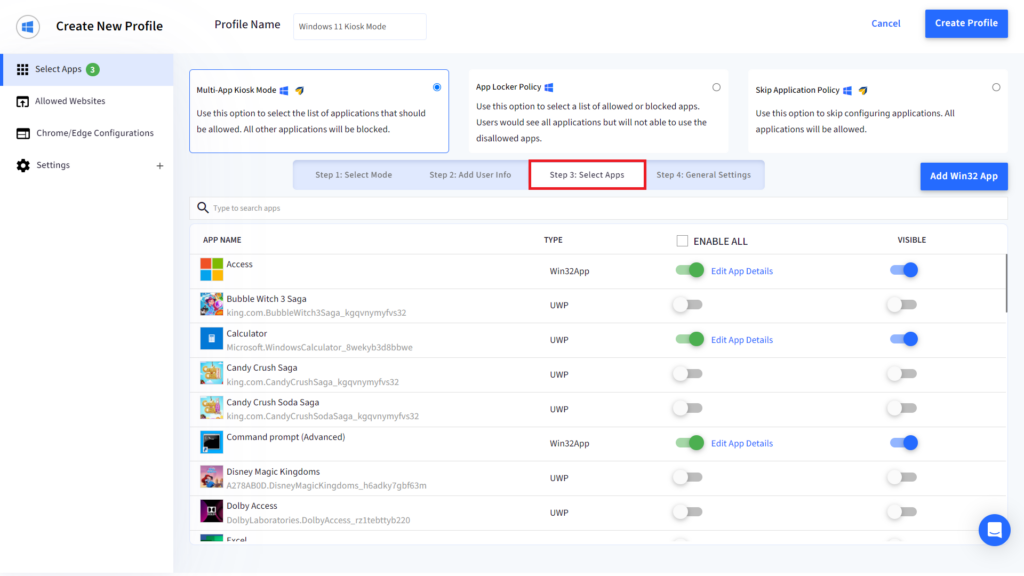
- Step 3: Select apps – Select the apps to enable on multi-app kiosk mode
5. Click Create Profile on the upper right corner of the screen to finish
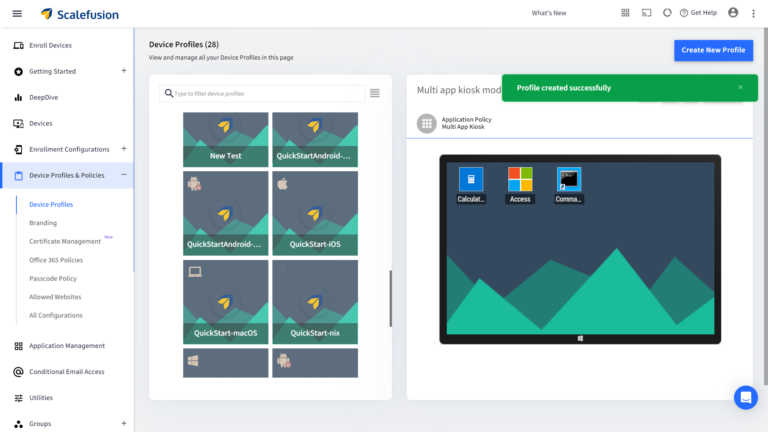
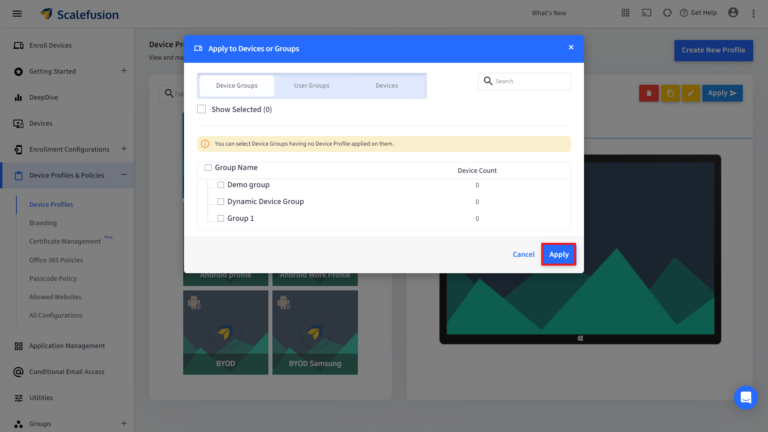
6. Click Apply to push the multi-app kiosk profile to device groups/user groups/individual devices
Benefits of Windows multi-app kiosk mode for businesses
1. Enhanced security
Kiosk software ensures that only authorized users access specific apps or features, reducing security risks. MDM strengthens this further by enforcing encryption, VPN connections, and controlled access policies.
2. Increased productivity
By limiting user access to necessary apps, multi-app restricted mode eliminates distractions. MDM enhances this by silently installing apps and managing updates without interrupting the workflow.
3. Easy configuration and management
Managing multiple Windows kiosk devices becomes seamless with centralized controls. Businesses need MDM for device lockdown mode on Windows while enforcing policies, enabling or disabling hardware, and monitoring device compliance remotely.
4. Customizable user experience
Windows multi-app dedicated mode allows businesses to tailor device access, ensuring a consistent interface. MDM complements this by deploying in-house apps, securing data, and enabling multi-app usage for shared environments.
5. Improved user satisfaction
Employees and customers get a focused, distraction-free experience. MDM ensures smooth app deployment, controlled navigation, and reliable performance.
6. Cost savings
By restricting devices to approved apps and use cases, multi-app kiosk mode minimizes misuse, reduces security risks, and lowers maintenance overhead. Combined with centralized management using MDM, IT teams can troubleshoot remotely, enforce policies at scale, and extend device lifespan, resulting in overall cost savings.
Maximize Windows kiosk efficiency with Scalefusion UEM
Scalefusion UEM allows you to configure Windows devices in multi-app kiosk mode with ease by adopting modern endpoint management. Windows multi-app kiosk mode is widely preferred by enterprises and educational institutions for managing dedicated devices. This is primarily because it minimizes distractions, reduces data usage, and limits security risks from unnecessary apps, while ensuring users can access only approved work and educational apps.
Manage your Windows Multi-App Kiosk Mode effortlessly with Scalefusion.
Start your 14-day free trial today!
Reference:
1. Statista
FAQs
1. What is Windows multi-app kiosk mode used for in real environments?
Windows multi-app kiosk mode is used on shared or task-focused devices where users need access to a limited set of apps. Common environments include retail counters, healthcare workstations, education labs, frontline operations, and self-service kiosks, where controlled access improves security, consistency, and ease of device management.
2. Can I manage multi-app kiosk mode remotely on Microsoft Windows?
Native Windows multi-app kiosk mode offers limited remote management capabilities. Basic configuration is possible during setup, but ongoing changes, monitoring, and troubleshooting often require administrative access. For efficient remote control, updates, and policy changes, organizations typically rely on centralized device management tools.
3. What types of apps are supported in Windows multi-app kiosk mode?
Windows multi-app kiosk mode supports UWP apps and Win32 desktop apps selected. App compatibility depends on permissions, user context, and how the app behaves in a restricted environment. Some legacy or admin-dependent apps may not function reliably in multi-app kiosk setups.
4. Is Windows multi-apps kiosk mode suitable for enterprise or multi-location use?
Windows multi-apps kiosk mode can work for small or static deployments, but it becomes difficult to scale across enterprise or multi-location environments. Native limitations around remote management, monitoring, updates, and consistency make large deployments harder to maintain without additional centralized management capabilities.
5. What is the difference between single-app kiosk mode and multi-app kiosk mode in Windows?
Single-app kiosk mode locks a Windows device to one app, ideal for dedicated use cases like digital signage or check-in kiosks. Multi-app kiosk mode allows access to multiple approved apps, making it better suited for shared workstations where users need to switch between several controlled apps.

