

Kiosk mode on Zebra devices enables organizations to transform rugged handhelds and tablets into purpose-built, secure endpoints for frontline teams.
By restricting access to approved apps and system settings, IT teams can prevent device misuse, reduce security risks, and streamline frontline operations. Furthermore, business data can be safeguarded while ensuring seamless task execution across retail, logistics, and field operations environments.
Before we move to the steps to implement a Zebra kiosk system, let’s understand what a kiosk mode is and how it is used across different industries.
What is kiosk mode on Zebra devices?
Zebra devices are purpose-built for frontline operations, from retail floors to warehouse aisles. Kiosk mode on Zebra devices is a security configuration that locks devices to approved apps and functions. This prevents users from accessing system settings, installing unauthorized apps, or misusing hardware features.
Instead of functioning as general-purpose Android devices, Zebra endpoints operate in single-app or multi-app mode tailored to business workflows. IT teams can remotely control app visibility, restrict navigation, disable hardware buttons, block factory resets, and enforce policies.
By implementing kiosk mode on Zebra devices, organizations reduce risk, strengthen compliance, and ensure the devices perform strictly as intended in high-demand environments.
Impact of Zebra kiosks: Industries & use cases
With kiosk mode on Zebra devices, organizations turn the rugged hardware into secure, task-focused business tools that enhance productivity and operational control.
Retail: Associates use Zebra handhelds for inventory checks, mobile POS, and order fulfillment without access to distracting apps. Controlled access improves focus and customer experience.
Warehousing & logistics: Scanners locked in kiosk mode on Zebra devices streamline barcode scanning, picking, packing, and shipment tracking while preventing configuration tampering.
Healthcare: Clinical teams rely on Zebra devices for patient identification and medication tracking. Restricted device access helps protect sensitive data and support regulatory compliance.
Field services: Technicians use Zebra devices for work orders and reporting in a locked-down environment that blocks unauthorized installations and maintains standardized workflows.
Across industries, kiosk mode on Zebra devices reduces misuse, minimizes downtime, and ensures consistent, secure performance across distributed deployments.
Steps to apply kiosk mode on Zebra devices with MDM
Here’s how you implement kiosk mode on Zebra devices through the Scalefusion dashboard:
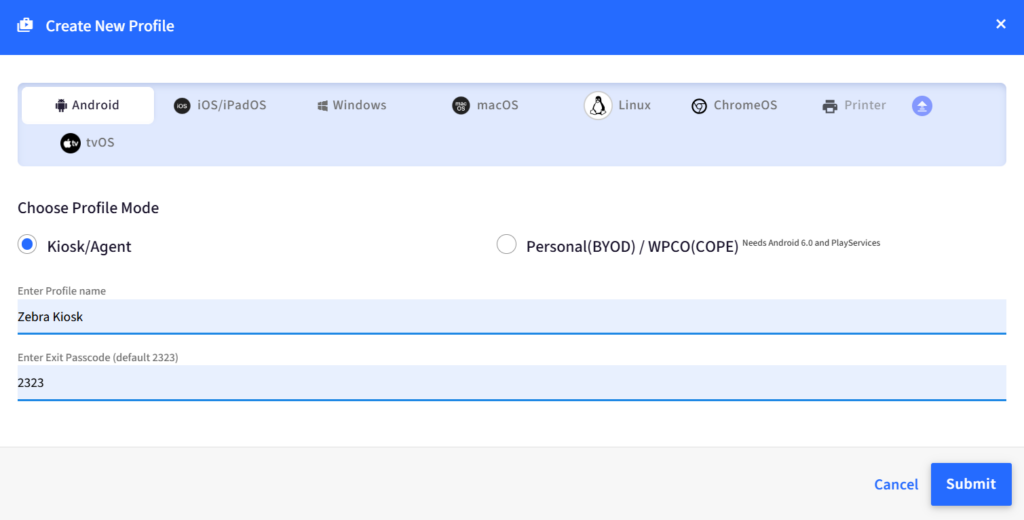
Step 1: Create a device profile by navigating to Device Profiles & Policies > Device Profiles > Create New Profile > Android and select Kiosk/Agent mode. Enter the profile name and exit passcode and click Submit.
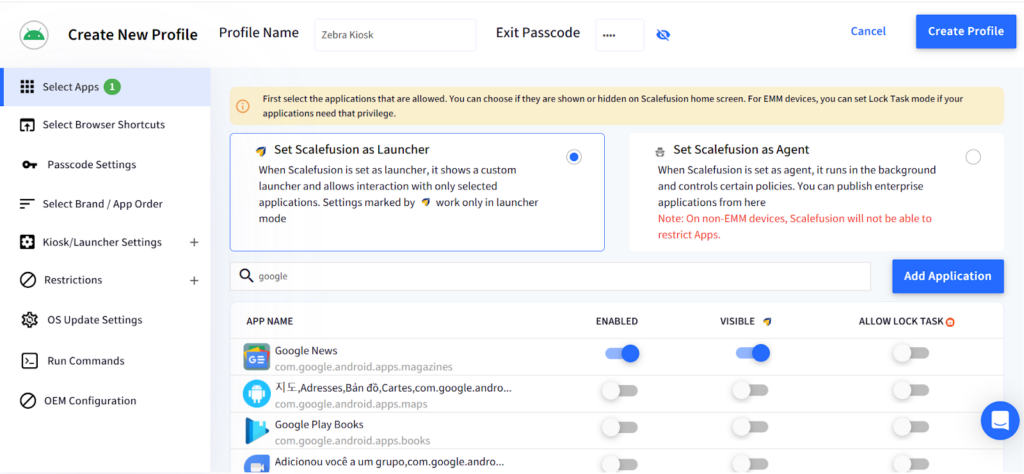
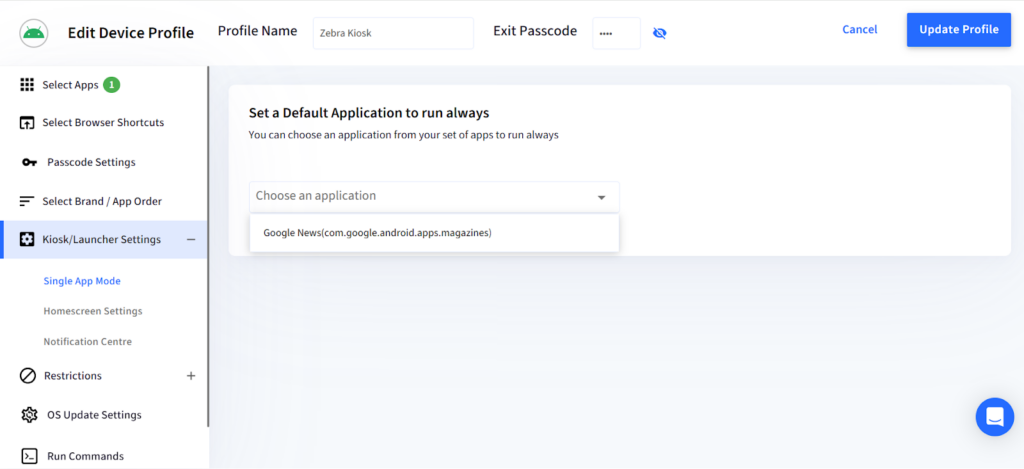
Step 2: Go to Select Apps and select Set Scalefusion as Launcher. Enable the app(s) you want to allow in your Zebra kiosk system. For single-app kiosk mode, navigate to Kiosk/Launcher Settings > Single App Mode and choose the app you want to always run on.
Step 3: Configure restrictions such as disabling power off functionality, in-app browsing, home and recent keys, status bar, and USB connection to lock down the device as per your preferences. Explore more options under the Restrictions tab, below Kiosk/Launcher Settings. Click Create Profile on the top-right corner of the same page.
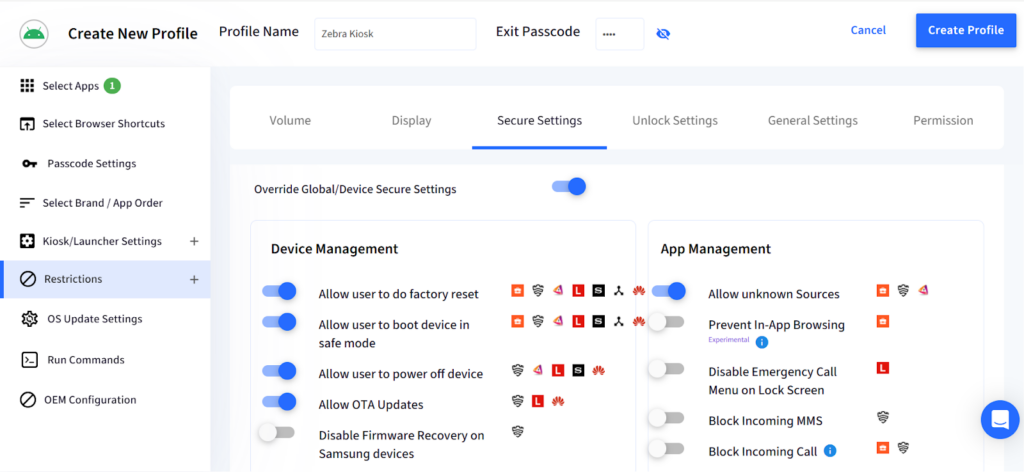
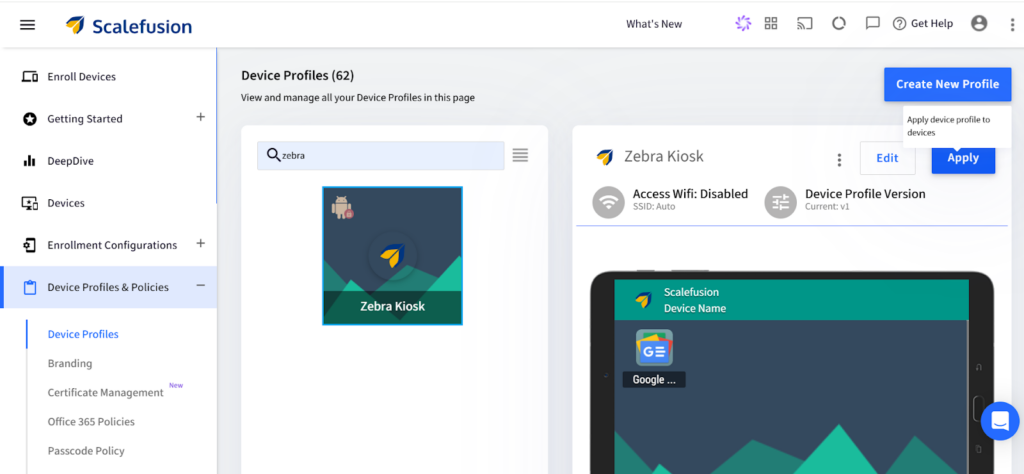
Step 4: Apply the newly created profile to your enrolled Zebra devices. To apply the profile, go to Device Profiles & Policies > Device Profiles, select your Zebra kiosk profile, and click Apply.
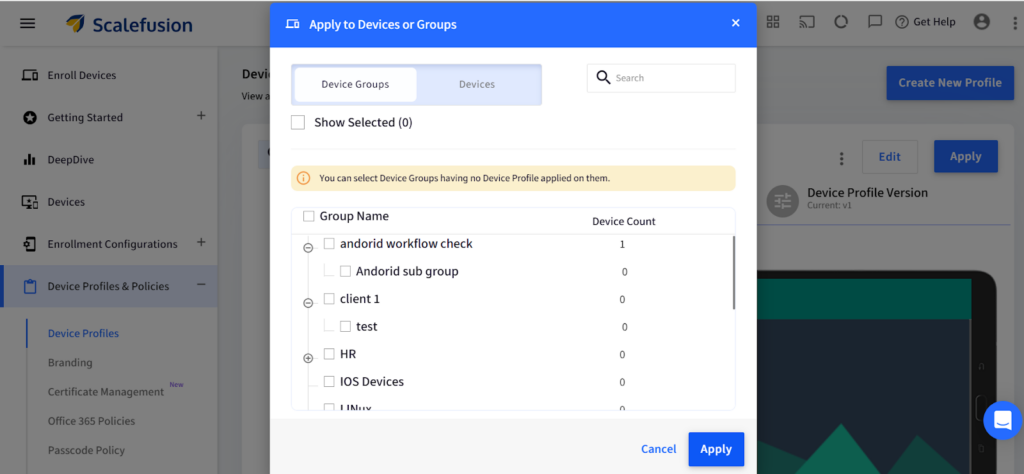
Choose your Zebra devices or device groups that you want to apply the profile to.
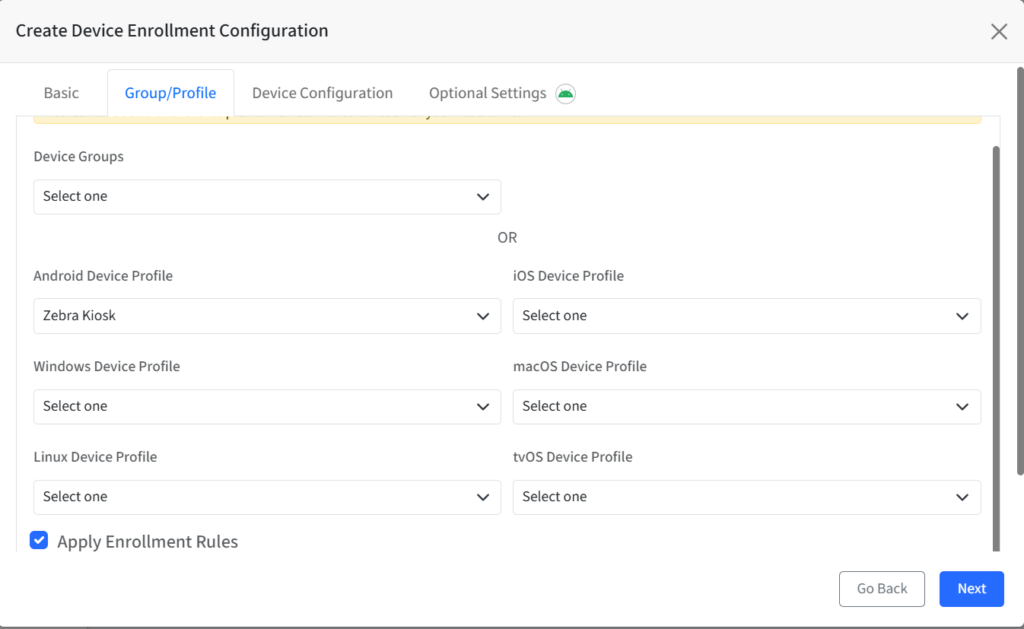
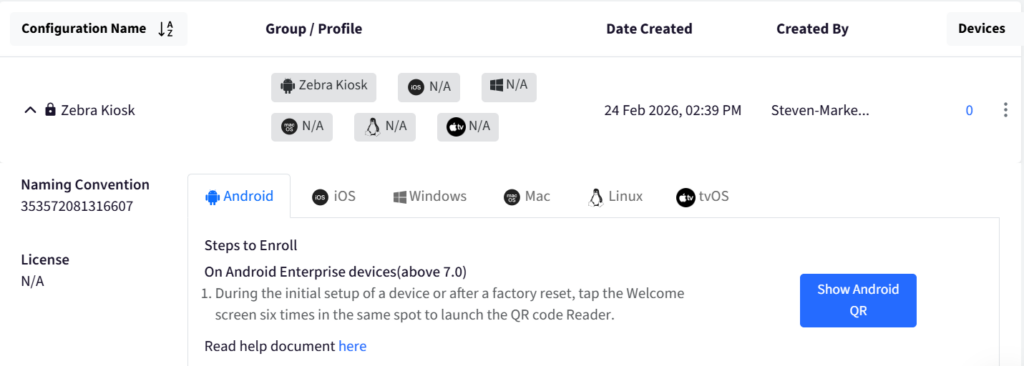
Step 5: Create an enrollment configuration by navigating to Enrollment Configurations > QR Code Configurations > Create Config. In the Basic tab, give a name to your configuration. Choose the Kiosk/Agent enrollment type and the Userless Enrollment method. Select the device name convention.
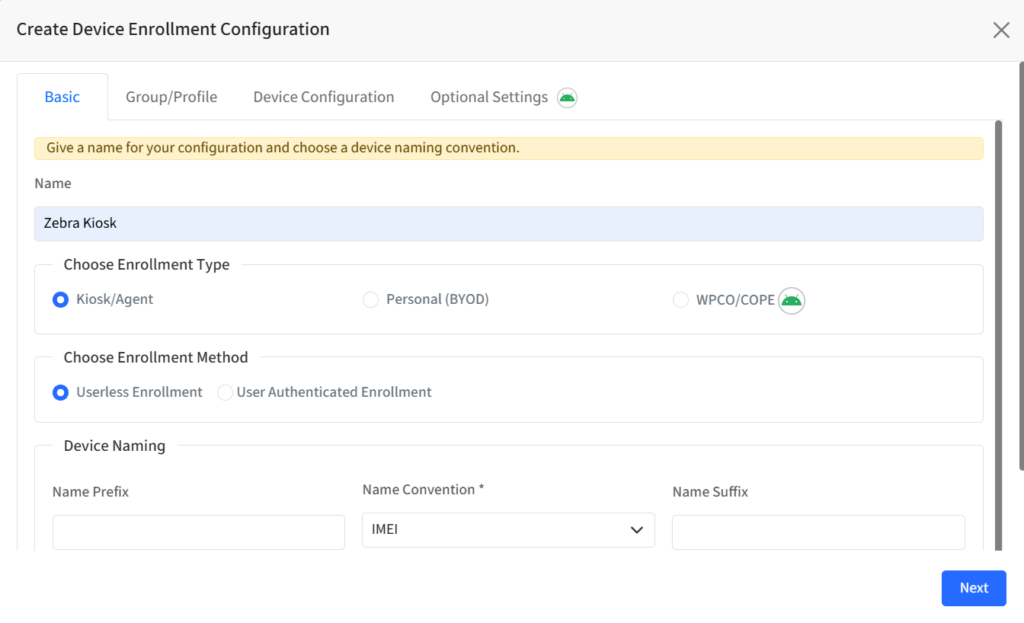
In the Group/Profile tab, select your Zebra kiosk device profile created earlier. Add Device Configuration and Optional Settings. Save the configuration.
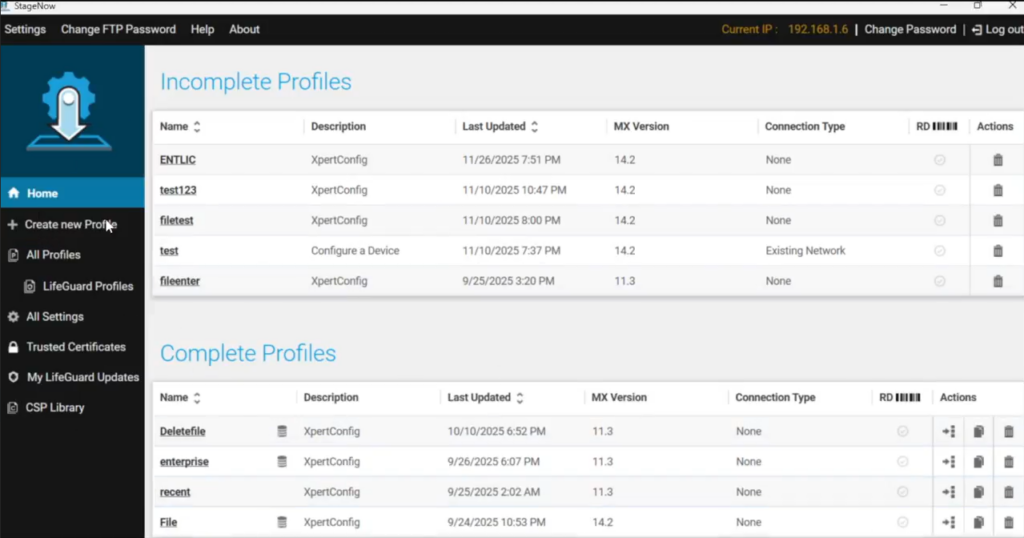
Step 6: Bulk enroll Zebra devices into Scalefusion using Zebra StageNow for zero-touch provisioning by generating and deploying the StageNow JSON file linked to the enrollment configuration.
Zebra-native security capabilities supported by Scalefusion
With Scalefusion, IT teams can leverage deep Zebra-specific kiosk capabilities to run purpose-built operations without distraction or misuse.
StageNow: Scalefusion allows bulk zero-touch enrollment of Zebra devices with StageNow. IT teams can create, deploy, and modify StageNow XML-based configurations remotely, ensuring instant, standardized setups across their entire Zebra fleet. They can easily push updates, enforce security policies, and automate configurations.
Zebra OEMConfig: Scalefusion’s integrated solution is designed to give IT admins granular control over device configurations, security policies, performance optimizations, and advanced device-specific settings exclusively for Zebra devices.
Here are some of these key features to leverage:
1. DataWedge: Scan barcodes and capture data from peripherals such as magnetic stripe readers and Bluetooth ring scanners, and send it directly to your apps.
2. LifeGuard OTA: Ensure seamless device security and performance with OTA updates and patches with automated scheduling. Remotely deploy firmware, BIOS, and security patches.
3. Security & privacy: Configure encryption, screen lock, SD card setup notification, and extended patch reports.
4. System configuration: Apply settings related to analytics, clock, data wipe, GMS, power, battery, remote scanner, wake-up, pass-through command, and logs.
5. UI settings: Configure audio, display, event-triggered intents, general UI, keyboard, settings UI, touch panel, and volume UI profiles.
6. Screen lock: Configure instant screen lock on power key, screen lock type, notifications on lock screen, RC lock screen visibility, screen lock timeout, and reboot.
7. Keyboard settings: Configure input method, use of home and recent keys, external keyboard shortcut keys, large key indicator, auto-trigger, virtual KB, and double trigger settings.
8. User control: Configure do not disturb, airplane, bluetooth, default client, and USB host modes, erase all data, instant lock, and USB MTP folder access settings.
9. Wireless & network settings: Configure DHCP, Enterprise NFC, ethernet, hostname, network connection, RFID, wireless general, wireless LAN, and wireless WAN.
10. General configuration: Configure incoming call blocking, emergency override, outgoing calls, preferred network, SIM card slot, and public land mobile network lock state.
Why choose Scalefusion’s Zebra device management software?
Scalefusion kiosk software allows IT admins to lock any Zebra device in single or multi-app kiosk mode. Restrict devices to one app or a curated set of apps built for scanning, ticketing, inventory, order management, and other frontline tasks.
- Zebra-validated MDM: Get proven reliability, consistent performance, and enterprise-ready assurance with Scalefusion. Our MDM is trusted across all Zebra devices and built to perform every time.
- App Management: With MDM for Zebra devices, IT admins can install, update, or remove business apps from the Scalefusion dashboard. Whether it’s apps from Google Play, web apps, or internal enterprise apps, everything can be pushed remotely. This ensures employees only access work-related tools, keeping them focused and productive. Admins can also block non-work apps, helping reduce distractions and control device usage.
- Remote Cast & Control: With remote cast and control, IT teams can see what’s happening on a device screen in real-time. They can take screenshots, record sessions, and troubleshoot issues without visiting the site. This feature reduces downtime, cuts support costs, and keeps the field workforce running smoothly.
- Powerful security policies: Secure your Zebra devices with advanced security features such as DLP policies, password enforcement, certificate management, and factory reset protection.
- DeepDive analytics: Scalefusion includes DeepDive Analytics to track Zebra device performance. It shows device health, usage, and data reports in real-time. Admins can spot unusual behavior, monitor compliance, and take quick action to avoid issues. With full visibility, businesses can improve operational efficiency and reduce the risk of device failures or productivity loss.
Start managing Zebra devices in high-security kiosk mode with Scalefusion
Zebra devices power mission-critical workflows, but without strict controls, they can become security risks. Effective Zebra device management is essential to prevent unauthorized apps, settings access, and misuse that could disrupt operations and expose sensitive data.
High-security kiosk mode transforms your Zebra devices into dedicated, locked-down endpoints. Restrict access to approved apps, block system settings, disable hardware functions, and enforce centralized policies to ensure consistent, secure performance across every device.
Want to see how Scalefusion can enable kiosk mode on Zebra devices?
Sign up for a 14-day free trial now.

