

Tracking pixels, analytics tags, and behavioral profiling scripts run silently in the background of most websites. On corporate devices these trackers collect browsing patterns, capture session data, and share insights with multiple third party networks. This leads to privacy exposure, regulatory risks, and unnecessary data sharing that companies cannot control.
Trackers also slow down browsers, inflate bandwidth usage, and open pathways for malicious redirects that disguise themselves as analytics calls. When employees rely on Chrome for most of their work, blocking trackers becomes essential for maintaining a secure, compliant, and performance focused environment.


Build a controlled browsing experience
Scalefusion Veltar strengthens browsing controls by inspecting outbound requests directly on the device rather than depending on browser extensions or add ons. The secure web gateway solution identifies and filters tracking domains, pixels, analytics endpoints, and profiling scripts in real time. This enforcement works across all networks and browsing modes, including incognito, which means users cannot bypass the protection by switching configurations.
Since Veltar applies policies through Scalefusion UEM, IT teams maintain uniform control across their Chrome devices without managing separate tools or lists. The result is a stable and consistent shield against both visible and invisible trackers.
This quick interactive demo walks you through the exact steps to block online trackers using secure web gateway policies in Veltar.
How to block trackers on chrome
Following is a step-by-step guide to block online trackers with Veltar’s secure web gateway
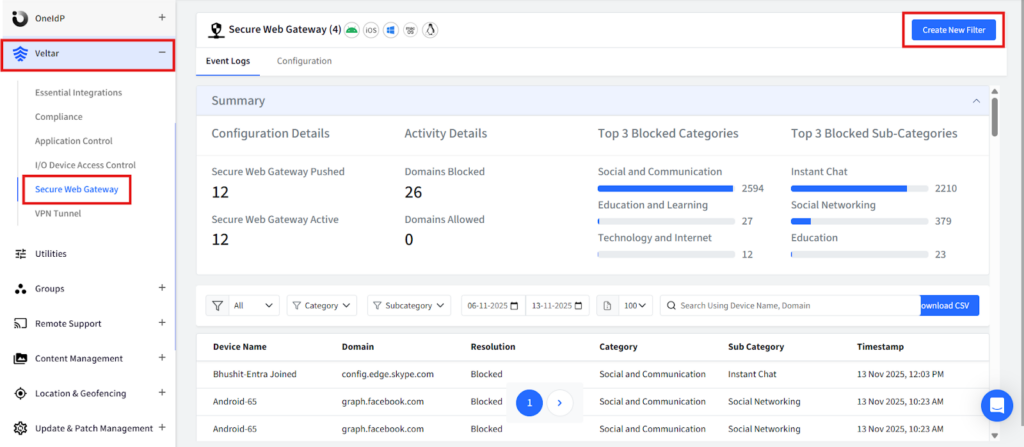
Step 1: Log in to your Scalefusion account and navigate to the Veltar section. Select Secure Web Gateway and click on ‘Create New Filter’ in the top right corner.
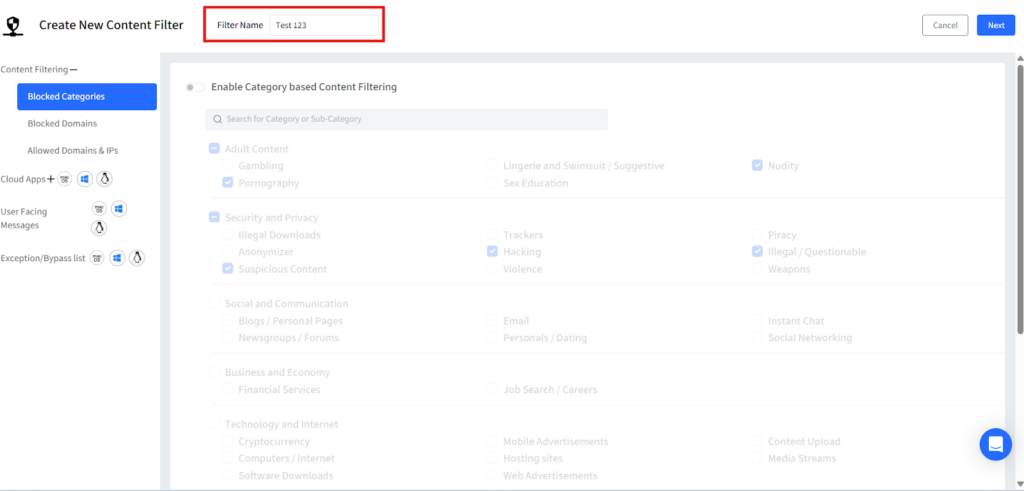
Step 2: Give this filter a unique name.
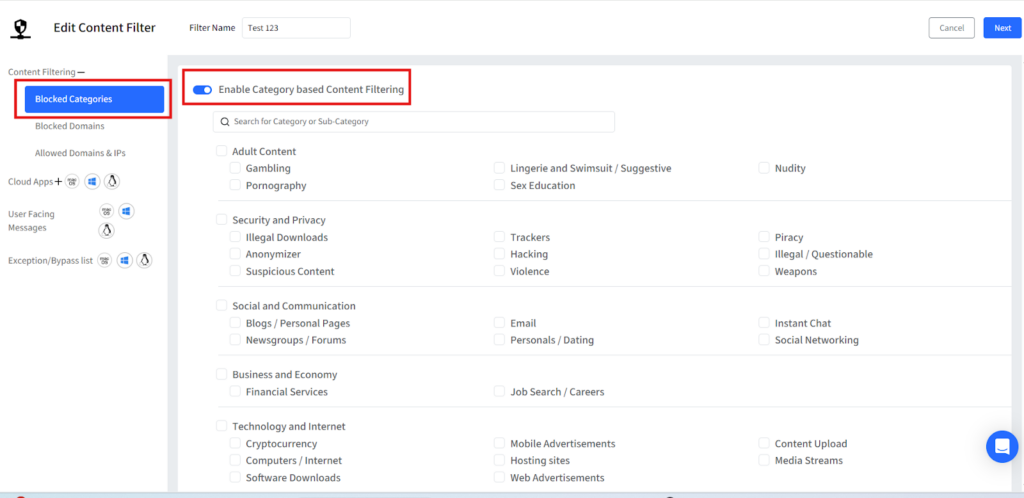
Step 3: Under blocked categories, turn on the flag for ‘Enable Category based Content filtering’
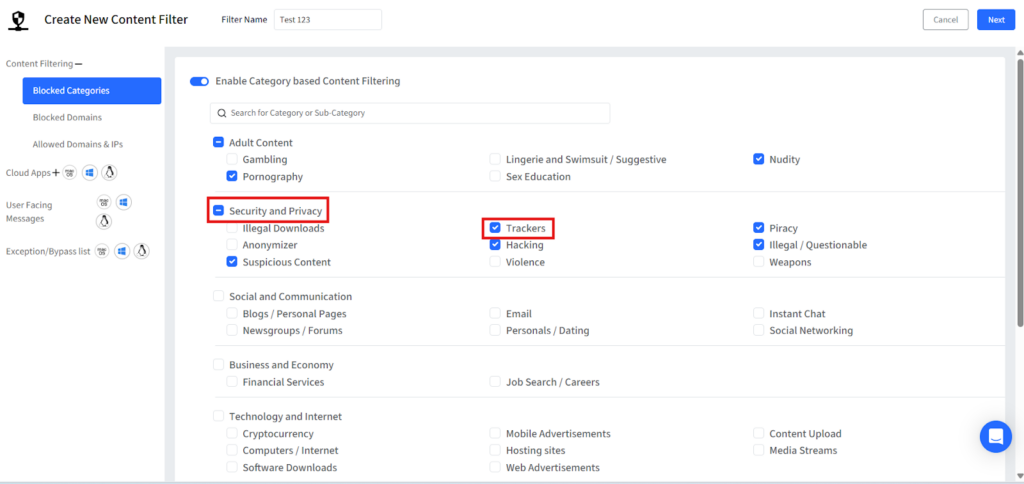
Step 4: Under the ‘Security and Privacy’ category, select the ‘Trackers’ sub-category.
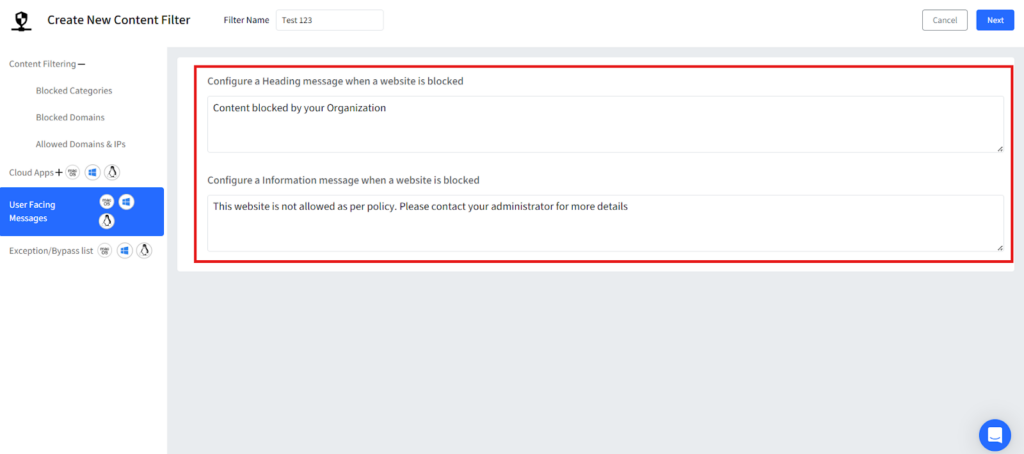
Step 5: Once the category is selected, customize a message that will be displayed whenever a tracker appears on a web page and then save the filter.
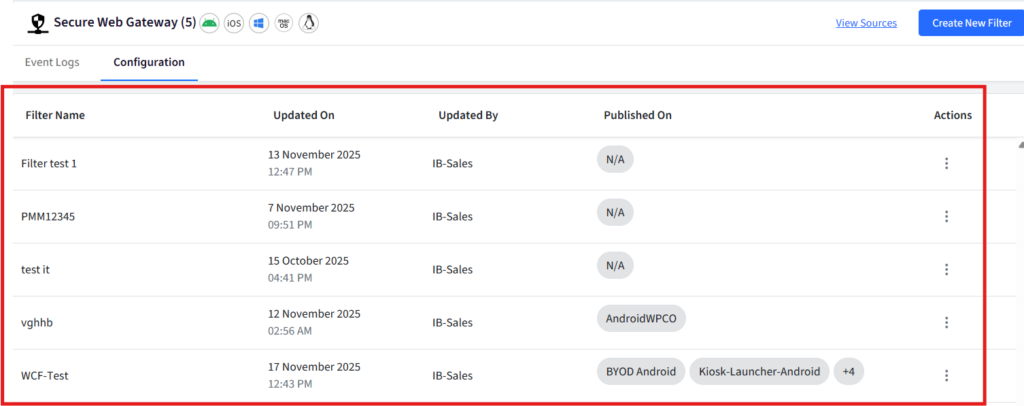
Step 6: Once you save it, your filter will be displayed on the dashboard.
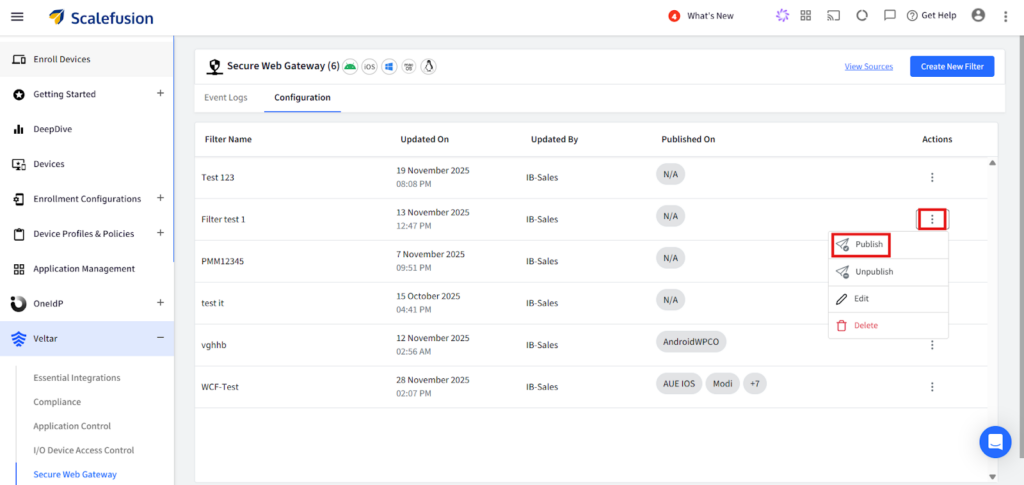
Step 7: Click on the three dots on the right end of your filter configuration and then select publish from the dropdown.
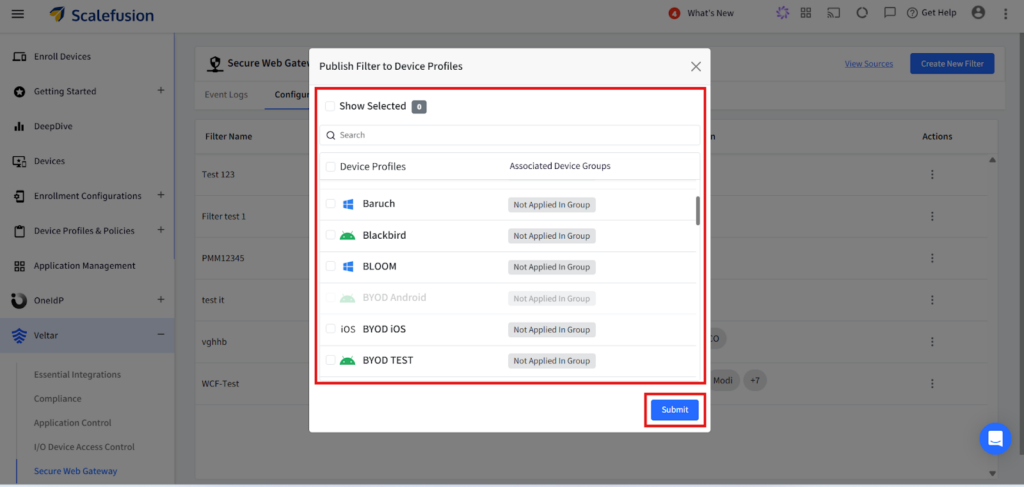
Step 8: Select the device profile where you want to publish the policy and enforce it accordingly.
Strengthening trust in every browsing session
When companies eliminate hidden trackers they reduce risk, improve browser performance, and maintain greater control over how data flows across their digital ecosystem. With Scalefusion Veltar’s device level filtering and intelligent categorization, organizations ensure that Chrome remains a secure and predictable workspace for every user.
Boost privacy, enable tracker blocking today.
Sign up for a 14-day free trial now.

