
Key takeaways
Choosing the right remote desktop software enables secure access, efficient IT support, and seamless collaboration across distributed and hybrid work environments.
- Why It Matters: Remote desktop software allows employees and IT teams to securely access systems from anywhere, supporting remote work, reducing downtime, and ensuring business continuity.
- Core Capabilities: Leading tools offer remote access, device control, file transfer, session recording, and real-time troubleshooting to resolve issues quickly without physical intervention.
- Security Focus: Strong encryption, multi-factor authentication, and secure session controls are essential to protect sensitive data during remote access and prevent unauthorized system entry.
- Evaluation Criteria: When selecting a solution, consider performance, cross-platform compatibility, ease of use, integration with IT tools, and scalability to support growing remote teams.
- Use Case Fit: The best software depends on your needs, whether it’s IT support, team collaboration, or personal access, with different tools optimized for each scenario.
Ever wanted to access your work computer without being in the office? You are not alone. The need for best remote desktop software has grown quickly and for good reason.
With more people working remotely or in hybrid setups, flexibility is now a big deal for both businesses and employees. In fact, 59% of workers say they prefer an employer that offers remote work options over one that doesn’t.
Remote desktop tools are not just for IT support but they are useful for anyone who needs safe, easy access to their work computer from anywhere.
In this blog we will explore some of the best remote desktop software that can help businesses stay connected and productive in 2026.
Why Remote Desktop Software is Important for Businesses?
For businesses, remote desktop software is a key part of keeping teams connected and work moving forward.
It allows employees and IT teams to access office systems from anywhere, whether they are working from home, on the move, or supporting teams in different locations. This reduces delays, speeds up issue resolution, and supports a more flexible way of working.
IT teams can offer instant support without being physically present, and employees can continue their work without being tied to a specific location. This kind of access not only boosts productivity but also helps businesses stay agile and responsive in changing work environments.
Remote desktop software plays a vital role in ensuring business continuity, collaboration, and efficiency in remote and hybrid work models.
7 Best Remote Desktop Tools in 2026 for Secure Remote Access
1. Scalefusion UEM
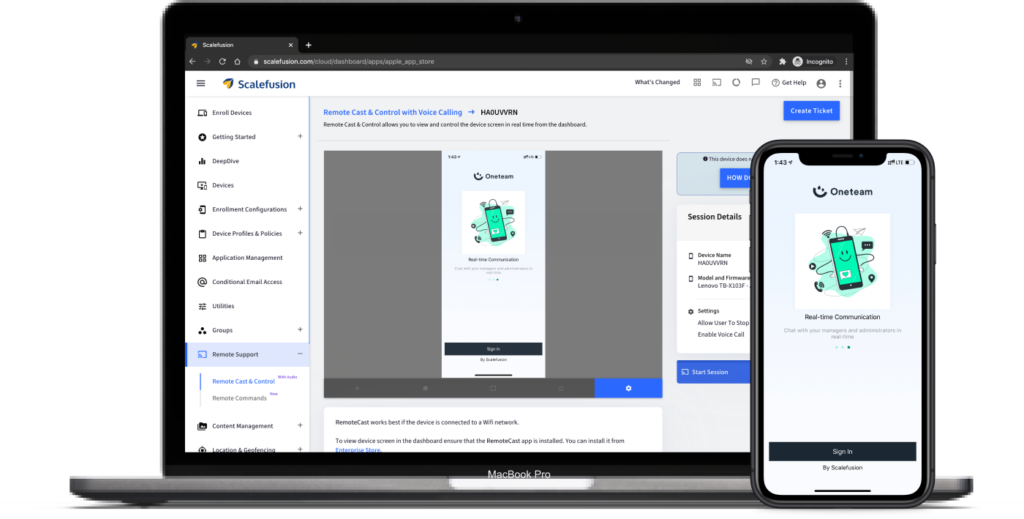
Scalefusion stands out as one of the best remote desktop software options for remote support and device management. It is designed for efficient troubleshooting and IT support. This solution enables IT admins to remotely access and control devices, ensuring quick resolution of issues while maintaining secure communication with end users. With its features, Scalefusion enhances the ability to manage and support remote desktops effectively, making it ideal for businesses relying on remote work.
Key Features:
- Remote Desktop Access: IT admins can view and control user desktops or mobile devices remotely to diagnose and fix problems.
- File Transfer: Securely transfer files between IT admins and user devices for efficient troubleshooting and updates using the FileDock app.
- Remote Commands: Execute commands remotely to perform tasks like restarting services, running diagnostics, or modifying settings.
- Real-time Chat & VoIP Calling: Facilitate instant communication between IT support and users for guidance and troubleshooting.
- Session Recording & Logging: Record activities and log diagnostic steps during remote sessions for future reference and auditing.
- System Info & Control Tools: Access detailed system information and utilize remote control tools for advanced troubleshooting.
- Scripting & Automation: Automate routine tasks and run scripts remotely to resolve common issues quickly.
- ITSM Integrations: Seamlessly integrate with Jira and Freshservice for streamlined ticket management and collaboration.
Pros:
- Enables real-time monitoring and control of remote devices.
- Improves productivity with instant troubleshooting capabilities.
- Offers robust security features, including remote locking and data wiping.
Cons:
- Performance is dependent on stable internet connectivity.
Pricing:
- Plans start at $2 per device per month (Billed annually).
- 14-day free trial.
Enable Secure Remote Desktop for Your Devices
Troubleshoot devices, provide instant IT support, and manage endpoints remotely.
2. TeamViewer
TeamViewer is a leading remote desktop tool, known for its powerful features and ease of use. It allows you to remotely access devices and systems from anywhere, anytime. Whether it’s a computer, mobile device, server, or even IoT device. What makes TeamViewer stand out is its high-performance connections and global access network, ensuring smooth and fast remote sessions.
Security is a priority with TeamViewer, offering two-factor authentication (2FA) and 256-bit AES encryption to protect your data.
TeamViewer also lets you remotely wake, install, and restart applications on sleeping devices, transfer files of any size, and even print documents from afar. With integration options for various business applications, it’s a versatile tool for businesses of all sizes, from small teams to large enterprises.
Key Features:
- Remote Device Control: Seamlessly control computers, mobile devices, and servers from anywhere in the world, ensuring you can manage your devices with ease.
- iOS/iPadOS Screen Sharing: TeamViewer supports screen sharing on iOS and iPadOS, allowing you to provide support or collaborate on Apple devices remotely.
- Secure Unattended Access: With this feature, you need no approval. With the right permissions, authorized users can securely access unattended computers.
- File Transfer & Remote Printing: Easily transfer files between connected devices and print documents remotely, saving time and boosting productivity.
- 4K Multi-Monitor Support: For users working with high-resolution monitors, TeamViewer supports 4K screens and allows easy switching between multiple monitors during sessions.
Pros:
- The multi-user support sessions feature encourages seamless teamwork by allowing multiple users to collaborate in real time.
- Session recording is a great tool for documentation and quality assurance, making it easier to review support sessions.
- Service desk integration streamlines support operations by automating request management, helping teams handle tasks more efficiently.
Cons:
- Licensing challenges can occasionally cause confusion or unexpected errors for users, as mismatched permissions or expired licenses may restrict access to essential features.
- Some systems block TeamViewer, which can affect the reliability of remote support in certain cases.
- Feature updates and device management improvements haven’t kept up with newer, more advanced remote desktop access softwares.
Pricing:
- The plan starts at $8.50 (Approx) per month which allows you access to up to 3 devices (Billed annually).
3. AnyDesk
AnyDesk is another one of the best remote desktop support software that offers seamless connectivity across various devices, including Windows, Linux, FreeBSD, iOS, Android, and Mac OS. With unattended access, you can control systems from anywhere, making it ideal for large organizations and remote support. AnyDesk is particularly useful for app developers and software vendors who need reliable remote support and monitoring for troubleshooting complex client issues.
One of its standout features is remote printing, allowing users to print documents from a distance, all while maintaining zero latency for a smooth experience. AnyDesk provides exceptional security, utilizing TLS 1.2 encryption and RSA 2048 key exchange to safeguard your data and ensure secure remote connections. Its whitelisting feature ensures that only authorized users can request access, adding an extra layer of security.
Key Features:
- Access & Control: AnyDesk enables you to access and control devices across multiple platforms remotely, ensuring flexibility in managing systems from anywhere. With features like unattended access, you can easily manage devices even when no one is present on the other end, making it perfect for IT teams and support services.
- Administration & Customization: AnyDesk provides various administrative features, including customizable settings to tailor the remote experience.
- Collaboration: AnyDesk supports real-time collaboration with features like file text chat, whiteboard, and session invitation. This allows multiple team members to join sessions and work together efficiently.
Pros:
- Reliable remote access across multiple platforms.
- Easy setup for users of all skill levels.
- Flexible deployment options (cloud or on-premises).
Cons:
- Requires a strong, stable internet connection for optimal performance.
- The free version has limited features compared to the Pro version.
- Performance can be affected by poor connectivity.
Pricing:
- A free version is available, but for advanced features, the paid “Standard” plan starts at just under $30 per month.
4. Chrome Remote Desktop
Chrome Remote Desktop solution is a favorite among users for its simplicity and ease of use, and the fact that it’s completely free makes it even more appealing. Set up is easy, by just installing the extension on your Google Chrome browser. Its widespread use means you won’t need to worry about ensuring your customers have additional software, as Chrome is already a common browser.
This user-friendly tool allows you to access your computer or share your screen with ease. It supports graphical remote access via Secure Shell (SSH) and employs WebRTC technology for secure screen sharing. Whether you’re providing remote support or accessing your own devices, Chrome Remote Desktop offers a straightforward and effective solution without any cost.
Key Features:
- Remote Access: Control another computer from anywhere with an internet connection.
- Secure Connection: Uses AES encryption and a PIN for secure access.
- Clipboard Synchronization: Copy and paste text and images between devices.
- WebRTC Technology: Utilizes real-time communication technology for a smooth experience.
- Unattended Access: Set up your computer to be accessible without requiring someone to be logged in.
Pros:
- Easy to set up and use, especially within organizations that already use Chrome.
- Offers low-latency access and efficient performance with minimal data usage.
- Integrates with various devices for quick, reliable connections.
Cons:
- Support is limited and mostly relies on user forums, with inconsistent advice.
- Lacks streamlined mobile access, which can be inconvenient for mobile users.
- Does not include advanced features like Android device control.
Pricing:
- Chrome Remote Desktop is free to use with no hidden costs, though commercial use may involve additional organizational requirements or restrictions.
5. Microsoft Remote Desktop
Microsoft Remote Desktop stands out as a powerful desktop virtualization tool, offering an alternative to traditional remote desktop software. Developed by Microsoft, this free app is designed to enhance remote work efficiency with its broad capabilities. Users appreciate its flexibility, including the ability to integrate up to 10 devices simultaneously, making it ideal for managing multiple systems at once.
With no restrictions on user profiles, Microsoft Remote Desktop provides a seamless remote control experience without additional costs. This tool is particularly valued for its reliability and ease of use, ensuring that remote access and management are both straightforward and effective. While it’s categorized as desktop virtualization rather than remote desktop software, its comprehensive features make it a popular choice for users needing reliable remote access and control.
Key Features:
- Remote Access: Control another computer from anywhere with an internet connection.
- Multiple Monitor Support: Access and control multiple monitors on a remote computer.
- Clipboard Synchronization: Copy and paste text and images between devices.
- File Transfer: Easily transfer files between your devices.
- Seamless Integration: Provides smooth integration with other Windows features for efficient remote management.
Pros:
- Provides secure and efficient remote access with centralized management.
- User-friendly interface with strong customer support.
- Effective for working from anywhere with enhanced security.
Cons:
- Only helps in controlling Windows PCs.
- New users can face a learning curve.
- Frequent use may expose connectivity issues, including lag, disconnections, or poor performance.
Pricing:
- Personal Use: Free for Windows, macOS, iOS, and Android; no subscription fees.
- Professional Use: Part of Microsoft 365 plans with varying features for business and enterprise needs.
6. Zoho Assist
Zoho Assist is another leading remote desktop access software, tailored for technical users who need to provide real-time and unattended support. Ideal for IT professionals and managed service providers, it facilitates seamless remote access and control of client systems, even when users are not present. The software is designed to handle urgent issues quickly and efficiently, making it perfect for both immediate troubleshooting and routine maintenance.
With strong data protection measures including 256-bit AES and SSL encryption, Zoho Assist ensures your data remains secure. Supporting various platforms such as macOS, Linux, and Windows, Zoho Assist also offers advanced options like computer grouping and permissions to streamline the management of multiple systems.
Key Features:
- Unattended Remote Access: Allows for managing systems without requiring the end user to be present.
- Session Recording: Records sessions for quality control and future reference.
- Annotation: Adds visual notes during sessions for better guidance and troubleshooting.
- Mobile Device Support: Supports remote management of mobile devices.
- API/SDK: Offers integration capabilities with other tools and systems.
Pros:
- Zoho Assist supports a wide range of operating systems.
- The free version allows for one remote support technician and up to five unattended computers, with a trial available for additional features.
- It offers a cost-effective solution that is easy for users to learn and implement.
Cons:
- Users report difficulties with setting up printing from a remote computer to a local printer.
- Some users experience speed issues.
- The free version has limitations that might not meet the needs of larger or more complex operations.
Pricing:
- The plan starts at $5 (approx) per user per month. (Billed annually)
- A 15-day free trial is available.
7. Splashtop
Known for its security and ease of use, Splashtop Business Access is another one of the best software for remote desktops. Designed to meet stringent industrial compliance requirements, it supports GDPR, SOC 2, and HIPAA standards.
All remote sessions are secured with 256-bit AES encryption and TLS, ensuring top-notch protection for your data. The cloud-based interface is hosted on AWS, providing reliable and secure networking.
Splashtop offers seamless access across various platforms. Key features include remote printing, multi-monitor support, and comprehensive logging of all activities. With its user-friendly interface and powerful security measures, Splashtop is ideal for both individual users and teams needing reliable and secure remote access.
Key Features:
- Clipboard Synchronization: Copy-paste text and images between devices.
- Audio Redirection: Redirect audio from the remote computer to your local device.
- Printer Redirection: Redirect printers to the remote computer for printing.
- Remote Assistance: Provide support to others by controlling their computer remotely.
- Wake-on-LAN: Wake up a remote computer from sleep or hibernation.
- Low Latency: Minimize lag for a responsive remote connection.
Pros:
- Splashtop is easy to use with a straightforward setup, making it accessible for users of all tech levels.
- The performance is highly praised for its smooth, high-quality video and low latency.
- Its cross-platform compatibility allows seamless access across various devices and operating systems.
Cons:
- The pricing structure can be seen as complex or costly, particularly for users with high-demand or extensive usage needs.
- Users occasionally experience connectivity issues, such as dropped connections or slow performance, which disrupt work.
- Limited customization options may be a drawback for those who need specific settings.
How to Choose Best Remote Desktop Software for Specific Use Cases?
For IT Support
When providing technical support from afar, you need a tool that’s reliable and packed with features. Look for software that allows you to take control of a user’s computer, troubleshoot issues, and resolve problems efficiently. Good options offer remote access, session recording, and easy file transfer to handle support requests smoothly.
For Collaboration
If your goal is to work together remotely, choose software that excels in teamwork. You’ll want a tool that supports screen sharing, multi-user sessions, and collaboration features. The best options will help you and your team brainstorm, review work, and manage projects as if you were all in the same room.
For Personal Use
For everyday users looking for a simple, hassle-free way to access their own devices remotely, go for lightweight software. These options should be easy to set up, straightforward to use, and don’t need advanced features. Perfect for accessing files or using applications from home or on the go without fuss.
What to Look for in a Best Remote Desktop Software?
When choosing remote desktop software, there are a few key features to ensure you get the best experience. Here’s what you should look for:
- Security: Your data should be safe, so features like encryption and multi-factor authentication (MFA) are a must. These ensure your connection is secure and your information stays private.
- Compatibility: Make sure the software works across different platforms, like Windows, macOS, and mobile devices, so you can access your computer no matter what device you’re using.
- Ease of Use: A simple and intuitive interface makes a world of difference, especially if you’re not tech-savvy. The easier it is to navigate, the smoother your remote experience will be.
- Performance and Speed: No one wants lag or a choppy connection. Look for software that offers low latency and high-quality performance to keep your remote sessions seamless.
- Integration: Check if it integrates well with other tools or software you already use. This can streamline workflows and improve productivity.
- Session Recording and Monitoring: Some remote desktop monitoring tools let you record sessions or monitor activity, which is useful for training, security, or tracking work progress.
- Scalability: Whether you’re an individual, a small business, or part of a large enterprise, the software should be flexible enough to meet your needs as you grow.
Stay Connected with the Right Remote Desktop Software
Remote work is now a core part of how businesses operate. Choosing the right remote desktop software is key to maintaining productivity, enabling collaboration, and ensuring secure access to systems from anywhere.
Each tool covered in this blog offers unique strengths, from ease of use and strong encryption to support tools and cross-platform access.
However, Scalefusion UEM stands out with its Remote Cast & Control feature, offering session recording and file transfer making it especially useful for IT teams needing real-time remote support across a distributed workforce.
By aligning your needs with the right features such as security, performance, and device compatibility you can choose a solution that keeps your business connected and efficient.
Ready to streamline remote support with Scalefusion?
See how it works and start your 14-day free trial today!
FAQs
1. What is Remote Desktop Software?
Remote desktop software allows users to access and control a computer from a different location over the internet or a network. It displays the remote machine’s screen on your local device, enabling you to run applications, transfer files, and perform tasks as if you were physically present. It is widely used for IT support, remote work, and system administration.
2. What Are Remote Desktop Services (RDS)?
Remote Desktop Services (RDS) is a Microsoft Windows technology that allows users to remotely access Windows desktops and applications hosted on a server. It enables centralized management and seamless access for remote work, reducing the need for individual software installations. Businesses use RDS for cost-efficiency, scalability, and to provide employees secure access to applications from anywhere. RDS supports multi-session environments, making it ideal for virtual desktops and application delivery.
3. Is Remote Desktop Software Safe to Use?
Yes, remote desktop software is generally safe if you follow best practices. Choose software with strong encryption (e.g., AES 256-bit), enable multi-factor authentication (MFA), and use secure, complex passwords. Avoid using default ports and consider using a Virtual Private Network (VPN) for added security. Ensure your software is updated to patch vulnerabilities. Untrusted connections and improper configurations can pose risks, so always prioritize security in your remote access setup.
4. What’s the Best Remote Access Software for Windows?
For Windows, Scalefusion is an excellent choice for remote access. It provides secure connections and comprehensive features tailored to IT teams and businesses. With Scalefusion, you can remotely troubleshoot devices, manage updates, and ensure compliance with ease. Its enterprise-grade features, combined with an intuitive interface, make it an ideal solution for managing and accessing Windows devices securely and efficiently.
5. How to Use Remote Desktop Software on Linux?
To use remote desktop software on Linux, install a compatible tool like Remmina or TigerVNC, configure the host machine to allow remote connections, and connect using the target device’s IP address. For businesses managing multiple Linux devices, Scalefusion simplifies remote access and device management from a single dashboard.
6. What’s the Best Remote Access Software for macOS??
The best remote access software for Mac includes tools like Apple Remote Desktop, TeamViewer, AnyDesk, and Microsoft Remote Desktop, each offering reliable performance and easy setup. For businesses managing multiple Mac devices, Scalefusion stands out as an excellent choice, providing secure remote access, real-time device monitoring, and centralized management from a single console.
7. Is There Remote Desktop Software with Audio Support?
Yes, several remote desktop tools support audio, including TeamViewer, AnyDesk, and Microsoft Remote Desktop, allowing you to hear sound from the remote machine on your local device. For enterprises needing secure, feature-rich remote access with centralized control, Scalefusion offers robust remote desktop capabilities across multiple platforms and devices.

