

The best remote desktop software lets users securely access and control computers from another location. Scalefusion UEM, Splashtop, TeamViewer, AnyDesk, Zoho Assist, and Chrome Remote Desktop are among the leading options, offering different capabilities for remote work, IT troubleshooting, and device administration.
For businesses, the right choice depends on more than connection speed. Security controls, unattended access, operating system compatibility, and technician licensing all matter.
Key takeaways
- Best for everyday remote access: Splashtop offers remote desktop access, file transfers, and multi-monitor capabilities across different subscription plans.
- Best for IT support: Scalefusion UEM, TeamViewer, Zoho Assist, and ScreenConnect offer remote troubleshooting capabilities for distributed support teams.
- Best free options: Chrome Remote Desktop is suitable for basic access, while RustDesk offers a free, self-hosted open-source server.
- Security comes first: Organizations should evaluate MFA, session logging, technician permissions, endpoint access policies, and commercial-use restrictions before deployment.
What is remote desktop software?
Remote desktop software is an application that allows users to view, access, and control another computer through a network or internet connection. It enables remote troubleshooting, application access, file management, and system administration without requiring physical access to the device.
For example, a school IT administrator can remotely troubleshoot a teacher’s Windows laptop, while an employee can access applications running on an office Mac from home.
Remote desktop tools typically support two connection methods:
- Attended access: The device user is present and authorizes a support session.
- Unattended access: An authorized administrator connects to a previously configured device without requiring someone to accept each session.
8 best remote desktop software solutions
The following top remote desktop tools are suitable for different business sizes, operating systems, and support requirements.
1. Scalefusion UEM
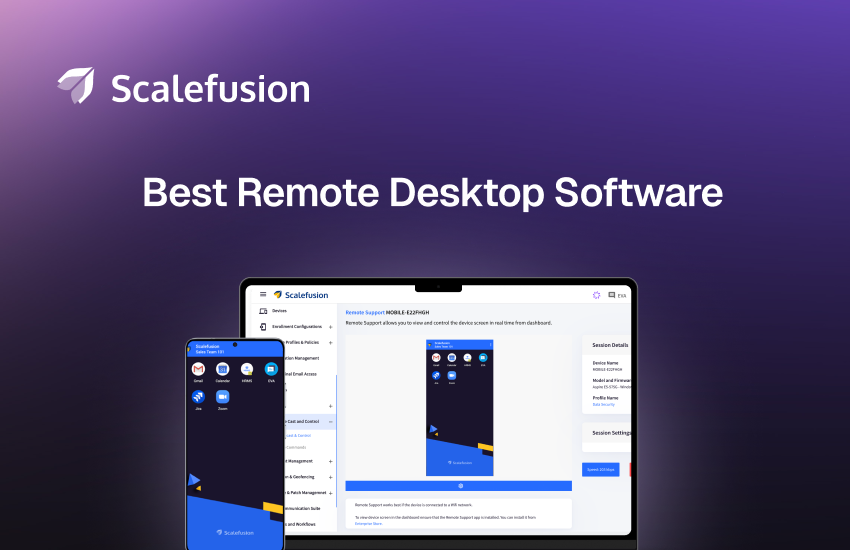
Scalefusion UEM is a unified endpoint management solution with built-in remote desktop capabilities designed for IT teams managing distributed devices. Its Remote Cast & Control feature allows IT admins to remotely access, monitor, and troubleshoot supported devices without being physically present.
This makes Scalefusion an ideal choice for businesses looking to simplify remote IT support while maintaining centralized control over their endpoints.
Key Features:
- Remote Cast & Control: Remotely view and control supported devices to troubleshoot technical issues and provide real-time IT assistance.
- File Transfer: Securely transfer files between IT admins and managed devices using FileDock for troubleshooting and maintenance.
- Remote Commands & Scripting: Execute remote commands and automate routine administrative tasks to simplify device troubleshooting.
- Session Recording: Record remote support sessions for troubleshooting reviews, documentation, and auditing purposes.
- Real-Time Communication: Use chat and VoIP calling to communicate with end users during remote troubleshooting sessions.
Best for: Organizations managing business devices
Limitation: Remote session performance depends on stable internet connectivity.
Pricing: Plans start at $2 per device per month (billed annually).
2. Splashtop – Best for business remote access
Splashtop provides remote desktop access for individuals, businesses, and IT support teams. It supports Windows and macOS workflows, with additional cross-platform access options.
Key features:
- Unattended remote access
- File transfer and remote printing
- Multi-monitor access on supported plans
- Session recording and user management on higher plans
Best for: SMBs, remote employees, and IT teams requiring reliable access to workplace computers.
Pricing: Remote Access Solo starts at $6/month, billed annually, according to Splashtop’s official pricing.
3. TeamViewer – Best for cross-platform IT support
TeamViewer is a remote connectivity platform used for troubleshooting desktops, laptops, mobile devices, and other connected systems.
Its combination of remote control and device administration capabilities makes it suitable for geographically distributed IT teams.
Key features:
- Attended and unattended remote access
- Cross-platform device connectivity
- File transfer and remote collaboration
- Enterprise security and administration options
Best for: Enterprise help desks and organizations supporting multiple device platforms.
Limitation: Its free license is intended for personal use, not workplace support.
4. AnyDesk – Best for lightweight remote access
AnyDesk is designed for responsive remote connections across desktops and mobile devices.
It offers remote control, file transfer, and unattended access without requiring users to operate an extensive IT management platform.
Key features:
- Low-latency remote connectivity
- File transfer and clipboard sharing
- Unattended access
- Cross-platform support
Best for: Small businesses, independent technicians, and IT administrators needing straightforward remote sessions.
Limitation: Professional or work-related use requires a paid license.
5. Zoho Assist – Best for remote help desk support
Zoho Assist is a cloud-based remote support platform designed for technicians who troubleshoot user devices.
It supports attended sessions and unattended access, making it useful for handling support tickets and performing maintenance outside business hours.
Key features:
- On-demand remote support
- Unattended computer access
- Multi-monitor navigation
- Chat and technician collaboration
- Session recording on eligible plans
Best for: IT support departments, MSPs, and customer service technicians.
Pricing: A free edition supports one technician and up to five unattended computers.
Remote Support Without Delays
Troubleshoot devices instantly and keep employees productive from anywhere.
6. ScreenConnect – Best for managed IT support
ConnectWise ScreenConnect provides remote support and access capabilities for IT service providers and internal technical teams.
Technicians can troubleshoot endpoints, establish unattended connections, and manage recurring support activities.
Key features:
- Attended and unattended support
- Remote troubleshooting tools
- Session administration
- Technician access controls
- Integration options for IT workflows
Best for: MSPs and support teams managing numerous customer devices.
Limitation: Organizations must evaluate plan-specific licensing, security controls, and ongoing patch management.
7. Chrome Remote Desktop – Best free remote desktop tool
Chrome Remote Desktop is Google’s browser-based remote access solution.
Users can access Windows, macOS, or Linux computers through a Google-account-based setup. Temporary support sessions are also available using access codes.
Key features:
- Free remote desktop access
- Browser-based connections
- Remote access from mobile devices
- Encrypted remote sessions
Best for: Individuals, occasional support, and basic remote access requirements.
Limitation: Advanced help desk features and centralized session administration are limited compared with dedicated enterprise platforms.
8. Microsoft Remote Desktop – Best for Windows environments
Microsoft Remote Desktop uses Remote Desktop Protocol (RDP) to connect to supported Windows computers.
Organizations already using Windows can leverage native remote access functionality without introducing another standalone remote desktop product.
Key features:
- Windows desktop and application access
- Remote keyboard and mouse control
- Network-based connectivity
- Integration with Windows authentication
Best for: Windows administrators and organizations operating managed Windows environments.
Limitation: Windows Home cannot act as an incoming RDP host. Microsoft confirms this in its Remote Desktop documentation.
Best remote desktop software comparison table
| Software | Best For | Free Option | Unattended Access |
|---|---|---|---|
| Scalefusion UEM | Corporate devices | Trial | Yes |
| Splashtop | Business remote access | Trial | Yes |
| TeamViewer | Enterprise IT support | Personal use | Yes |
| AnyDesk | Lightweight remote control | Personal use | Yes |
| Zoho Assist | Help desk support | Limited free plan | Yes |
| ScreenConnect | MSPs and IT teams | Trial | Yes |
| Chrome Remote Desktop | Basic remote access | Free | Yes |
| Microsoft Remote Desktop | Windows administration | Built into eligible Windows editions | Yes |
Availability, management features, and licensing limits vary by edition and subscription.
How to choose the best remote desktop software
The best remote desktop solution should match your devices, support workflows, and security requirements.
Consider these five factors:
- Operating system compatibility: Check Windows, macOS, Linux, and mobile support. Screen control capabilities may differ by platform.
- Remote access type: Determine whether technicians need attended sessions, unattended access, or both.
- Security: Prioritize MFA, encryption, access permissions, audit logs, and session controls.
- Performance: Test responsiveness, display quality, file transfers, and connectivity under real network conditions.
- Pricing and licensing: Compare technician seats, managed endpoints, concurrent sessions, and restrictions on business use.
For schools and workplaces, centralized administration is particularly valuable. IT administrators need to know who can connect to managed computers, which devices are accessible, and whether remote sessions can be audited.
What security features should remote desktop software have?
Secure remote desktop software should restrict connections to authorized users and provide visibility into remote sessions.
Before deployment, IT teams should verify:
- Multi-factor authentication for technician accounts
- Role-based access and least-privilege permissions
- Session logs and recording where required
- Approval workflows for attended support
- Automatic session timeouts
- Regular security updates and vulnerability remediation
Avoid exposing Windows RDP directly to the public internet. Prefer appropriately secured VPNs, Remote Desktop Gateway, or other controlled remote-access architectures.
Schools using Chrome Remote Desktop can also apply organizational restrictions through Google’s administrator controls.
Which remote desktop software should you choose?
There is no single remote desktop solution that fits every organization.
Splashtop is a practical option for everyday business access, while Scalefusion UEM, TeamViewer and Zoho Assist suit organizations that regularly troubleshoot remote devices. Chrome Remote Desktop works well for basic free access, Microsoft Remote Desktop is useful in Windows environments, and RustDesk appeals to teams seeking self-hosted infrastructure.
Choose based on your actual support requirements, operating systems, licensing terms, and security controls rather than the number of advertised features alone.


FAQs
1. What is the best free remote desktop software?
Chrome Remote Desktop is one of the best free remote desktop software options for basic personal access. It supports Windows, macOS, and Linux computers without requiring a paid subscription. Zoho Assist also offers a limited free edition for small support teams, while RustDesk provides free open-source self-hosting capabilities.
2. Which remote desktop software is best for Windows and Mac?
TeamViewer, AnyDesk, Splashtop, and Zoho Assist are suitable remote desktop options for mixed Windows and Mac environments. The best choice depends on whether users need occasional remote control, unattended access, or centralized IT support. Administrators should also verify macOS permission requirements.
3. Is remote desktop software secure?
Remote desktop software can be secure when configured with strong authentication, encrypted connections, restricted permissions, and session monitoring. However, poorly configured remote access can expose devices to unauthorized connections. Organizations should enforce MFA, maintain software updates, and regularly review remote-access privileges.
4. Can remote desktop software work without a VPN?
Yes. Many cloud-based remote desktop tools establish connections without requiring users to configure a traditional VPN. TeamViewer, AnyDesk, and Zoho Assist are examples. However, direct RDP connections should not be exposed publicly without appropriate security protections.
5. What is the difference between remote desktop software and remote support software?
Remote desktop software primarily enables users to access and control another computer. Remote support software focuses on technician-assisted troubleshooting and typically includes additional features such as session invitations, chat, permission controls, and support workflows. Many modern platforms provide both capabilities.

